

Introduction
In 2025, developers want tools that go beyond basic code suggestions. Enter SyntX, a powerful AI development assistant that integrates directly into your coding environment. Unlike typical chatbots, SyntX reads and modifies files, runs terminal commands, assists with architecture, and provides detailed programming insights. Whether you're debugging, planning a feature, or writing boilerplate code, SyntX adapts to your workflow and enhances productivity.
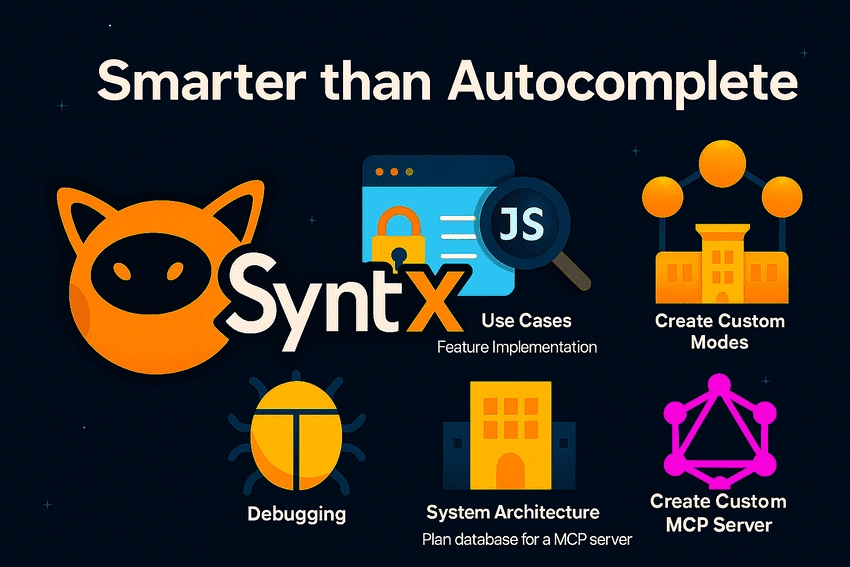
Getting Started with SyntX
How to Start?
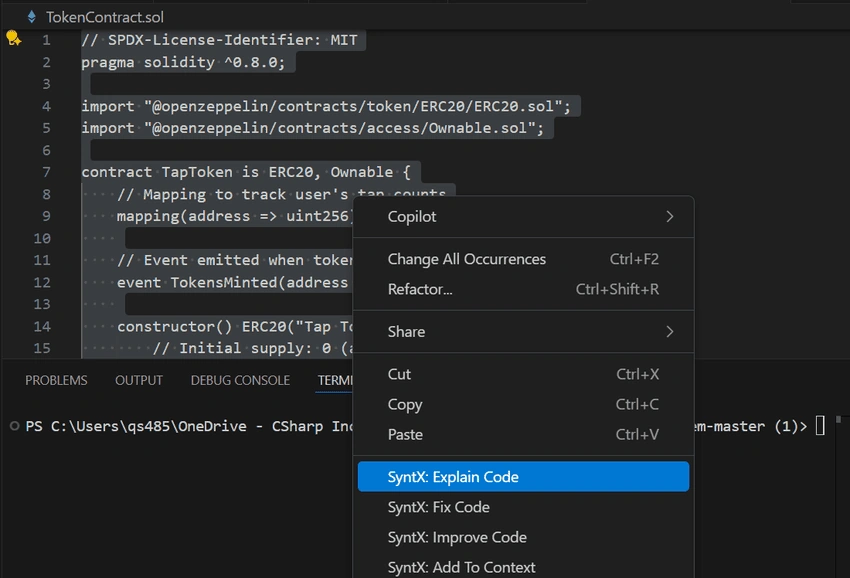
To use SyntX, open its dedicated panel in your IDE. Just type your request in natural language, and SyntX will respond contextually.
Best Practices
- Be specific: Clear requests yield better results.
- Add context: Mention file names or share code snippets.
- Break it down: Split complex tasks into steps.
- Use proper mode: Modes align SyntX’s response with your goal.
Interface Overview
- Chat Console: Interact with the assistant.
- Response Panel: View replies and suggestions.
- Execution Logs: Track command output.
- File Changes: See what SyntX modifies.
SyntX Modes - Tailored to Your Needs
| Mode | Purpose | Best For | Examples |
|---|---|---|---|
| Code Mode | Write/modify/analyze code | Feature dev, refactoring | "Fix this bug in login form" |
| Planner Mode | Plan features & architecture | Project planning | "Design a schema for a blog app" |
| Chat Mode | General questions | Learning, concepts | "How does GraphQL differ from REST?" |
| Design Engineer Mode | VSCode extension work | Extension builders | "Add syntax highlighting" |
| Debug Mode | Fix bugs systematically | Troubleshooting | "Help debug API error" |
Switch modes easily by command: "Switch to Debug Mode".
Key Features and Tools
File Interaction
- Read: Understand code logic in files.
- Write/Modify: Create or edit code.
- Search: Find function usage across files.
Join the conversation! Your thoughts help the community grow.