

Introduction
Microsoft introduced its latest operating system known as "Windows 10". People like it very much. As we know this is the newest operating system so sometimes and at some point, people encounter some problems using it. Sometimes people lose their data when they use this new operating system or sometimes they make changes that cause the system to not work properly. So a problem can occur but we can use a system restore of the operating system. This article explains how to create a System Restore Point and how to restore the system to a previous date in Windows 10.
Before proceeding we will first talk about System Restore Points and how they work.
System restore points
System Restore Points play a very important role in the operating system. Using System Restore Point users can get the previous state of his/her system. we can create more than one Restore Point in the Windows operating system. Every Restore Point contains some necessary files and information that are used to restore the system to any specific desired state. The main advantage of System Restore Point is that undo system changes to your computer without performing any changes in your files, photos, emails, and other documents. System Restore Point is created automatically from the system weekly or when your system restores detects any change in your computer like the installation of any program or any driver into your system. Sometimes when your PC does not work properly and you have created a System Restore Point in the past then using it you can restore your PC to a backdate where your PC works fine without any problem or issues.
We know that Windows 10 creates System Restore Points automatically for restoring the PC to an earlier date at which the PC worked fine. Automatic Restore Points work when you install or uninstall an application or program into your computer, but if you create a Restore Point periodically or manually then that is much better than creating a Restore Point automatically because sometimes automatic Restore Points do not work efficiently.
How to create a restore point in windows10?
Now let's see how to create a restore point in windows10
Step 1. Go to the Start button and click on the Control Panel.
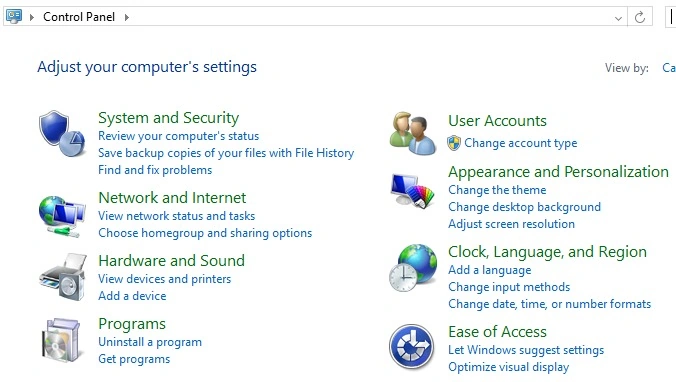
Step 2. Now your Control Panel will be opened. In the Control Panel go to the search for the Control Panel and enter here "system restore". When you enter that into the search text box you will then get a window like this.
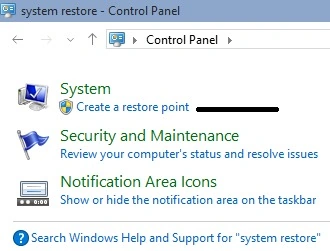
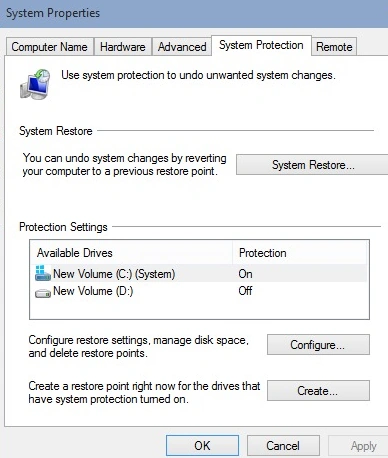
Step 3. Now you will see a link to create a Restore Point. So click on this Restore Point. When you click on it you will see a new pop-up window named System Properties. In this window, there are some tabs available. So here you select the System Protection tab. You will then see a window as in the following.
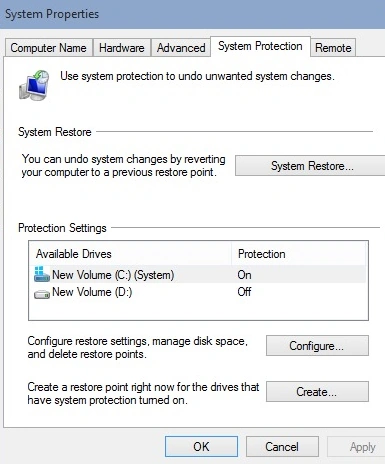
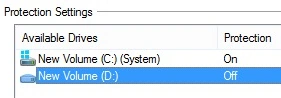
Step 4. Now here in the Protection Settings column, you will see all the available devices, so you can choose the device to create a Restore Point from here. On my computer I have only two devices, one is the C drive and the other is the D drive. So here I choose the C device for creating the Restore Point in the system.
Step 5. Now here you will also see the two buttons, one is Configure and the other is Create. Using the Configure button we will manage the disk space and also delete the Restore Points that are created by us or created by the system automatically using the Create button we can create a new Restore Point for that device that has system protection turned on so here I will create the Restore Point for the C device. So we select the C device and click on the Create button.
When we click the Create button you will see a new popup like this. In this popup, we entered the name of Restore Point that we wanted to name. It may be anything we want.
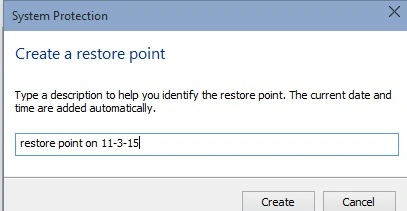
Step 6. After giving the proper name we click on the Create button. The process will then begin and then you will get a message box saying that the Restore Point was created successfully.
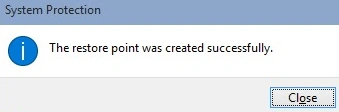
So this is the simplest procedure for creating a Restore Point in the Windows 10 operating system.
Work of system restore point in windows 10
Now explain how to restore the system using the System Restore Point that was previously created. So use the following step-by-step procedure for understanding it.
Step 1. Go to the Control Panel, search for the Restore Point and after that click on Create a new Restore Point as we did above for creating a new Restore Point. When you do that you will get a popup as in the following.
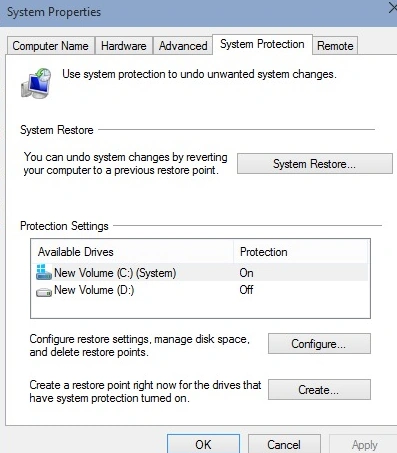
Here you see a button for System Restore. Using that button you can undo system changes by restoring your computer to a previous Restore Point. Now click on this button.
Step 2. When you click on the System Restore button you will see a new popup like this that tells us that you can restore the system settings.
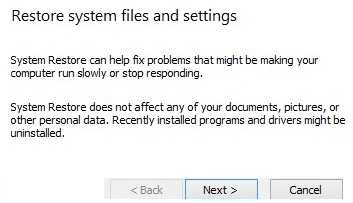
Now to go forward click on the Next button. When you click on the Next button you will get a new window that contains all the Restore Points that were created, maybe automatically or maybe manually. This window looks as in the following picture.
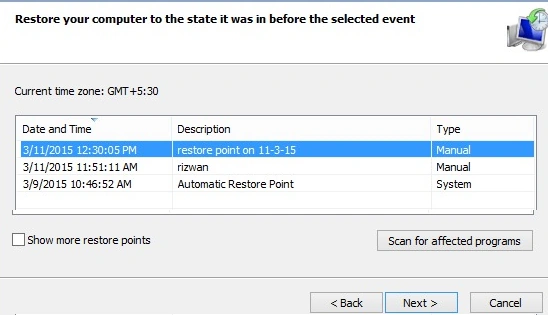
From here you can select the Restore Point. Here I select the Restore Point that was created manually by me.
Step 3. Now simply click on the Next button and then you will get a confirmation window to confirm that you want to do the restore of your computer.
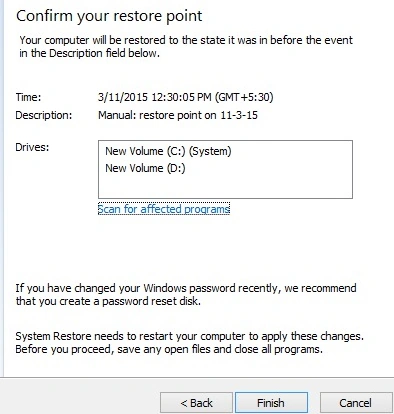
Now when you click on the Finish button it gives you a warning message box that shows the warning that if you have started the system restore once then you cannot stop it. The warring message box looks like the following picture.
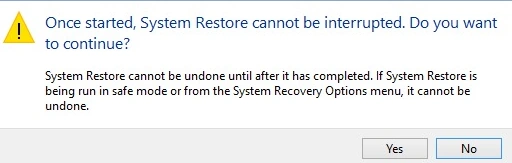
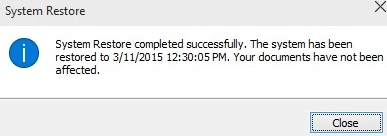
Step 4. This is the final step. When you click on the Yes button it will show a warning message that your system will do the restore, during this your system will be restarted and will re-apply all the settings that are necessary for your system. When your system restore is successful you will get a popup window like this.
Summary
This is the overall view of the system restoration. I think that by using this article you can easily learn how to create a Restore Point in Windows 10 and also learn how to use this Restore Point to restore the system to the previous date. Restore Point is a very good process for when your system does not work properly. As I said above, Windows 10 provides the functionality of creating a Restore Point automatically so whenever your system does not work properly you can restore your system to the previous date using a Restore Point.
I hope this article will be helpful for the readers.
Gowtham RajamanickamPosted Apr 12, 2015, 12:26 PM
good one
Tom MohanPosted Mar 12, 2015, 12:32 PM
Nice
Praveen KumarPosted Mar 12, 2015, 10:01 AM
Nice features!
Sam HobbsPosted Mar 11, 2015, 10:54 PM
Windows 10 is still beta, correct? So by definition of beta, it is more likely to have problems, right?