

Introduction
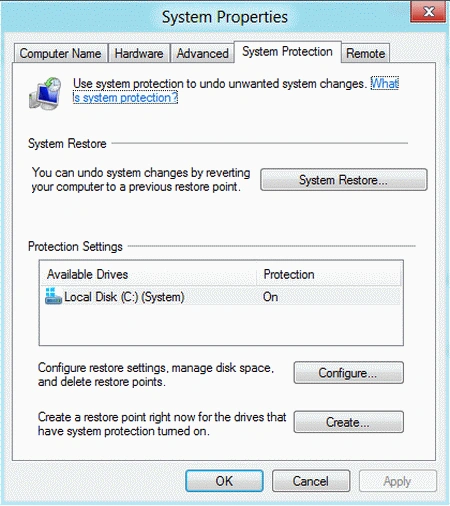
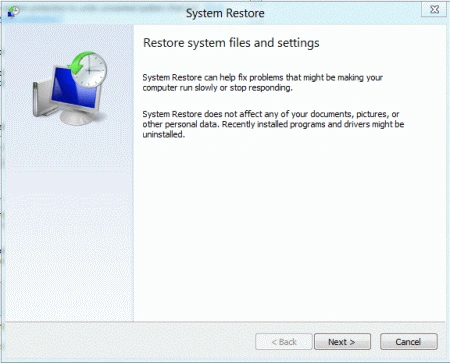
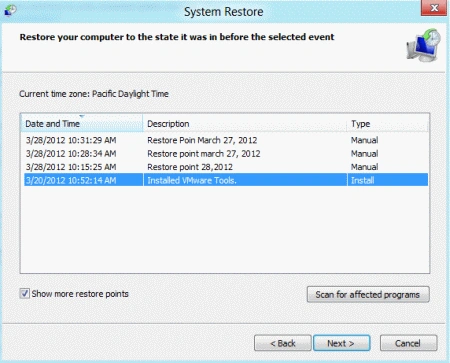
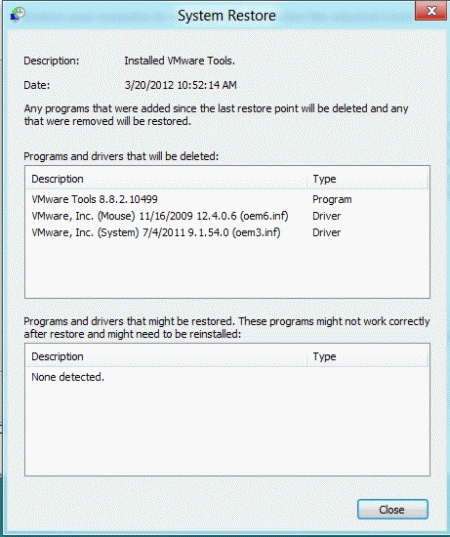
System Restore is a component for Windows which allows rolling back system files, registry settings, and applications to a previous state. It is a simple creation and restoration procedure. It does not provide an option to extract specific files from the previously-stored system state. This means that performing a system restore can end up altering settings you cannot change. Restoring your Windows operating system to a previous state is not new, but this feature can be very time-saving. For example, if you installed a new application or driver and your system starts to behave abnormally, or if your computer is infected by a virus from one unintentional mouse click on a link and you may want to go back to a previous state. You can refresh or reset your system, but a system restore is the best for this kind of scenario.
System Restore Explorer is an application which makes it easy to browse the various System Restore. The System Restore points create on your system and let's mount individual restore points to a folder so that you can extract its content by copying individual files. This can save you from having to do a complete System Restore. The System Restore displays a list of all available restores points so that you may be able to sort or delete points to save the disk space. The default allocated size is merely a few MB and it can be changed manually. Once System Restore Explorer is launched, you are provided an overview of the saved System Restore Points, from where you can delete and mount restore points.
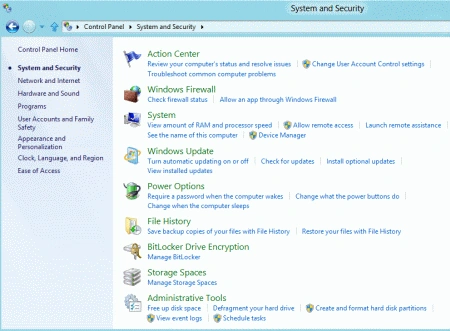
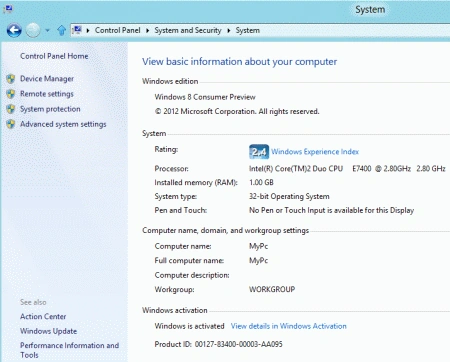
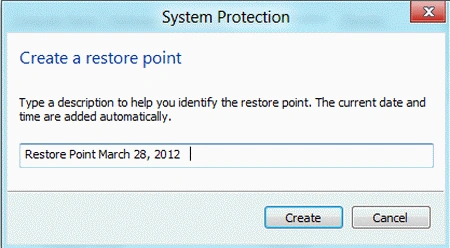
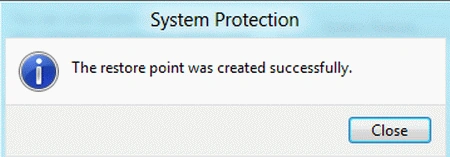
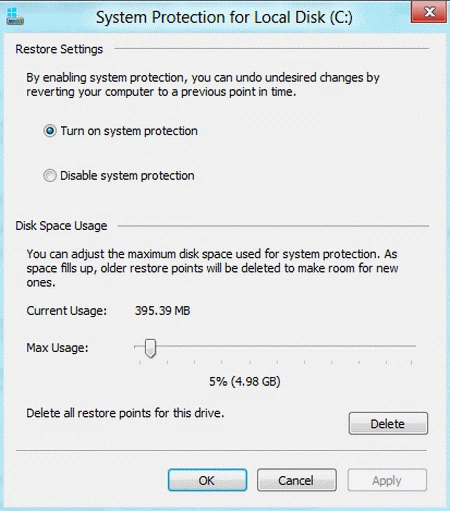
System Restore is a system protection feature available in Control Panel | System and Security | System.
To configure a System Restore, use the Control Panel. Read the previous article on how to access the Control Panel.
In this section, you click on the System and Security.
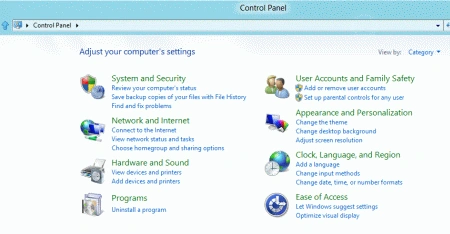
In this section, click on the System.
In this section, click on Protection.
After clicking on System Protection, Display the System Properties.
Join the conversation! Your thoughts help the community grow.