

This article shows how to do table splitting and select data operations.
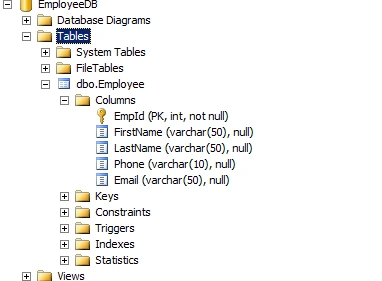
SQL Server table structure
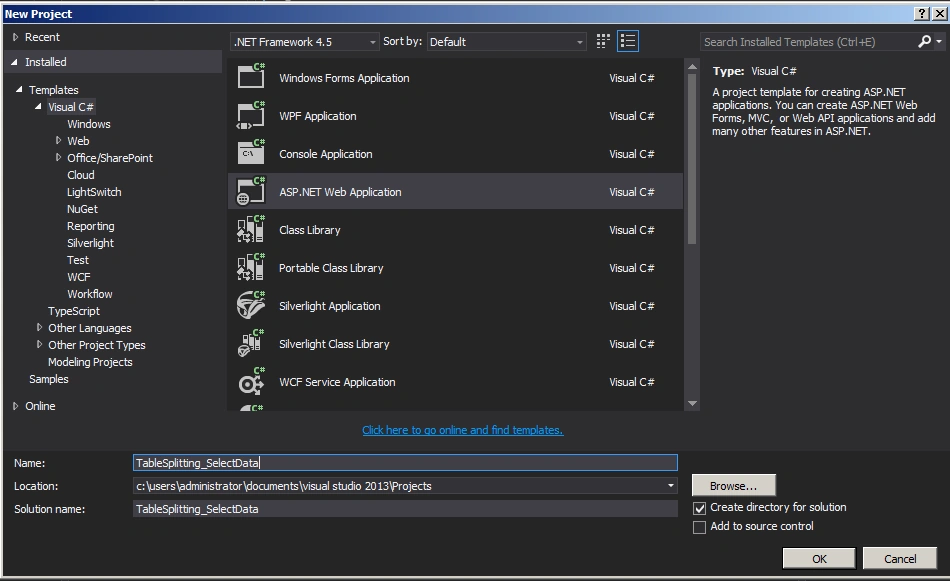
Create an ASP.Net Web Application as shown in the following screenshot.
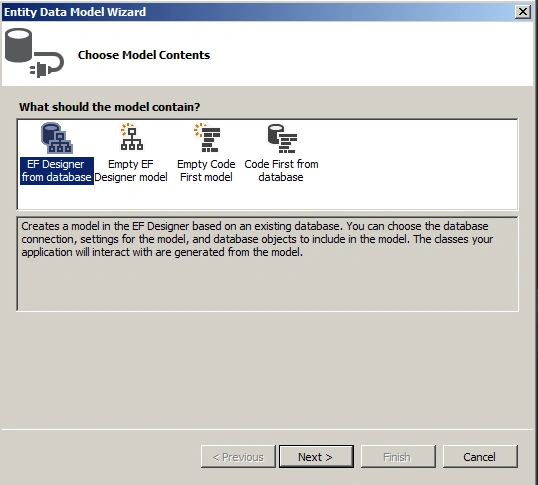
Set Up Entity Framework
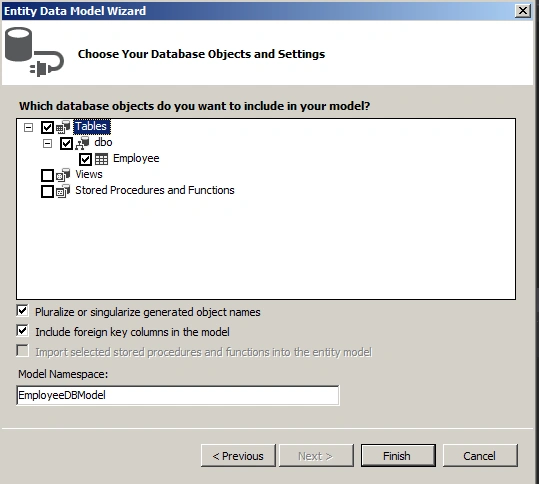
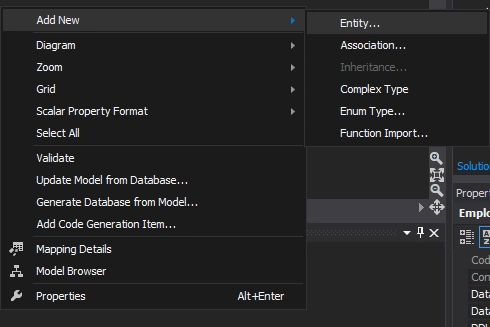
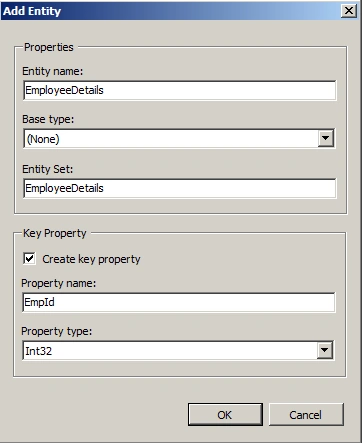
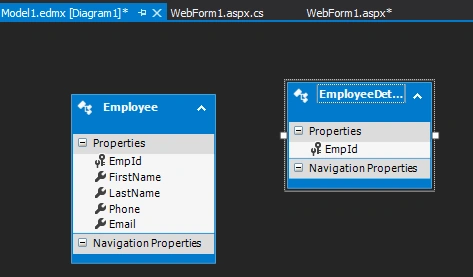
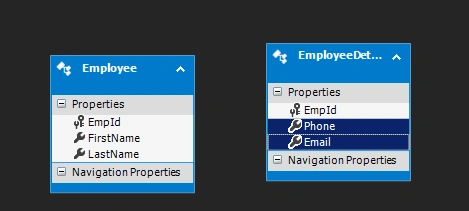
Cut columns from the Employee entity.
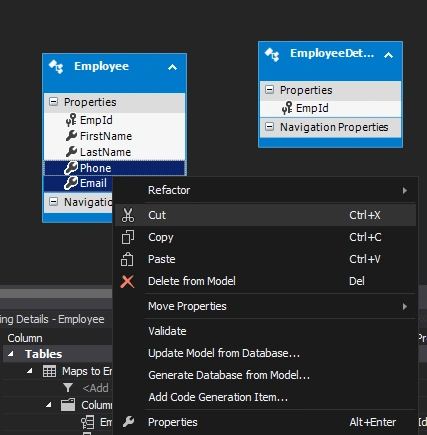
Paste them into the Employee details entity
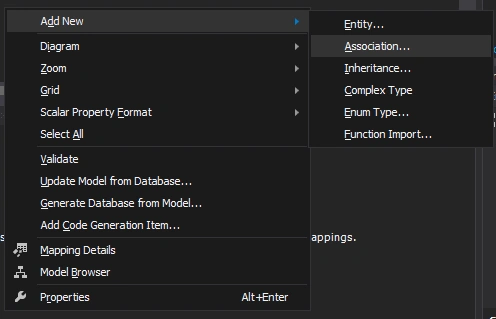
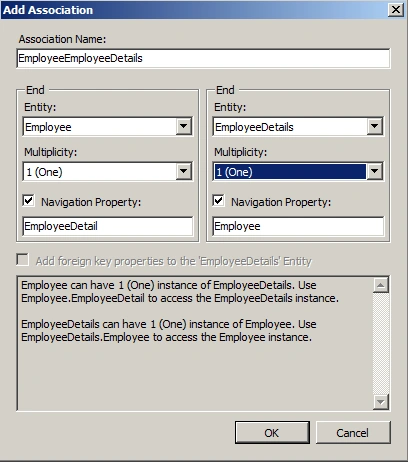
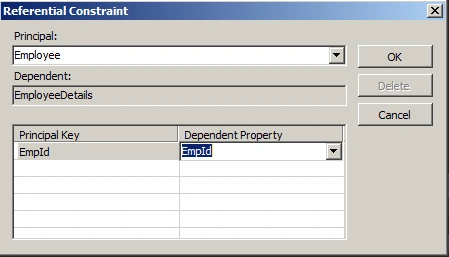
Add an association between Employee and EmployeeDetails.
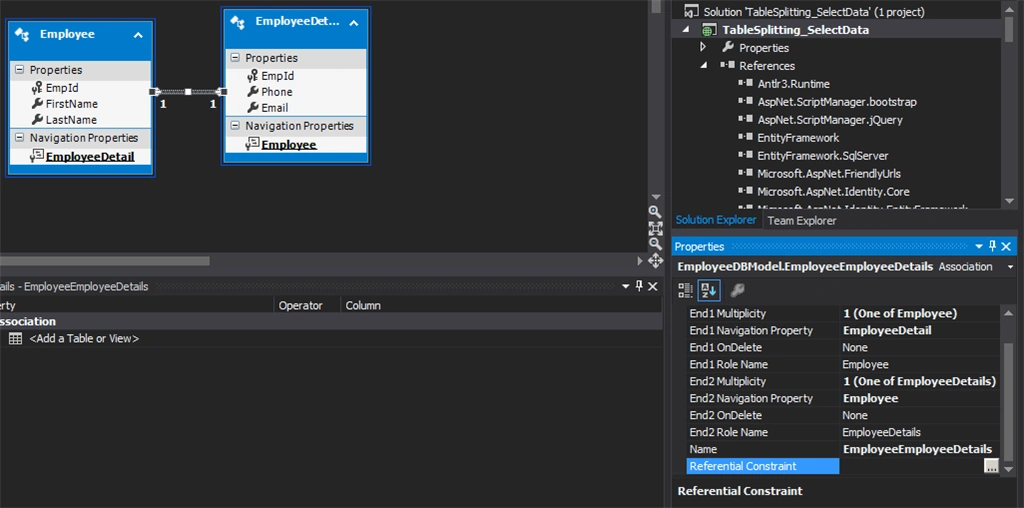
Referential constraints
Webform1.aspx
- <%@ Page Language="C#" AutoEventWireup="true" CodeBehind="WebForm1.aspx.cs" Inherits="TableSplitting_SelectData.WebForm1" %>
- <!DOCTYPE html>
- <html
- xmlns="http://www.w3.org/1999/xhtml">
- <head runat="server">
- <title></title>
- </head>
- <body>
- <form id="form1" runat="server">
- <div>
- <asp:GridView ID="GridView1" runat="server" BackColor="LightGoldenrodYellow" BorderColor="Tan" BorderWidth="1px" CellPadding="2" ForeColor="Black" GridLines="None">
- <AlternatingRowStyle BackColor="PaleGoldenrod"></AlternatingRowStyle>
- <FooterStyle BackColor="Tan"></FooterStyle>
- <HeaderStyle BackColor="Tan" Font-Bold="True"></HeaderStyle>
- <PagerStyle HorizontalAlign="Center" BackColor="PaleGoldenrod" ForeColor="DarkSlateBlue"></PagerStyle>
- <SelectedRowStyle BackColor="DarkSlateBlue" ForeColor="GhostWhite"></SelectedRowStyle>
- <SortedAscendingCellStyle BackColor="#FAFAE7"></SortedAscendingCellStyle>
- <SortedAscendingHeaderStyle BackColor="#DAC09E"></SortedAscendingHeaderStyle>
- <SortedDescendingCellStyle BackColor="#E1DB9C"></SortedDescendingCellStyle>
- <SortedDescendingHeaderStyle BackColor="#C2A47B"></SortedDescendingHeaderStyle>
- </asp:GridView>
- </div>
- </form>
- </body>
- </html>
Webform1.aspx.cs
- using System;
- using System.Collections.Generic;
- using System.Linq;
- using System.Web;
- using System.Web.UI;
- using System.Web.UI.WebControls;
- namespace TableSplitting_SelectData
- {
- public partial class WebForm1: System.Web.UI.Page
- {
- EmployeeDBEntities objEmpEntities = new EmployeeDBEntities();
- protected void Page_Load(object sender, EventArgs e)
- {
- var query = from r in objEmpEntities.Employees.Include("EmployeeDetails")
- select new
- {
- r.FirstName,
- r.LastName,
- r.EmployeeDetail.Phone,
- r.EmployeeDetail.Email
- };
- GridView1.DataSource = query.ToList();
- GridView1.DataBind();
- }
- }
- }
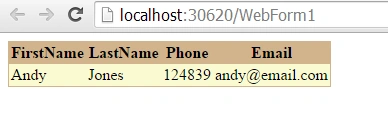
The output of the application is as shown in the following screenshot.
Summary
In this article, we saw how to do table splitting and a select data operation.
Happy coding.
Sonu ChaudharyPosted May 26, 2016, 10:46 AM
Good one...
Bhuvanesh MohankumarPosted May 6, 2016, 4:02 PM
Your style of approach in article is good
Santhakumar MunuswamyPosted May 21, 2015, 3:04 PM
Thanks for good one
Rahul Kumar SaxenaPosted May 21, 2015, 3:28 AM
Good Show...