

Introduction:
In this article we are going to see the latest preview release of Team
Foundation Server made available on windows Azure cloud which was introduced in
Build Conference a day before(14 Sep 2011). With this preview release we have
limited invitation codes available for the members to validate the Team
Foundation Services on the cloud.
Note : First 5 Comments on this post will get the free invitation code to
work around the TFS Preview.
Overview:
Team Foundation Server Invitaion codes are limited to specific numbers
(Initially 250) later on Brain Harry added few more invitation codes for the
subscribers. Every member who successfully creates an account will have 5
additional invitation codes that can be distributed to the friends and team to
have a work around on the Team Foundation Server with Windows Azure.
To register for the preview access logon to https://tfspreview.com and provide
the invitation code to get access immediately. Let us see the step by step
process on registering and accessing the Team Foundation Services on the cloud
to get some hands on experience for the first time users.
Team Foundation Server on Windows Azure provides much more flexible option to
maintain the versioning over the cloud as its very easy to register for an
account and get into productive stage early since it takes very less time to
register and setup an account with TFS Cloud. The current preview release is not
the complete solution of the TFS Functionality but still we can use the below
products.
- Source Control
- Work Item Tracking
- Agile Project Management (New in TFS 11)
- Testing
- Build Automation
We can use the below clients to connect to the TFS Cloud once we are done with the successful registration. The client including
- Visual Studio 2010
- Test Professional 2010
- Visual Studio 11 ( Not available except MSDN Subscribers)
- Team Explorer Everywhere
- Microsoft Office Integration
Now let us see the step by step process on how
to register the TFS preview for the first time and in our next article we will
see how to connect to TFS using a client (Probably the much used Visual Studio
2010)
Steps:
Log on to the site https://tfspreview.com and click on Create Account as shown
in the screen below.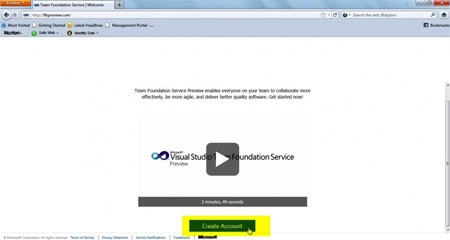
Now we can see a new page requesting for the details as shown in the screen below. You need to have a valid invitation code (Thanks to Brain Harry) for providing the code for the preview. Once we provided with the Server URL and Invitation Code click on the Sign Up button as highlighted in the screen below.

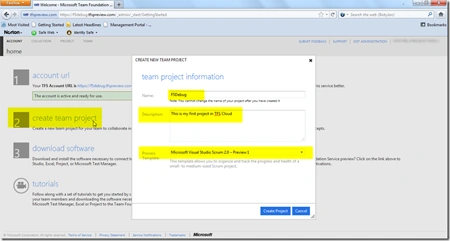
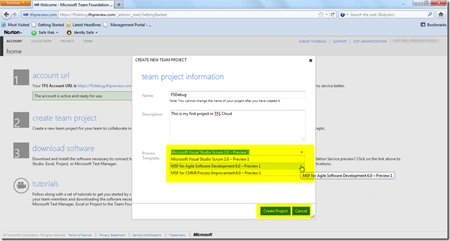
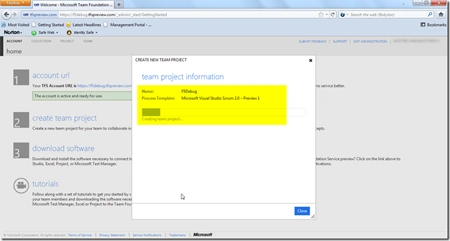
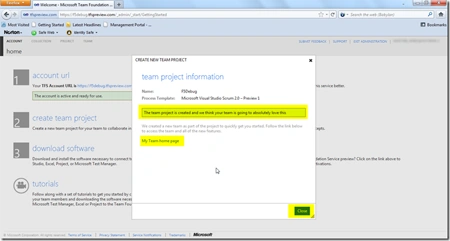
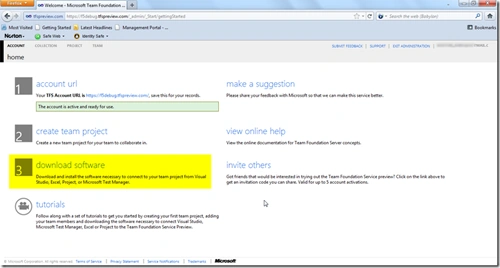
We will be redirected to a page to authenticate the request by providing the Windows Live Id. Once the authentication is confirmed and the TFS is created for the account we will see the page as shown in the screen below.
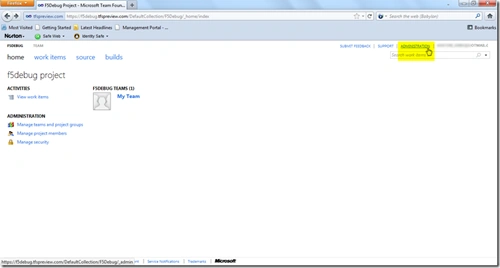
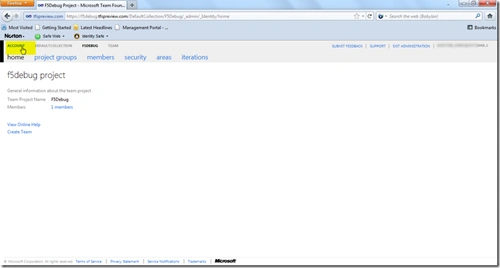
We can see TFS Account URL for our request is https://f5debug.tfspreview.com/


Gowtham RajamanickamPosted Apr 28, 2016, 2:12 AM
good work..
anil babuPosted Sep 3, 2012, 1:01 AM
What is TFS AND what are the addvatages of this? Tell me how to TFS Installation and configuration? I am USING VISUAL STUDIO 2010 Ultimate OS:WIndows web server 2008 R2 plz help me
Sam HobbsPosted Sep 18, 2011, 4:55 PM
I am still not sure what Team Foundation Server is. I have no idea of whether I would have any use for it. I have not made a special effort to find relevant articles but I have not seen any. As best as I understand, TFS is for collaborating so if I am the onl developer for a project then it would not be useful to me.
Brian HamachekPosted Sep 18, 2011, 5:26 AM
Do you still have any invite codes?
Fire BallPosted Sep 16, 2011, 4:40 PM
This is great for small business No licenses and np Money on big servers
rwerwePosted Sep 16, 2011, 2:37 PM
Excited to check it out.
Taka YamaPosted Sep 16, 2011, 10:31 AM
Nice article. I'm interesting TFS on Azure. I hope inviting me. thanks.
Shane ODellPosted Sep 16, 2011, 10:17 AM
I can't wait to see how this service stacks up against 3rd party hosted TFS options out there.