

TestStackWhite
An automation tool for Windows application, TestStackWhite is used for automating Windows applications, such as win32, Windows Forms, WPF, Silverlight etc. It is a .NET based framework which is written in C# language. TestStackWhite doesn't support UWP applications, such as a calculator in Windows 10 operating system.
We can automate Windows 7 or Windows XP applications like Calculator, Notepad, MS Word but we can't automate the same tools for Windows 10 because Windows 10 apps are based on Universal Windows Platform(UWP). TestStackWhite doesn't have support for UWP applications. For automating Universal Windows Platform applications, we need to make use of third-party DLLs.
In a web application or web browser, each control will have a control property like Id, Name, ClassName, XPath, CssSelector, TagName etc. For identifying those controls with their control properties, we need to inspect the element by clicking F12 or Ctrl + Shift + I and find those control properties. But in order to identify control in Windows applications, there is no option for inspecting element. For identifying control with their control properties, we need to use UISpy and VisualUIAVerify tools.
https://docs.google.com/file/d/0B7rZvkq9tkwPY0RLWnNuYVV6YVU/edit
An automation tool for Windows application, TestStackWhite is used for automating Windows applications, such as win32, Windows Forms, WPF, Silverlight etc. It is a .NET based framework which is written in C# language. TestStackWhite doesn't support UWP applications, such as a calculator in Windows 10 operating system.
We can automate Windows 7 or Windows XP applications like Calculator, Notepad, MS Word but we can't automate the same tools for Windows 10 because Windows 10 apps are based on Universal Windows Platform(UWP). TestStackWhite doesn't have support for UWP applications. For automating Universal Windows Platform applications, we need to make use of third-party DLLs.
In a web application or web browser, each control will have a control property like Id, Name, ClassName, XPath, CssSelector, TagName etc. For identifying those controls with their control properties, we need to inspect the element by clicking F12 or Ctrl + Shift + I and find those control properties. But in order to identify control in Windows applications, there is no option for inspecting element. For identifying control with their control properties, we need to use UISpy and VisualUIAVerify tools.
https://docs.google.com/file/d/0B7rZvkq9tkwPY0RLWnNuYVV6YVU/edit
With the above URL, you can download a UISpy.zip file which you can download and unzip & place in the solutions folder. TestStack White works on top of UIAutomation framework. If we want to automate third-party controls then we need to use UIAutomationVerify tool, UIAutomationVerify tool is used to check the control element or control properties. If the control properties contain UIA element then we can automate other third parties with using TestStackWhite automation. It is similar to the UISpy tool, Whenever we launch UISpy tool we will get all the opened windows applications with a tree structure format.
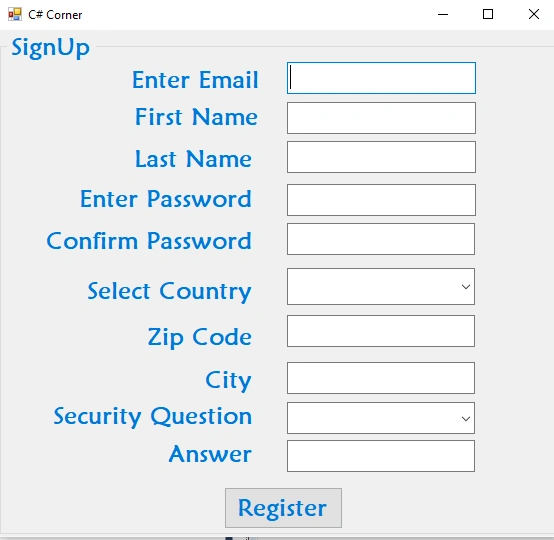
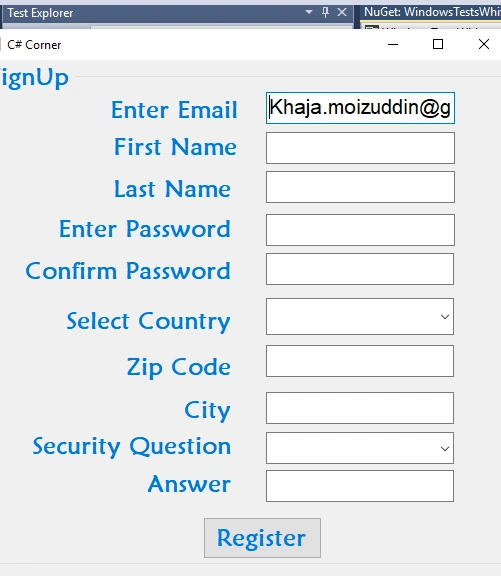
I have created a sample windows application to automate using TestStack white like below.
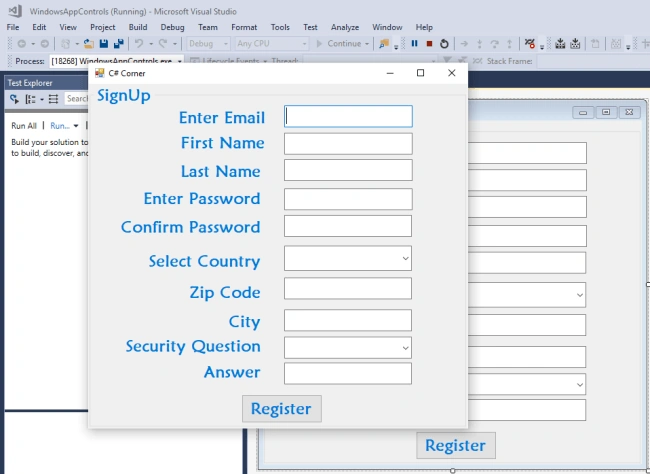
I have created a sample windows application to automate using TestStack white like below.
For identifying a control with its control properties, we can use either the UISpy or VisualUIAVerify tool. Here I am using a UISpy tool. From the URL given above, you can download and place it in some folder, unzip the UISpy.rar file and click on the UISpy folder to see the file provided in the below image.

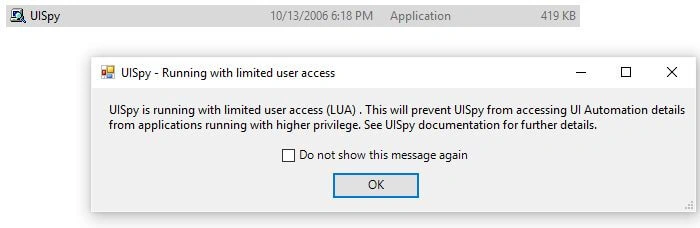
Once the UISpy.exe is available in the UISPy folder double click on that to see the message below and click OK.
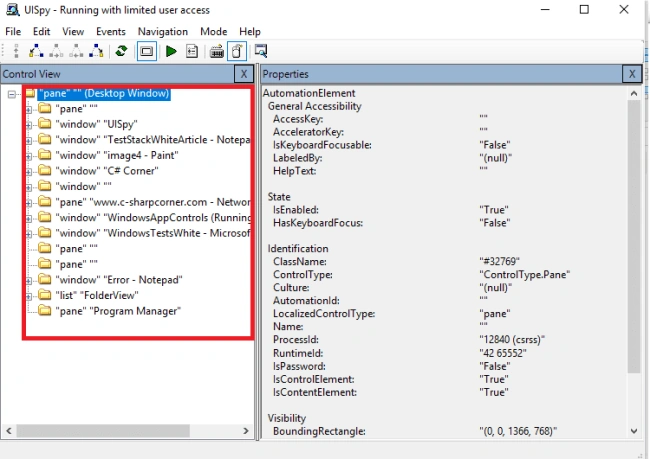
In UISpy we have selected the windows application which we want to test, check the below image.
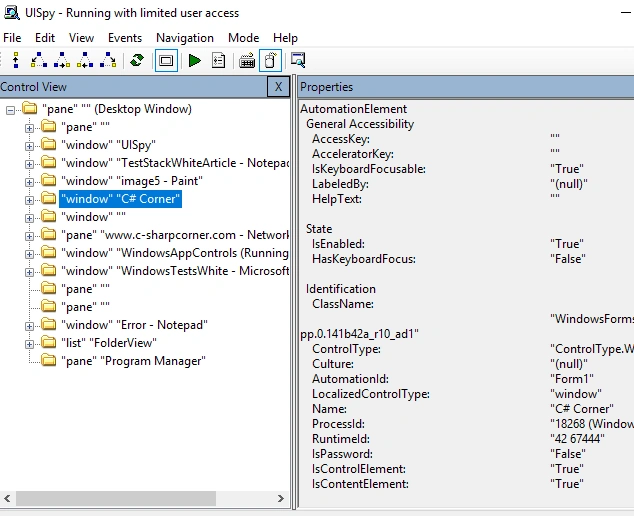
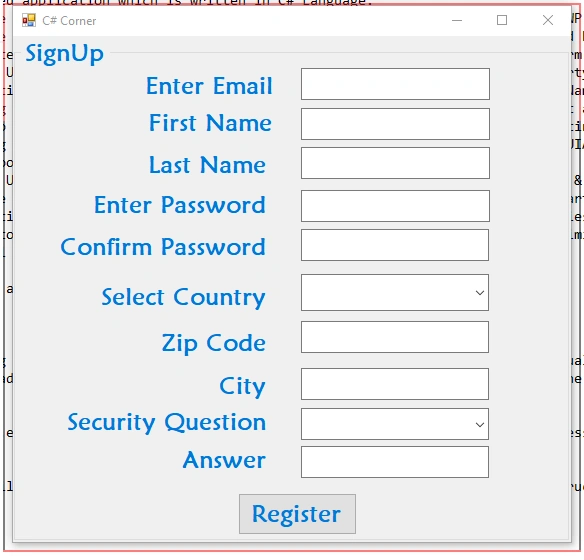
The application will be highlighted with the red outline to identify the application and its control properties which is shown in the above image. For entering Email control, we will be inspecting with UIspy like below. The automation for entering Email control is "textBox1".
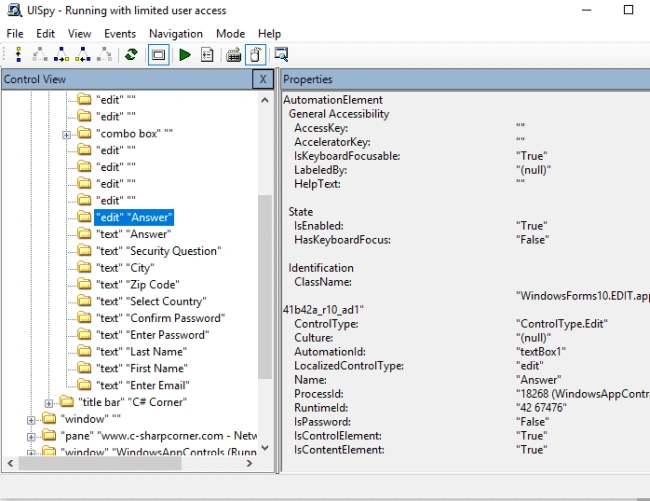
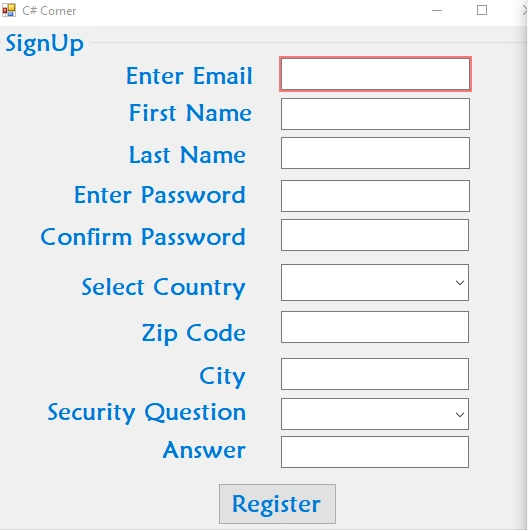
Whenever we select a control in a UIspy tree structure, the control in the windows application will be highlighted with the red mark and UIspy shows all the control properties of that control like Name, AutomationId etc.
For identifying First Name control through UISpy, see the image below. The automationId for First Name control is "textBox2".
Whenever we select a control in a UIspy tree structure, the control in the windows application will be highlighted with the red mark and UIspy shows all the control properties of that control like Name, AutomationId etc.
For identifying First Name control through UISpy, see the image below. The automationId for First Name control is "textBox2".
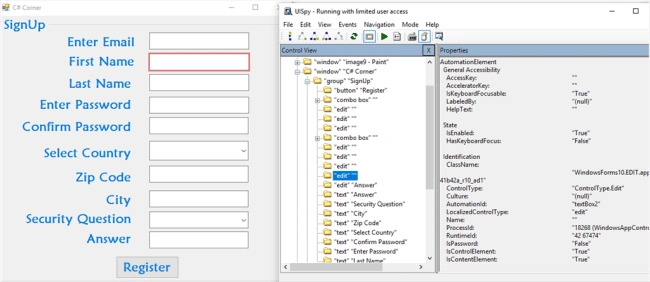
For identifying Last Name control through UISpy see the below image. The automationId for Last Name control is "textBox3".
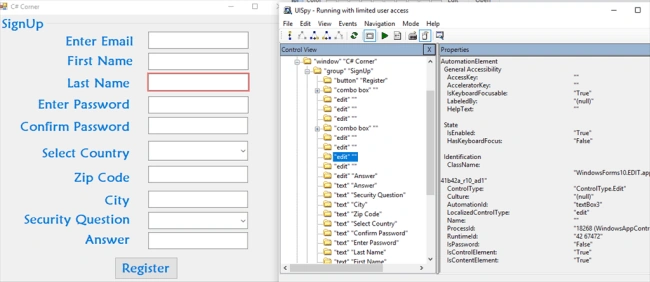
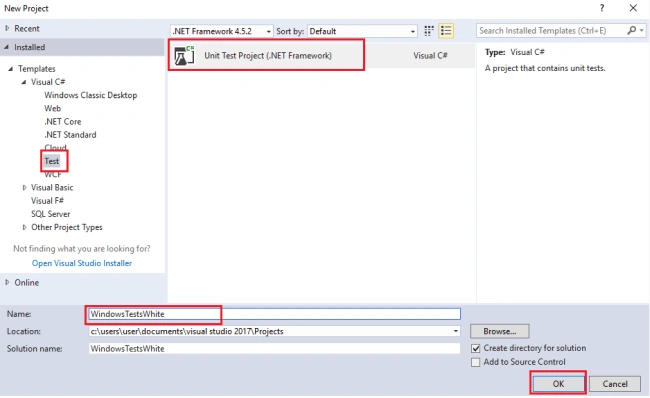
Similarly, we can find others controls like above. We will create a sample unit testing project by navigating to File--> New --> Project. In the left select Test and select Unit Test Project and give some name for your project like for the application I have given WindowsTestsWhite and click OK.
With this, it will create a sample Unit Test Project where we can create a sample Unit Test Method and write a test script for automating windows applications using TestStackWhite.
Add TestStack.White and UIAComWrapper from NuGet Packages by right-clicking on references and selecting Manage NuGet Packages. With this two references will be added to the references.
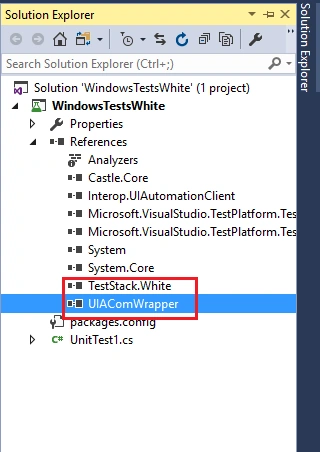
Whenever we add TestStack White, it will ask us to download all its dependency dlls like UIAComWrapper with a prompt message, TestStack.White is dependent on UIAComWrapper dll.
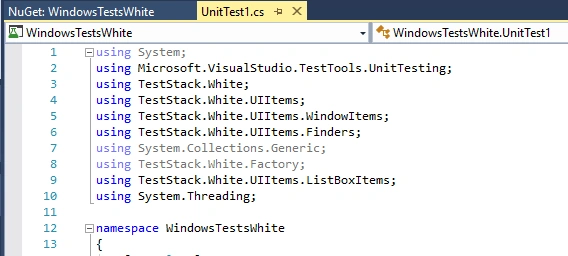
Add the below namespaces to automate the sample windows applications.
Similarly, we can find others controls like above. We will create a sample unit testing project by navigating to File--> New --> Project. In the left select Test and select Unit Test Project and give some name for your project like for the application I have given WindowsTestsWhite and click OK.
With this, it will create a sample Unit Test Project where we can create a sample Unit Test Method and write a test script for automating windows applications using TestStackWhite.
Add TestStack.White and UIAComWrapper from NuGet Packages by right-clicking on references and selecting Manage NuGet Packages. With this two references will be added to the references.
Whenever we add TestStack White, it will ask us to download all its dependency dlls like UIAComWrapper with a prompt message, TestStack.White is dependent on UIAComWrapper dll.
Add the below namespaces to automate the sample windows applications.
- using Microsoft.VisualStudio.TestTools.UnitTesting;
- using TestStack.White;
- using TestStack.White.UIItems;
- using TestStack.White.UIItems.WindowItems;
- using TestStack.White.UIItems.Finders;
- using System.Collections.Generic;
- using TestStack.White.Factory;
- using TestStack.White.UIItems.ListBoxItems;
- using System.Threading;
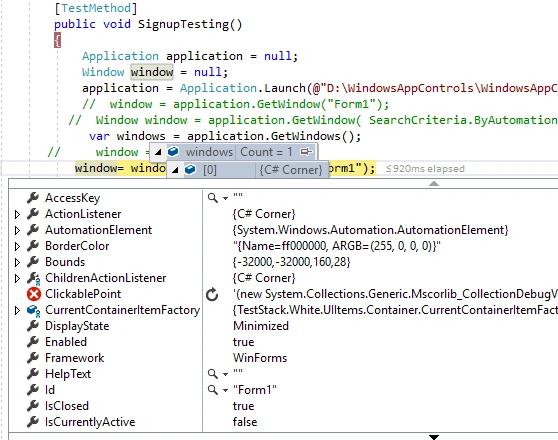
I have created a sample Unit testing project with "SignupTesting". When we debug the test, our sample application will be launched which we have provided the given windows application path in Launch() method. With this, all the control in the windows application will be shown in the given object like below.
Code For Automating Windows Application,
- using System;
- using Microsoft.VisualStudio.TestTools.UnitTesting;
- using TestStack.White;
- using TestStack.White.UIItems;
- using TestStack.White.UIItems.WindowItems;
- using TestStack.White.UIItems.Finders;
- using System.Collections.Generic;
- using TestStack.White.Factory;
- using TestStack.White.UIItems.ListBoxItems;
- using System.Threading;
- namespace WindowsTestsWhite {
- [TestClass]
- public class UnitTest1 {
- [TestMethod]
- public void SignupTesting() {
- Application application = null;
- Window window = null;
- application = Application.Launch(@ "D:\WindowsAppControls\WindowsAppControls\bin\Debug\WindowsAppControls.exe");
- // window = application.GetWindow("Form1");
- // Window window = application.GetWindow( SearchCriteria.ByAutomationId("Form1"), InitializeOption.NoCache);
- var windows = application.GetWindows();
- // window = windows[0];
- window = windows.Find(x => x.Id == "Form1");
- TextBox enteremail = window.Get < TextBox > (SearchCriteria.ByAutomationId("textBox1"));
- Thread.Sleep(3000);
- enteremail.SetValue("[email protected]");
- TextBox firstname = window.Get < TextBox > (SearchCriteria.ByAutomationId("textBox2"));
- firstname.SetValue("Khaja");
- Thread.Sleep(3000);
- TextBox lastname = window.Get < TextBox > (SearchCriteria.ByAutomationId("textBox3"));
- lastname.SetValue("Moizuddin");
- Thread.Sleep(3000);
- TextBox enterPassword = window.Get < TextBox > (SearchCriteria.ByAutomationId("textBox4"));
- enterPassword.SetValue("1234567890!@#$");
- TextBox confirmpassword = window.Get < TextBox > (SearchCriteria.ByAutomationId("textBox5"));
- confirmpassword.SetValue("1234567890!@#$");
- ComboBox dropCountry = window.Get < ComboBox > (SearchCriteria.ByAutomationId("comboBox1"));
- dropCountry.Select("India");
- TextBox zipcode = window.Get < TextBox > (SearchCriteria.ByAutomationId("textBox6"));
- zipcode.SetValue("500076");
- TextBox city = window.Get < TextBox > (SearchCriteria.ByAutomationId("textBox7"));
- city.SetValue("Hyderabad");
- ComboBox dropSecurityQuestion = window.Get < ComboBox > (SearchCriteria.ByAutomationId("comboBox2"));
- dropSecurityQuestion.Select("What is the name of the company of your first job?");
- TextBox securityAnswer = window.Get < TextBox > (SearchCriteria.ByAutomationId("textBox8"));
- securityAnswer.SetValue("XYZ Technologies");
- Button registerclick = window.Get < Button > (SearchCriteria.ByAutomationId("button1"));
- registerclick.Click();
- }
- }
- }
In the sample application which I have created above, I am using Application class for launching the sample Windows application by using Launch() method by providing the Windows application exe path.
Once the windows application is launched, we can get the current window by using AutomationId = Form1 or we can get all the windows by using GetWindows() method, Once we get all the windows we can find the particular window by getting Window[0] or we can find by its Id=Form1.
Example
Once the windows application is launched, we can get the current window by using AutomationId = Form1 or we can get all the windows by using GetWindows() method, Once we get all the windows we can find the particular window by getting Window[0] or we can find by its Id=Form1.
Example
- var windows = application.GetWindows();
- // window = windows[0];
- window= windows.Find(x => x.Id == "Form1");
"window" object holds all the information related to the particular Windows application like the available controls on the windows forms with their control properties.
Each control on the Windows application will have a unique control property like AutomationId, Name, Class etc. We can inspect this control in order to find their control properties for performing automation by using UISpy or VisualUIAVerify tool. There are lots of inspecting tools for a Windows application, among those tools UISpy tool is used widely.
UISpy tool is very easy to use as the controls available on the Windows applications will be displayed on the UISpy tool in a tree structure format.
For identifying Enter Email textbox and to perform input to this control we will identify this control with its AutomationId like AutomationId= "textBox1", which is mentioned in the above piece of code.
We can enter by using SetValue method like enteremail.SetValue("[email protected]");
Each control on the Windows application will have a unique control property like AutomationId, Name, Class etc. We can inspect this control in order to find their control properties for performing automation by using UISpy or VisualUIAVerify tool. There are lots of inspecting tools for a Windows application, among those tools UISpy tool is used widely.
UISpy tool is very easy to use as the controls available on the Windows applications will be displayed on the UISpy tool in a tree structure format.
- TextBox enteremail = window.Get<TextBox>(SearchCriteria.ByAutomationId("textBox1"));
We can enter by using SetValue method like enteremail.SetValue("[email protected]");
- TextBox firstname = window.Get<TextBox>(SearchCriteria.ByAutomationId("textBox2"));
- AutomationId="textBox2", and we can perform input by using firstname.SetValue("Khaja");
- TextBox lastname = window.Get<TextBox>(SearchCriteria.ByAutomationId("textBox3"));
For identifying lastname textbox and to perform input to this control we will identify this control with its AutomationId like
- AutomationId="textBox3", and we can perform input by using lastname.SetValue("Moizuddin");
- TextBox enterPassword = window.Get<TextBox>(SearchCriteria.ByAutomationId("textBox4"));
For identifying enterPassword textbox and to perform input to this control we will identify this control with its AutomationId like AutomationId="textBox4", and we can perform input by using enterPassword.SetValue("1234567890!@#$");
For identifying confirmpassword textbox and to perform input to this control we will identify this control with its AutomationId like AutomationId="textBox5", and we can perform input by using confirmpassword.SetValue("1234567890!@#$");
For identifying dropCountry dropdown and to perform input to this control we will identify this control with its AutomationId like AutomationId="comboBox1", and we can perform input by using dropCountry.Select("India");
For identifying zipcode textbox and to perform input to this control we will identify this control with its AutomationId like AutomationId="textBox6", and we can perform input by using zipcode.SetValue("500076");
For identifying city textbox and to perform input to this control we will identify this control with its AutomationId like AutomationId="textBox7", and we can perform input by using city.SetValue("Hyderabad");
For identifying dropSecurityQuestion dropdown and to perform input to this control we will identify this control with its AutomationId like AutomationId="comboBox2", and we can perform input by using dropSecurityQuestion.Select("What is the name of the company of your first job?");
For identifying securityAnswer textbox and to perform input to this control we will identify this control with its AutomationId like AutomationId="textBox8", and we can perform input by using securityAnswer.SetValue("XYZ Technologies");
For identifying registerclick button and to perform input to this control we will identify this control with its AutomationId like AutomationId="button1", and we can perform input by using registerclick.Click();
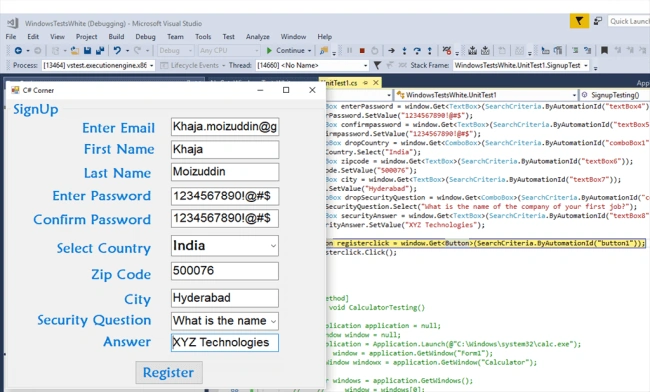
The above image shows the execution or automation of Windows applications while in debug mode.
Thanks & I hope this article helps you.
- TextBox confirmpassword = window.Get<TextBox>(SearchCriteria.ByAutomationId("textBox5"));
- ComboBox dropCountry = window.Get<ComboBox>(SearchCriteria.ByAutomationId("comboBox1"));
- TextBox zipcode = window.Get<TextBox>(SearchCriteria.ByAutomationId("textBox6"));
- TextBox city = window.Get<TextBox>(SearchCriteria.ByAutomationId("textBox7"));
- ComboBox dropSecurityQuestion = window.Get<ComboBox>(SearchCriteria.ByAutomationId("comboBox2"));
- TextBox securityAnswer = window.Get<TextBox>(SearchCriteria.ByAutomationId("textBox8"));
- Button registerclick = window.Get<Button>(SearchCriteria.ByAutomationId("button1"));
The above image shows the execution or automation of Windows applications while in debug mode.
Thanks & I hope this article helps you.
Kureshi TofikPosted Jun 1, 2020, 6:52 AM
Hi, very good article, can u send code of the example of window all controls.
bhavtosh sharmaPosted Jun 26, 2019, 11:38 AM
Hello, very informative article, can u also kindly share some code example of teststack.white with datagridview on actions like add/del rows and right click contex menu?
Khaja MoizuddinPosted Jul 24, 2018, 10:12 AM
Sure Farhan, I will work on some WPF applications.
Farhan AhmedPosted Jul 24, 2018, 9:43 AM
Nice article thank you for sharing. Try some WPF