

Introduction
In this article, we will see in detail about how to create our own Text to Speech Application using Cognitive Services. Cognitive Services are a set of machine learning algorithms to build a rich Artificial Intelligence-enabled application. Hope you all are aware of Artificial Intelligence. We can say, iPhone Siri, Windows 10 Cortana, and automatic robotic cars which run on their own are examples of Artificial Intelligence.
Microsoft Cognitive Services (formerly Project Oxford) is a set of APIs, SDKs, and services available to developers to make their applications more intelligent, engaging, and discoverable. Microsoft Cognitive Services expands on Microsoft’s evolving portfolio of Machine Learning APIs and enables the developers to easily add intelligent features – such as emotion and video detection, facial, speech, and vision recognition, speech and language understanding into our applications. Go here for reference.
We will be using Cognitive Service API to develop our Artificial Intelligent application. Cognitive Service API has 5 main categories as -
- Vision
- Speech
- Language
- Knowledge
- Search
Vision API
In Vision API, we have Computer Vision API for distilling actionable information from images, Face API to detect, identify, analyze, organize, and tag faces in photos, Content Moderator to Automate image, text, and video moderation, Emotion API Preview to personalize user experiences with emotion recognition and Custom Vision Service Preview for easily customize your own state-of-the-art computer vision models for your unique use case.
Speech API
In Speech API, we have Translator Speech API to Easily conduct real-time speech translation with a simple REST API call, Speaker Recognition API Preview for using speech to identify and authenticate individual speakers, Bing Speech API for converting speech to text and back again to understand user intent, Custom Speech Service PREVIEW to overcome speech recognition barriers like speaking style, background noise, and vocabulary
Language API
In Language API, we have Language Understanding (LUIS) to teach our apps to understand commands from our users, Text Analytics API for easily evaluate sentiment and topics to understand what users want, Bing Spell Check API to detect and correct spelling mistakes in your app, Translator Text API to easily conduct machine translation with a simple REST API call, Web Language Model API PREVIEW to use the power of predictive language models trained on web-scale data, Linguistic Analysis API PREVIEW for simplify complex language concepts and parse text with the Linguistic Analysis API
Knowledge API
In Knowledge API, we have Recommendations API PREVIEW to predict and recommend items your customers want, Academic Knowledge API PREVIEW to tap into the wealth of academic content in the Microsoft Academic Graph, Knowledge Exploration Service PREVIEW enable interactive search experiences over structured data via natural language inputs, QnA Maker API PREVIEW distill information into conversational, easy-to-navigate answers, Entity Linking Intelligence Service API PREVIEW will power your app's data links with named entity recognition and disambiguation, Custom Decision Service PREVIEW is a cloud-based, contextual decision-making API that sharpens with experience
Search API
In Search API, we have Bing Autosuggest API give your app intelligent autosuggest options for searches, Bing Image Search API is to search for images and get comprehensive results, Bing News Search API is to Search for the news and gets comprehensive results, Bing Video Search API is to search for videos and get comprehensive results, Bing Web Search API is to get enhanced search details from billions of web documents, Bing Custom Search API is an easy-to-use, ad-free, commercial-grade search tool that lets, Bing Entity Search API PREVIEW to enrich your experiences by identifying and augmenting entity information from the web you deliver the results you want. Ref:
In this article, we will be seeing in detail how to use the Bing Speech API to read from the text in multiple languages and also save the audio file for later use using the Bing Speech API Cognitive Services.
Prerequisites
- First, download and install Visual Studio 2017 from this link.
- Register yourself for getting the Cognitive Service API keys. https://azure.microsoft.com/en-gb/services/cognitive-services/
- After Register from this link get your API KEY https://azure.microsoft.com/en-us/try/cognitive-services/
How to Get Bing Speech API KEY
To work with Cognitive Services, we need to use the API Key which has been given from our Microsoft web site. Check the prerequisites and follow the steps to register and get the API key. Open this URL https://azure.microsoft.com/en-us/try/cognitive-services/ and make sure as you have already signed in to the site and If not then sign in with your ID.
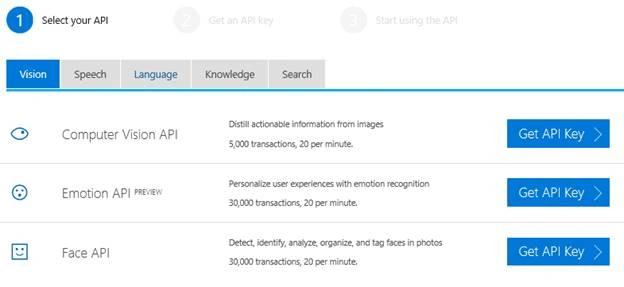
As we are going to work with Bing Speech API, Select the Speech API and then click on the get API Key for Bing Speech API.
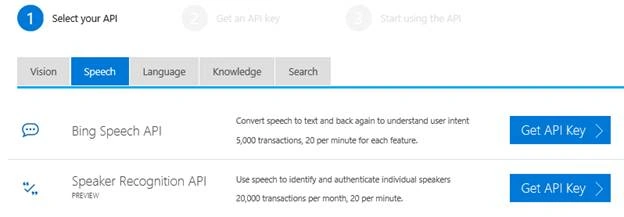
Click on the Get API Key for Bing Speech API.
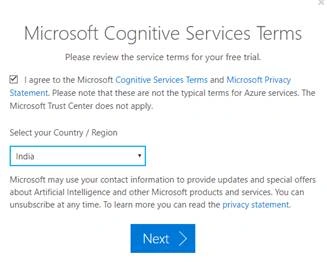
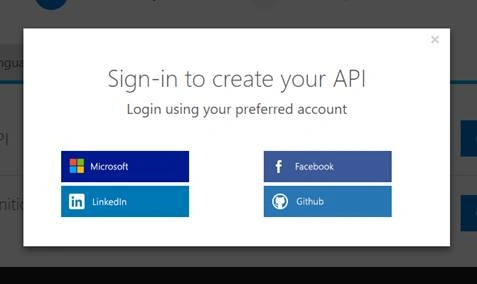
Sign in with your ID
After login, we can see our Bing Speech API Key to be used in our Code developing our Text to Speech application.

Code Part
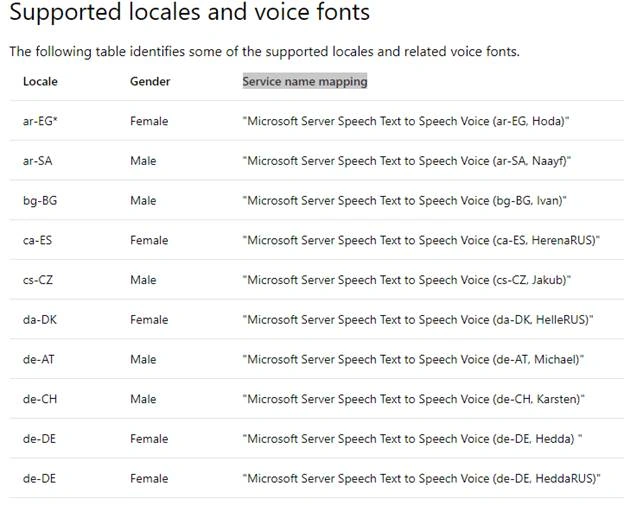
We will be using Bing text to speech API for developing our Text to Speech application. In this application, we will be using multi-language text to speech by using the locale of the Bing text to speech API. From this link, you can get all the information about Bing Text to Speech API. https://docs.microsoft.com/en-us/azure/cognitive-services/speech/api-reference-rest/bingvoiceoutput This link also has a simple Console application demo program to explain about how to use the Bing text to speech API, we will be using the “TTSProgram.cs” from the sample solution in our application and this class has all the function to perform the text to speech. You can get the class file from this link https://github.com/Azure-Samples/Cognitive-Speech-TTS/blob/master/Samples-Http/CSharp/TTSProgram.cs In our application we will be creating Windows form Application.
Step 1 - Create a Windows Form Application
After installing all the prerequisites listed above, click Start >> Programs >> Visual Studio 2017 >> Visual Studio 2017, on your desktop.
Click New >> Project. Select Visual C# >Select Windows Classic Desktop >> Select Windows Forms App and select your project folder and give your application name and click Ok to create your Windows Form application.
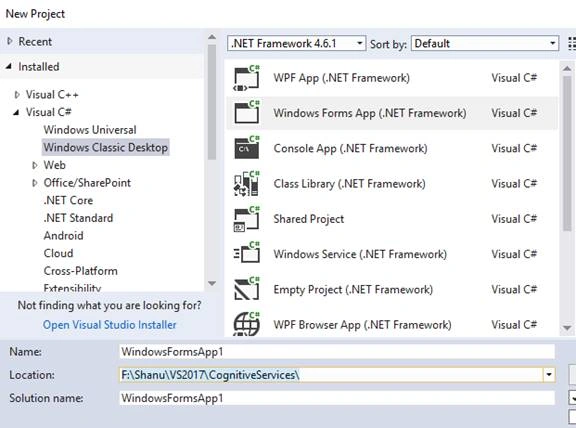
After creating the project now let’s add the “TTSProgram.cs” in our project. Add an Existing Item and select the “TTSProgram.cs” from the attached zip file
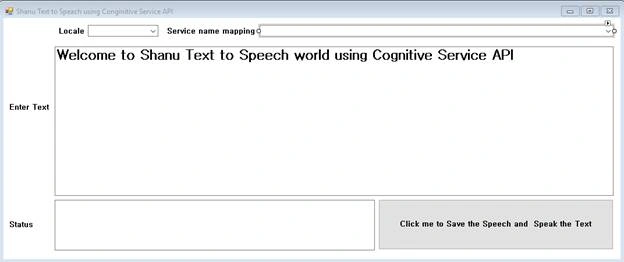
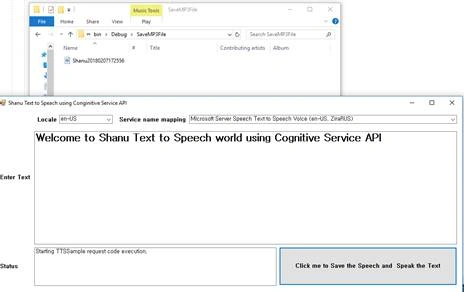
Step 2 – Add Controls to your form
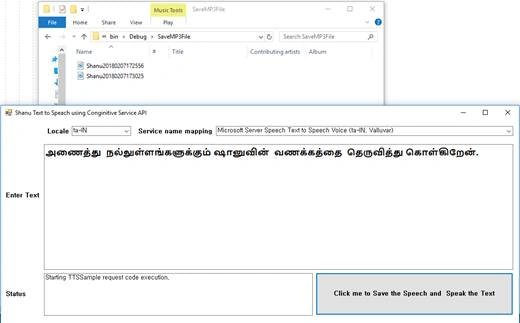
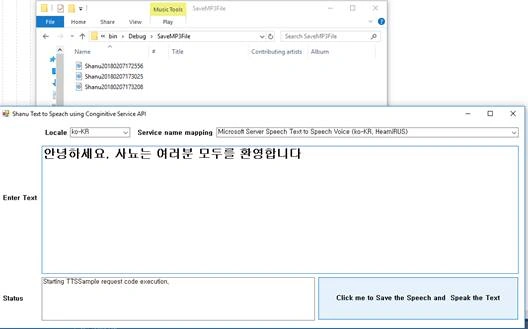
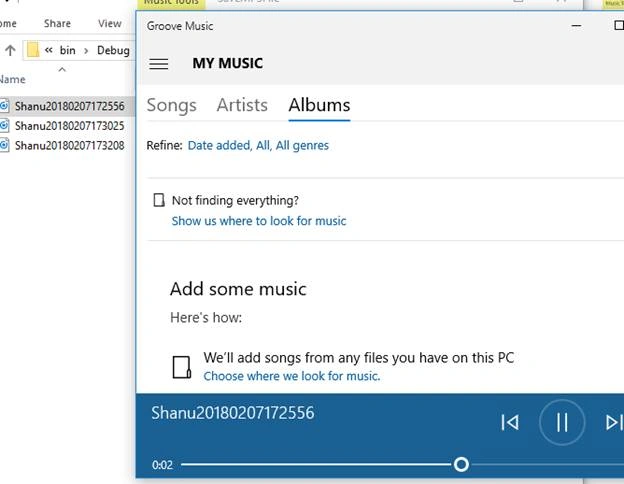
Stephen JhonPosted Nov 26, 2020, 9:14 AM
Nice Article
p vihariPosted May 2, 2019, 4:31 AM
HI i downloaded the code and replace the key with my api key but throws an error The remote server returned an error: (401) Unauthorized.' can you help me please its my urgent requirement and can you provide email id so that i can contact you or you can reach me on [email protected]
Tasneem PPosted Mar 7, 2019, 5:56 AM
Hi Syed kindly share code for speech to text converter in webapplication using bing api
Sagar Pandurang KapPosted Mar 6, 2018, 10:49 PM
Very helpful and informative.Thanks and keep sharing....
Naresh SinghalPosted Mar 6, 2018, 10:23 PM
Nice article on Cognitive Service Speech API C# which is vital to learn for future tech. Thanks Sir Syed Shanu
Bhavesh JadavPosted Mar 6, 2018, 10:14 PM
Nice article......thanks to share