

As explained in the previous article, geolocation is one of the most frequently used features in the mobile and beyond. With it we are able to retrieve the location and information about where we are and use that in an application with other information, such as restaurants, hotels, places of interest and many other things. We talked about the class ReverseGeocodeQuery, that allows you to convert latitude and longitude values in an address. We continue in this third article on our path on geolocation services. This time we will see how to convert an address in coordinates, latitude and longitude, so as to view our location or type the name of a place or city to display within a control Nokia Maps.
The class GeocodeQuery
In addition to Geolocator and ReverseGeocodeQuery, which we find in the Namespace Windows.Devices.Geolocation and Microsoft.Phone.Maps.Services, we have another important class that the Windows runtime provides for us developers, the class GeocodeQuery. This class uses the same operating principle of the class ReverseGeocodeQuery, in other words that of conversion, but with the difference that in this case, is converted to an address in coordinates of latitude and longitude, then used for various purposes. Let us now analyze the class GeocodeQuery before using it in the code example.
As in previous articles, we see the main methods, properties and the only event available. For those who have followed the previous article, notice the differences with regard to the properties. We have the property SearchTerm.
The properties:
- GeoCoordinate
- SearchTerm
The most used method:
- QueryAsync ()
The only event:
- QueryCompleted
The properties
GeoCoordinate, unlike ReverseGeocodeQuery, should necessarily assign default values. Zero is recommended for latitude and longitude for the application to avoid crashing when the home position is searched. We will see in the example code how to do it.
SearchTerm is a property for insertion of a place or a point of interest, in other words the entire something is then converted into latitude and longitude. Once that is done the event QueryCompleted is fired. One thing we must pay attention to is to not put spaces in the search term, because otherwise it will fail, thus risking crashing the application. For error you wish to insert blank spaces, such as "Turi n" instead of Turin and not if you insert Novi Ligure, in the latter case, the search will be properly started because you will definitely find in the research phase because it is an Italian town, while in the first case the application will crash, precisely for the reasons described previously.
Methods
As for the class ReverseGeocodeQuery, the method QueryAsync(), when called, executes the query, but this time based on the time we entered and assigned to the property SearchTerm, having as a result, the coordinates of latitude and longitude. Note that although this method is called at the Async end, it is executed asynchronously, but being of type void, it is not based on the pattern Async / Await. For instance, a method void when it is executed, it returns a null, as is the case for example, if we call a method of type Int.
Events
Also in this case, the only event is QueryCompleted, executed when the query is finished; it returns all data relating to the address and those that serve us type GeoCoordinate, that are there will be the properties Latitude and Longitude, all in an object of type IList<MapLocation>. It is exactly all the results that were found by the query enclosed in a collection, because they can also be more than one. To find the information we need to refer to the Result property. In addition to this we have:
- Cancelled: bool type, that is useful to understand when and if asynchronous action has been canceled.
- Error: also of type bool, that is useful in case you need an error during the execution of the query, in fact, from this property, you will get an object of type Exception AsyncCompletedEventArgs with the error that occurred.
- Result: we have described before, in other words the query results in a collection of type IList <MapLocation>.
- UserState: properties of type Object, it returns the unique identifier for the asynchronous task running.
Convert an address into latitude and longitude
Until now, you've taken a quick overview of the class GeocodeQuery, in other words, a brief analysis of the methods, properties, most used, together with the one event QueryCompleted. For more details on the subject leave the link to the official documentation of link to the official documentation of MSDN Library.
Starting with the example that we created in the previous article, the application of the preceding test is structured as follows.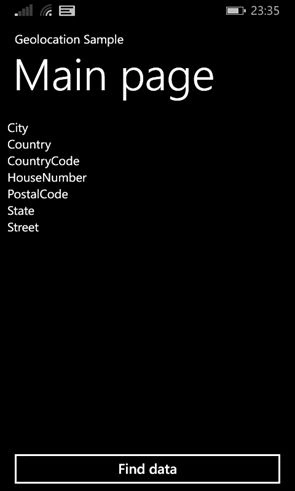
Using the class ReverseGeocodeQuery in the previous article, it was able to detect all the data that you see in the picture and through his property Information.Address, we order:
- City
- Country
- CountryCode
- HouseNumber
- PostalCode
- State
- Street
At the moment this is the XAML code for the representation of the graphical interface.
- <!--ContentPanel - inserire ulteriore contenuto qui-->
- <Grid x:Name="ContentPanel" Grid.Row="1" Margin="12,0,12,0">
- <Grid.RowDefinitions>
- <RowDefinition Height="*"/>
- <RowDefinition Height="Auto"/>
- </Grid.RowDefinitions>
- <StackPanel Orientation="Horizontal">
- <StackPanel>
- <TextBlock Text="City "/>
- <TextBlock Text="Country "/>
- <TextBlock Text="CountryCode "/>
- <TextBlock Text="HouseNumber "/>
- <TextBlock Text="PostalCode "/>
- <TextBlock Text="State "/>
- <TextBlock Text="Street "/>
- </StackPanel>
- <StackPanel>
- <TextBlock x:Name="tbkCity"/>
- <TextBlock x:Name="tbkCountry"/>
- <TextBlock x:Name="tbkCountryCode"/>
- <TextBlock x:Name="tbkHouseNumber"/>
- <TextBlock x:Name="tbkPostalCode"/>
- <TextBlock x:Name="tbkState"/>
- <TextBlock x:Name="tbkStreet"/>
- </StackPanel>
- </StackPanel>
- <Button Grid.Row="1" x:Name="btnFindCoordinate" Content="Find data" Tap="btnFindCoordinate_Tap"/>
- </Grid>
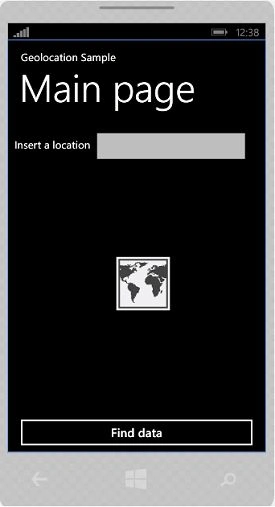
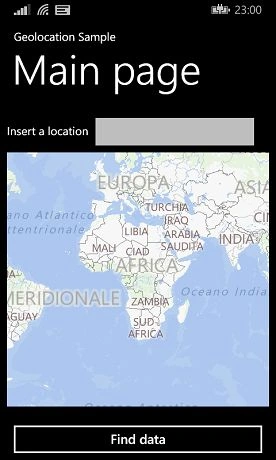
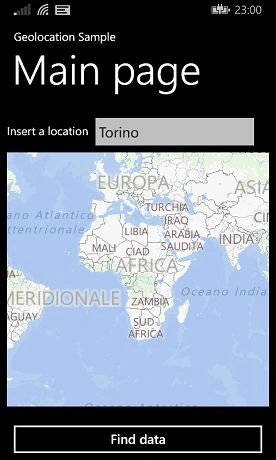
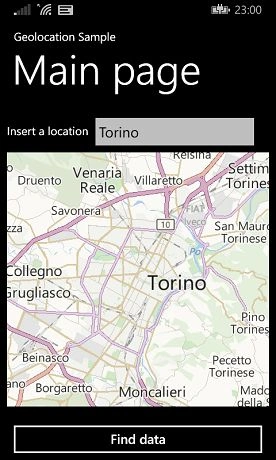
As said before, we want to view a site in a control Nokia Maps. In this article I will not expand on how this control, we'll just see the attraction that we will enter into a TextBox control. First, we eliminate the previous XAML code and replace it with this the following.
Akhil GargPosted Apr 9, 2015, 2:47 PM
nice.
Dinesh BeniwalPosted Oct 16, 2014, 11:49 PM
Great work.