

Introduction
Modern AI agents are moving from simple chat assistants to operational automation systems. Tools like OpenClaw allow AI agents to run tasks, interact with infrastructure, and communicate through platforms like Slack and Telegram.
However, if you search online for “OpenClaw Slack integration”, you will quickly discover a problem:
most guides - including responses from popular AI tools - miss critical configuration steps.
Developers often encounter issues like:
Slack bot connected but not responding
channels statusshowing not configuredSocket mode connected but no events received
Slack commands returning “access not configured”
Pairing codes confusing new users
These problems happen because the exact integration sequence matters, and skipping even one step can break the entire pipeline.
This article provides the complete, production-ready workflow for integrating Slack with OpenClaw (2026) - including steps many tutorials miss.
Why Integrate Slack with OpenClaw?
Slack integration turns OpenClaw into a digital operations agent.
Instead of running commands manually, you can control automation directly from Slack.
Examples:
@OpenClaw Bot list files in the workspace
@OpenClaw Bot summarize today's activity
@OpenClaw Bot create a report
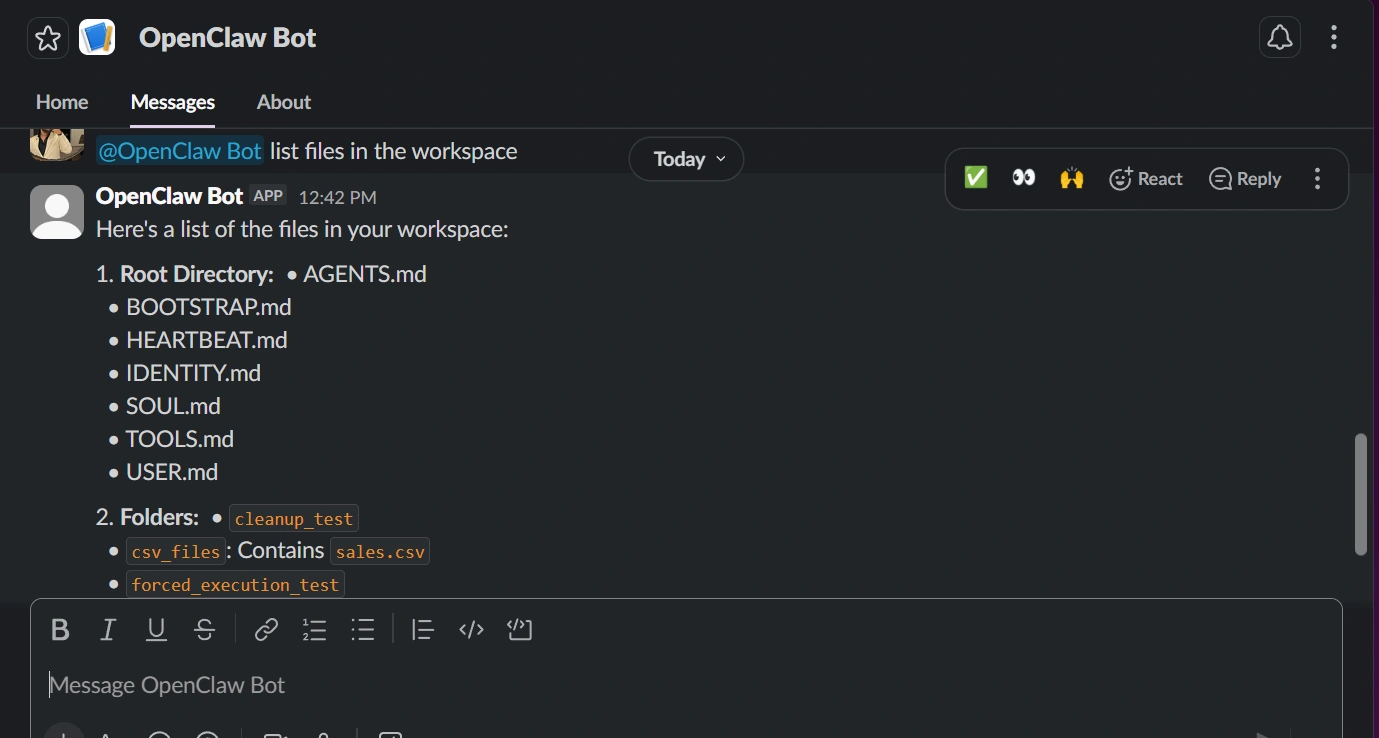
This enables:
AI-powered team automation
DevOps monitoring
workflow triggers
AI assistants inside Slack
But first, the integration must be configured correctly.
Architecture: How Slack and OpenClaw Communicate
Slack → Socket Mode → OpenClaw Gateway → OpenClaw Agent → Response → Slack
Key components involved:
| Component | Role |
|---|---|
| Slack App | Provides authentication and event system |
| Socket Mode | Allows real-time connection |
| App Token (xapp) | Authenticates socket connection |
| Bot Token (xoxb) | Allows bot messaging |
| OpenClaw Gateway | Processes Slack events |
| OpenClaw Agent | Executes automation tasks |
If any piece is missing, the bot will not respond.
Step 1 - Create a Slack Application
Open the Slack developer console:
Click:
Create New AppChoose:
From ScratchEnter:
App Name: OpenClaw Bot
Workspace: Your Slack Workspace
Click Create App.
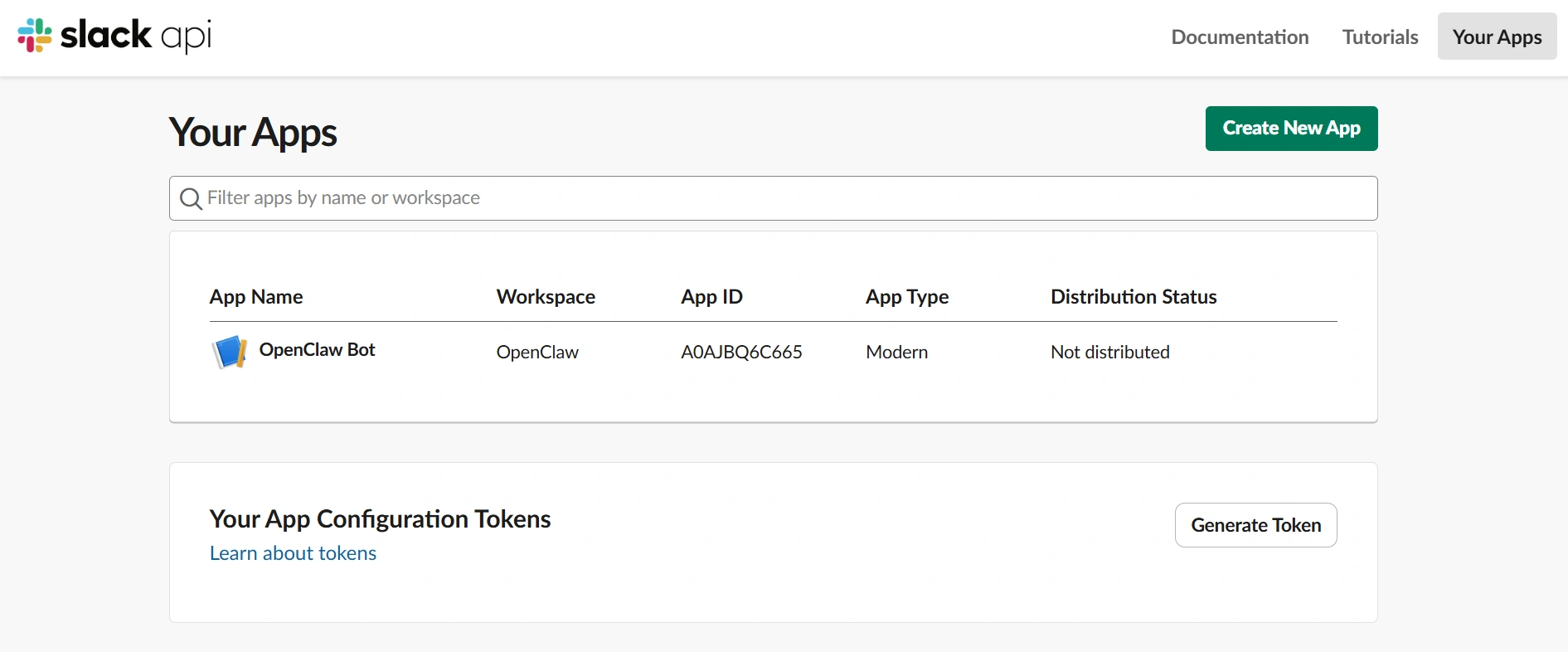
You now have a Slack application that will act as the communication bridge with OpenClaw.
Step 2 - Enable Socket Mode
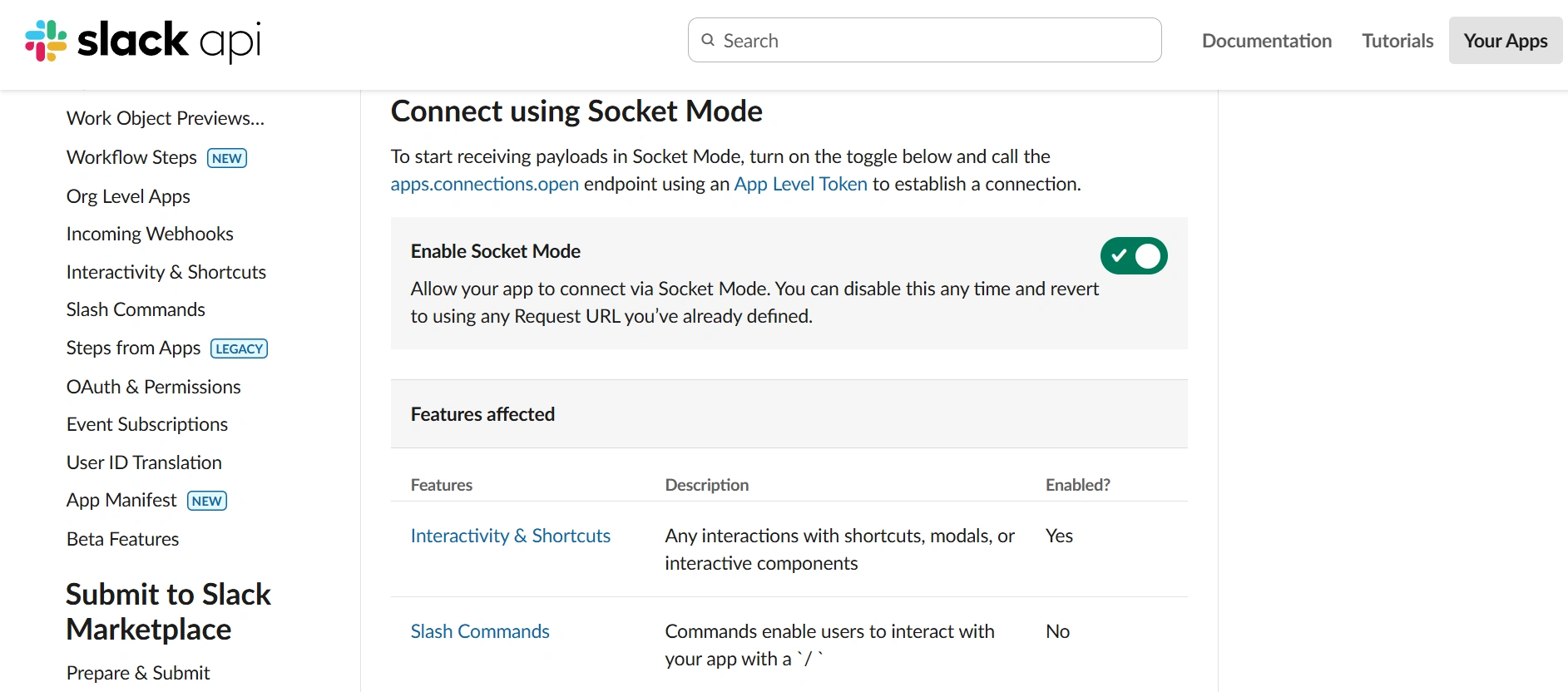
OpenClaw works best with Slack Socket Mode, which allows real-time communication without public webhooks.
Navigate to:
Socket ModeEnable:
Enable Socket ModeClick:
Generate Token and ScopesAdd scope:
connections:writeSlack will generate an App Token:
xapp-xxxxxxxxxxxxSave this token — it will be used in OpenClaw.
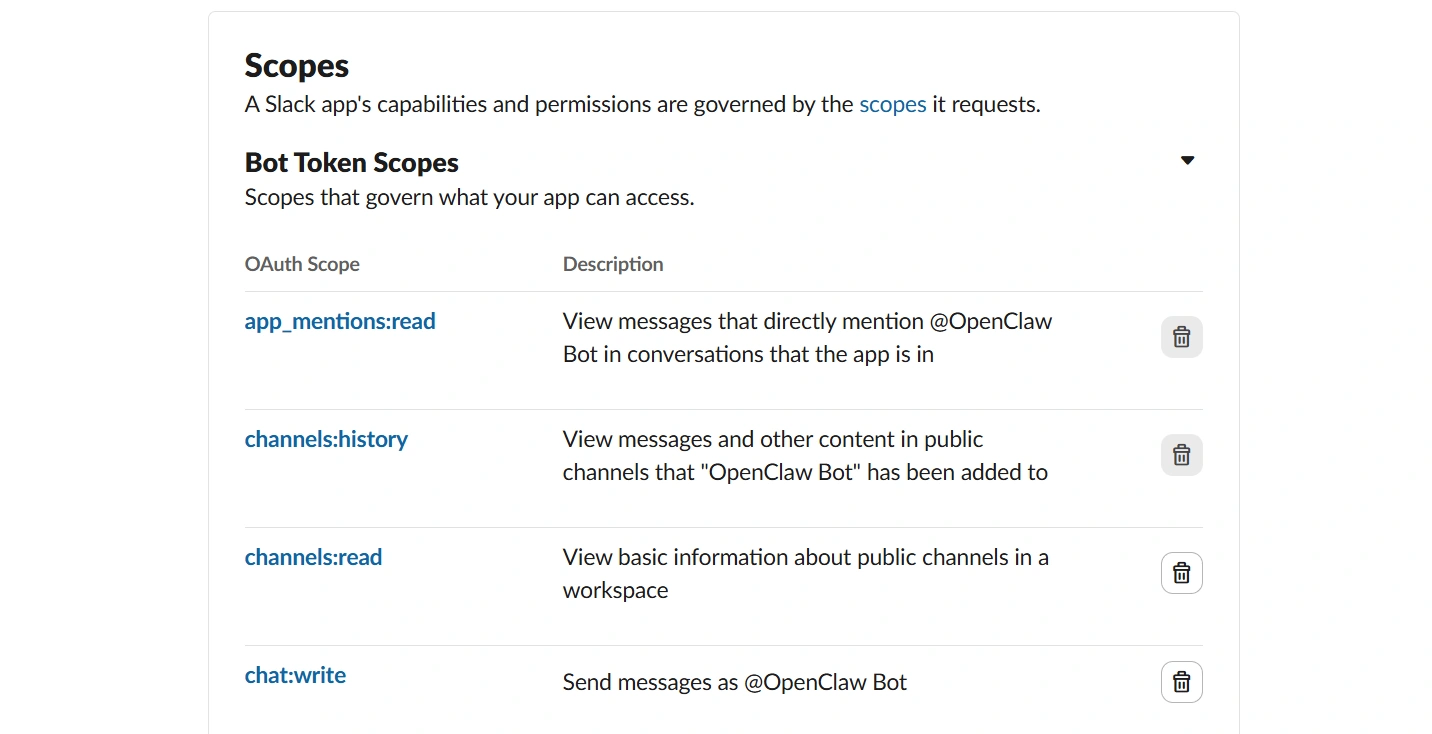
Step 3 - Configure Bot Permissions
Next, configure the bot’s access permissions.
Go to:
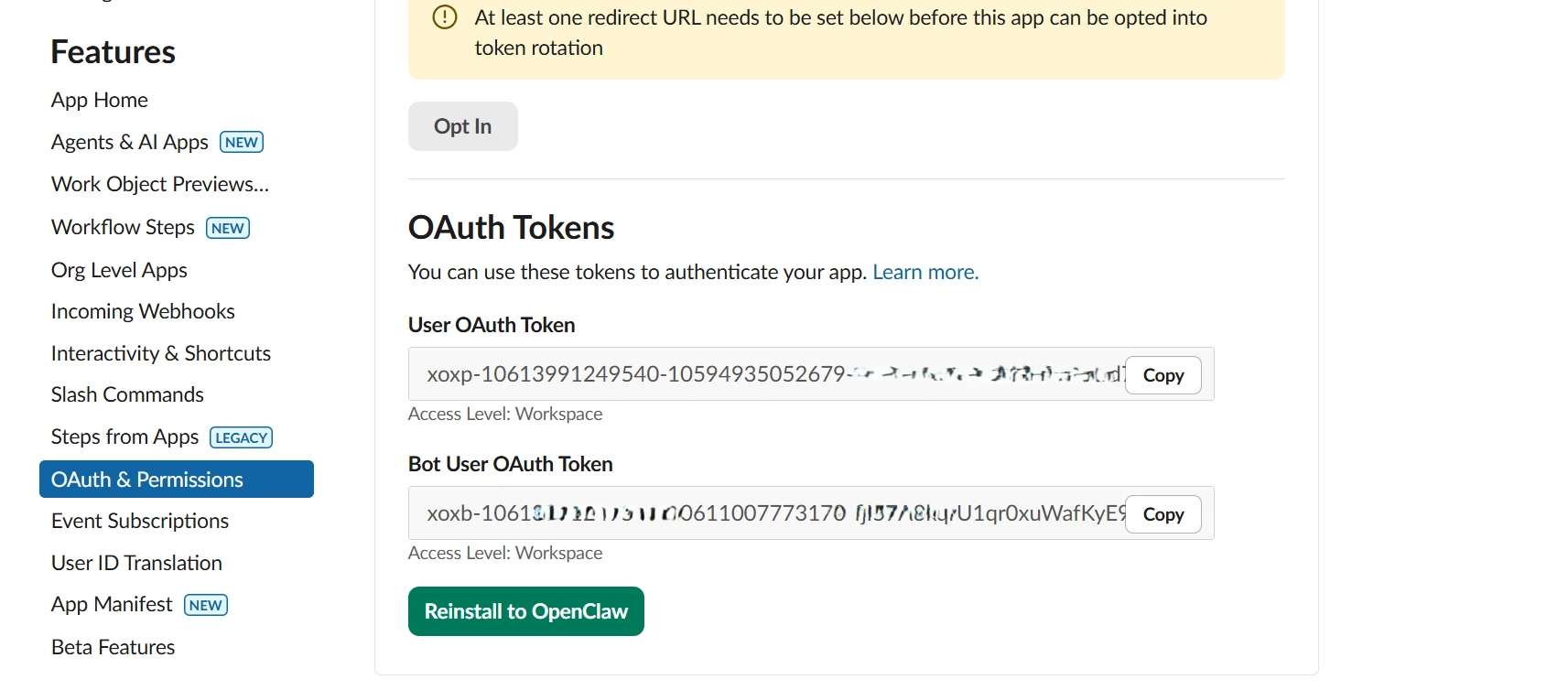
OAuth & PermissionsUnder Bot Token Scopes, add:
app_mentions:read
channels:history
channels:read
chat:write
groups:history
im:history
mpim:history
reactions:read
These permissions allow the bot to:
detect mentions
read messages
respond to Slack channels
interact with conversations
Step 4 - Install the Slack App
Scroll up and click:
Install to WorkspaceApprove permissions.
Slack will generate the Bot User OAuth Token:
xoxb-xxxxxxxxxxxxSave this token.
Step 5 - Configure Slack Event Subscriptions
Now Slack must know which events to send to OpenClaw.
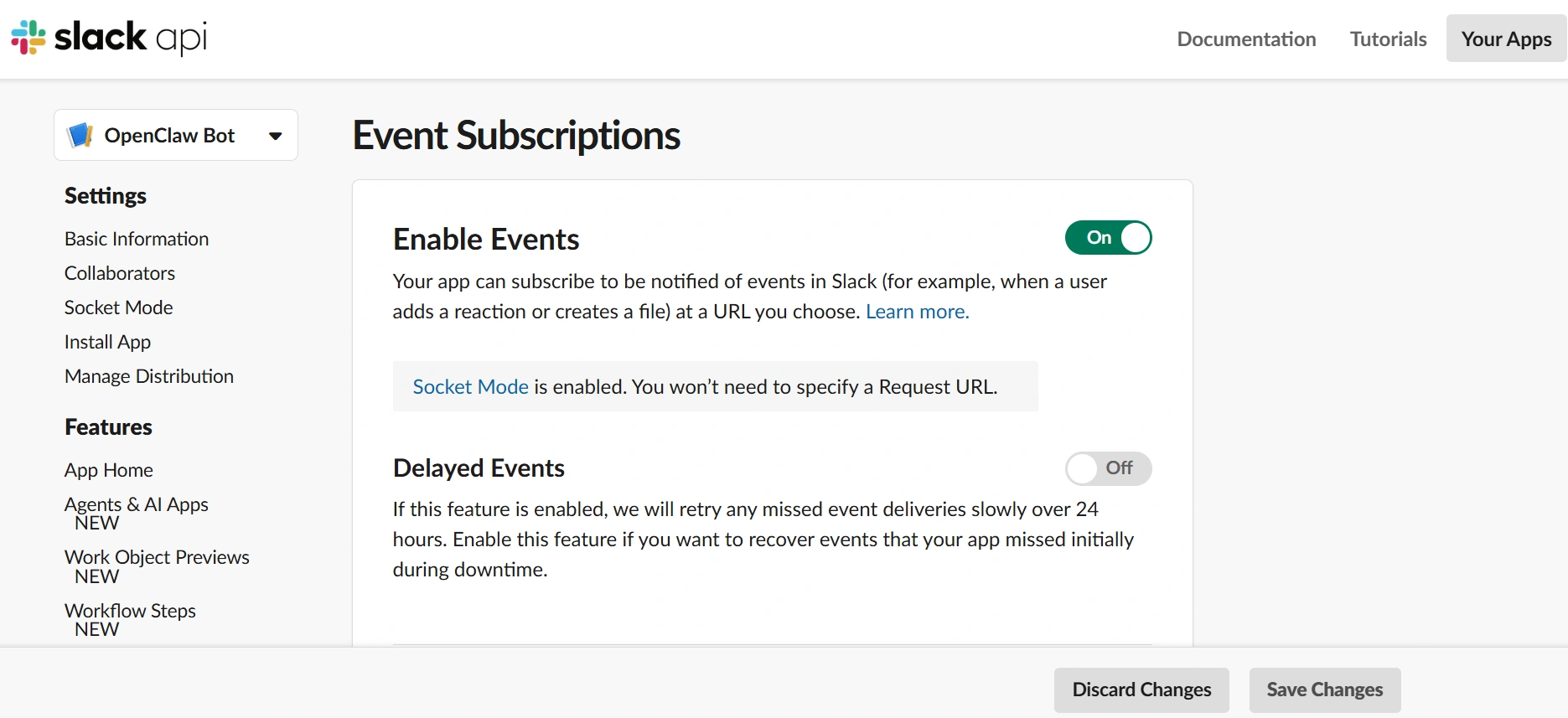
Open:
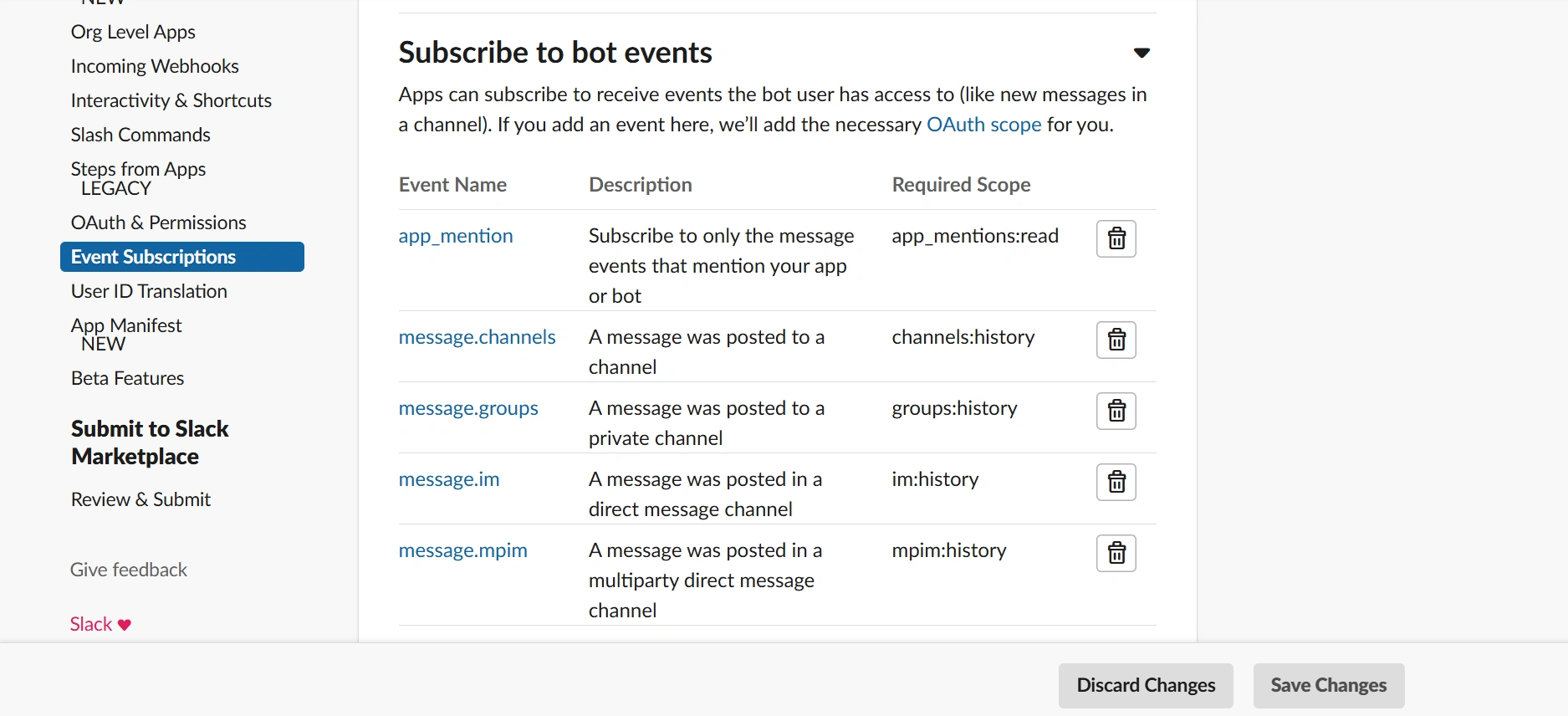
Event SubscriptionsAdd these Bot Events:
app_mention
message.channels
message.groups
message.im
message.mpim
These events allow Slack to notify OpenClaw when:
the bot is mentioned
messages appear in channels
direct messages are received
After adding events, click:
Reinstall to WorkspaceThis step is critical — many tutorials miss it.
Step 6 - Configure Slack Tokens in OpenClaw
Now we connect Slack with OpenClaw.
Open your terminal and run:
systemctl --user set-environment SLACK_APP_TOKEN="xapp-your-token"
systemctl --user set-environment SLACK_BOT_TOKEN="xoxb-your-token"
Verify the tokens:
systemctl --user show-environment | grep SLACKYou should see:
SLACK_APP_TOKEN=...
SLACK_BOT_TOKEN=...
Step 7 - Restart the OpenClaw Gateway
Reload the gateway so it reads the Slack tokens.
Run:
systemctl --user daemon-reload
systemctl --user restart openclaw-gateway
Step 8 - Verify Slack Connection
Check channel status:
openclaw channels status --probeExpected output:
Slack default: enabled, configured, running, bot:config, app:config, worksThis confirms Slack is connected successfully.
Step 9 - Invite the Bot to a Channel
Open Slack and invite the bot:
/invite @OpenClaw BotWithout this step Slack will not send events.
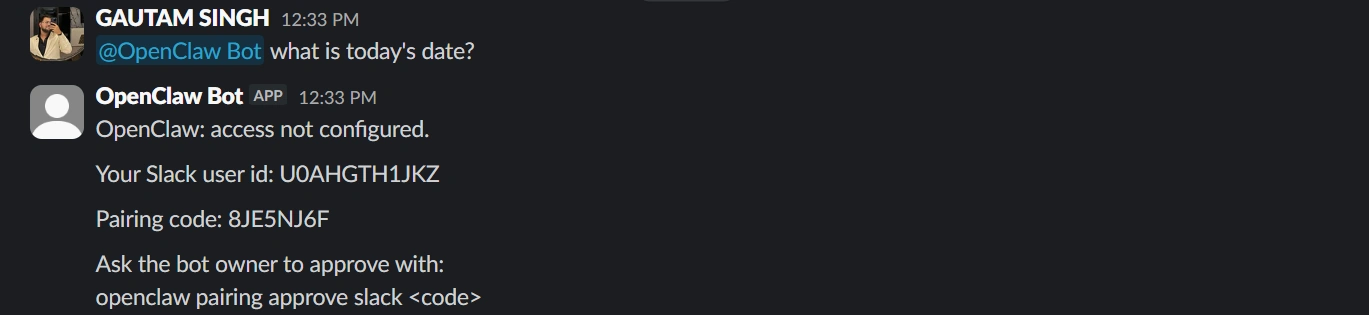
Step 10 - Send Your First Message
Send a message in Slack:
@OpenClaw Bot what is today's dateSlack will respond with:
OpenClaw: access not configured
Your Slack user id: XXXXX
Pairing code: XXXXX
This is a security feature.
Step 11 - Approve the Slack User
Return to the terminal and run:
openclaw pairing approve slack <PAIRING_CODE>Example:
openclaw pairing approve slack 8JE5NJ6FOnce approved, the Slack user can control the agent.
Step 12 - Test the Integration
Return to Slack and send:
@OpenClaw Bot what is today's dateor
@OpenClaw Bot list files in the workspaceIf everything is configured correctly, the bot will respond.
You now have a fully working Slack AI automation agent.

Common Problems (and Why AI Tools Often Miss Them)
Many developers struggle because tutorials skip critical steps.
Common mistakes include:
Missing Event Subscriptions
Without:
app_mention
message.channels
Slack never sends events to the bot.
Not Reinstalling the Slack App
After adding permissions or events, you must reinstall the app.
Forgetting Pairing Approval
OpenClaw blocks unapproved users by default.
Incorrect Token Configuration
Both tokens are required:
xapp → Socket Mode
xoxb → Bot messaging
Why OpenClaw + Slack Is Powerful
Once integrated, Slack becomes an AI automation console.
Possible workflows:
AI DevOps monitoring
automated reports
team assistant bots
knowledge retrieval agents
workflow automation
This is why many companies are exploring AI agents embedded inside communication platforms.
Where to Learn Advanced OpenClaw Automation
If you want to go beyond basic integration and learn how to build production-ready AI automation agents, structured training can significantly accelerate the process.
One platform offering curated AI engineering learning paths is:
https://learnai.c-sharpcorner.com/
The platform provides hands-on learning focused on:
AI agent development
automation workflows
real-world AI engineering practices
building systems like OpenClaw integrations
For developers interested in building practical AI automation systems, these types of structured resources can be extremely helpful.
Final Thoughts
Slack + OpenClaw integration is powerful, but the setup requires precise configuration.
Many guides skip steps like:
event subscriptions
pairing approval
socket token configuration
This article provided the complete, correct workflow so developers can deploy OpenClaw Slack automation successfully.
Once configured, Slack becomes a control panel for AI-powered operations.
And as AI agents continue to evolve, integrations like this will become a core part of modern automation infrastructure.
Join the conversation! Your thoughts help the community grow.