

Introduction
Artificial Intelligence is rapidly evolving from systems that simply answer questions to intelligent agents capable of understanding goals, retrieving information, and assisting users in completing tasks.
One of the challenges organisations face when adopting AI is ensuring that responses are grounded in their own business knowledge rather than relying solely on a model's training data. Company policies, procedures, product information, and operational guidelines are often stored across documents and knowledge repositories that generic AI models cannot access by default.
Microsoft Foundry addresses this challenge by providing a platform for building AI agents that can combine the reasoning capabilities of large language models with enterprise knowledge and business systems.
In this article, we will build a company knowledge assistant using Microsoft Foundry. The agent will be connected to a set of PDF documents containing company information and will be able to answer user questions using the content of those documents. This demonstrates one of the most common and practical enterprise AI scenarios: enabling employees to access organisational knowledge through natural language conversations.
What We Are Building
Before diving into the implementation, let's look at the solution architecture.
The agent acts as the central orchestrator. When a user submits a question, the agent analyses the request, retrieves relevant information from the connected PDF documents, and uses an AI model to generate a response grounded in that information.
This approach differs from a traditional chatbot that relies solely on the model's training data. By connecting enterprise documents as knowledge sources, the agent can provide answers that are specific to the organisation and reflect the latest available information.
In the following sections, we will walk through the complete process of creating the agent in Microsoft Foundry, connecting the knowledge sources, testing the solution, and validating the responses.
Getting started with Microsoft Foundry
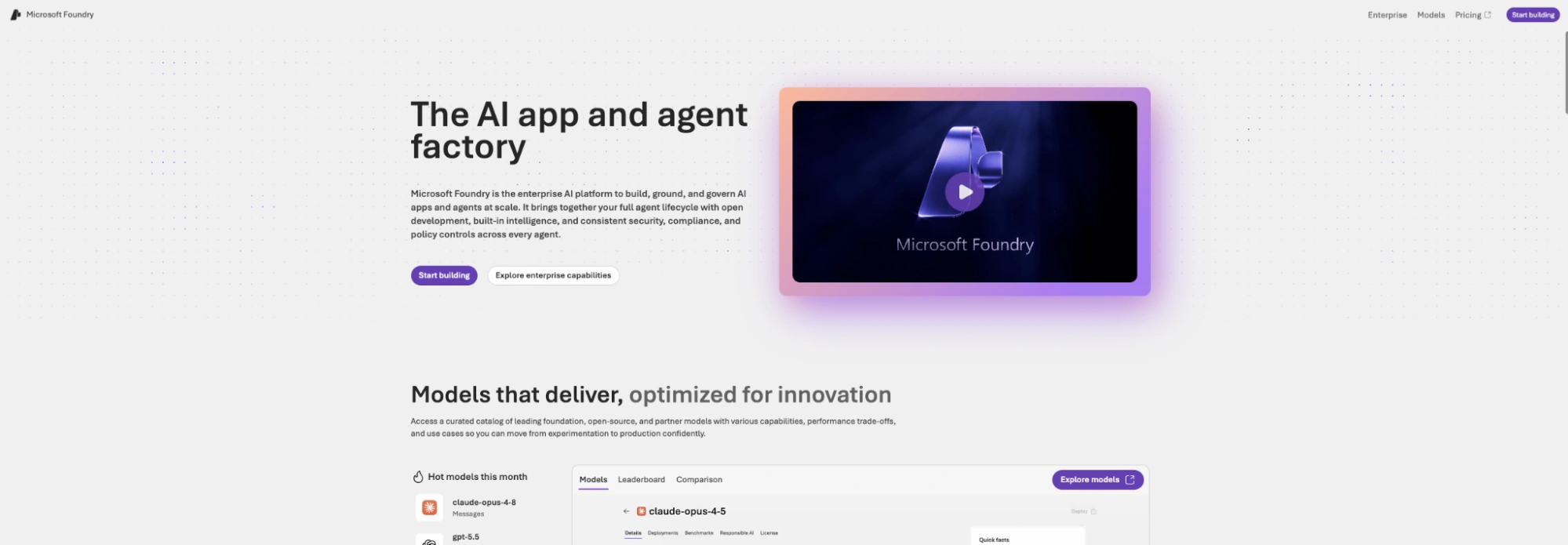
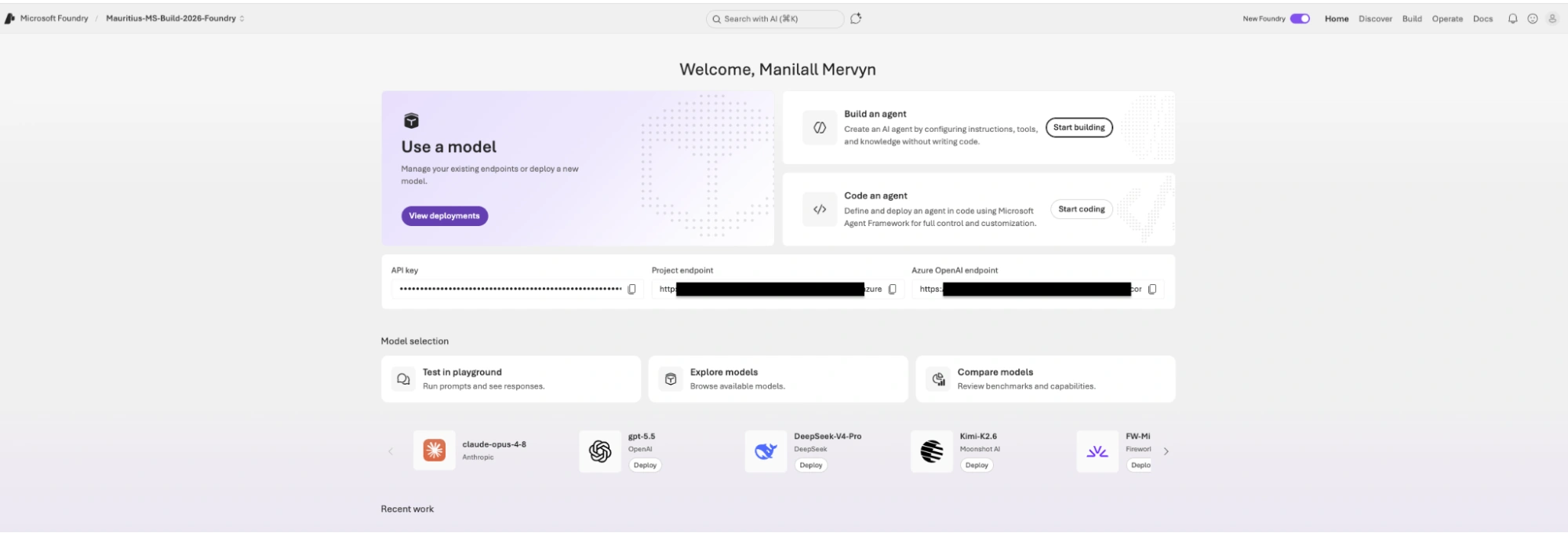
Click on 'Start building'
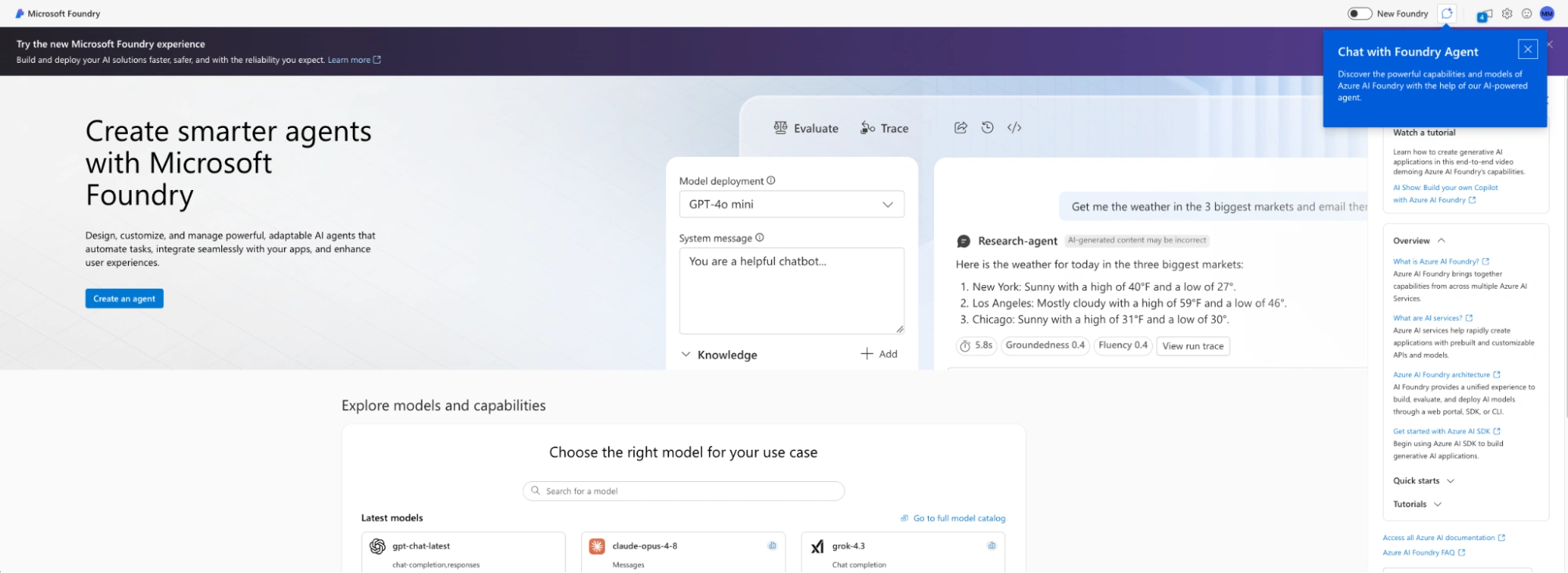
If the 'New Foundry' toggle in the top right of the screen is off, switch it on.

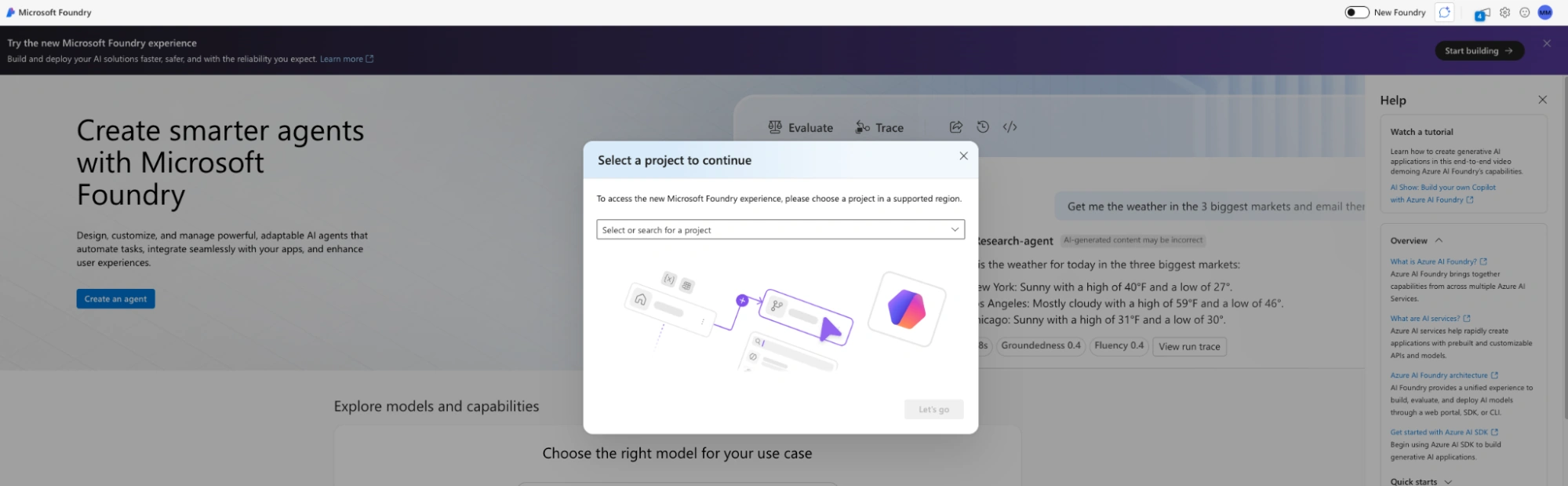
You will get the option to create a new foundry
Fill in the required info.
Do not forget to create an Azure subscription if you do not have one.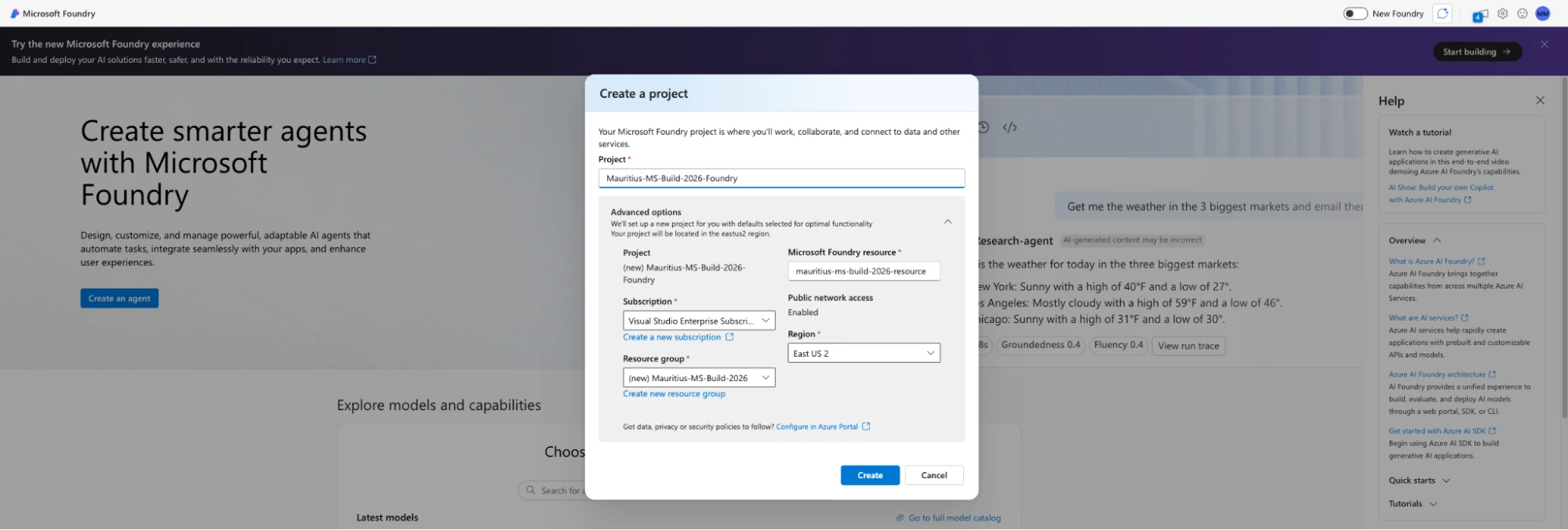
You will land on this screen
Building your agent
On the screen below, click on 'Start building'

A popup will open and you will be asked to provide a name for your agent:
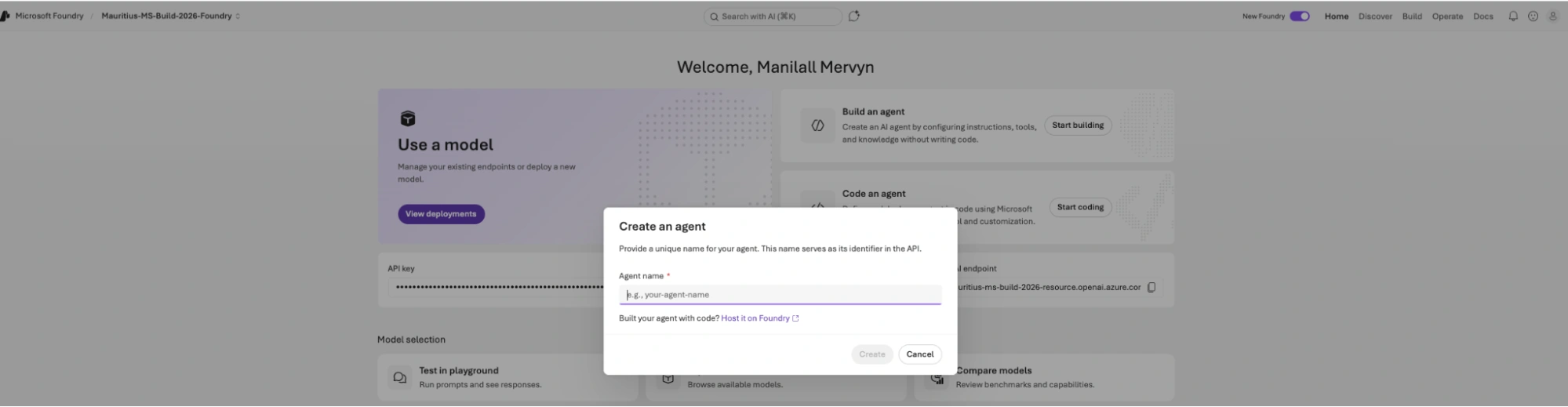
I called mine 'employee-onboarding-agent'.
By default, when creating, it will use gpt-4.1 mini
When everything has been created, you see the screen below:
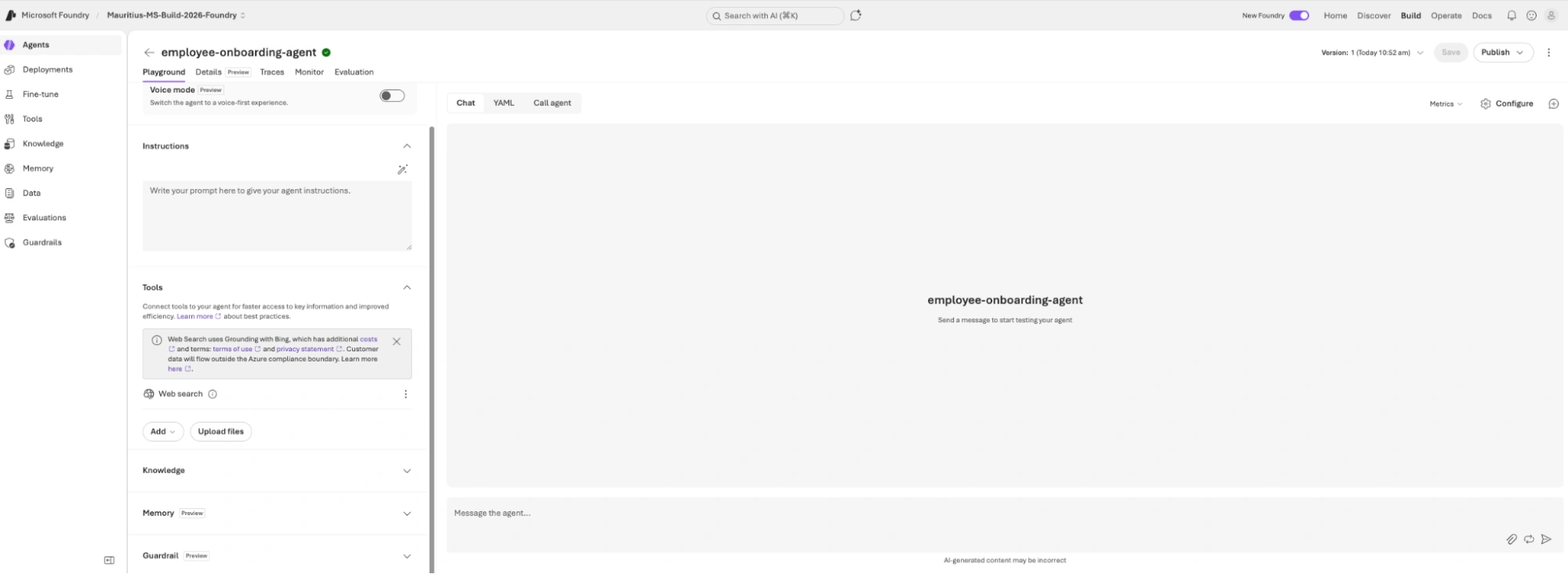
You configure your agent in the section in red
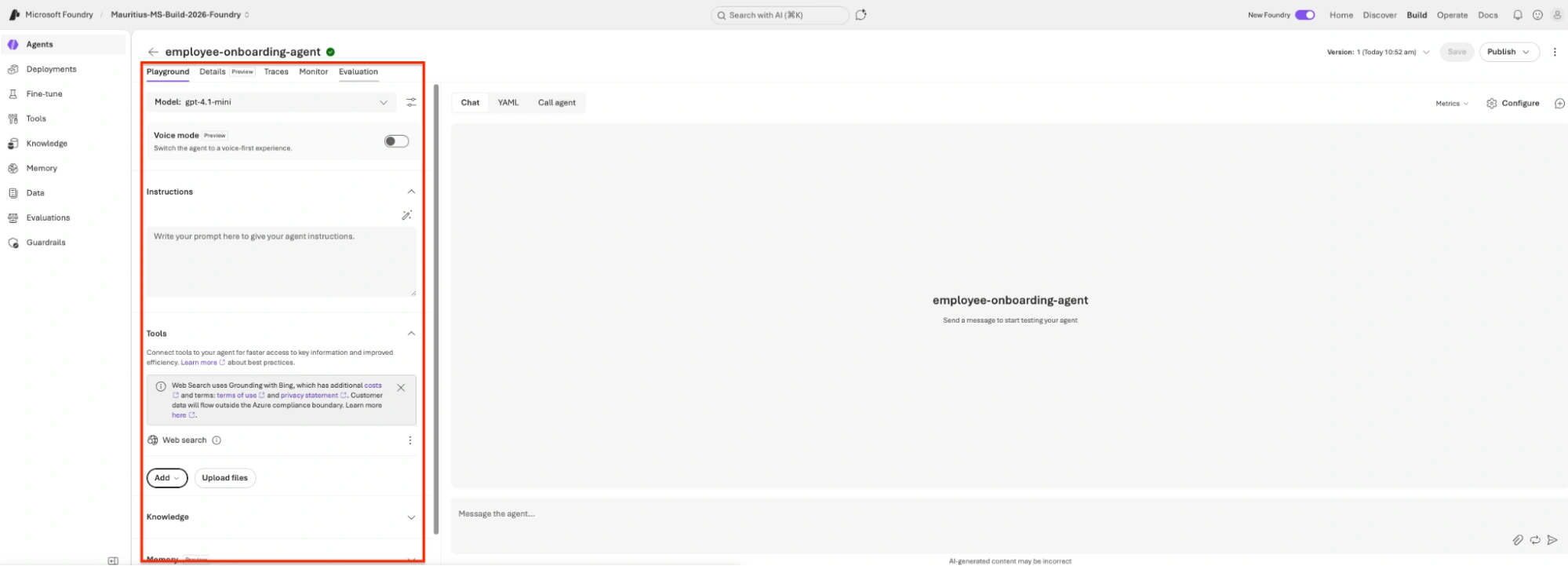
A. In the first dropdown, you can choose which model to use. It will based on your needs.
B. The instruction section is where you tell the agent what it is and what it should do
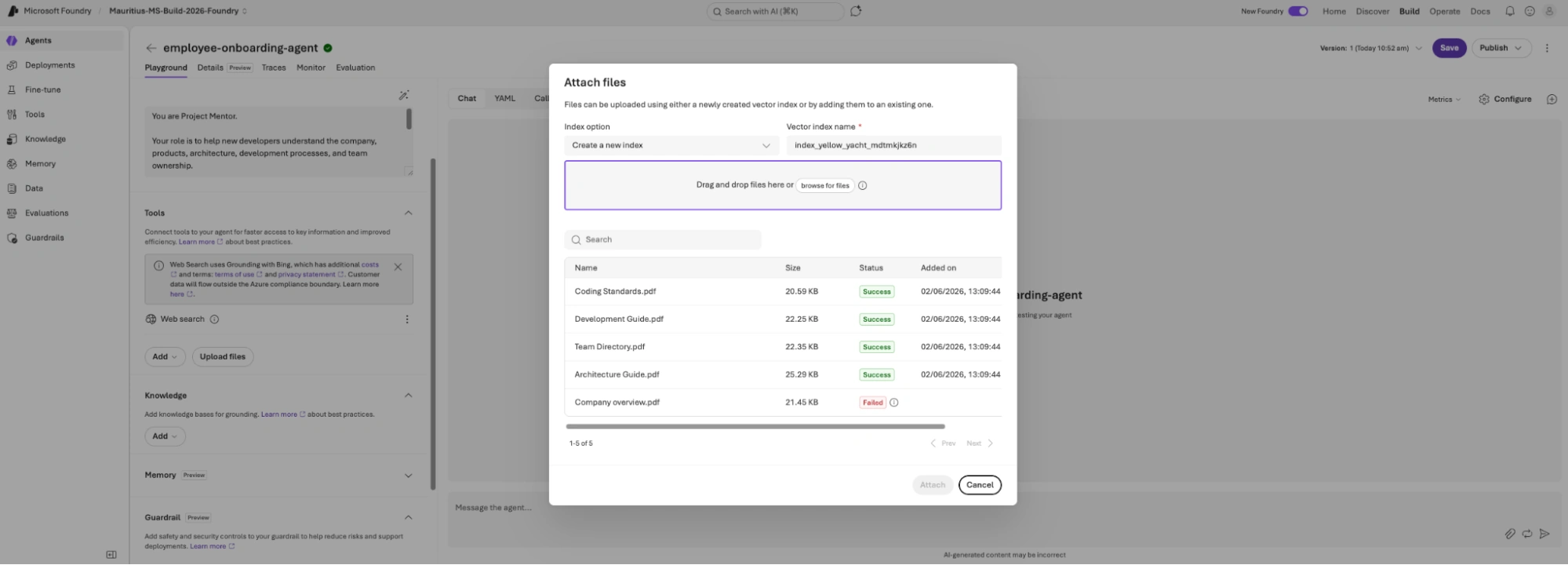
C. To add pdf that contains info for the Agent to use, upload them under the tool section as below
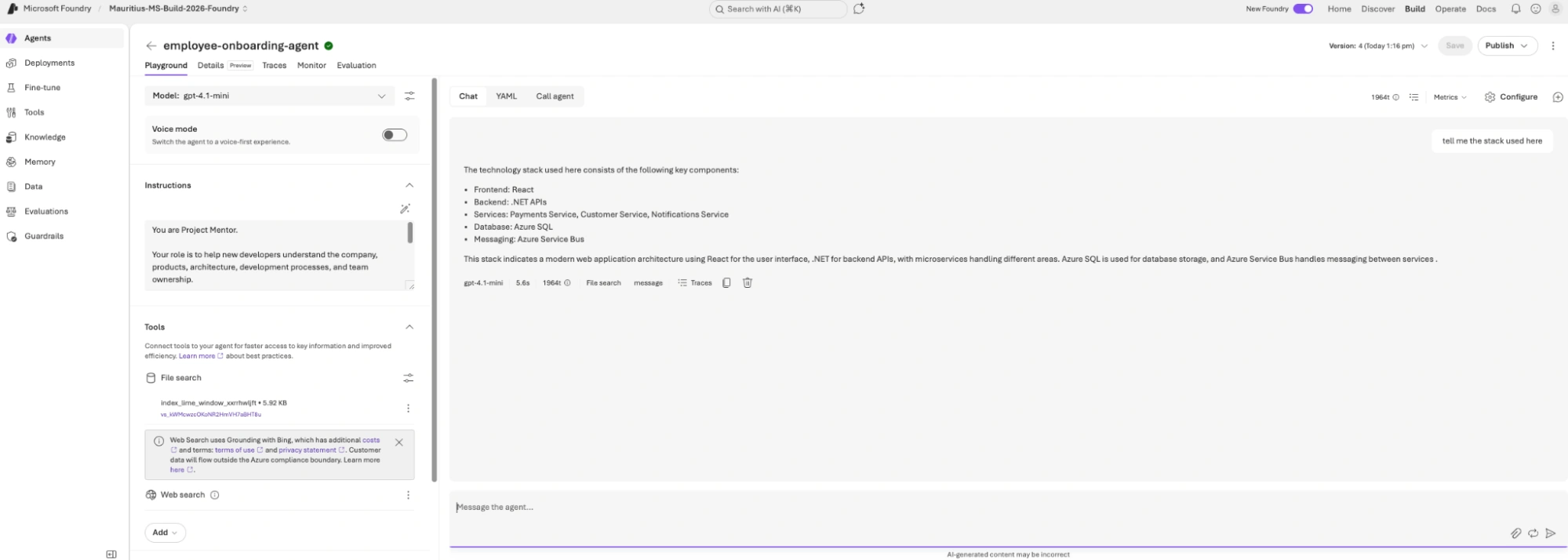
Once done, you can chat with your AI to get the information you need related to the documents you have just given it.
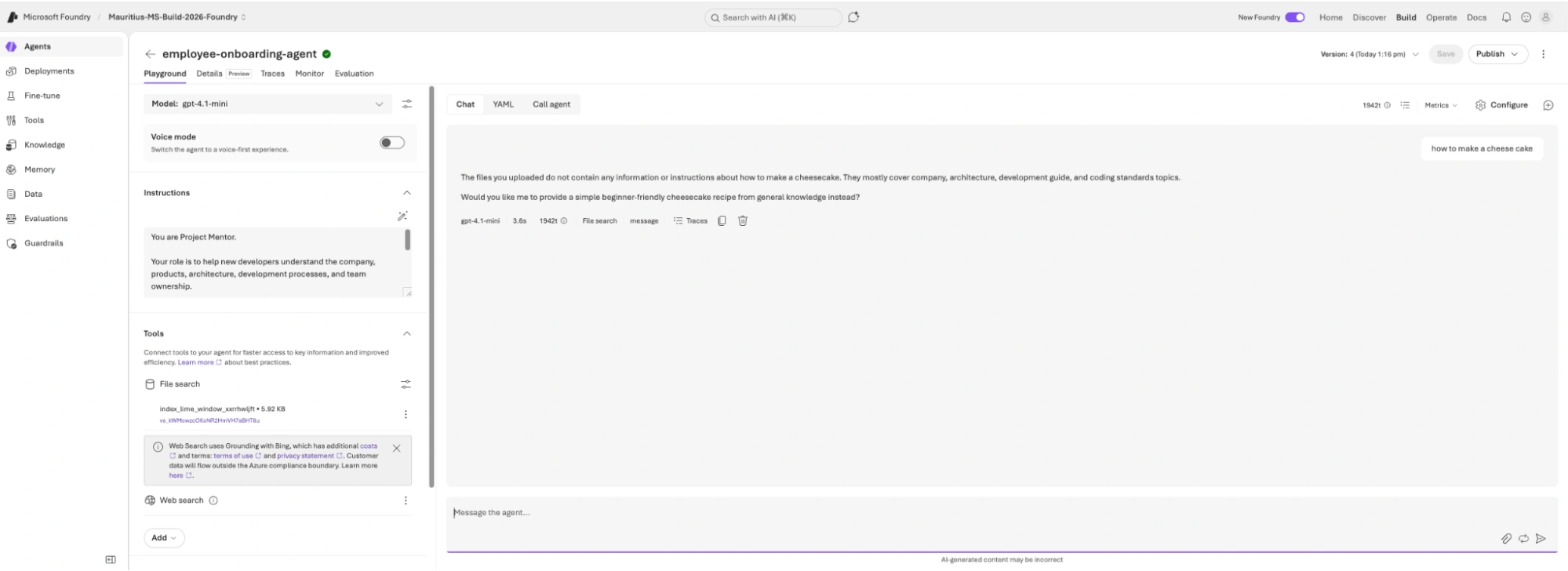
If you try to ask for something not present in the documents you have given it, it will not know.
Below is an example asking how to make a cheesecake.
Guardrails
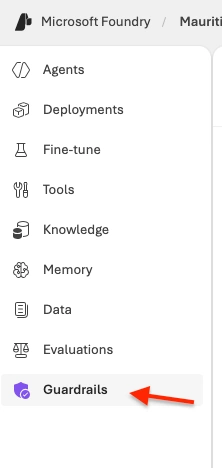
Select this option in the navigation
You will land on the page below

Click on 'Blocklists'.
You will land on this screen.
Click on 'Create blocklist'.
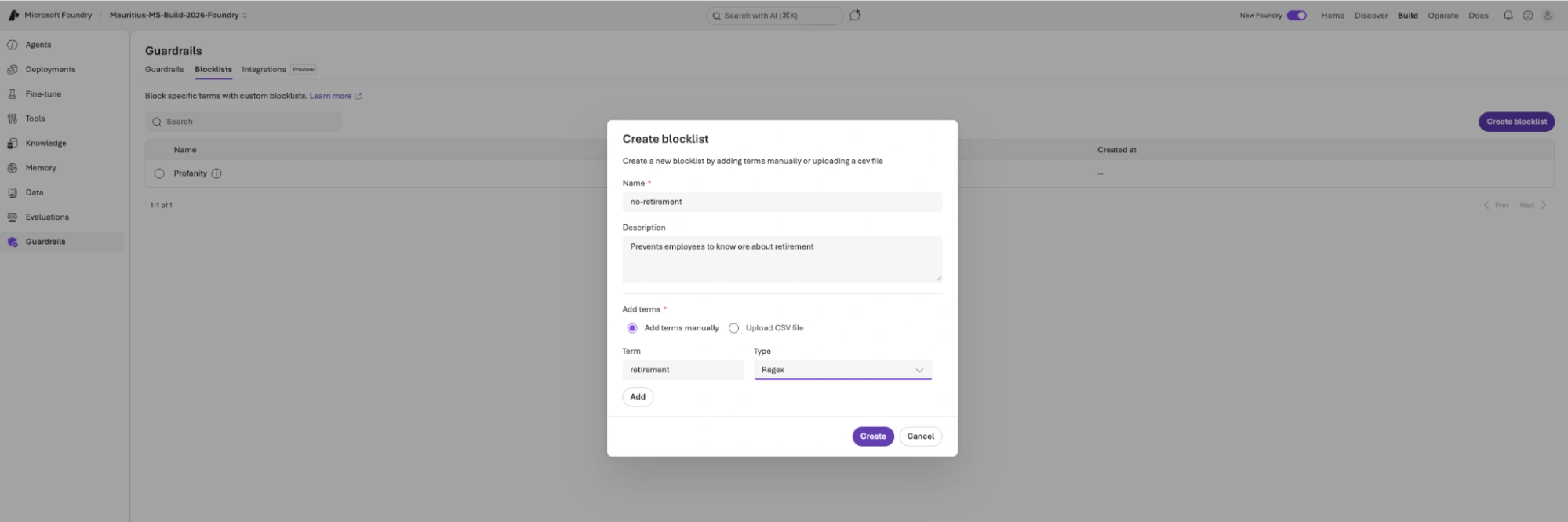
On this screen, I have created a new blocklist.I have added the term/word 'retirement' and asked to check for the regex as well. In this way, everything related to 'retirement' is blocked.
Once done, click on 'Create'To create a guardrail from the blocklist, to toggle to the 'previous' version of the Foundry portal. To do so, use the switch at the top right of the screen.
The portal will now look like the one below: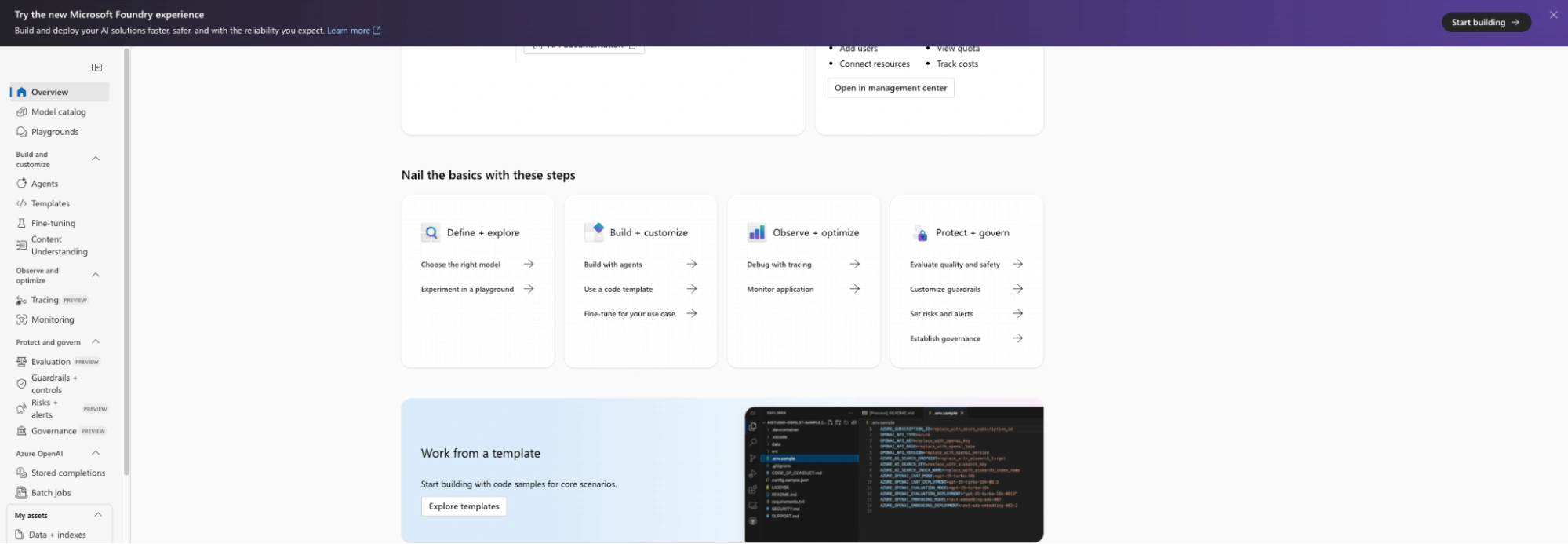
Click on the 'Guardrails + Controls' option on the left.
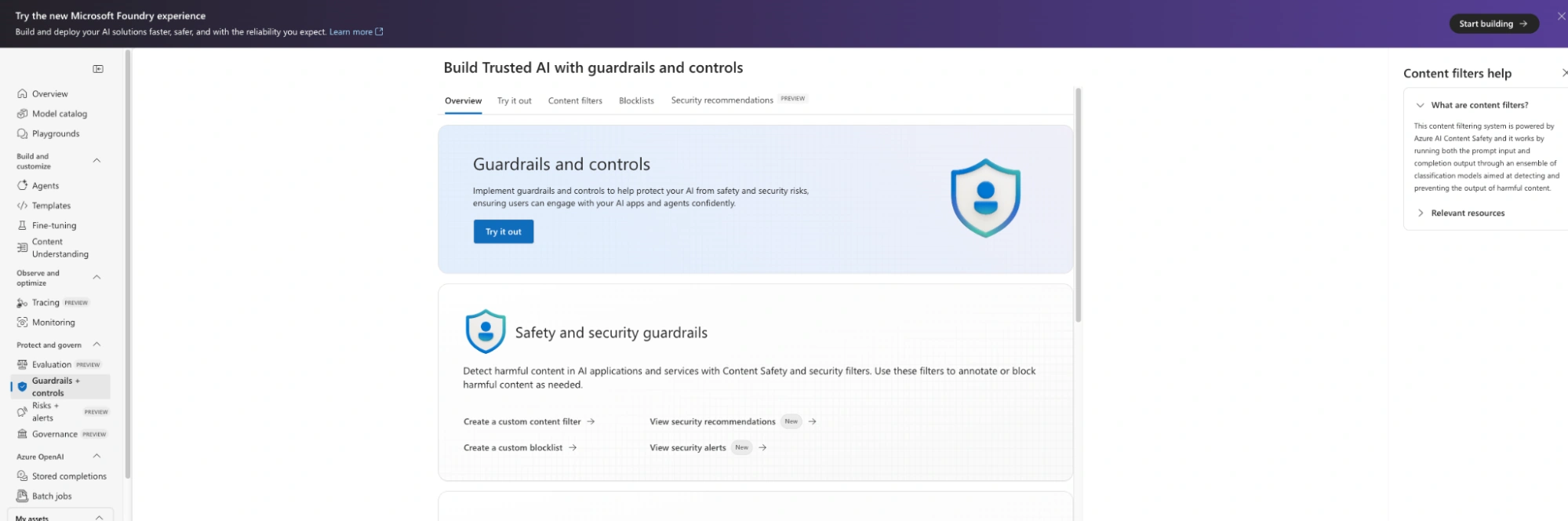
Click on 'Content filters' then click on 'Create content filters'
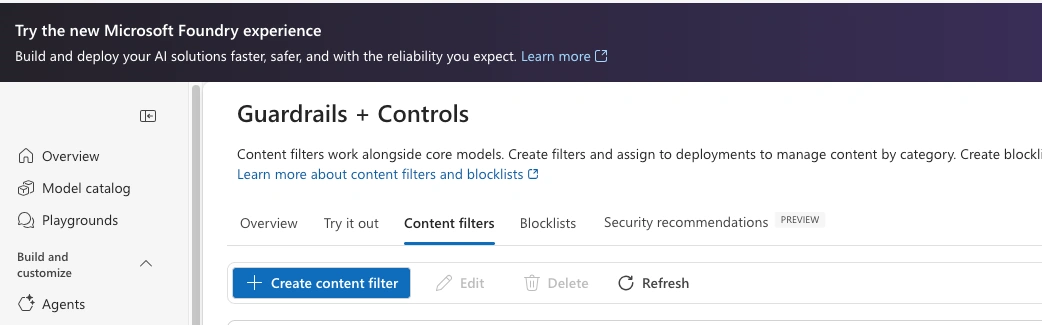
In the first step, enter the name of the content filter. You can choose the name that you want and click on 'Next.
In the second step, you can choose from the existing input filter.
Scroll down.
Toggle on the 'Blocklist' option and select from the dropdown. In the list, you will see the section for custom blocklist; it is where you will find the one you have created.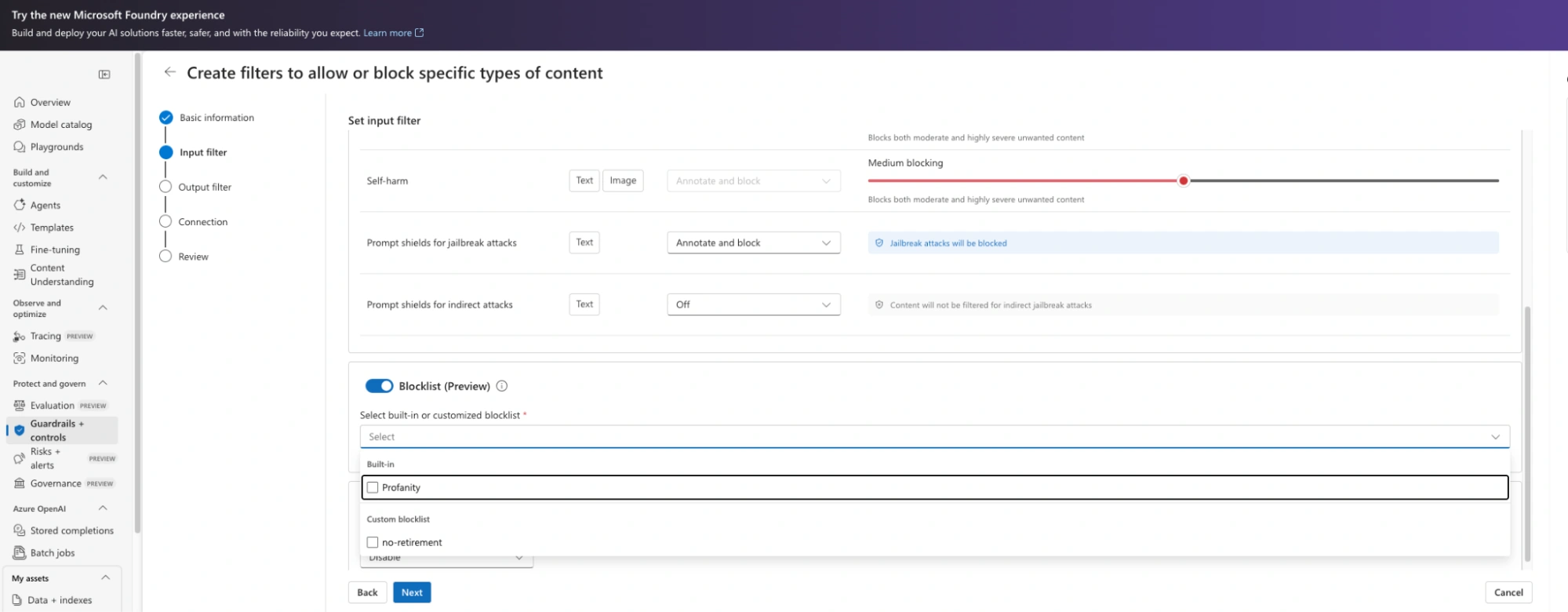
Continue through the rest of the steps.
Once completed, toggle back to the new portal.
On the new portal, in the top menu, click on 'Build'.
Then on 'Guardrails'.
You will see your new guardrail listed. It might take some time to appear in some cases.Click on 'Agents; and select the agent that you have created.
Select the 'Guardrail' option.
You will see the option 'Manage guardrails'; click on it and select 'Reassign guardrail'.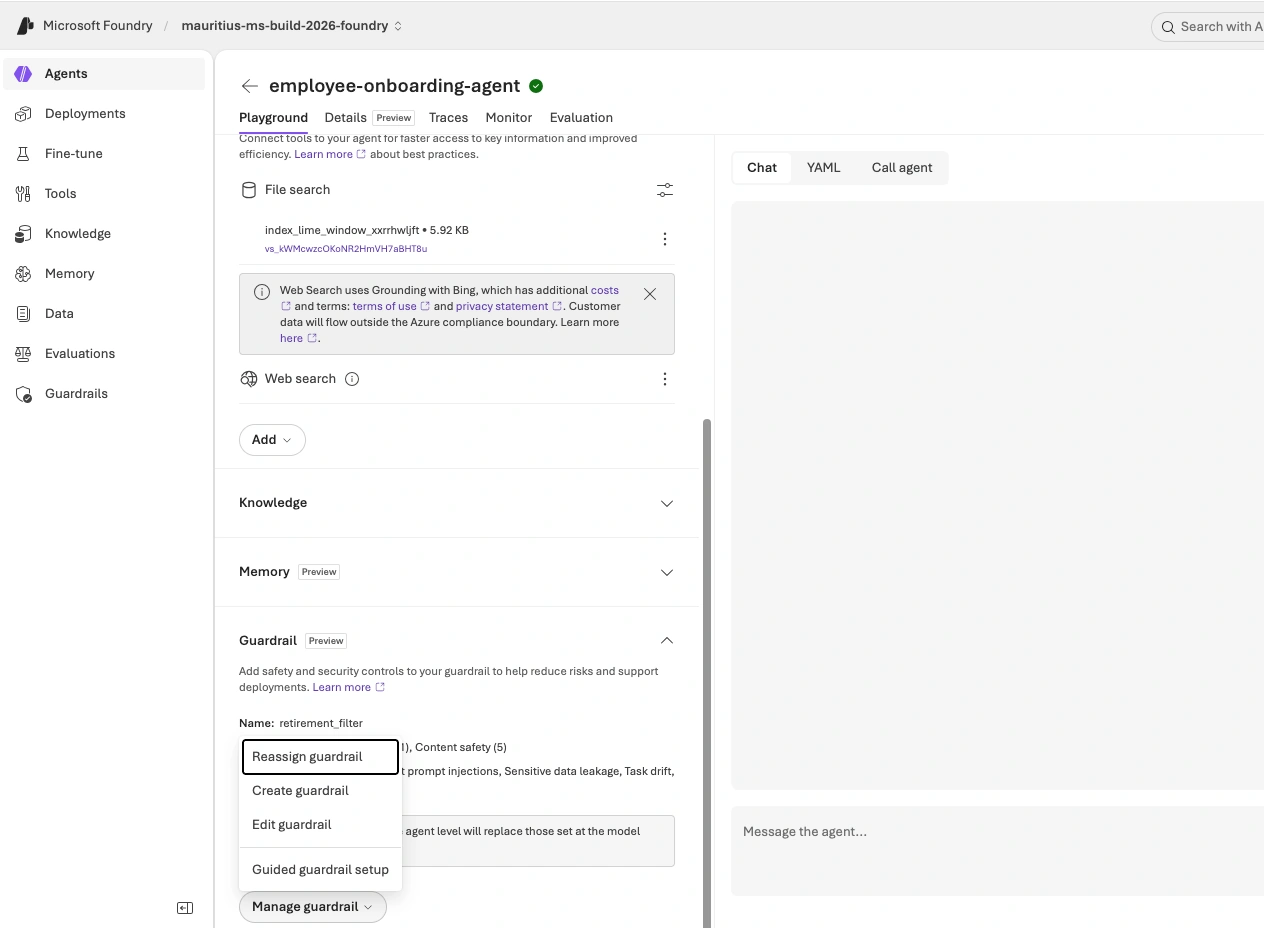
A popup will appear. You can choose your guardrail from it and assign it to this agent.
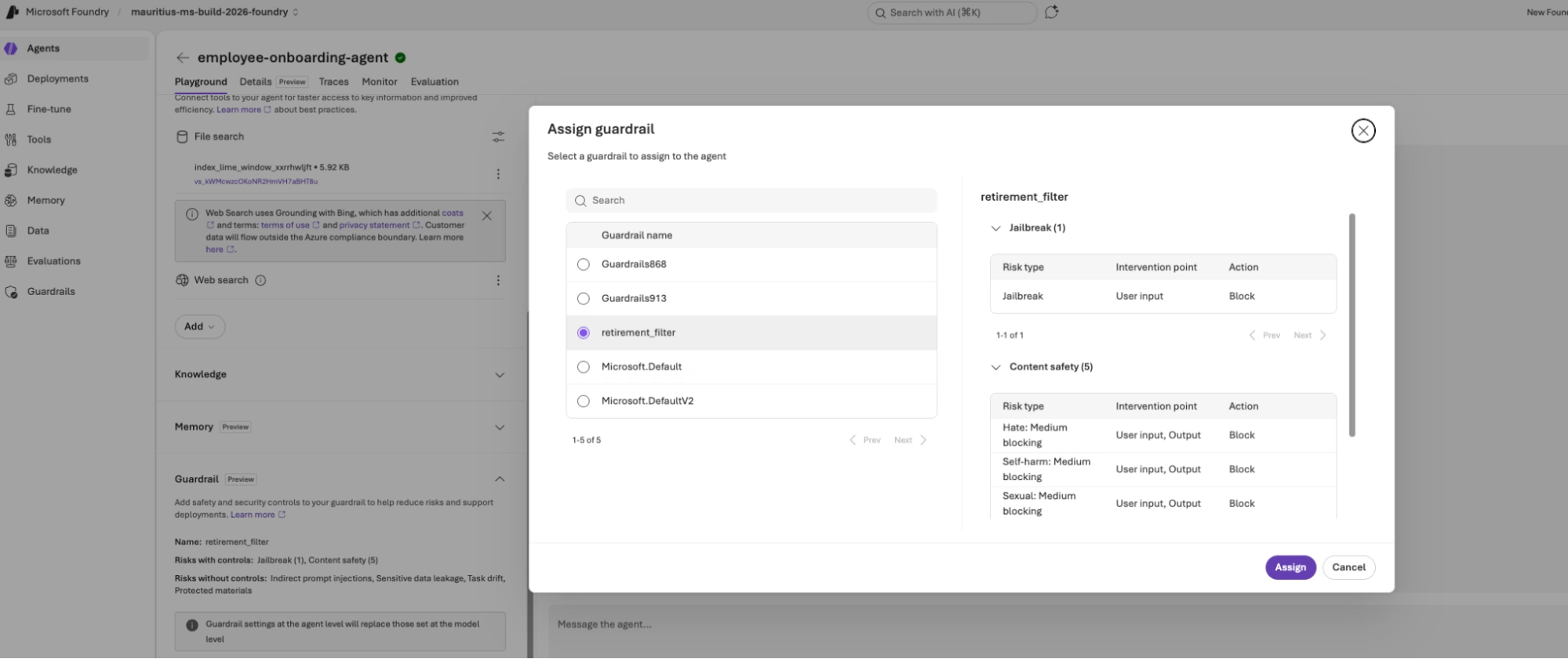
For the sake of the demo, I will ask about 'retire' or 'retirement' as set in the blocklist.
As expected, the agent does not reply. Instead it says that it has been blocked as per guardrails.

Conclusion
In this article, we created a company knowledge assistant using Microsoft Foundry and connected it to a collection of PDF documents that serve as the agent's knowledge base.
By combining a large language model with enterprise knowledge, the agent is able to provide responses that are relevant, accurate, and grounded in organizational information. This approach helps reduce the limitations of standalone AI models and enables users to access business knowledge through a natural conversational experience.
While this example focuses on document-based question answering, the same concepts can be extended further. Agents can be connected to business applications, APIs, databases, and workflows, enabling them not only to answer questions but also to perform actions and support business processes.
Microsoft Foundry provides the foundation for building these solutions by bringing together models, agents, knowledge, and governance capabilities within a unified platform. As organisations continue to adopt AI, knowledge-grounded agents represent an effective first step towards delivering practical business value while maintaining control over enterprise information.
Join the conversation! Your thoughts help the community grow.