

Some time ago, I took a walk through all the features available in the new modern look of Graph Explorer. During that time Microsoft Graph Explorer was in preview; by now Microsoft has added some additional features to it and released a GA version.
Check out my article “The new modern look of Graph Explorer – Part 1” to know about the below features initially added in the preview version.
New Features
- Uses Monaco Editor
- Shows Access Token
- Shows Adaptive Cards
- Shows Snippets
Enhanced Features
- Improved Sample Queries
- Improved History
- Modified Permission View
- Sign In
In this article, we will learn about the below feature which has been added added to the updated Graph Explorer.
- More Actions
- Get a sandbox with sample data
- Change theme
- Select permissions
- Sign out
- Expand Response
- Share Query
More Actions
Next to the signed-in user, the gear button has some action menus. They are used to:
- Run the sample query in the sandbox
- Modify the GE theme
- Modify the permissions
- Sign Out – Available in preview version too
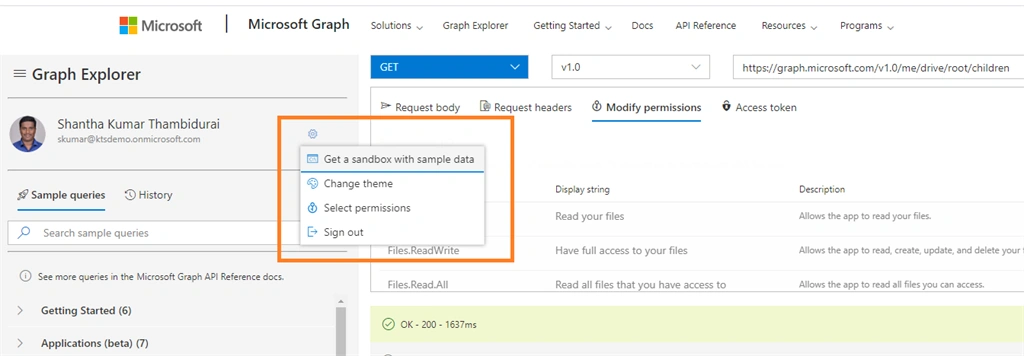
Get a sandbox with sample data
Graph Explorer is now integrated with the Microsoft 365 Develop Program. This action activates the sample data pack feature to the developer subscription. Due to a high volume of requests, this feature is temporarily unavailable. So, I’ll cover more about this in the next article.
- Select the Gear button
- Then select Get a sandbox with a sample data menu
Change theme
GA of Graph Explorer allows us to change 3 different looks and feels
- Light
- Dark and
- High Contrast
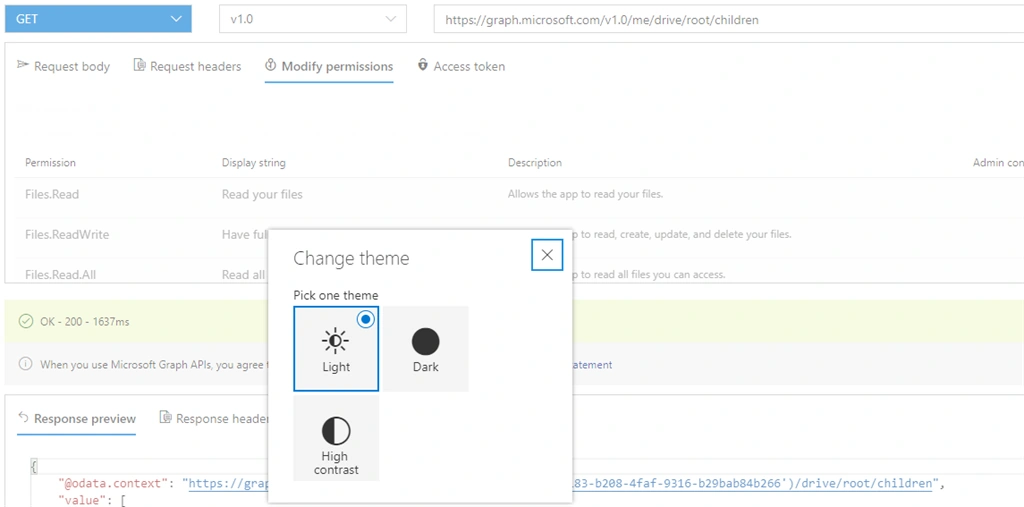
To get this dialog box available by following below steps,
- Click the Gear button
- Then select Change theme menu
Select Permissions
This is the most anticipated feature added to the GA version. The Preview version missed this one. Even though we can consent to the API request in the Modified Permission tab in the Request section, the modified Permission tab only allows consent for the required permission for the requested API. But this section allows us to apply the consent for any permissions.
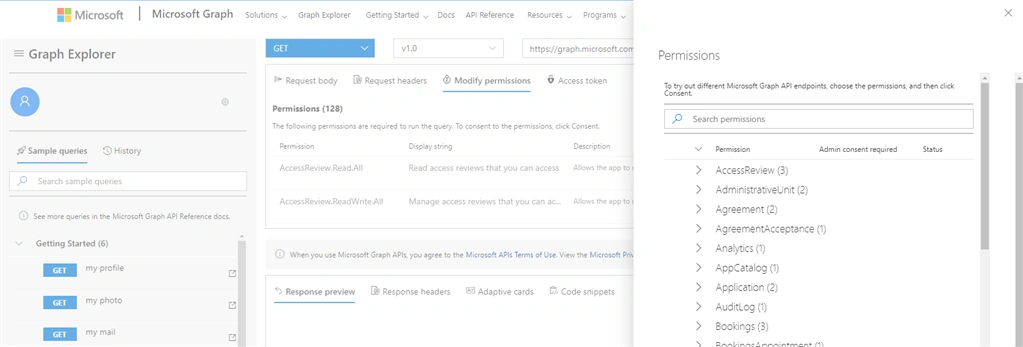
To get this panel opened and approve the consent follow the below steps,
- Click the Gear button
-
Then select “Select Permissions” menu
-
Expand any permission group and select the permission
-
Then click the Consent button.
Expand Response
In the response section, the new nice feature added is Expand Response. This allows us to expand and collapse the response section and view it on a full view page.
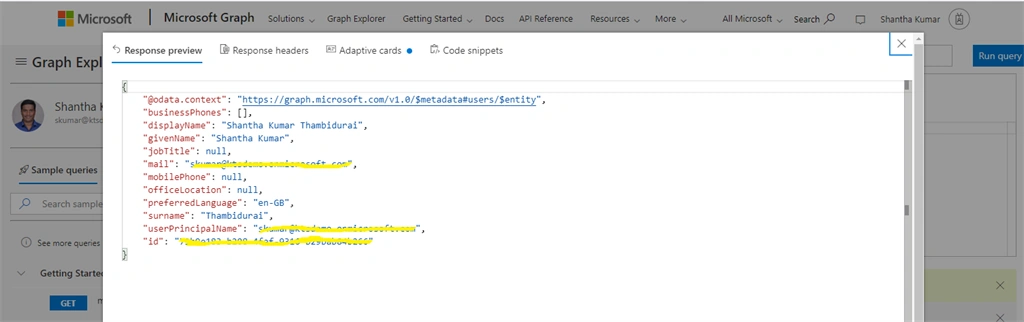
To expand this dialog, in the response section view, click the below-highlighted icon,

Share Query
This is an outstanding feature and helps us to share the MS Graph API Request URL with Query information. To get this to work, click the Share Link icon button in the response section.
This will open a dialog box with the Request URL. Copy the URL and share it with others.
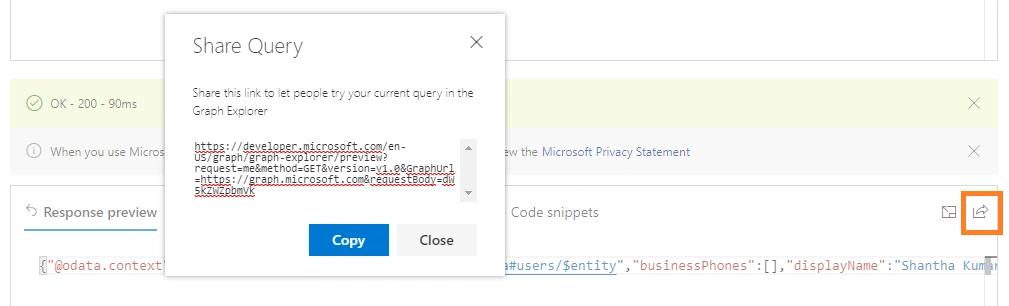
Once they enter the URL in the address bar, the browser navigates to the MS Graph explorer with the request and query (request body, headers) information.
Every Microsoft 365 developer/user should try it at least one time and they will become a fan of this tool, as it reduces a lot of the code work and the samples in the left navigation help to find the query easily.
Join the conversation! Your thoughts help the community grow.