
Introduction
This article explains the Thumb class that is another base class of WPF layout controls and visual controls. It defines methods, properties and events for controls that can be dragged by the user, using a mouse or similar pointing device. The dragging is usually done to resize or move controls. Thumbs are also used in other WPF controls such as scrollbars.
Background
Here I used a Gridsplitter derived from the Thumb class. It allows the user to resize columns or rows in a Grid. In this article we'll look at several members of the Thumb class, demonstrating their use with a GridSplitter.
Solution
The purpose of the Thumb class is to provide functionality related to dragging, so let's look at the dragging events first. There are three such events. The first two that we will consider are DragStarted and DragCompleted.
As the names might suggest, DragStarted is raised when the user starts dragging a Thumb-based control. DragCompleted is raised when the user stops dragging and releases the mouse button. DragStarted provides event arguments as a DragStartedEventArgs object. This includes properties that describe the start of the drag operation. Also two key properties are used, HorizontalOffset and VerticalOffset.
Procedure
Create a new WPF application project in Visual Studio. Name the project "ThumbDemo". Once the solution is ready, replace the XAML of the main window with the code shown below. This defines a Grid with two columns that can be resized using a GridSplitter.
Step 1
<Window x:Class="ThumbDemo.MainWindow"
xmlns="http://schemas.microsoft.com/winfx/2006/xaml/presentation"
xmlns:x="http://schemas.microsoft.com/winfx/2006/xaml"
Title="Thumb Demo"
Width="250"
Height="150">
<Grid>
<Grid.ColumnDefinitions>
<ColumnDefinition Width="1*"/>
<ColumnDefinition Width="2*"/>
</Grid.ColumnDefinitions>
<TextBlock Name="LeftText"/>
<TextBlock Name="RightText" Grid.Column="1"/>
<GridSplitter Name="MyGridSplitter"
Background="Gray"
Width="5"
HorizontalAlignment="Right"
VerticalAlignment="Stretch"
DragStarted="MyGridSplitter_DragStarted"
DragCompleted="MyGridSplitter_DragCompleted"
DragDelta="MyGridSplitter_DragDelta"/>
</Grid>
</Window>
On running your program, the window appears as follows.

Step 2
The Key properties named HorizontalOffset and VerticalOffset return double-precision floating-point numbers that allow you to determine the position of the mouse pointer, relative to the co-ordinates of the control. For example, if the VerticalOffset is zero then the user positioned the mouse pointer at the very top of the control when they commenced dragging.
Step 3
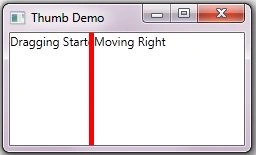
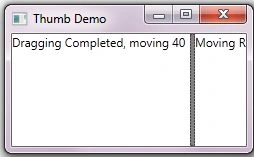
DragCompleted provides a DragCompletedEventArgs object. This includes several useful properties. HorizontalChange returns the distance that the control was dragged in the horizontal direction and VerticalChange gives a similar value for the vertical movement. I have added three grid events here.
<GridSplitter Name="MyGridSplitter"
Background="Gray"
Width="5"
HorizontalAlignment="Right"
VerticalAlignment="Stretch"
DragStarted="MyGridSplitter_DragStarted"
DragCompleted="MyGridSplitter_DragCompleted"


Join the conversation! Your thoughts help the community grow.