
Introduction
-
getCurrentHour() is provided by the TimePicker class that returns the current hour.
- getCurrentMinute() is provided by the TimePicker class that returns the current minute.
Step 1
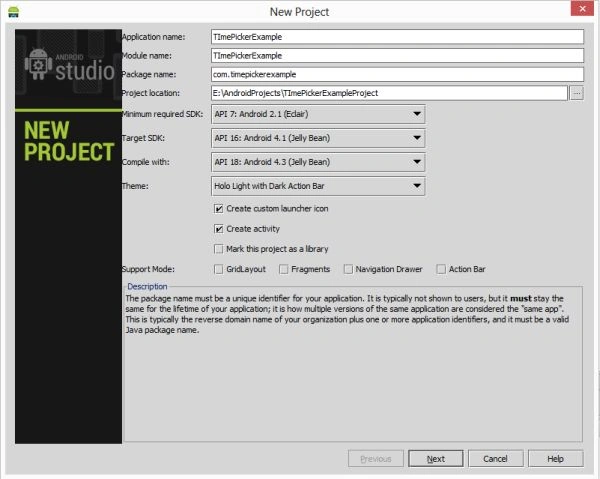
Create a project like this:
 Step 2
Create an XML file and put a TimePicker, Buttton, and TextView in it, as in the following:
Step 2
Create an XML file and put a TimePicker, Buttton, and TextView in it, as in the following:
- <RelativeLayout xmlns:android="http://schemas.android.com/apk/res/android"
- xmlns:tools="http://schemas.android.com/tools"
- android:layout_width="match_parent"
- android:layout_height="match_parent"
- android:paddingLeft="@dimen/activity_horizontal_margin"
- android:paddingRight="@dimen/activity_horizontal_margin"
- android:paddingTop="@dimen/activity_vertical_margin"
- android:paddingBottom="@dimen/activity_vertical_margin"
- tools:context=".MainActivity"
- android:background="#f1234567">
- <TimePicker
- android:layout_height="wrap_content"
- android:layout_marginTop="86dp"
- android:layout_centerHorizontal="true"
- android:layout_alignParentTop="true"
- android:layout_width="wrap_content"
- android:id="@+id/timePicker">
- </TimePicker>
- <TextView
- android:layout_width="wrap_content"
- android:layout_height="wrap_content"
- android:text="TimePicker"
- android:textStyle="bold"
- android:textSize="30dp"
- android:id="@+id/textView"
- android:layout_marginLeft="80dp"
- />
- <Button
- android:layout_width="200dp"
- android:layout_height="wrap_content"
- android:text="TimePicker"
- android:textColor="#ffffff"
- android:textStyle="bold"
- android:id="@+id/button"
- android:background="#000000"
- android:layout_marginTop="300dp"
- android:layout_centerHorizontal="true"
- />
- </RelativeLayout>
Step 3
Create a Java file with the following.
In this file, you will create the ID's of all the resources and provide the functionality of all. Now create the getCurrentTime() method in which you will get the current hour and current minute in the string variable. Set the button on its click and in the onClick set the text of a textView to "textView.setText(getCurrentTime)".
- package com.timepicker;
- import android.content.DialogInterface;
- import android.os.Bundle;
- import android.app.Activity;
- import android.text.format.Time;
- import android.view.Menu;
- import android.view.View;
- import android.widget.Button;
- import android.widget.TextView;
- import android.widget.TimePicker;
- public class MainActivity extends Activity
- {
- TextView textView;
- Button button;
- TimePicker timePicker;
- @Override
- protected void onCreate(Bundle savedInstanceState)
- {
- super.onCreate(savedInstanceState);
- setContentView(R.layout.activity_main);
- textView = (TextView) findViewById(R.id.textView);
- button = (Button) findViewById(R.id.button);
- timePicker = (TimePicker) findViewById(R.id.timePicker);
- button.setOnClickListener(new View.OnClickListener()
- {
- @Override
- public void onClick(View v)
- {
- textView.setText(getCurrentTime());
- }
- });
- }
- public String getCurrentTime()
- {
- String currentTime = (timePicker.getCurrentHour()) + ":" + timePicker.getCurrentMinute();
- return currentTime;
- }
- @Override
- public boolean onCreateOptionsMenu(Menu menu)
- {
- getMenuInflater().inflate(R.menu.main, menu);
- return true;
- }
- }
Step 4
Android Manifest.xml file
- <?xml version="1.0" encoding="utf-8"?>
- <manifest xmlns:android="http://schemas.android.com/apk/res/android"
- package="com.timepicker"
- android:versionCode="1"
- android:versionName="1.0" >
- <uses-sdk
- android:minSdkVersion="7"
- android:targetSdkVersion="16" />
- <application
- android:allowBackup="true"
- android:icon="@drawable/ic_launcher"
- android:label="@string/app_name"
- android:theme="@style/AppTheme" >
- <activity
- android:name="com.timepicker.MainActivity"
- android:label="@string/app_name" >
- <intent-filter>
- <action android:name="android.intent.action.MAIN" />
- <category android:name="android.intent.category.LAUNCHER" />
- </intent-filter>
- </activity>
- </application>
- </manifest>
Step 5
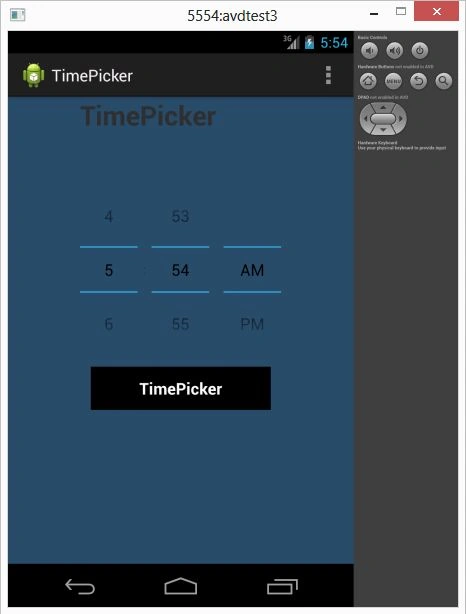
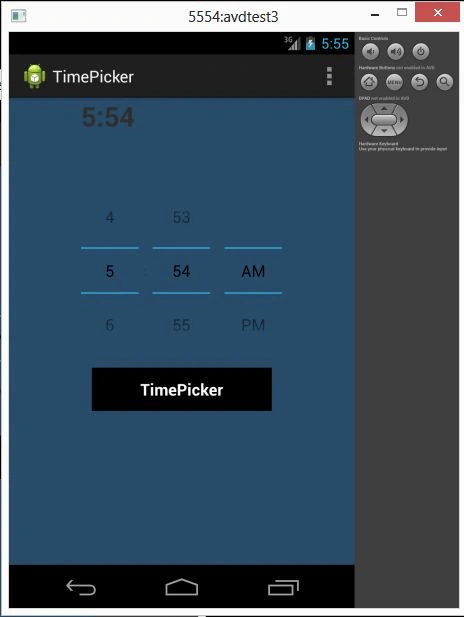
Time set on the TextView on a button click by TimePicker:
Join the conversation! Your thoughts help the community grow.