

A tooltip is a small pop-up window that displays some information when you rollover on a control.
In this article, I will discuss how to create and use a Tooltip control in a Windows Forms application using Visual Studio 2010. After that, I will discuss various properties and methods available for the Tooltip control.
Creating a Tooltip
Tooltip class represents a tooltip control. Once a Tooltip object is created, we need to call SetToolTip method and pass a control and text. The following code snippet creates a Tooltip and attaches to a Button control using SetToolTip method.
In this article, I will discuss how to create and use a Tooltip control in a Windows Forms application using Visual Studio 2010. After that, I will discuss various properties and methods available for the Tooltip control.
Creating a Tooltip
Tooltip class represents a tooltip control. Once a Tooltip object is created, we need to call SetToolTip method and pass a control and text. The following code snippet creates a Tooltip and attaches to a Button control using SetToolTip method.
- ToolTip toolTip1 = newToolTip();
- toolTip1.ShowAlways = true;
- toolTip1.SetToolTip(button1, "Click me to execute.");
If you rollover on Button control, you will see the following output.
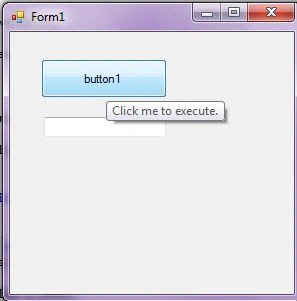
Figure 1
Tooltip Properties
- Active - A tooltip is currently active.
- AutomaticDelay - Automatic delay for the tooltip.
- AutoPopDelay - The period of time the ToolTip remains visible if the pointer is stationary on a control with specified ToolTip text.
- InitialDelay - Gets or sets the time that passes before the ToolTip appears.
- IsBaloon - Gets or sets a value indicating whether the ToolTip should use a balloon window.
- ReshowDelay - Gets or sets the length of time that must transpire before subsequent ToolTip windows appear as the pointer moves from one control to another.
- ShowAlways - Displays if tooltip is displayed even if the parent control is not active.
- ToolTipIcon - Icon of tooltip window.
- ToolTipTitle - Title of tooltip window.
- UseAnimation - Represents whether an animation effect should be used when displaying the tooltip.
- UseFading - Represents whether a fade effect should be used when displaying the tooltip.
The following code snippet sets some of these properties.
- ToolTip buttonToolTip = newToolTip();
- buttonToolTip.ToolTipTitle = "Button Tooltip";
- buttonToolTip.UseFading = true;
- buttonToolTip.UseAnimation = true;
- buttonToolTip.IsBalloon = true;
- buttonToolTip.ShowAlways = true;
- buttonToolTip.AutoPopDelay = 5000;
- buttonToolTip.InitialDelay = 1000;
- buttonToolTip.ReshowDelay = 500;
- buttonToolTip.SetToolTip(button1, "Click me to execute.");
Balloon Tooltip
By setting IsBalloon to true it makes a tooltip balloon that looks like Figure 2.
By setting IsBalloon to true it makes a tooltip balloon that looks like Figure 2.
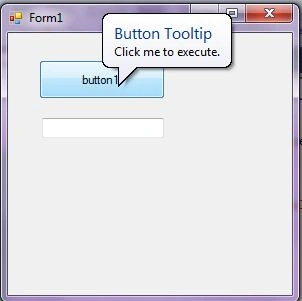
Figure 2
Summary
In this article, we discussed how to create a Tooltip control in Windows Forms and set its various properties.
In this article, we discussed how to create a Tooltip control in Windows Forms and set its various properties.
Dharmendra Kumar PanditPosted Mar 25, 2019, 6:16 AM
Thank you sir. Nice article.
pdepalmaPosted May 19, 2017, 8:13 AM
Hi, can I change the font if I use isBalloon=true?
Marcelo AlvesPosted Sep 26, 2016, 1:15 PM
Muito Obrigado! Legal a ajuda!
Lalit RaghuvanshiPosted Jun 14, 2014, 1:58 PM
Another useful solution is:Show jQuery tooltip message on mouse over on asp.net controls http://www.webcodeexpert.com/2013/11/how-to-show-jquery-tooltip-message-on.html
Abhishek bisenPosted Nov 28, 2012, 7:32 AM
Nice Article......