

Introduction
This article has been excerpted from the book "The Complete Visual C# Programmer's Guide" by the Authors of C# Corner.
The Listener property of the Trace and Debug classes retrieves the active Listeners collection. The TraceListener-derived classes control the tracing output. The members of this class are shown in Table 1.1
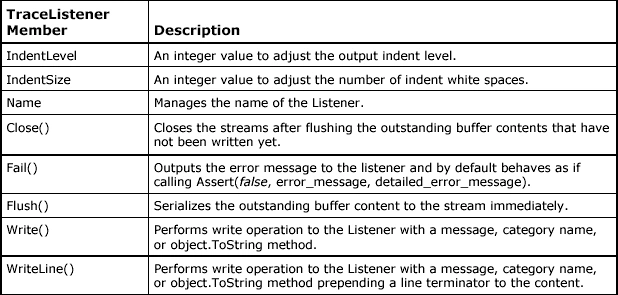
Table 1.1. TraceListener Class Members
The TextWriterTraceListener sends output to a text file, while the EventLogTraceListener sends output to the event log. In other words, we can say that the listeners monitor the trace debug output and generate a formatted output of the trace. By default, the output of all methods is directed to the DefaultTraceListener. Therefore, the environment that executes your code sets where the DefaultTraceListener output is directed. The TraceListener class (the thread-safe parent class for other listeners) has the following subclasses.
- DefaultTraceListener: Sends your debugging or tracing write output through the OutputDebugString API function of the operating system. If you have no active debugger, OutputDebugString will not do anything. If you are inside the Visual Studio .NET integrated development environment, it will output the trace output to the debug window. If you are in console mode, you should use the Debug Monitor utility (DbMon.exe) of the Platform SDK. The Debug Monitor has its own console window and displays debugging and tracing messages sent by your application using the OutputDebugString-the DefaultListener function.
- EventLogTraceListener. Sends tracing or debugging output to the event log.
Listing 1.1.Configuration File with Various Settings
It shows a typical application configuration file (named <Application>.EXE.CONFIG) with various diagnostic settings
<configuration>
  <system.diagnostics>
    <trace autoflush="true" indentsize="1">
      <listeners>
        <add name="myTextFileListener"
             type="System.Diagnostics.TextWriterTraceListener,System"
             initializeData="c:\mylog.txt" />
        <remove type="System.Diagnostics.DefaultTraceListener,System"/>
      </listeners>
    </trace>
  </system.diagnostics>
</configuration>
If you want to remove a listener that you created, use the Remove method in the Listeners collection. For example, to remove the DefaultListener use the following code.
Debug.Listeners.Remove();
The example in Listing1.3 shows how you can use TraceListeners. The application outputs trace code to the system console, to a file, and to the event log (a new event source named Demo) separately to illustrate all of the possible TraceListener styles. Note that you can replace the Debug class with the Trace class if you wish in the example.
Listing 1.2. Using TraceListeners (listener1.cs)
using System;
using System.IO;
using System.Diagnostics;
public class Test
{
    public static void Main()
    {
        TextWriterTraceListener myWriter = new TextWriterTraceListener(System.Console.Out);
        Debug.Listeners.Add(myWriter);
        Debug.WriteLine("Test output 1 ");
        Stream myFile = File.Create("output.txt");
        TextWriterTraceListener myTextListener = new TextWriterTraceListener(myFile);
        Debug.Listeners.Add(myTextListener);
        Debug.WriteLine("Test output 2 ");
        if (!EventLog.SourceExists("Demo"))
        {
            EventLog.CreateEventSource("Demo", "Demo");
        }
        Debug.Listeners.Add(new EventLogTraceListener("Demo"));
        Debug.WriteLine("Test output 3 ");
        myWriter.Flush();
        myWriter.Close();
        myFile.Flush();
        myFile.Close();
    }
}
Conclusion
Hope this article has helped you in understanding the TraceListener Classes in C#. See other articles on the website on .NET and C#.

The Complete Visual C# Programmer's Guide covers most of the major components that make up C# and the .net environment. The book is geared toward the intermediate programmer but contains enough material to satisfy the advanced developer.
Join the conversation! Your thoughts help the community grow.