

To write code faster you need to be relying more on the keyboard than the mouse. Switching between your mouse and keyboard actually slows you down. Here is a handy reference that can make your .NET lifestyle a bit easier and more productive.
So let’s get started.
- for (int i = 0; i < length; i++)
- {
- }
For recursive for loop, write ‘forr’ and press tab.
- for (int i = length - 1; i >= 0; i--)
- {
- }
- foreach (var item in collection)
- {
- }
- static void Main(string[] args)
- {
- }
To generate a try catch block inside your method just write ‘try’ and press tab.
- try
- {
- }
- catch (Exception)
- {
- throw;
- }
To generate a try finally block, write ‘tryf’ and press tab.
- try
- {
- }
- finally
- {
- }
To generate a property write ‘prop’ and then press tab. You will get like this:
- public int MyProperty { get; set; }
To generate full property stub, write ‘propfull’
- private int myVar;
- public int MyProperty
- {
- get { return myVar;}
- set { myVar = value;}
- }
To generate read-only property , write ‘propg’ and then press tab
- public int MyProperty { get; private set; }
To generate a class, write 'class', then press tab
- class MyClass
- {
- }
- '#if Creates a #if directive and a #endif directive.
- '#region Creates a #region directive and a #endregion directive.
- ~ Creates a destructor for the containing class.
- attribute Creates a declaration for a class that derives from Attribute.
- checked Creates a checked block.
- class Creates a class declaration.
- ctor Creates a constructor for the containing class.
- cw Creates a call to WriteLine.

- do Creates a do while loop.
- else Creates an else block.
- enum Creates an enum declaration.
- equals Creates a method declaration that overrides the Equals method defined in the Object class.
- exception Creates a declaration for a class that derives from an exception (Exception by default).
- for Creates a for loop.
- foreach Creates a foreach loop.
- forr Creates a for loop that decrements the loop variable after each iteration.
- if Creates an if block.
- indexer Creates an indexer declaration.
- interface Creates an interface declaration.
- invoke Creates a block that safely invokes an event.
- iterator Creates an iterator.
- iterindex Creates a "named" iterator and indexer pair by using a nested class.
- lock Creates a lock block.
- mbox Creates a call to MessageBox.Show. You may have to add a reference to System.Windows.Forms.dll.
- namespace Creates a namespace declaration.
- prop Creates an auto-implemented property declaration.
- propfull Creates a property declaration with get and set accessors.
- propg Creates a read-only auto-implemented property with a private "set" accessor.
- sim Creates a static int Main method declaration.
- struct Creates a struct declaration.
- svm Creates a static void Main method declaration.
- switch Creates a switch block.
- try Creates a try-catch block.
- tryf Creates a try-finally block.
- unchecked Creates an unchecked block.
- unsafe Creates an unsafe block.
- using Creates a using directive.
- while Creates a while loop.
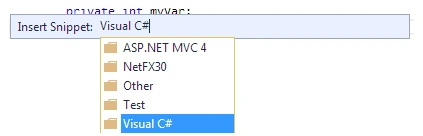
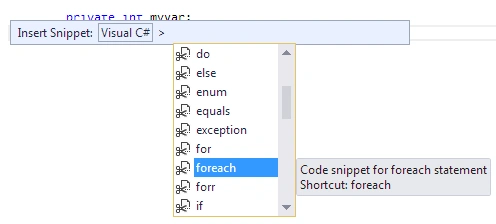
If these shortcuts are difficult to remember you then no worry, here is trick for that too. Just press
Ctrl+K+X to insert snippet in your code.
It will look like this,
Now comes the Text Navigation in Visual Studio.
- Use Ctrl + arrow -> or <- to move one word at a time.
- Use Home to get on the start of line
- Page Down to scroll down
- Page up to scroll up
- Ctrl+Home to get on the beginning of page.
- Ctrl+end to get on the end of the page.
Text Manipulation
- Ctrl+J: List Members to complete statement while editing code.
- Ctrl-U Changes the selected text to lowercase characters
- Ctrl-Shift-U Changes the selected text to uppercase characters
Commenting Code
Select block of code and then press Ctrl+K to comment and Ctrl+U to uncomment.
Collapsing block of code
Ctrl+M,Ctrl+M to collapse a code and same to expand the code.
Text Selection(A handy way)
Select by Ctrl+Alt+Down Arrow Key to the point you need to select. Then write whatever modiefier you want to specify. You can delete backward also. I am attaching gif image for your understanding.

Selecting a tab
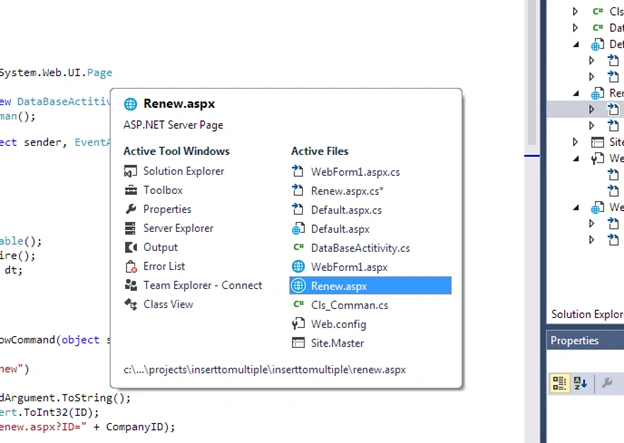
- Press Ctrl+Tab to cycle through opened tabs in forward direction.
- Ctrl+Shift+Tab to cycle through tabs in reverse direction.
Formatting the code
If the code is scattered on your page, then format it press Ctrl+K+D. All the code will be formatted properly by doing so.
Debugging and Running
- Ctrl+F5 to run application
- F5 to run the application in the debug mode
- Shift + F5 to stop the debugging session
- F9 to insert or remove a breakpoint
- F10 to step over a method
- F11 to step into a method
- Shift + F11 to step out of a method
Design and Code Behind Switching
- If you are on Code behind and wanted to go to source then press Shift+F7 Twice.
- If you want to go to design then press Shift+F7 once.
- Similarly, if you are on the source page or design page and wanted to jump to code behind of that page then just press F7
Summary
suresh naramalaPosted Jul 2, 2019, 3:11 AM
Great article..
Gajendra JangidPosted Mar 10, 2018, 6:13 AM
Great article........................
Upendra Pratap ShahiPosted Mar 8, 2018, 10:02 AM
Nice one info shared...