

✅ What Is a Trigger Condition?
A trigger condition controls when a Power Automate flow should start.
It prevents the flow from running unless the condition is true.
Trigger conditions are written in Power Automate expression language (same as in “Expressions”).
✅ Where Do I Add a Trigger Condition?
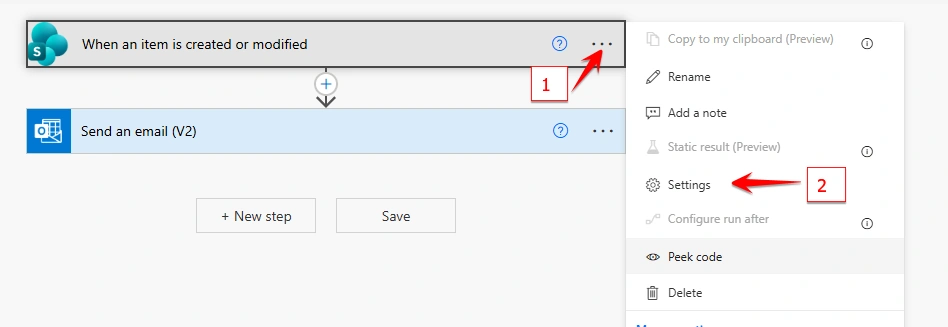
Open your flow
Click on the trigger (e.g., When an item is created or modified)
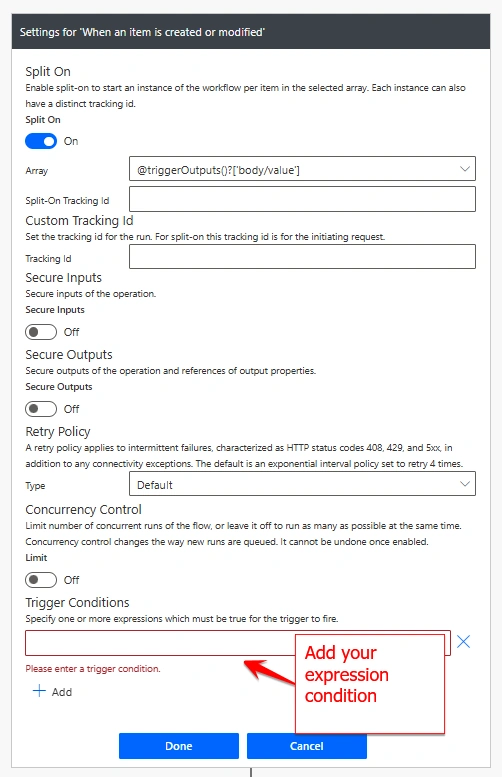
Click the three dots (…) → Settings
Scroll to Trigger Conditions
Paste your expression
Save
🧩 Basic Syntax
Trigger conditions use this format:
@{ <expression> }Example
@equals(triggerBody()?['Status'], 'Approved')📌 Common Useful Trigger Condition Examples
1️⃣ Run only when a field equals a value
Example: Run only when Status = "Approved":
@equals(triggerBody()?['Status'], 'Approved') 2️⃣Run only when an item is modified (not created)
SharePoint list items have a version number: created = 1.0, modified = 2.0+
@not(equals(triggerBody()?['{VersionNumber}'], '1.0')) 3️⃣Run only when a Yes/No field is true
@equals(triggerBody()?['IsActive'], true) 4️⃣Run only when a column is NOT empty
@not(empty(triggerBody()?['Email'])) 5️⃣Run only when a column IS empty
@empty(triggerBody()?['Email']) 6️⃣Run only when a number is greater than X
@greater(triggerBody()?['Amount'], 1000) 7️⃣Run only for a specific person in a Person field
@equals(triggerBody()?['Owner']?['Email'], '[email protected]') 💡 Why Trigger Conditions Are Better Than “Condition” Actions
Without trigger condition:
Flow launches
Runs for no reason
Uses Power Automate run quota
Wastes time
THEN checks condition
With trigger condition:
Flow does NOT start unless rule is met
Zero wasted run history
Cleaner, faster, cheaper automation
Join the conversation! Your thoughts help the community grow.