

Introduction
In Windows 8 the UAC (User Account Control) has the same features as in Windows 7. So users will be familiar with with the UAC (User Account Control) window in Windows 8. But sometimes it's better to disable the UAC window, especially when we are in a hurry. However we have many ways to do that. We will use registry files to do it.
So in this article we will learn how to turn off User Account Control completely with the help of registry files in Windows 8.
How Turn Off User Account Control for Administrators Only?
Step 1
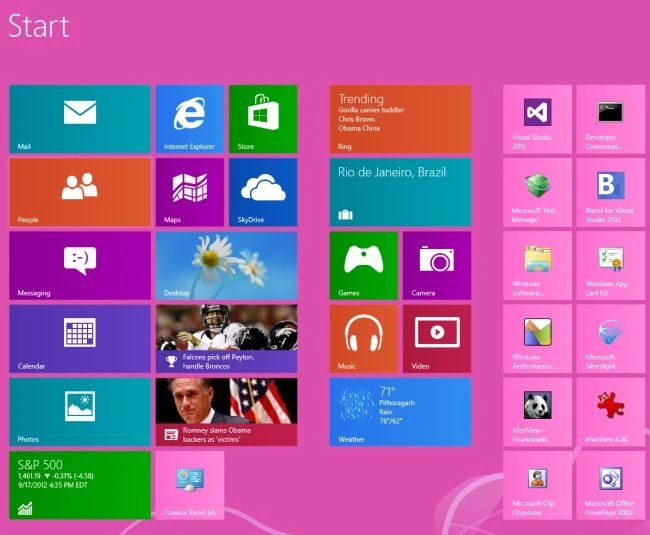
First of all we have to move onto the Start screen window of Windows 8.
Step 2
Then move the cursor on the bottom-right of the window screen and click the search box which is helpful to search in Windows 8.

Step 3
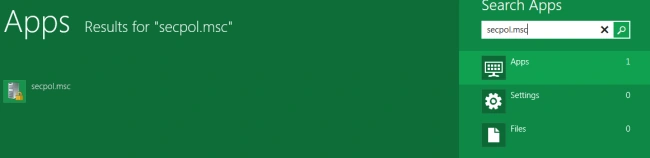
Then in the search box type "secpol.msc" and click on Apps from the right sidebar then click secpol.msc in the main window.
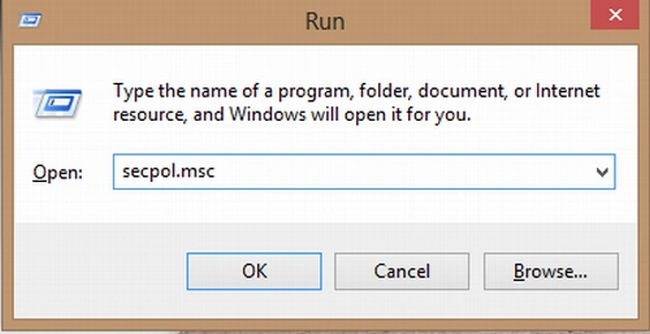
We can use Windows logo key + R on your keypad and just type "secpol.msc" and click on OK button.
Step 4
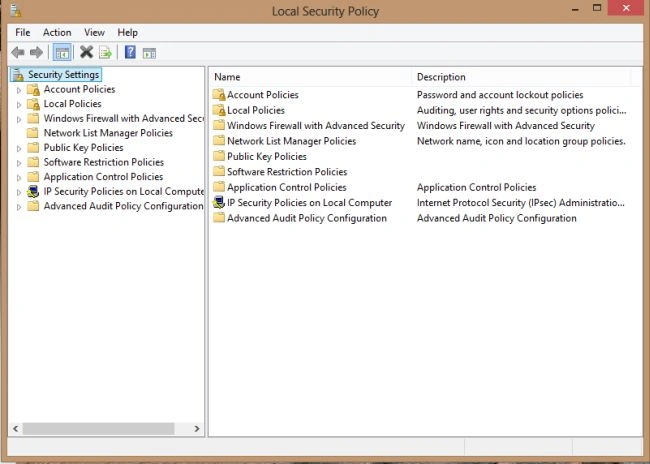
Then you will see a new window named "Local security policy".
Step 5
Now in Local security policy just follow Security settings >> Security options.
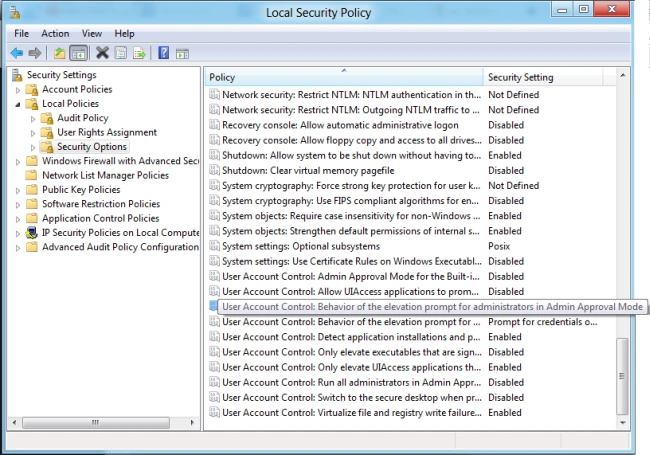
Step 6
After that just right-click on the file and click on property tab in dropdown menu.
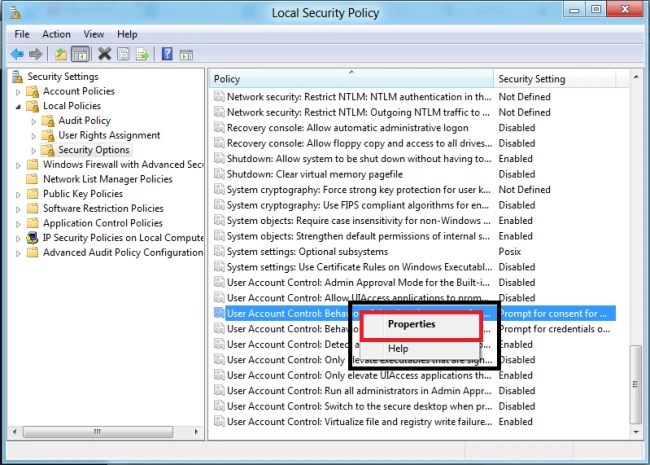
Step 7
When that is done, a new window will appear on your screen as shown in the following image.
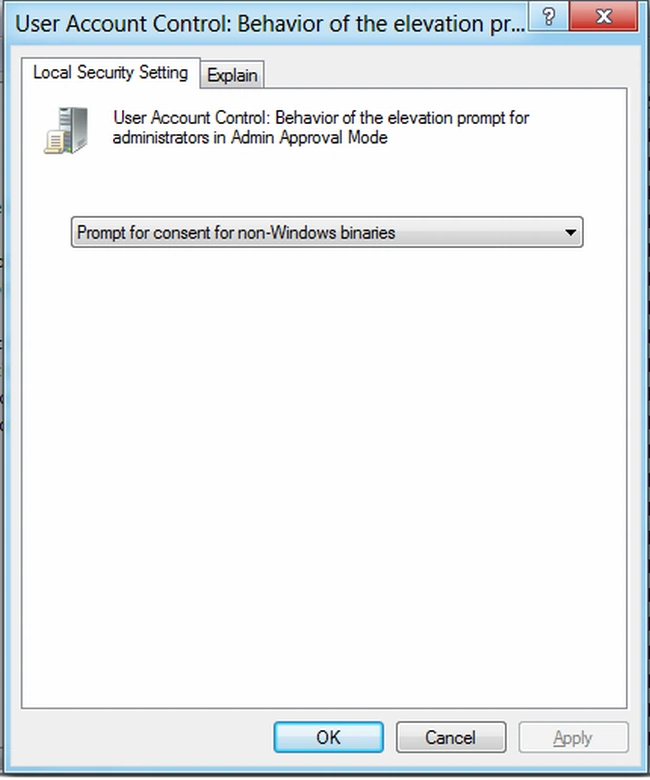
Step 8
Finally just click on the dropdown menu and select the Elevate without prompting tab and click on the OK or Apply button.
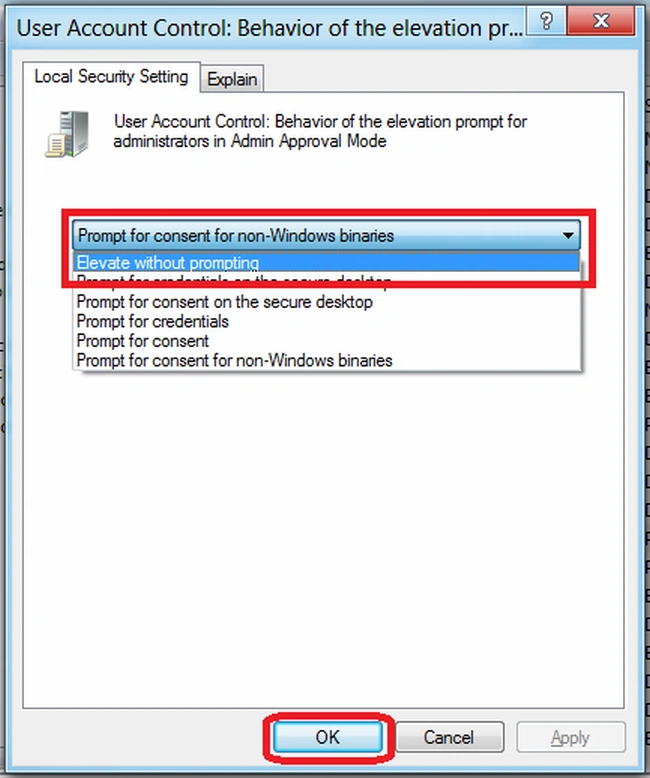
Summary
In this article, we learned about Turn off User Account Control Done by Admin Only in Windows 8.
Join the conversation! Your thoughts help the community grow.