

Introduction
As a child, I used to love the Tic Tac Toe game. Even now it is the best way to pass time between boring lectures :p. So let us make our own Tic Tac Toe today.
Step 1
Make the following changes in "string.xml":
- <string name="app_name" >TicTacToefinal</string>
- <string name="action_settings" >Settings </string>
- <string name="hello_world" >Tic Tac Toe</string>
Step 2
Make the following changes in "dimens.xml":
- <dimen name="activity_horizontal_margin">16dp</dimen>
- <dimen name="activity_vertical_margin">16dp</dimen>
- <dimen name="heading">50dp</dimen>
- <dimen name="congo">35dp</dimen>
Step 3
For adding colors let us make a new resource file. Right-click on "Values" -> "New" -> "Values resource file". Name this file as "color" and add the following code to it:
- <resources>
- <color name="player">#360ec5</color>
- <color name="gamecol">#e7d39e</color>
- <color name="bgwin">#000000</color>
- <color name="drawbg">#977897</color>
- </resources>
Now let us start making the layouts.
Step 4
Making the first screen of our game.
Add the following code in "activity_main.xml" in "layout":
- <LinearLayout xmlns:android="http://schemas.android.com/apk/res/android"
- xmlns:tools="http://schemas.android.com/tools"
- android:layout_width="match_parent"
- android:layout_height="match_parent"
- android:paddingLeft="@dimen/activity_horizontal_margin"
- android:paddingRight="@dimen/activity_horizontal_margin"
- android:paddingTop="@dimen/activity_vertical_margin"
- android:paddingBottom="@dimen/activity_vertical_margin"
- tools:context=".MainActivity"
- android:background="@drawable/images">
- <TextView
- android:layout_width="wrap_content"
- android:layout_height="wrap_content"
- android:text="@string/hello_world"
- android:layout_marginLeft="50dp"
- android:paddingTop="20dp"
- android:textSize="@dimen/heading"
- />
- <Button
- android:layout_width="fill_parent"
- android:layout_height="wrap_content"
- android:text="Clich Here"
- android:layout_marginTop="400dp"
- android:layout_marginLeft="-100dp"
- android:background="@drawable/button_lay"
- android:id="@+id/clickHere"/>
- </LinearLayout>
Note that I have added an image for the background. The process of adding the image is simple. Copy the required image to the clipboard and paste it in "drawables".
The layout looks like:

Step 5
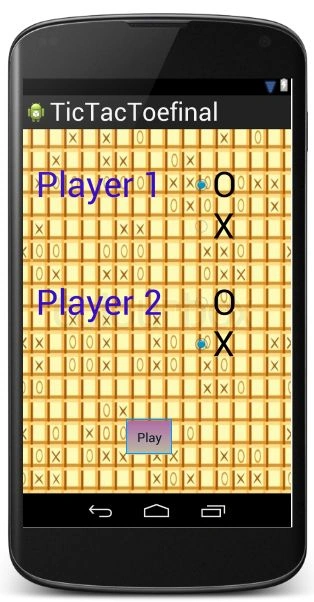
For making the menu, create a new layout file. Right-click on "Layout" -> "New" -> "Layout resource file". Name this file as "menu_layout" and add the following to it:
- <LinearLayout xmlns:android="http://schemas.android.com/apk/res/android"
- android:orientation="vertical"
- android:layout_width="match_parent"
- android:layout_height="match_parent"
- android:background="@drawable/menu_back" >
- <RelativeLayout
- android:layout_height="wrap_content"
- android:layout_width="fill_parent">
- <TextView
- android:layout_height="wrap_content"
- android:layout_width="wrap_content"
- android:text="Player 1 "
- android:textSize="@dimen/heading"
- android:layout_marginTop="50dp"
- android:layout_marginLeft="20dp"
- android:textColor="@color/player"
- android:id="@+id/t1"/>
- <RadioGroup
- android:layout_height="wrap_content"
- android:layout_width="fill_parent"
- android:id="@+id/player1"
- android:layout_marginTop="50dp"
- android:layout_marginLeft="240dp">
- <RadioButton
- android:layout_height="wrap_content"
- android:layout_width="wrap_content"
- android:text="O"
- android:textSize="@dimen/heading"
- android:checked="true"
- android:id="@+id/zero"/>
- <RadioButton
- android:layout_height="wrap_content"
- android:layout_width="wrap_content"
- android:text="X"
- android:textSize="@dimen/heading"
- android:id="@+id/cross"/>
- </RadioGroup>
- </RelativeLayout>
- <RelativeLayout
- android:layout_height="wrap_content"
- android:layout_width="fill_parent">
- <TextView
- android:layout_height="wrap_content"
- android:layout_width="wrap_content"
- android:text="Player 2 "
- android:textSize="@dimen/heading"
- android:layout_marginTop="50dp"
- android:layout_marginLeft="20dp"
- android:textColor="@color/player"
- android:id="@+id/t2"/>
- <RadioGroup
- android:layout_height="wrap_content"
- android:layout_width="fill_parent"
- android:id="@+id/player2"
- android:layout_marginTop="50dp"
- android:layout_marginLeft="240dp">
- <RadioButton
- android:layout_height="wrap_content"
- android:layout_width="wrap_content"
- android:text="O"
- android:textSize="@dimen/heading"
- android:id="@+id/zero"/>
- <RadioButton
- android:layout_height="wrap_content"
- android:layout_width="wrap_content"
- android:text="X"
- android:checked="true"
- android:textSize="@dimen/heading"
- android:id="@+id/cross"/>
- </RadioGroup>
- </RelativeLayout>
- <Button
- android:id="@+id/play"
- android:layout_height="wrap_content"
- android:layout_width="wrap_content"
- android:text="Play"
- android:layout_marginTop="80dp"
- android:layout_marginLeft="150dp"
- android:paddingLeft="10dp"
- android:paddingRight="10dp"
- android:background="@drawable/button_lay"/>
- </LinearLayout>
The layout looks like:
Step 6
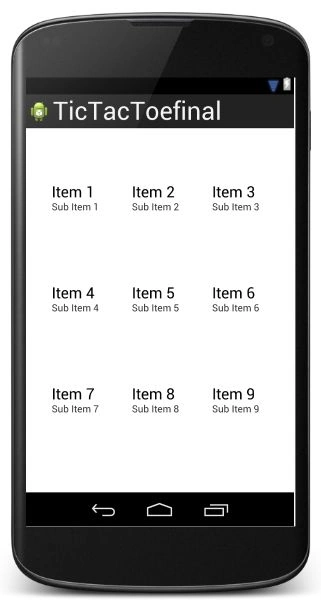
The layout for displaying the main game screen will be a Grid. Create a new layout file. Name it as "game_layout" and add the following code to it:
- <GridView xmlns:android="http://schemas.android.com/apk/res/android"
- android:orientation="vertical"
- android:layout_width="match_parent"
- android:layout_height="match_parent"
- android:id="@+id/gridview1"
- android:numColumns="3"
- android:layout_marginTop="30dp"
- android:layout_marginLeft="30dp"
- android:layout_marginRight="30dp"
- android:layout_marginBottom="30dp"
- android:gravity="center"
- android:horizontalSpacing="20dip"
- android:verticalSpacing="80dp"
- android:paddingTop="40dp"
- android:paddingBottom="40dp">
- </GridView>
The layout looks like:
Step 7
Inside the Grid View I will use the text view. So, create a new layout file and name it as "game_layout2". Add the following code to it:
- <TextView xmlns:android="http://schemas.android.com/apk/res/android"
- android:orientation="vertical"
- android:layout_width="match_parent"
- android:layout_height="match_parent"
- android:background="@color/gamecol"
- android:id="@+id/txt"
- android:gravity="center">
- </TextView>
The layout looks like

Step 8
Make a new layout file and name it as "win_layout". Add the following to it:
- <LinearLayout xmlns:android="http://schemas.android.com/apk/res/android"
- android:orientation="vertical"
- android:layout_width="match_parent"
- android:layout_height="match_parent"
- android:background="@color/bgwin">
- <Button
- android:layout_height="wrap_content"
- android:layout_width="wrap_content"
- android:text="Play Again"
- android:layout_marginTop="10dp"
- android:layout_marginLeft="10dp"
- android:background="@drawable/button_lay"
- android:paddingRight="10dp"
- android:paddingLeft="10dp"
- android:id="@+id/back"/>
- <ImageView
- android:id="@+id/trophy"
- android:layout_height="150dp"
- android:layout_width="150dp"
- android:layout_marginLeft="10dp"
- android:layout_marginTop="30dp"/>
- <TextView
- android:layout_height="wrap_content"
- android:layout_width="fill_parent"
- android:textColor="@color/gamecol"
- android:textSize="@dimen/congo"
- android:layout_marginLeft="20dp"
- android:text="CONGRATULATIONS"
- android:layout_marginTop="30dp"
- />
- <TextView
- android:layout_height="wrap_content"
- android:layout_width="fill_parent"
- android:textSize="@dimen/congo"
- android:layout_marginTop="40dp"
- android:layout_marginLeft="100dp"
- android:id="@+id/wintxt"
- android:textColor="@color/gamecol"
- />
- <TextView
- android:layout_height="wrap_content"
- android:layout_width="fill_parent"
- android:text="WON!!!"
- android:textSize="@dimen/congo"
- android:layout_marginLeft="90dp"
- android:layout_marginTop="30dp"
- android:textColor="@color/gamecol"/>
- </LinearLayout>
The layout looks like

Step 9
Make a new layout file and name it as "draw_layout". Add the following to it:
- <LinearLayout xmlns:android="http://schemas.android.com/apk/res/android"
- android:orientation="vertical"
- android:layout_width="match_parent"
- android:layout_height="match_parent"
- android:background="@color/drawbg">
- <Button
- android:layout_width="wrap_content"
- android:layout_height="wrap_content"
- android:text="Play again"
- android:background="@drawable/button_lay"
- android:paddingLeft="10dp"
- android:paddingRight="10dp"
- android:layout_marginLeft="30dp"
- android:layout_marginTop="30dp"
- android:id="@+id/drawBack"/>
- <TextView
- android:layout_width="fill_parent"
- android:layout_height="wrap_content"
- android:text="No One Wins"
- android:layout_marginTop="150dp"
- android:layout_marginLeft="30dp"
- android:textSize="@dimen/heading"/>
- <TextView
- android:layout_width="fill_parent"
- android:layout_height="wrap_content"
- android:text="Game DRAW!!"
- android:layout_marginTop="80dp"
- android:layout_marginLeft="70dp"
- android:textSize="@dimen/congo"/>
- </LinearLayout>


MOHSIN RAZAPosted Mar 28, 2015, 4:08 AM
it is not working in my android studio
Hunain MaddyPosted Jul 6, 2014, 3:07 PM
HOW CAN I MAKE IT ONLINE GAME USING GOOGLE SERVICES ????? COULD YOU PLZ HELP ...
Chhavi GoelPosted Jun 25, 2013, 11:25 PM
Android apps use both JAVA and XML. XML is basically used for layout designs. JAVA classes in Android apps run on Dalvik VM.
malose tonyPosted Jun 25, 2013, 1:01 PM
cool game...the android apps are developed using which platform?.net or?
Chhavi GoelPosted Jun 10, 2013, 11:47 PM
Naveen Sir... it would not have been possible without your help... thank you
Chhavi GoelPosted Jun 10, 2013, 11:45 PM
thank you sir :)
Anubhav ChaudharyPosted Jun 10, 2013, 11:16 PM
Nice One
Naveen SinghPosted Jun 10, 2013, 11:00 PM
well done!
Sam HobbsPosted Jun 10, 2013, 9:14 PM
That is a pretty Tic-Tac-Toe and I hope it was fun to write. 3D Tic-Tac-Toe is fun too but that would be much more work to develop.