

What is a Variable?
In Microsoft Power Automate, variables are used to store data that you can use later in your flow. Think of a variable as a container for storing values (such as text, numbers, or lists) and changing it whenever needed. Before using a variable, it must be initialized with a specific data type.
In this article, I will explain the different types of variable actions available in Power Automate and how to use them.
Prerequisites
Basic knowledge of creating flows
Types of Variable Actions
Initialize Variable
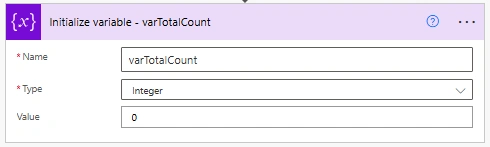
This action creates a variable and sets its initial value.
Key Points
You must create (initialize) the variable before using it
A variable can be initialized only once
You need to provide:
Name – the variable name
Types (Data Types) - When initializing variables, you can choose from the following types:
String – Stores text values
Integer – Stores whole numbers
Float – Stores decimal numbers
Boolean – Stores true/false values
Array – Stores multiple values
Object – Stores JSON or complex data
Value – the starting value
Example -Create a variable named varTotalCount and set its value to 0.
Set Variable
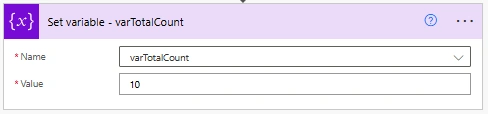
This action is used to change the value of a variable that you already created.
Key Points
Used when you want to replace the current value
Works with all types of variables
Example - Set varTotalCount = 10
Increment Variable
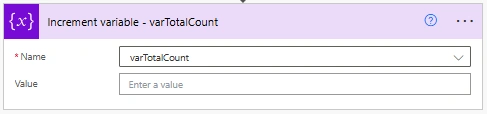
This action is used to increase a number variable by a specific value.
Key Points
Works only with Integer and Float variables
Mostly used inside loops to count things
Example: Increment varTotalCount by 1
Decrement Variable
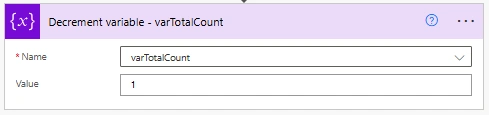
This action is used to decrease a number variable by a specific value.
Key Points
Works only with numeric variables (like Integer or Float)
Useful for countdown or reducing values
Example - Decrement Counter by 1
Append to String Variable
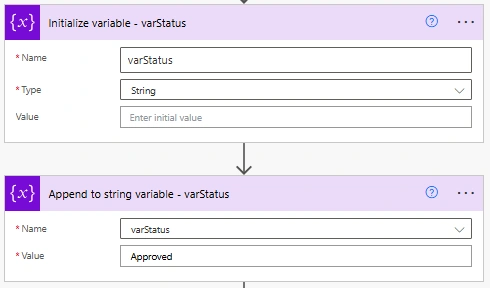
This action adds text to an existing string variable.
Key Points
Works only with String type
Useful for building messages or logs
Example - Append Approved to varStatus
Append to Array Variable
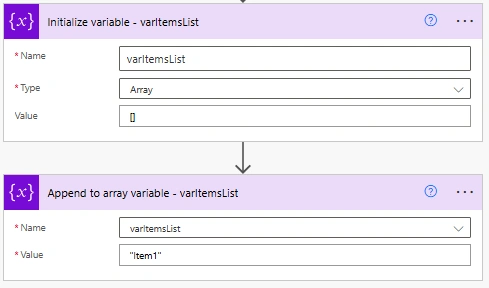
This action adds a new item to an array variable.
Key Points
Works only with Array type
Commonly used to collect multiple values
Example - Add "Item1" to varItemsList
Best Practices
Initialize variables at the start of the flow
Use meaningful variable names
Avoid unnecessary variables to improve performance
Use arrays instead of multiple variables for collections
Conclusion
By using this article, you can easily understand how to create, update, and use variables properly, helping you build flows that are easier to manage and more efficient.
Join the conversation! Your thoughts help the community grow.