

Introduction
Xamarin is a platform to develop cross-platform and multi-platform apps (for example, Windows phone, Android, iOS). In the Xamarin platform, the code sharing concept is used. In Xamarin Studio, Visual Studio is also available.
Xamarin is a platform to develop cross-platform and multi-platform apps (for example, Windows phone, Android, iOS). In the Xamarin platform, the code sharing concept is used. In Xamarin Studio, Visual Studio is also available.
Prerequisites
- Xamarin Studio.
- Xcode.
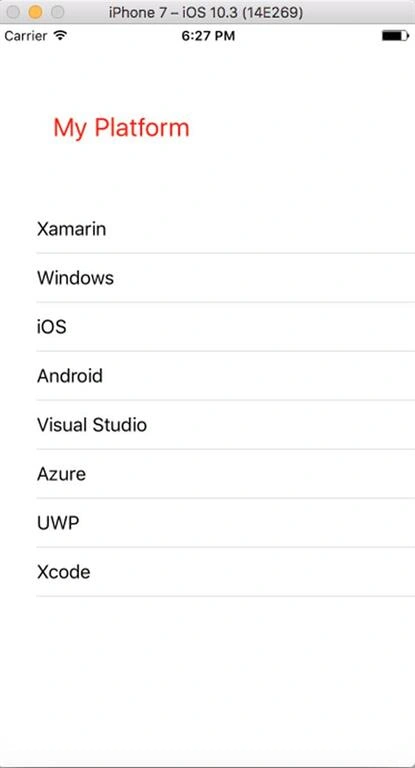
The steps given below are required to be followed in order to create a List Using UITableView in Xamarin iOS.
Step 1
Go To Xamarin Studio.
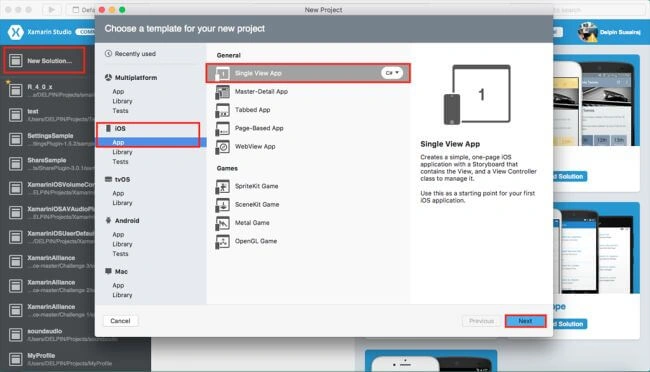
Click New Solution—> select iOS—>select App--> Choose single View App. Afterwards, click Next.
Step 2
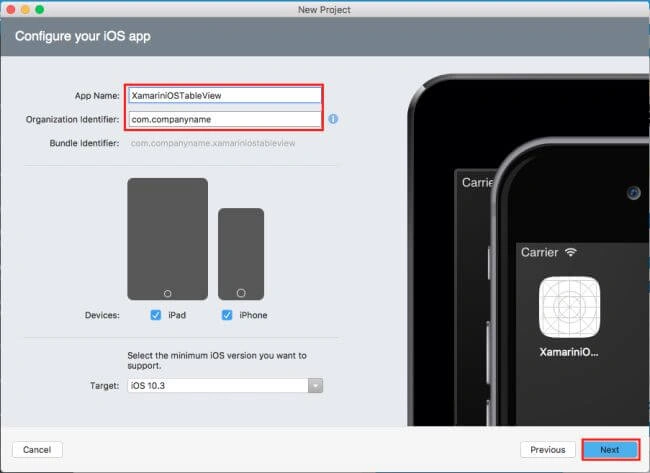
In this step, configure your app. Give the app name (Ex:sample), Organization Identifier. Afterwards, click Next.
Step 3
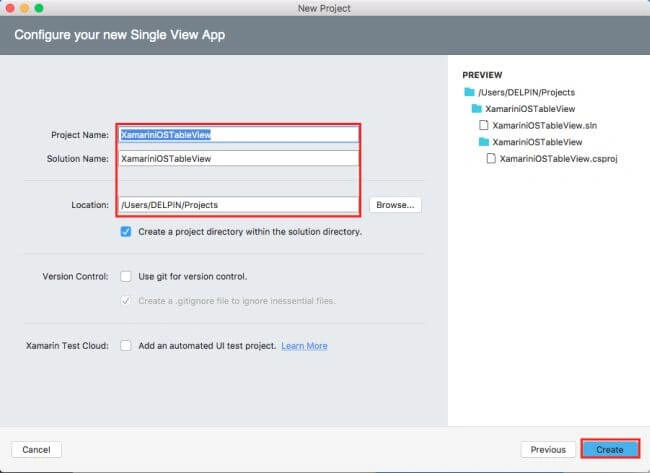
In this step, give your project name (Ex: Sample) and solution name (Ex: Sample). Give the path of your project. Afterwards, click Create.
Step 4
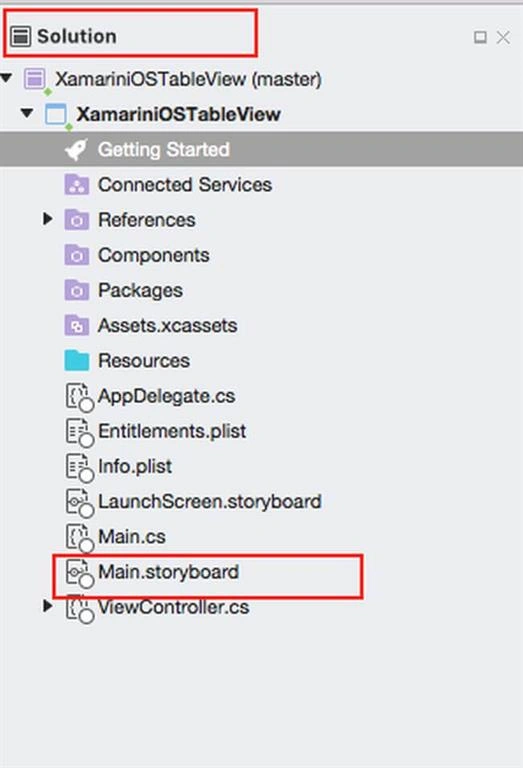
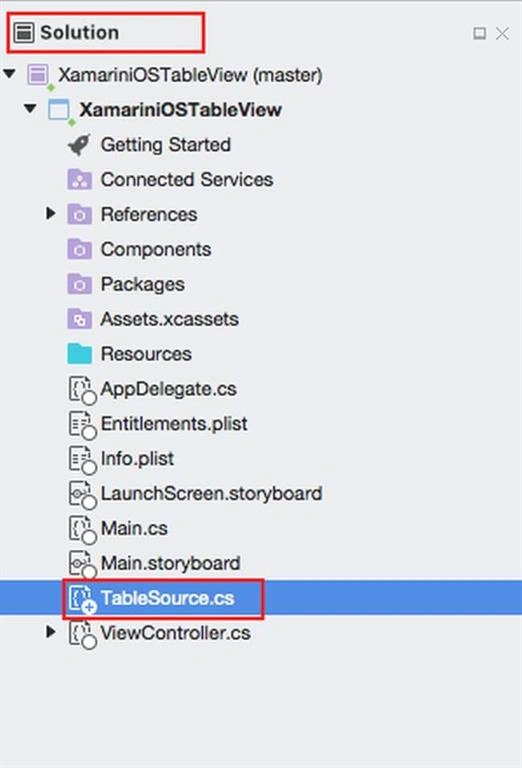
Subsequently, go to the solution. In the solution, get all the files and sources in your project. Now, select Main.storyboard and double click to open Main.storyboard page.
Step 5
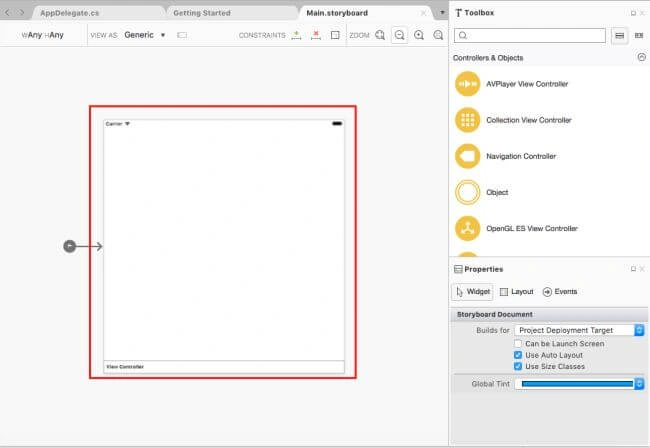
After opening the Main.storyboard, you can design this page, as per your desire.
Step 6
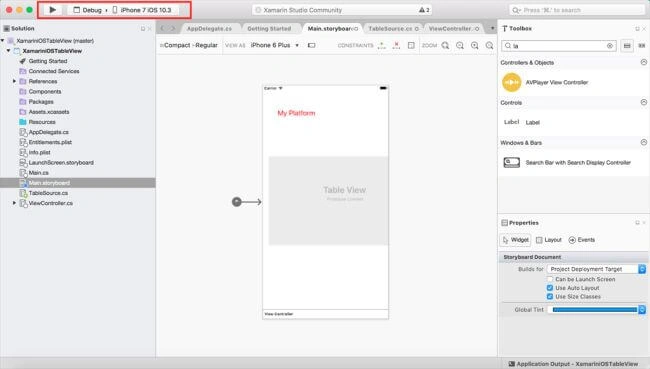
In this step, design your app using Storyboard, Toolbox, and Properties.
Step 1
Go To Xamarin Studio.
Click New Solution—> select iOS—>select App--> Choose single View App. Afterwards, click Next.
Step 2
In this step, configure your app. Give the app name (Ex:sample), Organization Identifier. Afterwards, click Next.
Step 3
In this step, give your project name (Ex: Sample) and solution name (Ex: Sample). Give the path of your project. Afterwards, click Create.
Step 4
Subsequently, go to the solution. In the solution, get all the files and sources in your project. Now, select Main.storyboard and double click to open Main.storyboard page.
Step 5
After opening the Main.storyboard, you can design this page, as per your desire.
Step 6
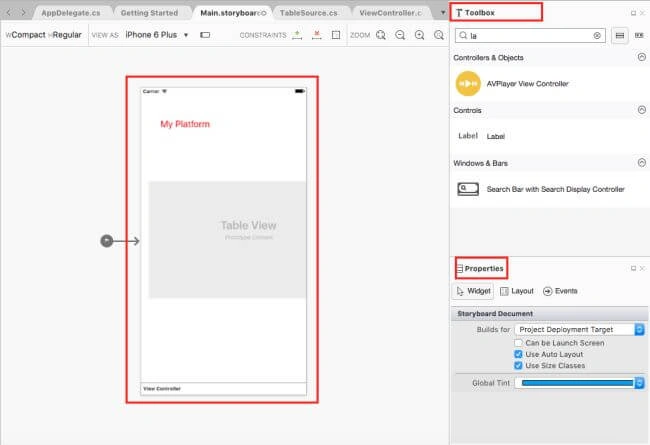
In this step, design your app using Storyboard, Toolbox, and Properties.
- Table View(myTable).
- Lable(lblMessage).
Step 7
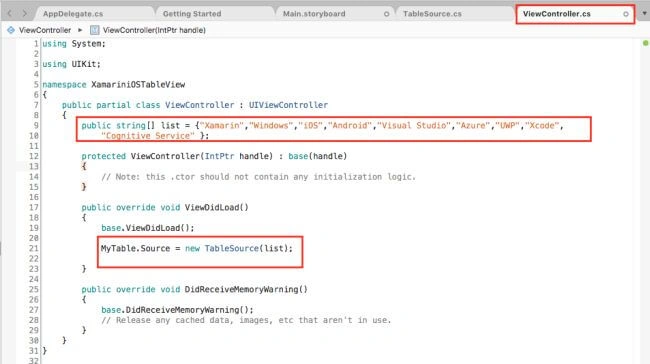
In this step, go to the ViewController.cs page. Write the code given below.
ViewController.cs
- using System;
- using UIKit;
- namespace XamariniOSTableView {
- public partial class ViewController: UIViewController {
- public string[] list = {
- "Xamarin",
- "Windows",
- "iOS",
- "Android",
- "Visual Studio",
- "Azure",
- "UWP",
- "Xcode",
- "Cognitive Service"
- };
- protected ViewController(IntPtr handle): base(handle) {
- // Note: this .ctor should not contain any initialization logic.
- }
- public override void ViewDidLoad() {
- base.ViewDidLoad();
- MyTable.Source = new TableSource(list);
- }
- public override void DidReceiveMemoryWarning() {
- base.DidReceiveMemoryWarning();
- // Release any cached data, images, etc that aren't in use.
- }
- }
- }
sikandar kumarPosted Jul 27, 2019, 12:37 AM
I would like to expand these cell but i am not able to do.can someone help me