

Prerequisites
- Azure account.
Now, let's get started with the steps, given below:
View or download a bill for Microsoft Azure
Step 1: Sign in to the online Microsoft Azure Portal.
Step 2: Click the Subscription option.
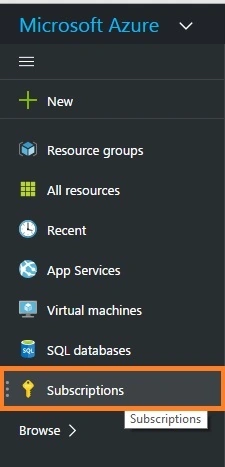
Step 3: Next, click your subscription ID.
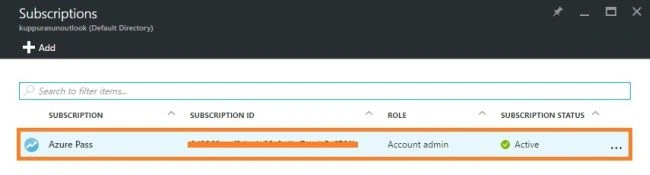
Step 4: In Azure Pass Subscriptions blade, click Manage option.
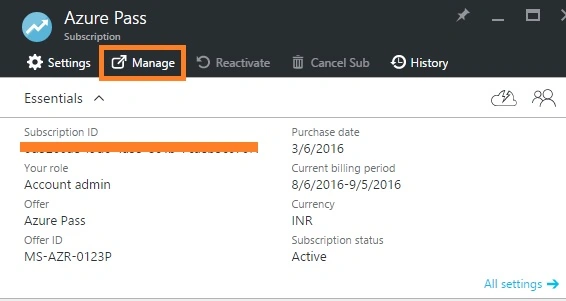
Step 5: Next, we will get a Summary for the Azure Subscription page.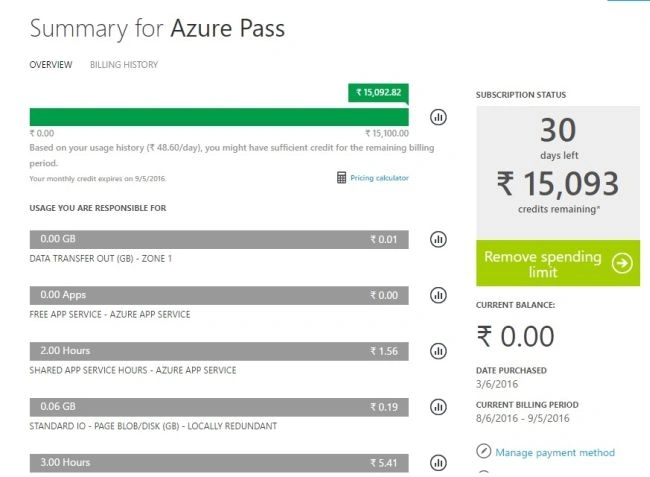
Step 6: In the Summary Page, click Billing History.
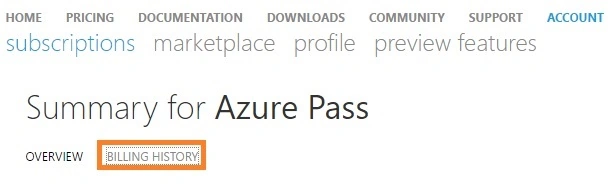
Step 7: The Billing History section lists our statements for prior billing periods and the current unbilled period. This information is only updated daily. It may not include our all usage, incurred till the date and our monthly bill may differ from this estimate.
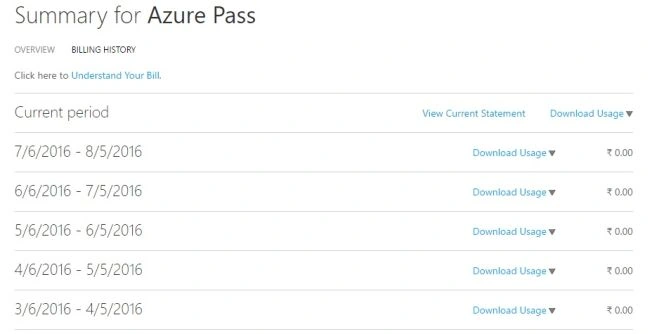
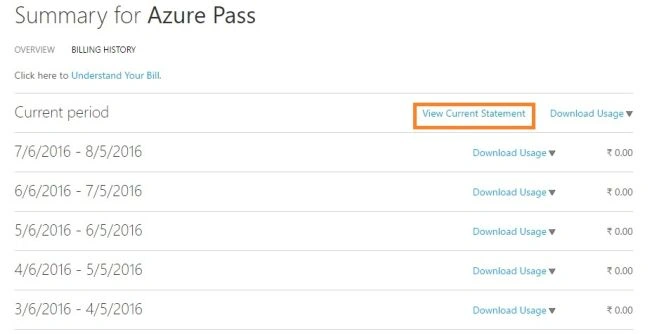
Step 8: Click View Current Statement to view an estimate of our charges of the particular time and the estimate is generated.
Analyze daily usage data
Step 8: Click View Current Statement to view an estimate of our charges of the particular time and the estimate is generated.
Analyze daily usage data
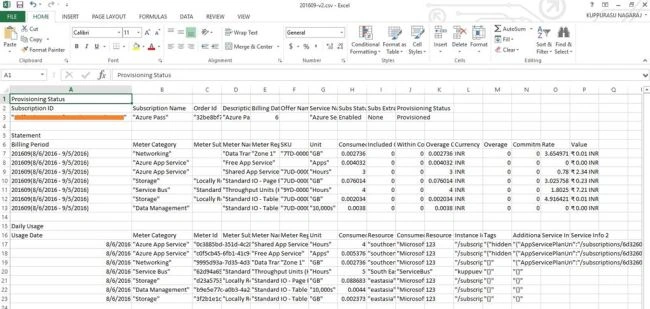
Step 8: Click Download Usage and choose a comma-separated variable file (.CSV) version to see our daily usage data for the appropriate billing period.
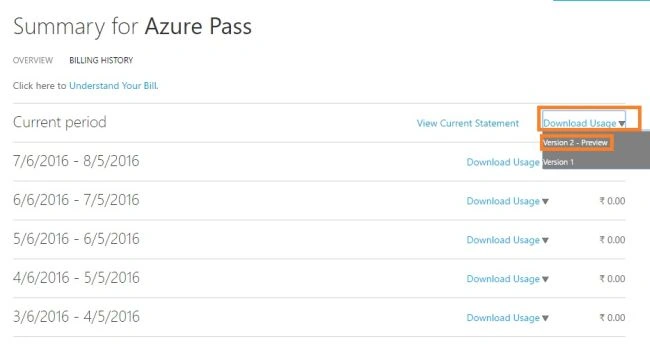
We can download a sample .CSV file for each version, given below:
Summary: In this article, we discussed Azure Bill in Azure portal.
Tarun DPosted Aug 18, 2016, 2:19 AM
Good one. Thanks for sharing
Bhavik PatelPosted Aug 17, 2016, 6:43 PM
Good
Vignesh ManiPosted Aug 17, 2016, 8:05 AM
Good one Sir.
Anu VPosted Aug 17, 2016, 4:18 AM
Nice