
Introduction
Building responsive layouts in Power Apps Canvas Apps has always been a challenge, especially when apps need to work seamlessly across desktop, tablet, and mobile devices.
Earlier, makers relied on manual positioning and later on layout containers (Horizontal and Vertical) to achieve responsive designs. While these containers solved many problems, they still had limitations for complex layouts.
To address this, Microsoft recently introduced a new control — Grid Container (currently in Preview) — which significantly improves layout flexibility and responsiveness.
In this article, we'll explore:
What layout options were available earlier
What Containers brought to Power Apps
What the new Grid Container adds
How to enable and access Grid Container
When and why to use Grid Container
What Was There Earlier in Power Apps?
Absolute Positioning (X, Y, Width, Height)
Initially, Power Apps relied heavily on:
X and Y properties
Fixed Width and Height
Problems with this approach:
Poor responsiveness on different screen sizes
Hard to maintain layouts
Required complex formulas for resizing
Small changes could break the UI
This approach worked for simple apps but failed for enterprise-scale solutions.
Introduction of Layout Containers
To solve layout issues, Microsoft introduced Layout Containers.
Types of Containers:
Vertical Container
Horizontal Container
These containers automatically arrange child controls in a single direction.
Benefits of Containers:
Automatic alignment of controls
Better responsiveness
Reduced dependency on X/Y formulas
Cleaner and more maintainable UI
Example Use Cases:
Forms with fields stacked vertically
Header with buttons aligned horizontally
Side navigation panels
Limitations of Traditional Containers
Despite their benefits, containers had some constraints:
Only one-directional layout (horizontal or vertical)
Complex layouts required nested containers
Hard to control exact placement across rows and columns
Not ideal for dashboards, grids, or calendar-style layouts
This is where Grid Container comes into play.
What Is the New Grid Container?
The Grid Container allows makers to design layouts using a row and column structure, similar to CSS Grid in web development.
Instead of stacking controls in one direction, you can:
Define rows and columns
Place controls precisely in grid cells
Span controls across multiple rows or columns
This makes layouts far more flexible and powerful.
How to Enable and Access Grid Container (Preview)
Since Grid Container is currently in Preview, you must enable it before using it.
Steps to Enable Grid Container:
Open your Power Apps Canvas App in Edit mode
Click on Settings (⚙️ icon)
Go to Updates (or Upcoming features)
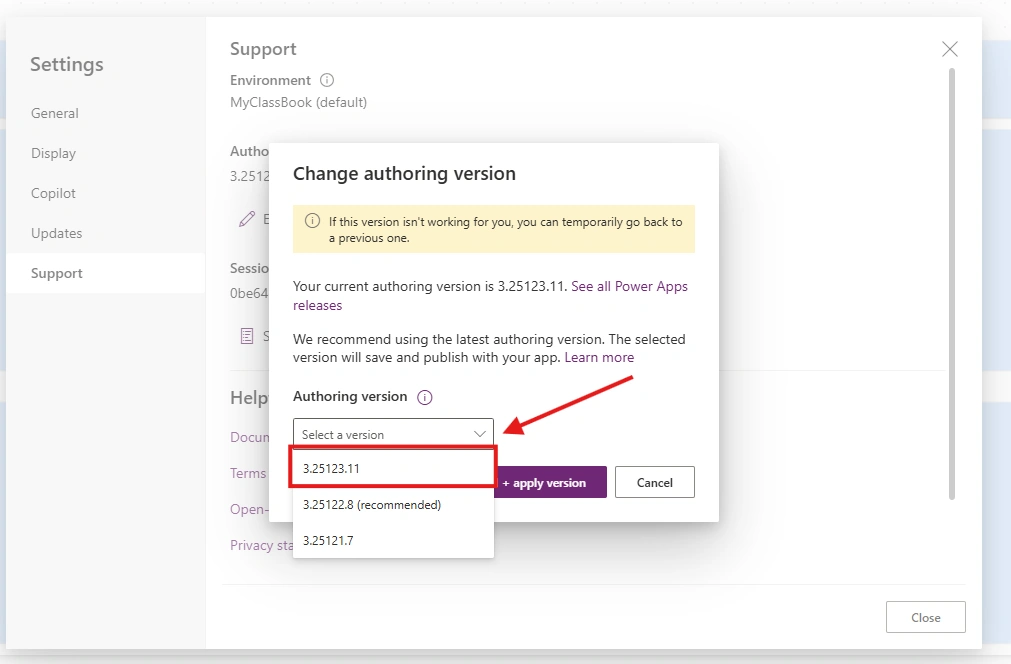
Under Preview features, enable:
Grid container
Save and reload the app
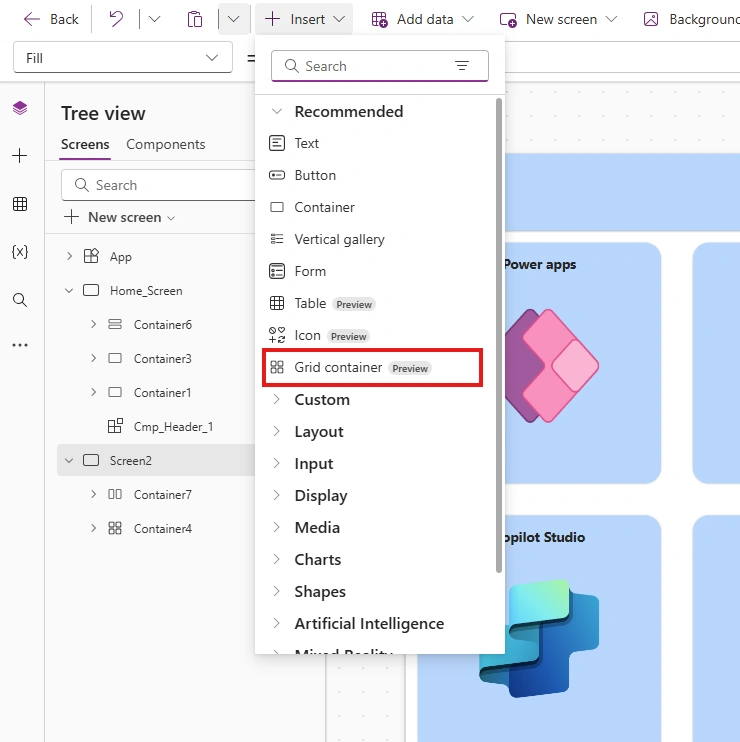
How to Add Grid Container:
Go to Insert → Layout
You will now see Grid Container
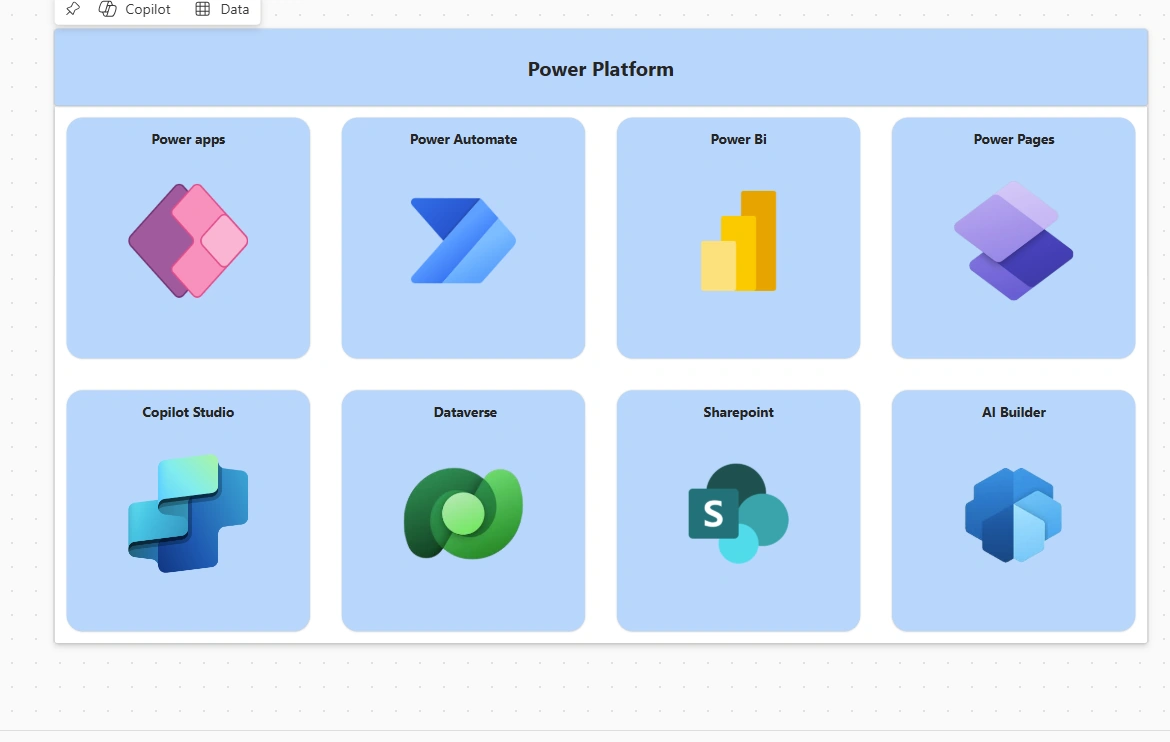
Add it to the screen
Configure:
Rows
Columns
Row/Column spans for controls
Once enabled, Grid Container behaves like a modern layout system with no dependency on X/Y positioning.
Key Features of Grid Container
1. Row and Column-Based Layout
Define number of rows and columns
Control how UI elements are positioned
2. Precise Control Placement
Each control inside a grid has properties like:
Row Start / Row End
Column Start / Column End
This provides fine-grained layout control without manual positioning.
3. Improved Responsiveness
Automatically adapts to screen size changes
Reduces layout breakage across devices
Ideal for responsive enterprise apps
4. Cleaner UI Design
Less nesting of containers
More readable structure
Easier long-term maintenance
Comparison: Layout Container vs Grid Container
| Featur | Layout Container | Grid Container |
|---|---|---|
| Direction | Single (Vertical/Horizontal) | Multi-directional |
| Layout Type | Linear | Grid-based |
| Control Positioning | Sequential | Cell-based |
| Complex Layout Support | Limited | Excellent |
| Responsiveness | Good | Better |
| Best Use Case | Forms, simple UI | Dashboards, complex UI |
When Should You Use Grid Container?
Use Grid Container when:
Designing dashboards
Creating calendar or planner views
Building complex forms with multiple sections
You want web-like responsive layouts
Use Vertical/Horizontal Containers when:
Layout is simple
Controls need linear alignment
Performance and simplicity are priorities
Conclusion
The introduction of Containers was a major improvement in Power Apps UI design, but the Grid Container takes it a step further by offering true grid-based layouts.
For developers and makers aiming to build scalable, responsive, and professional-looking apps, understanding and adopting Grid Container is a valuable skill.
As Power Apps continues to evolve, Grid Container is set to become a core building block for modern Canvas apps.
Join the conversation! Your thoughts help the community grow.