

Introduction
In this article, you will learn about SharePoint Integration properties and how they are used when customizing SharePoint forms using Power Apps. This will help you understand how a form behaves when a user creates, edits, views, saves, or cancels an item.
Before starting, if you want to understand how to customize a SharePoint form using Power Apps, you can refer to this article: Migrating InfoPath Forms to Power Apps - A Step by Step Guide to Modernizing SharePoint Forms
Prerequisites
Basic knowledge of SharePoint lists
Basic understanding of Power Apps
A SharePoint list with a customized form using Power Apps
Access to edit the Power Apps form
What is SharePoint Integration Control?
The SharePoint Integration control is automatically created when you customize a SharePoint list form using Power Apps. It acts as a connection between the SharePoint list and the form.
This control helps manage how the form behaves based on user actions such as creating a new item, editing an existing item, or viewing an item.
SharePoint Integration Properties
OnNew
This property is used when a user clicks the New button in the SharePoint list. It opens the form in New mode.
Example:
NewForm(SharePointForm1)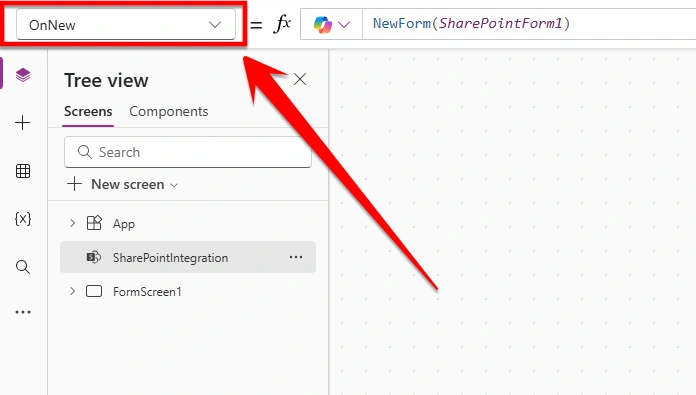
OnEdit
This property is used when a user selects an existing item and clicks Edit. It opens the form in edit mode.
Example:
EditForm(SharePointForm1)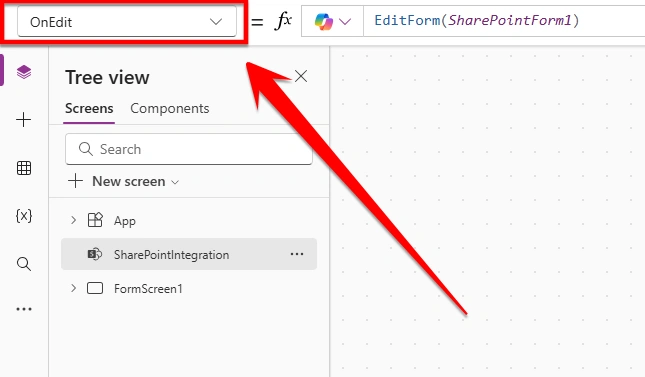
OnView
This property is used when a user opens an item to view details. The form is displayed in read-only mode.
Example:
ViewForm(SharePointForm1)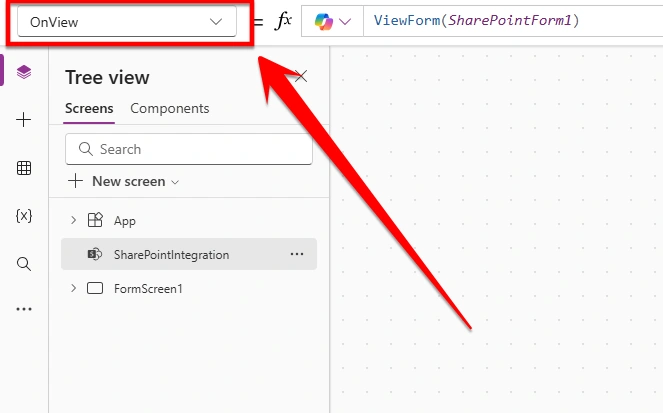
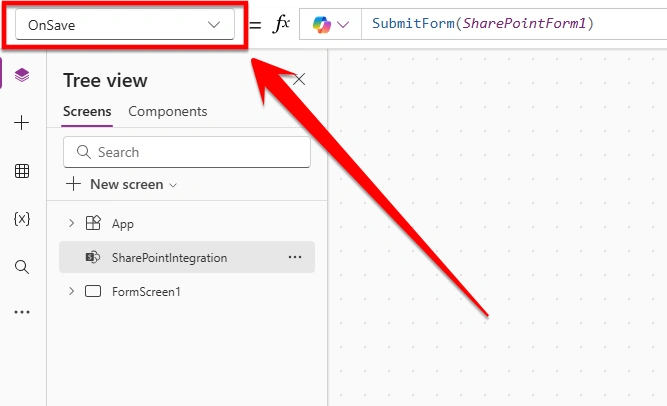
OnSave
This property is used when the user clicks the Save button. It submits the form data to SharePoint.
Example:
SubmitForm(SharePointForm1)You can also add additional logic such as notifications or navigation.
OnCancel
This property is used when the user clicks Cancel. It resets the form and discards changes.
Example:
ResetForm(SharePointForm1)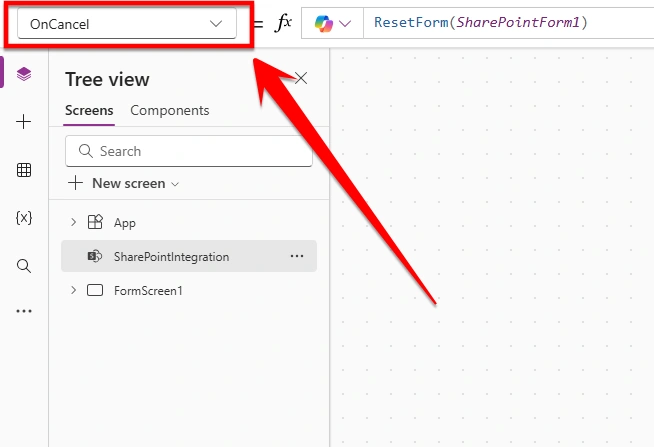
Purpose of SharePoint Integration Properties
These properties control how the form behaves in different situations such as creating a new item, editing an existing item, or viewing details. They make sure the form opens in the correct mode and performs the right action based on what the user selects. These properties properly help keep the user experience smooth and consistent. It also ensures that data is saved correctly, changes are handled properly, and users do not face confusion while working with the form.
Conclusion
Using this article, you can understand how SharePoint Integration properties work and how to use them in Power Apps forms. These properties help control form behavior and ensure that actions like creating, editing, viewing, saving, and canceling work correctly.
Join the conversation! Your thoughts help the community grow.