Introduction
SharePoint Communication Sites serve as dynamic platforms for organizations to disseminate information, engage with users, and foster collaboration. Lists, a fundamental component of SharePoint, allow users to organize and manage data effectively. One essential feature of lists on SharePoint Communication Sites is the ability to share items with other users or groups. In this comprehensive guide, we'll explore the Share option in lists on SharePoint Communication Sites, providing a step-by-step guide on how to share list items and discussing its significance in facilitating collaboration and information exchange.
Login step
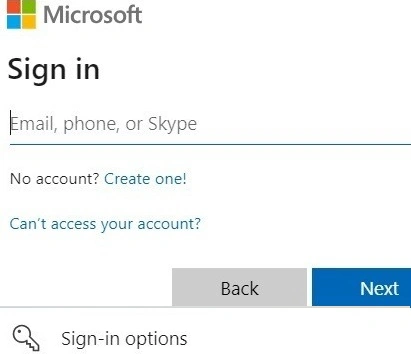
Before we delve into sharing options in SharePoint lists on Communication Sites, let's ensure we're logged in
- Navigate to the SharePoint Communication Site URL provided by your organization.
- Enter your username and password in the login interface.
- Click on the "Sign In" or "Login" button to access the SharePoint environment.
Exploring the Share option in lists
1. Accessing the list
- Navigate to the SharePoint Communication Site where the list is located
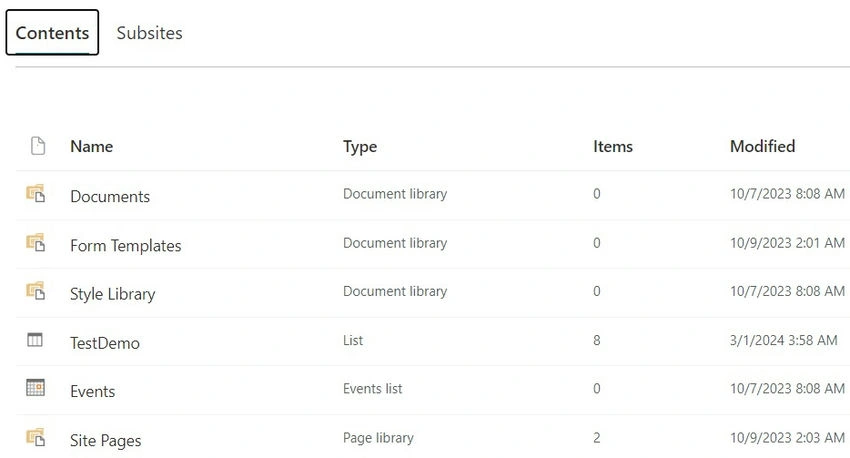
- Click on the desired list from the site's navigation menu or homepage to access it
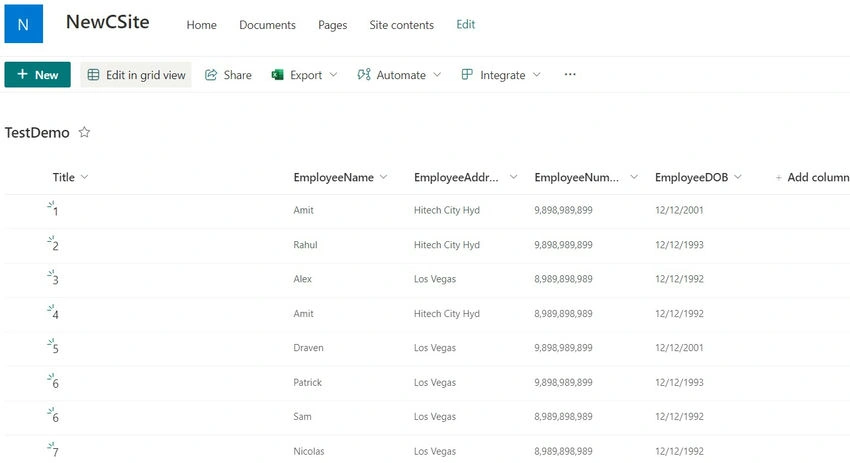
2. Selecting list items to Share
- Navigate to the list view containing the items you want to share.
- Check the checkbox next to the item(s) you wish to share. You can select one or multiple items

3. Opening the Share dialog
- With the item(s) selected, locate the "Share" option in the toolbar at the top of the page
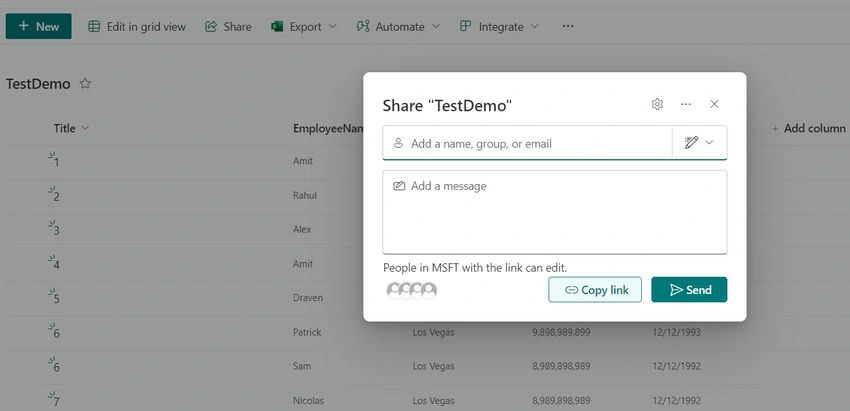
- Click on the "Share" option to open the Share dialog box.
4. Adding recipients
- In the Share dialog box, enter the name or email address of the user(s) or group(s) you want to share the item(s) with.
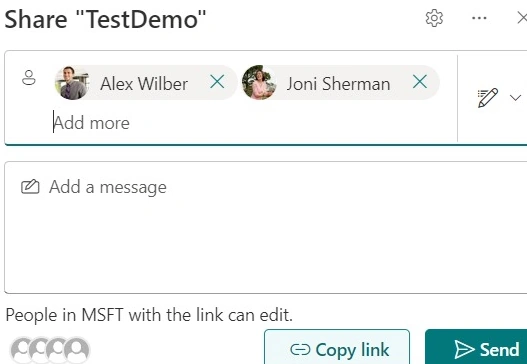
- SharePoint will provide suggestions as you type, making it easier to select the intended recipients.
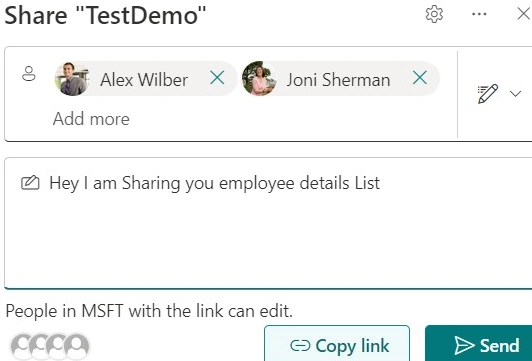
- Optionally, you can include a message to accompany the sharing invitation.
5. Selecting permission levels
- Choose the appropriate permission level for the recipients from the dropdown menu.
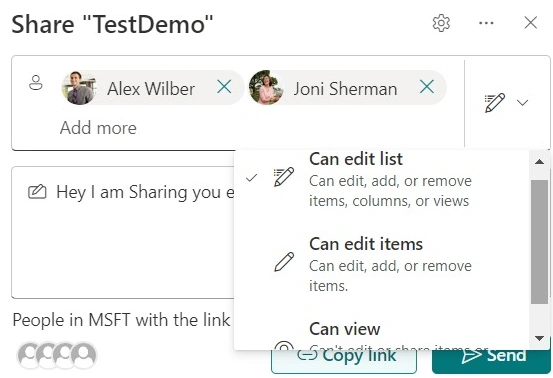
- SharePoint offers various permission levels such as "Can view," "Can edit," and "Can contribute," allowing you to control the level of access granted to each recipient.
6. Sending the invitation
- Once you've added the recipients and selected the desired permission levels, click on the "Send" button to send the sharing invitation.
- SharePoint will notify the recipients via email about the shared item(s) and their respective permissions.

Significance of the Share option in lists
The Share option in lists on SharePoint Communication Sites plays a crucial role in facilitating collaboration and information exchange within organizations. Here's why it's significant:
- Streamlined Collaboration: The Share option enables users to share list items with colleagues, teams, or external collaborators, fostering collaboration on shared data and projects.
- Granular Access Control: SharePoint offers granular control over permissions, allowing users to specify who can view, edit, or contribute to shared list items, ensuring data security and integrity.
- Efficient Information Sharing: With just a few clicks, users can share list items via email notifications, streamlining the process of disseminating information and updates to relevant stakeholders.
Understand three access
Now, I will understand three access
1. Can view
- Description: Users with the "Can View" permission level can access and view the shared list items but cannot make any changes to them.
- Use Case: This permission level is suitable for stakeholders who need access to information but do not require editing capabilities. For example, executives or team members who need to stay informed about project progress without directly contributing to the data.
2. Can edit
- Description: Users with the "Can Edit" permission level have the ability to view, edit, and modify the shared list items. They can update existing data, add new items, and delete items if allowed.
- Use case: This permission level is ideal for team members or collaborators who actively contribute to and manage the data within the list. They can make changes as necessary to keep information up-to-date and accurate.
3. Can Contribute
- Description: The "Can Contribute" permission level is similar to "Can Edit" but with some restrictions. Users with this permission level can view and add new items to the list, but they cannot edit or delete existing items.
- Use case: This permission level is suitable for users who need to contribute new information to the list without the ability to modify or delete existing data. For example, contractors or external partners who provide updates or submit documents to a project repository.

Conclusion
The Share option in lists on SharePoint Communication Sites serves as a valuable tool for promoting collaboration, communication, and knowledge sharing within organizations. By providing users with the ability to share list items with specific recipients and control access permissions, SharePoint facilitates seamless collaboration on shared data and projects. Incorporating the Share option into list management workflows empowers organizations to maximize the value of their SharePoint Communication Sites, fostering a culture of collaboration and innovation.


Join the conversation! Your thoughts help the community grow.