

This article has been
excerpted from book "A Programmer's Guide to ADO.NET in C#".
WebForms is a term Microsoft introduced when it released ASP+ for developing Web
applications using the ASP model.
Similar to windows application and services, you can also write Web applications
and services. A web application is distributed application, which allows you to
work and distribute functionality over the Web and provides user interfaces.
Using Web Forms controls, you can write Web GUI applications similar to windows
applications.
Web Forms
ASP.NET's Web Forms provide you with the ability to build Web-based GUI
applications. Web Forms include Web pages (also called an ASP.NET page or web
Forms page) and GUI components (sometimes called server controls) such as text
boxes, buttons, list boxes, data grids, and so on. ASP.NET provides the
flexibility to add these controls to an ASP.NET page at run-time as well as at
design-time as well as at design-time. VS.NET provides design-time features to
develop applications in no time. You add controls to a page by dragging controls
from the toolbox to the page and then setting the controls' properties and
event. Web Forms also provides a method for using the codebehind directive to
separate your controls from the code. In other worlds you can write code in a
separate file from the controls.
Web Service.
Web services are applications that perform a certain task; they can be used by a
single application as well as distributed on the Web. I'll cover Web services in
the next article.
Developing Your First ASP.NET Web Application
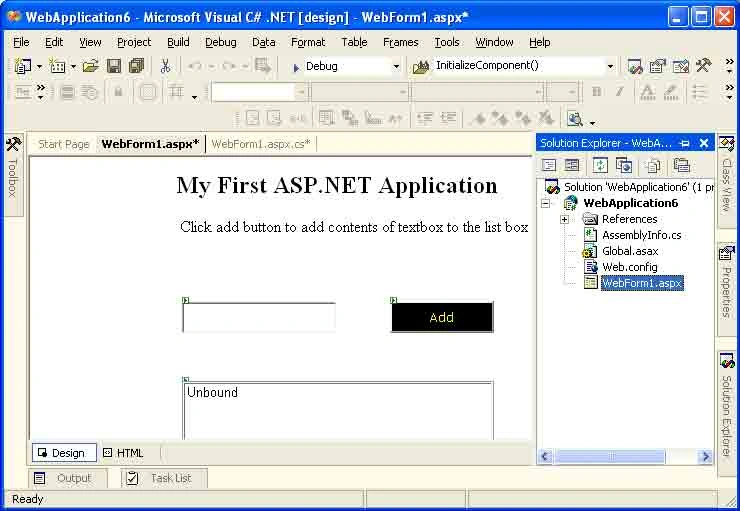
Before I discuss the ASP .NET model in more depth, I'll show you how to develop
your first ASP .NET application. In this example, I'll create a simple Web
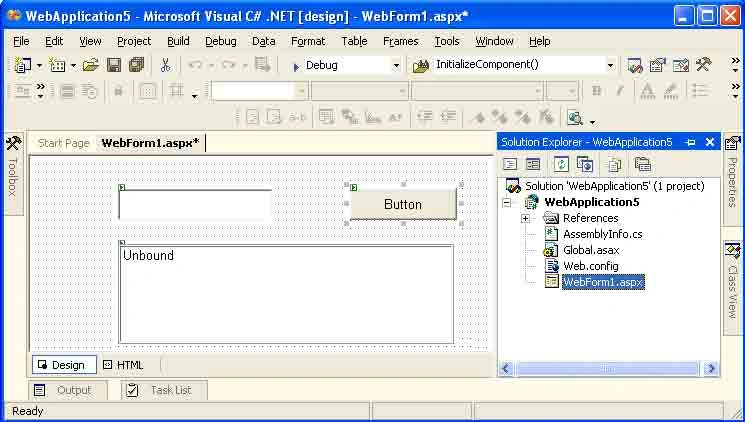
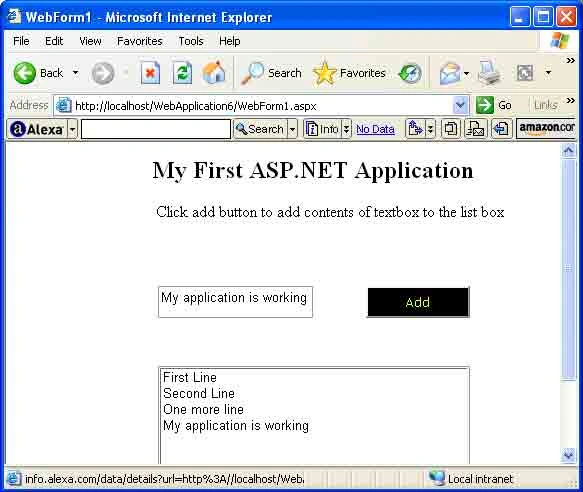
application using VS .NET. Similar to your first Windows application, I'll add a
button, a text box, and a list box control to a Web page and then add text box
contents to list box on the button-click event.
Creating a Web Application Project
Creating a new ASP.NET Web application using visual studio.NET is simple. First
create a new project using File > New > Project > visual C# project and then
select the ASP.NET Web Application template (see figure 7-1).
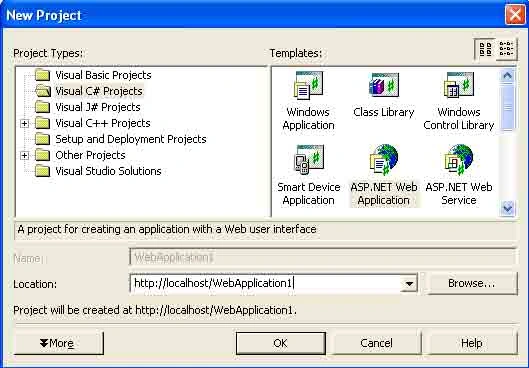
Figure 7-1. The First Web Application project
The Location box will show you the default of http://local and the application
name. Here localhost represents the default IIS server running on your local
machine. The default virtual directory for localhost is C:\Inetpub\wwwroot. If
you're using a Web server installed on a network rather than your local machine,
you need to use that server name. If you don't know the server name, you may
want to contact your Web Server administrator. As you can see from figure 7-1,
I'm using the MCB network Web Server. So if you see the name "MCB," don't worry.
Just replace it with your own server's name. You can type either http://servername//application
name or//server name//application name; both formats are correct.
Clicking the OK button a new directory, FirstWebApplication, in the server's
virtual directory. It also creates a new Web application and sends you to the
default WebForm1.aspx page, as shown in figure 7-2.
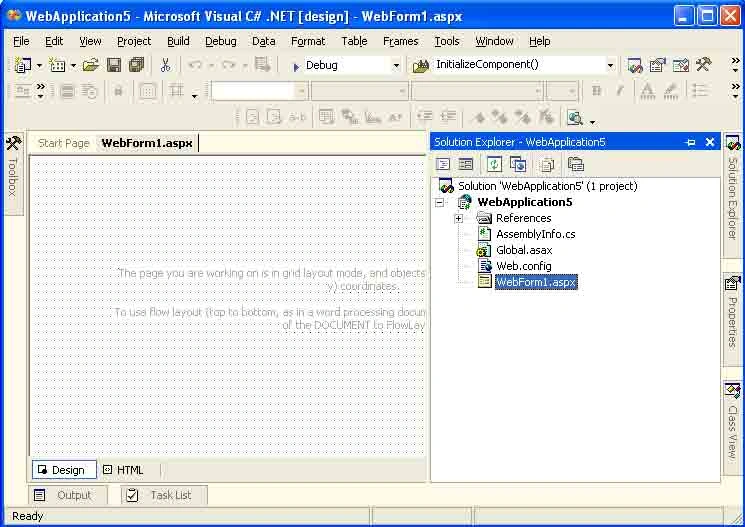
Figure 7-2. Default web Form1.aspx page
From here you can edit your page's HTML. As you see in left-button corner of
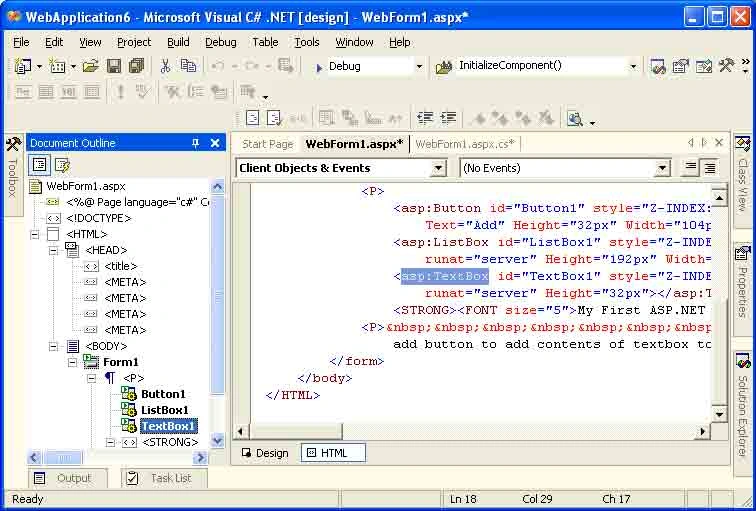
figure 7-2, there are two modes available: Design and HTML. Click the HTML
button to edit the code, as shown in figure 7-3.
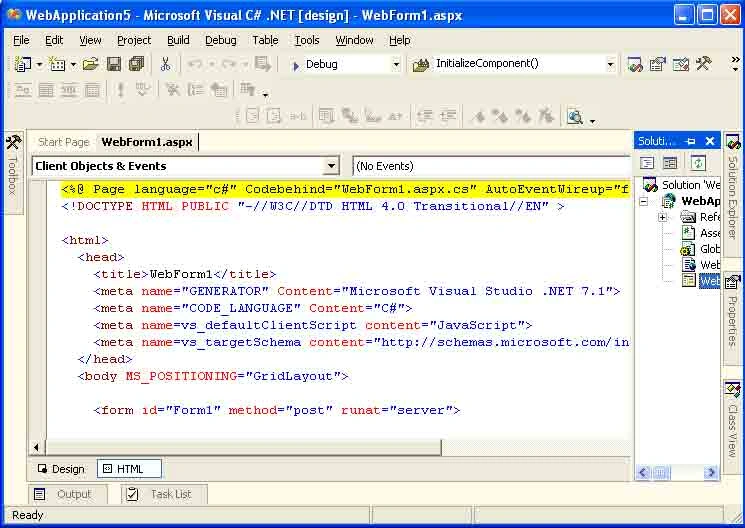
Figure 7-3. HTML view of web Form1.aspx
The HTML view shows you the HTML code of a page, its controls, and control
properties. The HTML editor also lets you edit the HTML manually. Now if you
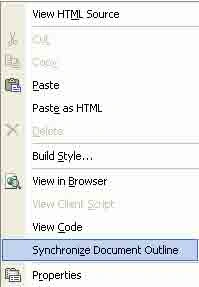
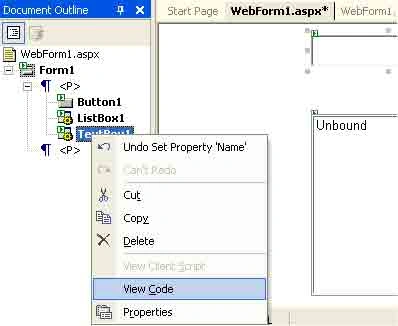
switch the page view back to the design mode and right-click on Browser, View
Code, Synchronize Document, and so on (see figure 7-4).
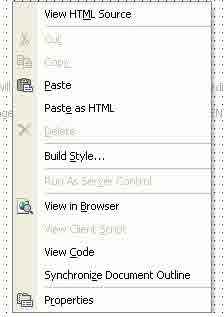
Figure 7-4. An ASP .NET page's right-click options
You can set a page's properties by selecting properties from the right-click
menu. The properties menu opens the Document property pages window. As you can
see from figure 7-5, there are three tabs available in the properties window:
General, Color and Margins, and Keywords. Most of the properties are
self-explanatory. On the General tab, the page Layout property has two options,
GridLayout and FlowLayout. GridLayout is when you want drop controls to the page
and reposition them. If you want to add text to the page, you should set the
page layout to FlowLayout; other wise you won't be able to add text to the page.
After setting the page layout property to flow Layout, the editor works as a
text editor.
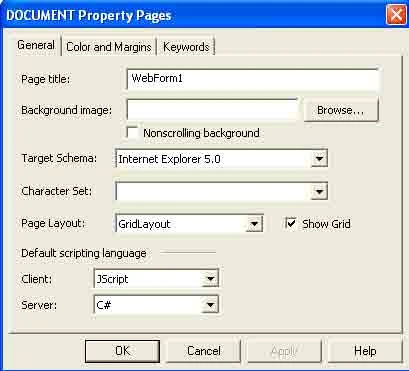
Figure 7-5. An ASP .NET document's page properties
Adding Web Controls to a Web Form
Similar to the Windows control toolbox, VS.NET provides a Web Forms control
toolbox. You can open the toolbox by selecting the View > Toolbox main menu
item. The web Forms toolbox looks like figure 7-6. The Web Forms category of the
toolbox contains form controls and the HTML category contains HTML controls. The
Data category provides the same data components you've seen in the Windows
application toolbox. It has the same connection, data adapters, datasets, data
views, and DataViewManager components. Figure 7-6 and 7-7 shows the Web Forms
and HTML controls, respectively.
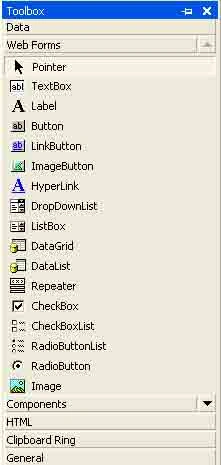
Figure 7-6. Web Forms controls
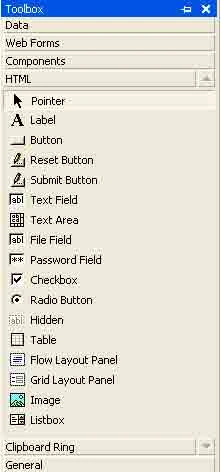
Figure 7-7. HTML Web Controls

Priyanka KalePosted Feb 13, 2018, 3:29 AM
Brilliant article. The information I have been searching precisely. It helped me a lot, thanks.