Update all the upper case values to the lower case, using SQL query. You can use this for large updates in the table also.

Create database

Here, we have created a database named Test_DB and you can create it with a different name also.

  1. USE [master]
  2. GO
  3. /****** Object: Database [Test_DB] Script Date: 7/4/2016 7:14:32 AM ******/
  4. CREATE DATABASE [Test_DB]
  5. CONTAINMENT = NONE
  6. ON PRIMARY
  7. ( NAME = N'Test_DB', FILENAME = N'C:\Program Files\Microsoft SQL Server\MSSQL11.SQLEXPRESS\MSSQL\DATA\Test_DB.mdf' , SIZE = 3072KB , MAXSIZE = UNLIMITED, FILEGROWTH = 1024KB )
  8. LOG ON
  9. ( NAME = N'Test_DB_log', FILENAME = N'C:\Program Files\Microsoft SQL Server\MSSQL11.SQLEXPRESS\MSSQL\DATA\Test_DB_log.ldf' , SIZE = 1024KB , MAXSIZE = 2048GB , FILEGROWTH = 10%)
  10. GO
  11. ALTER DATABASE [Test_DB] SET COMPATIBILITY_LEVEL = 110
  12. GO
  13. IF (1 = FULLTEXTSERVICEPROPERTY('IsFullTextInstalled'))
  14. begin
  15. EXEC [Test_DB].[dbo].[sp_fulltext_database] @action = 'enable'
  16. end
  17. GO
  18. ALTER DATABASE [Test_DB] SET ANSI_NULL_DEFAULT OFF
  19. GO
  20. ALTER DATABASE [Test_DB] SET ANSI_NULLS OFF
  21. GO
  22. ALTER DATABASE [Test_DB] SET ANSI_PADDING OFF
  23. GO
  24. ALTER DATABASE [Test_DB] SET ANSI_WARNINGS OFF
  25. GO
  26. ALTER DATABASE [Test_DB] SET ARITHABORT OFF
  27. GO
  28. ALTER DATABASE [Test_DB] SET AUTO_CLOSE OFF
  29. GO
  30. ALTER DATABASE [Test_DB] SET AUTO_CREATE_STATISTICS ON
  31. GO
  32. ALTER DATABASE [Test_DB] SET AUTO_SHRINK OFF
  33. GO
  34. ALTER DATABASE [Test_DB] SET AUTO_UPDATE_STATISTICS ON
  35. GO
  36. ALTER DATABASE [Test_DB] SET CURSOR_CLOSE_ON_COMMIT OFF
  37. GO
  38. ALTER DATABASE [Test_DB] SET CURSOR_DEFAULT GLOBAL
  39. GO
  40. ALTER DATABASE [Test_DB] SET CONCAT_NULL_YIELDS_NULL OFF
  41. GO
  42. ALTER DATABASE [Test_DB] SET NUMERIC_ROUNDABORT OFF
  43. GO
  44. ALTER DATABASE [Test_DB] SET QUOTED_IDENTIFIER OFF
  45. GO
  46. ALTER DATABASE [Test_DB] SET RECURSIVE_TRIGGERS OFF
  47. GO
  48. ALTER DATABASE [Test_DB] SET DISABLE_BROKER
  49. GO
  50. ALTER DATABASE [Test_DB] SET AUTO_UPDATE_STATISTICS_ASYNC OFF
  51. GO
  52. ALTER DATABASE [Test_DB] SET DATE_CORRELATION_OPTIMIZATION OFF
  53. GO
  54. ALTER DATABASE [Test_DB] SET TRUSTWORTHY OFF
  55. GO
  56. ALTER DATABASE [Test_DB] SET ALLOW_SNAPSHOT_ISOLATION OFF
  57. GO
  58. ALTER DATABASE [Test_DB] SET PARAMETERIZATION SIMPLE
  59. GO
  60. ALTER DATABASE [Test_DB] SET READ_COMMITTED_SNAPSHOT OFF
  61. GO
  62. ALTER DATABASE [Test_DB] SET HONOR_BROKER_PRIORITY OFF
  63. GO
  64. ALTER DATABASE [Test_DB] SET RECOVERY SIMPLE
  65. GO
  66. ALTER DATABASE [Test_DB] SET MULTI_USER
  67. GO
  68. ALTER DATABASE [Test_DB] SET PAGE_VERIFY CHECKSUM
  69. GO
  70. ALTER DATABASE [Test_DB] SET DB_CHAINING OFF
  71. GO
  72. ALTER DATABASE [Test_DB] SET FILESTREAM( NON_TRANSACTED_ACCESS = OFF )
  73. GO
  74. ALTER DATABASE [Test_DB] SET TARGET_RECOVERY_TIME = 0 SECONDS
  75. GO
  76. ALTER DATABASE [Test_DB] SET READ_WRITE
  77. GO
After creating the database, there is a need to create a table in which we put some records.

Create a test table

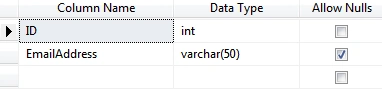
I have created a table with TestTable name, having two columns named ID and EmailAddress, where ID is the primary key.
  1. USE [Test_DB]
  2. GO
  3. /****** Object: Table [dbo].[TestTable] Script Date: 7/4/2016 7:13:39 PM ******/
  4. SET ANSI_NULLS ON
  5. GO
  6. SET QUOTED_IDENTIFIER ON
  7. GO
  8. SET ANSI_PADDING ON
  9. GO
  10. CREATE TABLE [dbo].[TestTable](
  11. [ID] [int] IDENTITY(1,1) NOT NULL,
  12. [EmailAddress] [varchar](50) NULL
  13. ) ON [PRIMARY]
  14. GO
  15. SET ANSI_PADDING OFF
  16. GO
The image, given below, is the design of our table:

design

Now we have to insert some records in this table, and run the below script :

Insert value in table
  1. insert into TestTable(EmailAddress) values('upe**.**@***.com')
  2. insert into TestTable(EmailAddress) values('Upe**.**@***.com')
  3. insert into TestTable(EmailAddress) values('uPe**.**@***.com')
  4. insert into TestTable(EmailAddress) values('UPe**.**@***.com')
  5. insert into TestTable(EmailAddress) values('SPe**.**@***.com')
  6. insert into TestTable(EmailAddress) values('SPEe**.**@***.com')
  7. insert into TestTable(EmailAddress) values('DSF**.**@***.com')
  8. insert into TestTable(EmailAddress) values('FF**.**@***.com')
  9. insert into TestTable(EmailAddress) values('FGF**.**@***.com')
  10. insert into TestTable(EmailAddress) values('FF**.**@***.com')
  11. insert into TestTable(EmailAddress) values('UTYU**.**@***.com')
  12. insert into TestTable(EmailAddress) values('TYUYTU**.**@***.com')
  13. insert into TestTable(EmailAddress) values('RAHUL**.**@***.com')
  14. insert into TestTable(EmailAddress) values('RS**.**@***.com')
  15. insert into TestTable(EmailAddress) values('rtt**.**@***.com')
  16. insert into TestTable(EmailAddress) values('AWE**.**@***.com')
  17. insert into TestTable(EmailAddress) values('RED**.**@***.com')
Run the script, given above.

See below screen

output

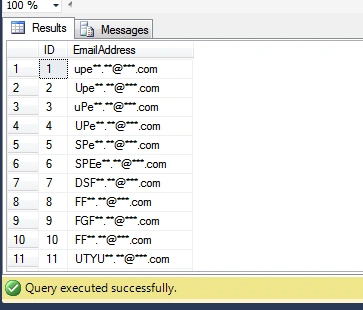
Now, we have to check the inserted record, using select query.

We found the retrieved record from the command, given below:
  1. select * from Testtable
output

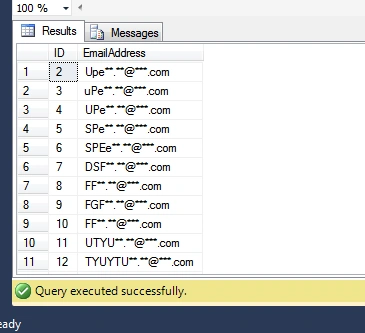
In the table, we see some records are in the upper case and some are in the lower case.

We need to update all the upper case values to the lower case. For this, we need first to know about the exact value for the upper case , which is to be update in the lower case.

How do we know if the records are in the upper case or in the lower case?

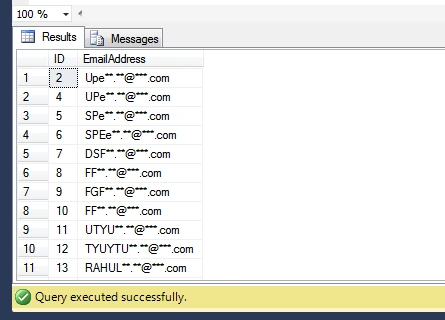
We can find these records with many queries but I am using some here:
  1. Select * from test_up where ASCII(left(EmailAddress, 1)) between ASCII('A')
    and ASCII('Z')

    output

  2. Select * from Testtable where EmailAddress!=upper(emailaddress)COLLATE Latin1_General_CS_AS

    output

  3. Using function in SQL

    Create a function,
    1. create function dbo.fnIsStringInAllUppercase(@input nvarchar(max)) returns bit
    2. as
    3. begin
    4. if (ISNUMERIC(@input) = 0 AND RTRIM(LTRIM(@input)) > '' AND @input = UPPER(@input COLLATE Latin1_General_CS_AS))
    5. return 1;
    6. return 0;
    7. end
    Now check value using Function :

    in the select query,
    1. SELECT *
    2. FROM Testtable
    3. WHERE dbo.fnIsStringAllUppercase(EmailAddress) = 1
    From the code, given above, you can see your data, which is required to be updated.

    Use the query, given below:
    1. BEGIN TRANSACTION
    2. GO
    3. UPDATE [dbo].[test_up]
    4. SET EmailAddress = lower(EmailAddress)
    5. WHERE id in(select id from test_up where EmailAddress!=lower(emailaddress)COLLATE Latin1_General_CS_AS )
    6. GO
    COMMIT TRANSACTION,

    TRANSACTION
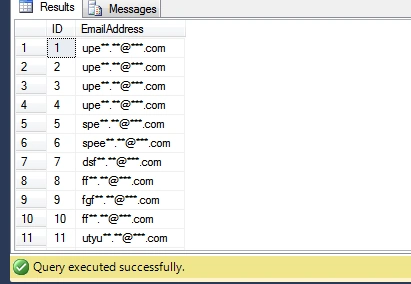
    Now, we can see the table records:

    records

    All the upper case values will convert in the lower case values.