

Introduction
Multi-factor authentication can be enabled at the tenant level by Microsoft. As a result, users can give an additional level of verification when logging into the system. Users will be able to confirm their login step using the Microsoft Authenticator App or a One Time Password received through SMS on mobile devices in this two-step verification. The question now is when you should disable this feature for a specific user. We don't have a specific procedure for turning off this feature in an Office 365 tenant. You won't find any alternatives to disable this feature for a user if you go to the Multi factor authentication settings. However, this is a feature of the Office 365 portal's multi-factor authentication. When I first started looking at this setting, I ran into a similar issue, but I was able to solve it by following the procedures listed below. I was able to disable this setting by following the procedures below. I hope you find this information useful.
Steps
You'll receive a security code in email or on your phone every time you sign in to an untrusted device while two-step verification is enabled, ensuring that you're who you say you are. If you disable two-step verification, you'll get and resend security codes on a regular basis, as well as whenever your account security is compromised. You can use the Microsoft Authenticator app to assist increase your account security and sign in without passwords if you don't want to utilize email, a phone call, or text. To enable or disable two-step verification, follow these steps:
- To enable/ disable two-step verification in Office 365 portal. Please navigate to below link:
https://mysignins.microsoft.com/security-info

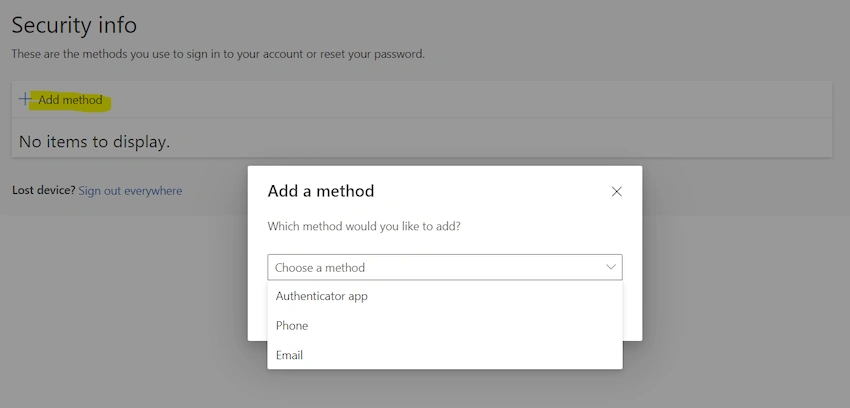
- Once you click on the "Add method", then a pop up will open to set security settings.
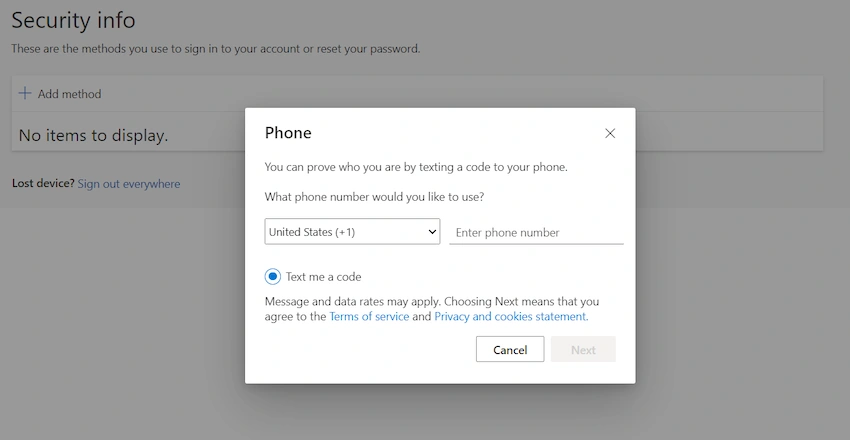
- Let say you click on the phone. Another pop up will be open where you provide the phone number details and click on Next.
- It'll send you a code for verification. Put your OTP and click on Save.

- To delete the Security Info, you need to click Delete link like below:
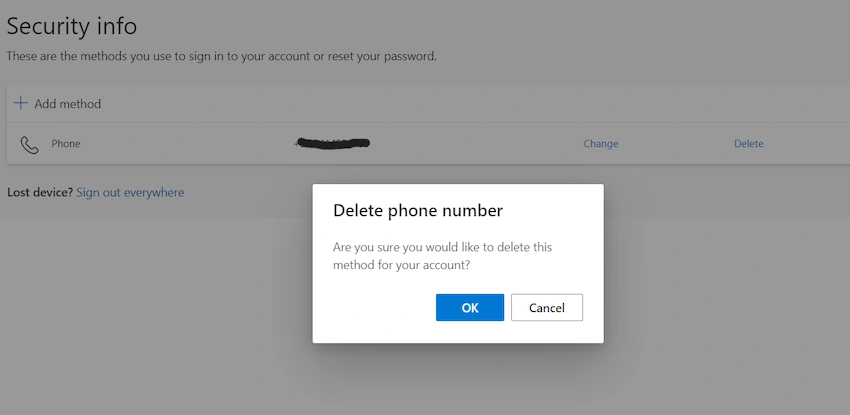
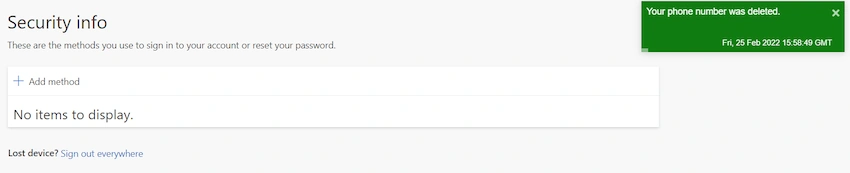
- Once you confirm, you will get the success message like below:
Conclusion
I hope you found this post to be informative. This solution can be useful for disabling two-factor authentication for a specific user. Although no one wants to disable this feature, if a user loses their mobile device or is out of reach of their device, you can disable it for them from the backend.
NOTE: Ascertain that you are the tenant's global administrator.
HAPPY CODING :)
Aman SoniPosted Mar 8, 2022, 9:54 AM
Soo informative...