Introduction
This article explains how to change the checkbox list depending on the changes of a dropdown list value in the Web API. In it the checkbox list data is bound with the Dropdown list .
Use the following procedure to create a sample application.
Step 1
First we create a Web API application as in the following:
- Start Visual Studio 2013.
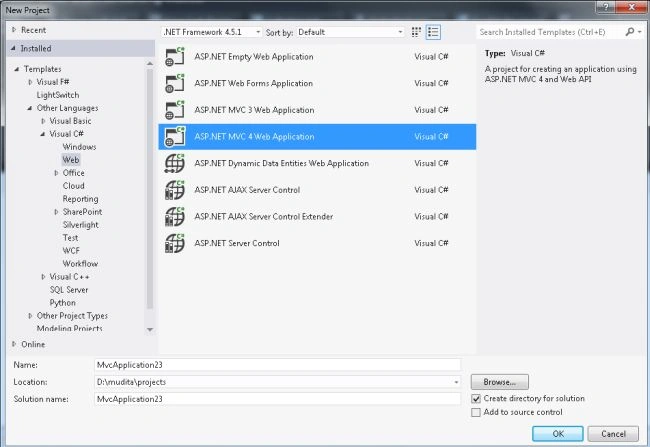
- From the Start Window select "New Project".
- From the New project window select "Installed" -> "Visual C#" -> "Web" -> "Visual Studio 2012".
- Select "ASP.NET MVC4 Web Application" and click the "OK" button.
- From the "MVC4 project" window select "Web API".
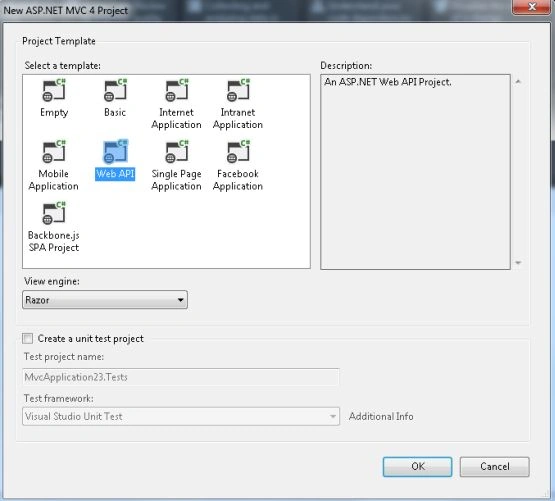
- Click on the "OK" button.
Step 2
Add a Model folder as in the following:
- In the "Solution Explorer".
- Right -click on the "Model folder".
- Select "Add" -> "Class".
- From the add item window select "Installed" -> "Visual C#".
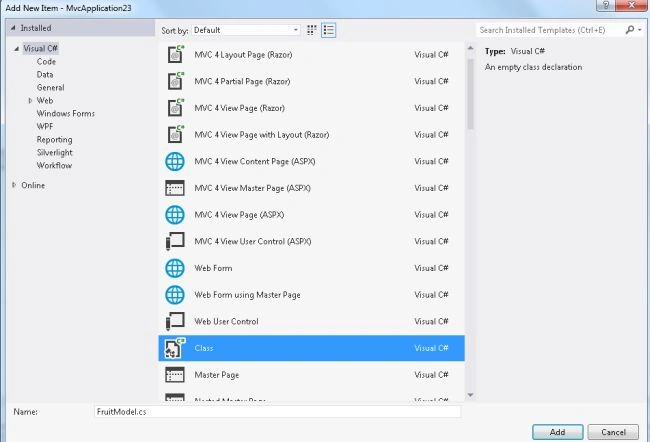
- Select "Class" and click on the "Add" button.
Add the following code:
- using System;
- using System.Collections.Generic;
- using System.Linq;
- using System.Web;
- namespace MvcApplication23.Models
- {
- public class FruitModel
- {
- public List<Fruit> FruitH { get; set; }
- public int SelectedFruit { get; set; }
- public List<FruitDetail> FruitLModel { get; set; }
- }
- public class Fruit
- {
- public int Id { get; set; }
- public string FruitName { get; set; }
- }
- public class FruitDetail
- {
- public int Id { get; set; }
- public int FruitId { get; set; }
- public string Fruit_T { get; set; }
- }
- }
Step 3
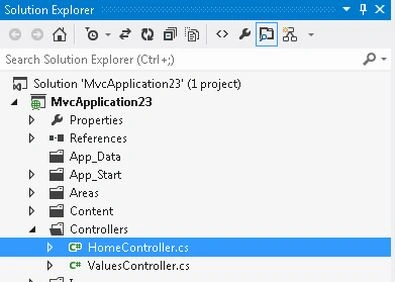
Now in the "Controller" we add the code that uses all the variables of the Model class. This file exists:
-
In the "Solution Explorer".
-
Expand the "Controller" folder.
-
Select the "HomeController".
Add the following code:
- using System;
- using System.Collections.Generic;
- using System.Linq;
- using System.Web;
- using System.Web.Mvc;
- using MvcApplication23.Models;
- namespace MvcApplication23.Controllers
- {
- public class HomeController : Controller
- {
- public ActionResult Index()
- {
- FruitModel objfruit = new FruitModel();
- objfruit.FruitH = GetAllFruit();
- List<FruitDetail> obj= new List<FruitDetail>();
- obj = GetAllFruitDetail();
- objfruit.FruitLModel = obj;
- objfruit.SelectedFruit = 0;
- return View(objfruit);
- }
- [HttpPost]
- public ActionResult Index(FruitModel objfruit)
- {
- objfruit.FruitH = GetAllFruit();
- List<FruitDetail> objfruit1 = new List<FruitDetail>();
- if (objfruit.SelectedFruit != 0)
- {
- objfruit1 = GetAllFruitDetail();
- objfruit.FruitLModel = objfruit1.Where(m => m.FruitId == objfruit.SelectedFruit).ToList();
- }
- else
- {
- objfruit1 = GetAllFruitDetail();
- objfruit.FruitLModel = objfruit1;
- }
- return View(objfruit);
- }
- public List<Fruit> GetAllFruit()
- {
- List<Fruit> objfruit = new List<Fruit>();
- objfruit.Add(new Fruit { Id = 0, FruitName = "All" });
- objfruit.Add(new Fruit { Id = 1, FruitName = "FruitList-1" });
- objfruit.Add(new Fruit { Id = 2,FruitName = "FruitList-2" });
- objfruit.Add(new Fruit { Id = 3, FruitName = "FruitList-3" });
- return objfruit;
- }
- public List<FruitDetail> GetAllFruitDetail()
- {
- List<FruitDetail> objfruitmodel = new List<FruitDetail>();
- objfruitmodel.Add(new FruitDetail { Id = 1, FruitId = 1, Fruit_T = "Apple" });
- objfruitmodel.Add(new FruitDetail { Id = 2, FruitId = 1, Fruit_T = "Banana" });
- objfruitmodel.Add(new FruitDetail { Id = 3, FruitId = 2, Fruit_T = "Graps" });
- objfruitmodel.Add(new FruitDetail { Id = 4, FruitId = 2, Fruit_T = "Orange" });
- objfruitmodel.Add(new FruitDetail { Id = 5, FruitId = 2, Fruit_T = "Gaava" });
- objfruitmodel.Add(new FruitDetail { Id = 6, FruitId = 2, Fruit_T = "Cherry" });
- objfruitmodel.Add(new FruitDetail { Id = 7, FruitId = 3, Fruit_T = "Coconut" });
- objfruitmodel.Add(new FruitDetail { Id = 8, FruitId = 3, Fruit_T = "Mango" });
- objfruitmodel.Add(new FruitDetail { Id = 9, FruitId = 3, Fruit_T = "Lychee" });
- return objfruitmodel;
- }
- }
- }
Step 4
In the View write some code as in the following:
-
In the "Solution Explorer".
-
Expand the "Views Folder"
-
Select "Home" -> "Index.cshtml".
Add the following code:
- @model MvcApplication23.Models.FruitModel
- @{
- ViewBag.Title = "Bind Data of checkbox list with the Dropdown list in Web API";
- }
- @using (Html.BeginForm("Index", "Home"))
- {
- <table width="30%">
- <tr>
- <td>
- Fruits :
- </td>
- <td align="left">@Html.DropDownList("SelectedFruit", new SelectList(Model.FruitH ,"Id", "FruitName", Model.SelectedFruit))
- <input type="submit" value="Search" />
- </td>
- </tr>
- <tr>
- <td colspan="2">
- @foreach (var item in Model.FruitLModel)
- {
- <div>
- @Html.CheckBox("FruitNameLIst", false, new { @value = item.Id })
- @Html.Label("lblname",item.Fruit_T)
- </div>
- }
- </td>
- </tr>
- <tr>
- <td colspan="2">
- </td>
- </tr>
- </table>
- }
Step 5
Execute the application:
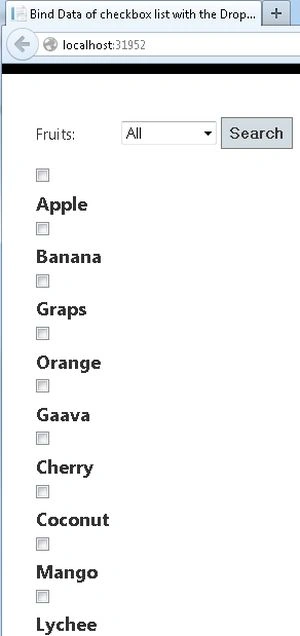
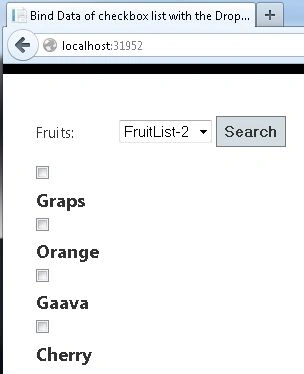
Now select the the list of fruits from the dropdown list and click on search.


Join the conversation! Your thoughts help the community grow.