
Introduction
Ajax (Asynchronous
JavaScript and XML) is a new web development technique used for interactive
websites. AJAX can help to develop web applications and retrieve small amounts of
data from a web server. AJAX is a different type of technology.
- JavaScript
- XML
- Asynchronous Call to the server
UpdatePanelAnimationExtender Control
The
UpdatePanelAnimationExtender is a simple extender that allows you to
utilize the powerful animation framework with existing pages in an easy,
declarative fashion. It is used to play animations both while an
UpdatePanel is updating and after it has
finished updating. The UpdatePanel
architecture and OnUpdating animation
will always play when any partial postback starts, but the
OnUpdated animation will only play at the end
of a partial postback if its UpdatePanel was
changed.
Step 1 : Open Visual Studio 2010.
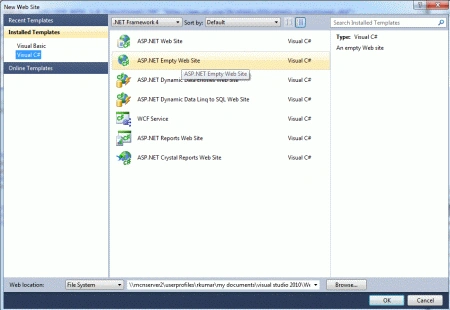
- Go to File->New->WebSite
- Select ASP.NET Empty WebSite
Step 2 : Go to Solution Explorer and right-click.
- Select Add->New Item
- Select WebForm
- Default.aspx page open

Step 3 : Go to Default.aspx page and click on the [Design] option and drag control from Toolbox.
- Drag ScriptManager control, UpdatePanel control, Label, Button, Checkbox
Define Trigger for UpdatePanel :
Step 4 : Go to Default.aspx [Design] option and click on the UpdatePanel.
- Select Properties option
- Click on Trigger and define ControlIDand Event Name
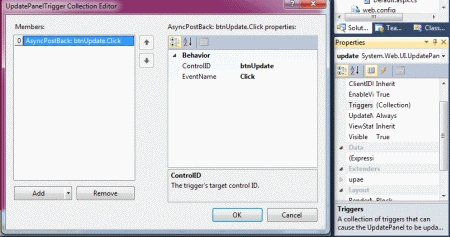
Step 5 : Write a code for UpdatePanel control and define AsyncPostBackTrigger.
Code :
<asp:UpdatePanel
ID="update"
runat="server">
<ContentTemplate>
<div
id="background"
style="text-align:
center; vertical-align:
middle; line-height:
44px; padding:
12px; height:
44px; color:
#FFFFFF;">
<asp:Label
ID="lblUpdate"
runat="server"
Style="padding:
5px; font-size:
14px; font-weight:
bold;">
4/28/1906 12:00:00 AM
</asp:Label>
</div>
</ContentTemplate>
<Triggers>
<asp:AsyncPostBackTrigger
ControlID="btnUpdate"
EventName="Click"
/>
</Triggers>
</asp:UpdatePanel>
Define
UpdatePanelAnimation Extender
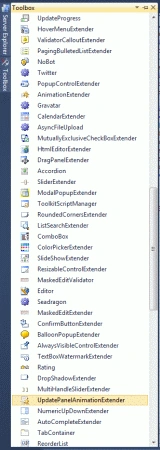
Step 6 : Go to Toolbox and drag
UpdatePanelAnimation Extender Control.UpdatePanelAnimation Extender set the
target controls to the respective Labels and Buttons. We also provide the markup
page so you can reference the Target controls and properties.
Step 7 : Go to the Default.aspx
page [Source] option and write a code for UpdatePanelAnimation Extender.
Code :
<asp:UpdatePanelAnimationExtender
ID="upae"
BehaviorID="animation"
runat="server"
TargetControlID="update">
<Animations>
<OnUpdating>
<Sequence>
<%--
Store the original height of the panel --%>
<ScriptAction
Script="var b = $find('animation');
b._originalHeight = b._element.offsetHeight;" />
<%--
Disable all the controls --%>
Enable all the controls :
Step 8 : Now we define the Enable all the controls for the parallel duration
of UpdatePanelAnimation Extender.
<%--
Enable all the controls --%>
<Parallel
duration="0">
<EnableAction
AnimationTarget="effect_fade"
Enabled="true"
/>
<EnableAction
AnimationTarget="effect_collapse"
Enabled="true"
/>
<EnableAction
AnimationTarget="effect_color"
Enabled="true"
/>
<EnableAction
AnimationTarget="btnUpdate"
Enabled="true"/>
</Parallel>
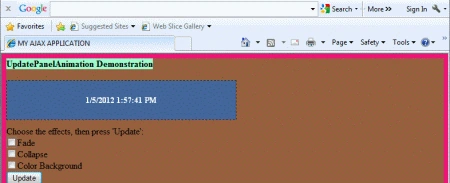
Step 9 :
Go to Default.aspx page option and write a
code.
Join the conversation! Your thoughts help the community grow.