Introduction
Today, we will learn about downloading an Excel file in various formats in Angular, like text, HTML, JSON, and CSV. We will be using file saver and .xlsx packages for this purpose and will upload an Excel file from the UI rather than a static path or source, in order to make it dynamic.
Prerequisites
- Basic knowledge of Angular
- Any editor likes Visual Studio Code.
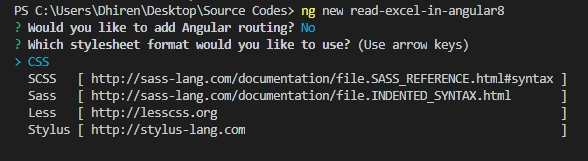
Create a new project in Angular and name it as read-excel-in-angular8
Open the newly created project and add xlsx npm package and file saver package.
- npm install xlsx
- npm install file-saver --save
Open the app.component.html file and add the following code in it.
- <div class="container">
- <div class="row">
- <div class="col-md-8 form-group">
- <input type="file" class="form-control" (change)="uploadedFile($event)" placeholder="Upload file" accept=".xlsx">
- </div>
- </div>
- <div class="row">
- <div class="col-md-2 form-group">
- <button type="button" class="btn btn-info" (click)="readAsCSV()">Read as CSV</button>
- </div>
- <div class="col-md-2 form-group">
- <button type="button" class="btn btn-info" (click)="readAsJson()">Read as JSON</button>
- </div>
- <div class="col-md-2 form-group">
- <button type="button" class="btn btn-info" (click)="readAsHTML()">Read as HTML</button>
- </div>
- <div class="col-md-2 form-group">
- <button type="button" class="btn btn-info" (click)="readAsText()">Read as Text</button>
- </div>
- </div>
- </div>
Open the app.component.ts file and add the following code in it.
- import { Component } from '@angular/core';
- import * as XLSX from 'xlsx';
- import * as FileSaver from 'file-saver';
- @Component({
- selector: 'app-root',
- templateUrl: './app.component.html',
- styleUrls: ['./app.component.css']
- })
- export class AppComponent {
- title = 'read-excel-in-angular8';
- storeData: any;
- csvData: any;
- jsonData: any;
- textData: any;
- htmlData: any;
- fileUploaded: File;
- worksheet: any;
- uploadedFile(event) {
- this.fileUploaded = event.target.files[0];
- this.readExcel();
- }
- readExcel() {
- let readFile = new FileReader();
- readFile.onload = (e) => {
- this.storeData = readFile.result;
- var data = new Uint8Array(this.storeData);
- var arr = new Array();
- for (var i = 0; i != data.length; ++i) arr[i] = String.fromCharCode(data[i]);
- var bstr = arr.join("");
- var workbook = XLSX.read(bstr, { type: "binary" });
- var first_sheet_name = workbook.SheetNames[0];
- this.worksheet = workbook.Sheets[first_sheet_name];
- }
- readFile.readAsArrayBuffer(this.fileUploaded);
- }
- readAsCSV() {
- this.csvData = XLSX.utils.sheet_to_csv(this.worksheet);
- const data: Blob = new Blob([this.csvData], { type: 'text/csv;charset=utf-8;' });
- FileSaver.saveAs(data, "CSVFile" + new Date().getTime() + '.csv');
- }
- readAsJson() {
- this.jsonData = XLSX.utils.sheet_to_json(this.worksheet, { raw: false });
- this.jsonData = JSON.stringify(this.jsonData);
- const data: Blob = new Blob([this.jsonData], { type: "application/json" });
- FileSaver.saveAs(data, "JsonFile" + new Date().getTime() + '.json');
- }
- readAsHTML() {
- this.htmlData = XLSX.utils.sheet_to_html(this.worksheet);
- const data: Blob = new Blob([this.htmlData], { type: "text/html;charset=utf-8;" });
- FileSaver.saveAs(data, "HtmlFile" + new Date().getTime() + '.html');
- }
- readAsText() {
- this.textData = XLSX.utils.sheet_to_txt(this.worksheet);
- const data: Blob = new Blob([this.textData], { type: 'text/plain;charset=utf-8;' });
- FileSaver.saveAs(data, "TextFile" + new Date().getTime() + '.txt');
- }
- }
Finally, open the index.html file present at the root directory and add the bootstrap and jQuery references in it.
- <!doctype html>
- <html lang="en">
- <head>
- <meta charset="utf-8">
- <title>ReadExcelInAngular8</title>
- <base href="/">
- <meta name="viewport" content="width=device-width, initial-scale=1">
- <link rel="icon" type="image/x-icon" href="favicon.ico">
- <link rel="stylesheet" href="https://maxcdn.bootstrapcdn.com/bootstrap/4.3.1/css/bootstrap.min.css">
- <script src="https://ajax.googleapis.com/ajax/libs/jquery/3.4.1/jquery.min.js"></script>
- <script src="https://maxcdn.bootstrapcdn.com/bootstrap/4.3.1/js/bootstrap.min.js"></script>
- </head>
- <body>
- <app-root></app-root>
- </body>
- </html>
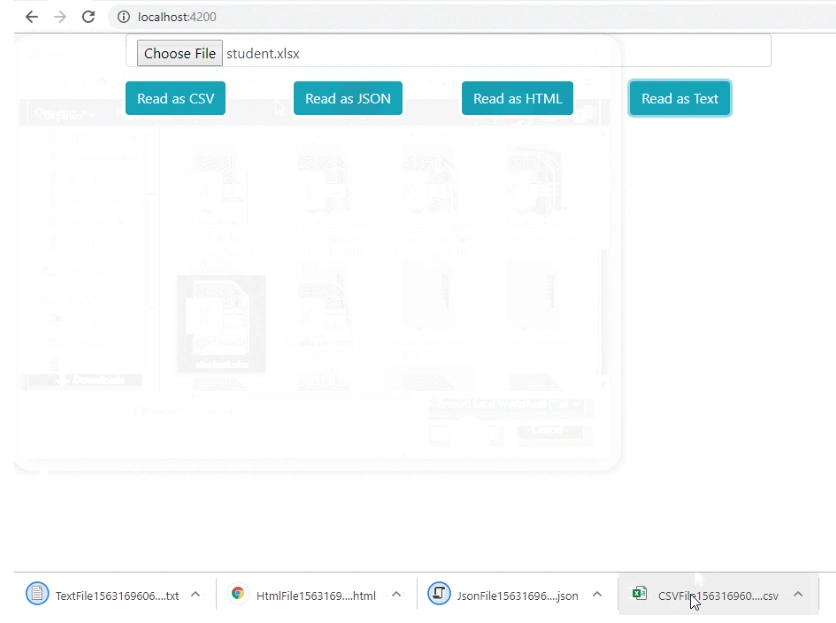
Output
Please give your valuable feedback/comments/questions about this
article. Please let me know how you like and understand this article and
how I could improve it.




Roger WilliamsPosted Feb 8, 2021, 9:16 PM
Excellent! First app that translated my Excel file to JSON correctly. Now, how do I get an Excel file from URL?
Marina MikilchenkoPosted Aug 30, 2019, 3:35 AM
Thank you very much! (p.s. this example is working in IE11 where XLSX upload has problems)
Chandragiri VenkateshPosted Aug 26, 2019, 2:28 AM
It's a nice article ,if I want pdf formate how to do that
Mohanraj KaliappanPosted Aug 2, 2019, 1:34 AM
Very good article bro
Amit MohantyPosted Jul 16, 2019, 1:11 AM
Nice article