

If you are new to the Azure media service account, I strongly recommend that you read my previous post related to media service accounts. Once we create a media service account, we will create an asset and get the SAS token related to the asset we created. Here, we will discuss more about assets and SAS tokens. I hope you will like this.
Download the source code
You can always download the source code here: Azure Media Service From Client Side
Background
For the past few weeks I have been working in Azure . Recently I got a requirement of storing images to Azure. Thus, I decided to create a media service account for this requirement. The tricky part was I needed to upload the files from the client side itself. Here we are going to see how we can create an Azure media service account and how to use the same.
What is a media service account?
- A media service account is an Azure-based account which gives you access to cloud-based media services in Azure.
- Stores metadata of the media files you create, instead of saving the actual media content.
- To work with a media service account, you must have an associated storage account.
- While creating a media service account, you can either select the storage account you already have or you can create a new one.
- Since the media service account and storage account is treated separately, the content will be available in your storage account even if you delete your media service account
Please note that your storage account region must be the same as your media service account region.
Prerequisites
- Visual Studio
- Azure account with active subscription
If you are a start up company or you are thinking of starting a new one, you can always go for BizSpark (Software and services made for the start ups); to join please check here: How to join bizspark. Or you can always create a free account here.
Things we are going to do
The following are the tasks we are going to do.
- Creating an Azure media service account.
If you don’t have an Azure account with an active subscription, you must create it first before going to do this task.
- Create an Asset in Media service account
- Get the SAS token for an Asset
- Client side upload process
- Retrieves the uploaded items
Now we will go and create our media service account.
Create an Azure media service account
To create an azure media service account, please see the link given below. I have explained the steps there.
Hope you have the storage account and media service account with you.
Create an Asset in Media service account
You can always create an Asset either via code or manually in https://portal.azure.com.
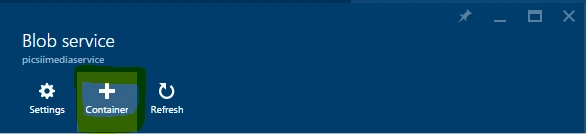
Blob Service In Portal,
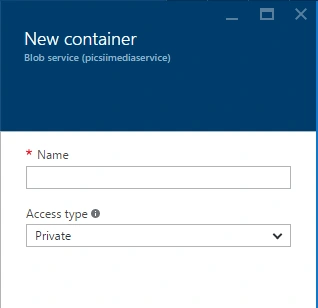
If you want to create the Asset via code, you can create it as below.
- public static string CreateBLOBContainer(string containerName) {
- try {
- string result = string.Empty;
- CloudMediaContext mediaContext;
- mediaContext = new CloudMediaContext(mediaServicesAccountName, mediaServicesAccountKey);
- IAsset asset = mediaContext.Assets.Create(containerName, AssetCreationOptions.None);
- return asset.Uri.ToString();
- } catch (Exception ex) {
- return ex.Message;
- }
- }
Get the SAS token for an Asset
Before going to generate SAS, we want to know what an SAS is, right?
What is SAS?
SAS stands for shared access signature, it is the mechanism used for giving limited access to the objects in your storage account to your clients, in a way that you do not need to share your account key. In SAS, you can set how long the given access must be active and you can always set the read/write access too. If you want to know more about SAS, I recommend you read it here.
Once you download the application from here, you can add a function to generate the SAS token dynamically.
- private static string GenerateSASToken(string assetId)
- {
- CloudStorageAccount backupStorageAccount = CloudStorageAccount.Parse(myAzureCon);
- CloudBlobClient client = backupStorageAccount.CreateCloudBlobClient();
- CloudBlobContainer container = client.GetContainerReference(assetId);
- BlobContainerPermissions permissions = container.GetPermissions();
- permissions.SharedAccessPolicies.Add(string.Concat(assetId, "AccessPolicy"), new SharedAccessBlobPolicy
- {
- Permissions = SharedAccessBlobPermissions.Read | SharedAccessBlobPermissions.Write,
- SharedAccessExpiryTime = DateTime.UtcNow.AddDays(365)
- });
- permissions.PublicAccess = BlobContainerPublicAccessType.Container;
- container.SetPermissions(permissions);
- ServiceProperties sp = client.GetServiceProperties();
- sp.DefaultServiceVersion = "2013-08-15";
- CorsRule cr = new CorsRule();
- cr.AllowedHeaders.Add("*");
- cr.AllowedMethods = CorsHttpMethods.Get | CorsHttpMethods.Put | CorsHttpMethods.Post;
- cr.AllowedOrigins.Add("*");
- cr.ExposedHeaders.Add("x-ms-*");
- sp.Cors.CorsRules.Clear();
- sp.Cors.CorsRules.Add(cr);
- client.SetServiceProperties(sp);
- var sas = container.GetSharedAccessSignature(new SharedAccessBlobPolicy(), string.Concat(assetId, "AccessPolicy"));
- return container.Uri + sas;
- }
Client side upload process
Create an index page with an input file and other needed UI as follows.
- <!doctype html>
- <html>
- <head>
- <meta charset="utf-8">
- <meta name="viewport" content="user-scalable=no, initial-scale=1, maximum-scale=1, minimum-scale=1, width=device-width">
- <link href="CSS/Index.css" rel="stylesheet" /> </head>
- <body>
- <div class="container">
- <div class="thumbnail-fit" id="azureImage">
- <div id="fiesInfo"></div>
- <div id="divOutput"></div>
- </div>
- </div>
- <div id="uploaderDiv">
- <form> <span class="input-control text">
- <input type="file" id="file" multiple accept="image/*" name="file" />
- </span> <br /> <br /> <input type="button" value="Upload File" id="buttonUploadFile" /> </form>
- </div>
- <script src="scripts/jquery-1.10.2.min.js"></script>
- <script src="scripts/jquery-ui-1.9.2.min.js"></script>
- <script src="scripts/Index.js"></script>
- </body>
- </html>
- $(document).ready(function()
- {
- $('#fiesInfo').html('');
- $('#divOutput').html('');
- upldCount = 0;
- totSize = 0;
- $('#file').change(function()
- {
- selectedFile = [];
- if (this.files.length > 0)
- {
- $.each(this.files, function(i, v)
- {
- totalFileSize = totalFileSize + v.size;
- selectedFile.push
- ({
- size: v.size,
- name: v.name,
- file: v
- });
- });
- }
- });
- });
- $("#buttonUploadFile").click(function(e)
- {
- upload();
- });
- function upload()
- {
- $('#fiesInfo').html('');
- $('#divOutput').html('');
- upldCount = 0;
- totSize = 0;
- startDateTime = new Date();
- $('#fiesInfo').append('<span><b> Uploading starts at </b></span>' + startDateTime);
- if (selectedFile == null)
- {
- alert("Please select a file first.");
- } else
- {
- for (var i = 0; i < selectedFile.length; i++)
- {
- fileUploader(selectedFile[i]);
- upldCount = upldCount + 1;;
- totSize = totSize + selectedFile[i].size;
- }
- }
- };
- function fileUploader(selectedFileContent)
- {
- reader = new FileReader();
- var fileContent = selectedFileContent.file.slice(0, selectedFileContent.size - 1);
- reader.readAsArrayBuffer(fileContent);
- reader.onloadend = function(evt)
- {
- if (evt.target.readyState == FileReader.DONE)
- {
- var currentAzureStorageUrl = baseUrl;
- var indexOfQueryStart = currentAzureStorageUrl.indexOf("?");
- var uuid = generateUUID();
- var fileExtension = selectedFileContent.name.split('.').pop();
- var azureFileName = uuid + '.' + fileExtension;
- submitUri = currentAzureStorageUrl.substring(0, indexOfQueryStart) + '/' + azureFileName + currentAzureStorageUrl.substring(indexOfQueryStart);
- var requestData = new Uint8Array(evt.target.result);
- ajaxUploadCall(submitUri, requestData);
- }
- };
- }
https://myaccount.blob.core.windows.net/sascontainer/sasblob.txt?sv=2015-04-05&st=2015-04-29T22%3A18%3A26Z&se=2015-04-30T02%3A23%3A26Z&sr=b&sp=rw&sip=168.1.5.60-168.1.5.70&spr=https&sig=Z%2FRHIX5Xcg0Mq2rqI3OlWTjEg2tYkboXr1P9ZUXDtkk%3D
Once the reader event is finished we are passing the uri and data in the format of an array. Can we see the AJAX call now?
- function ajaxUploadCall(submitUri, selectedFileContent)
- {
- $.ajax
- ({
- url: submitUri,
- type: "PUT",
- data: selectedFileContent,
- processData: false,
- async: false,
- beforeSend: function(xhr)
- {
- xhr.setRequestHeader('x-ms-blob-type', 'BlockBlob');
- },
- success: function(data, status) {},
- complete: function(event, xhr, settings)
- {
- compCount = compCount + 1;
- if (selectedFile.length == compCount)
- {
- RptDisplay();
- }
- },
- error: function(xhr, desc, err) {}
- });
- }
- beforeSend: function(xhr)
- {
- xhr.setRequestHeader('x-ms-blob-type', 'BlockBlob');
- }
- function RptDisplay()
- {
- $('#divOutput').hide();
- $('#fiesInfo').append('<table></table>');
- $('#fiesInfo table').append('<tr><td><b>No of files uploaded: </b></td><td>' + upldCount + '</td></tr>');
- $('#fiesInfo table').append('<tr><td><b>Total size uploaded: </b></td><td>' + formatSizeUnits(totSize) + '</td></tr>');
- var endDateTime = new Date();
- $('#fiesInfo table').append('<tr><td><b>Uploading ends at </b></td><td>' + endDateTime + '</td></tr>');
- $('#fiesInfo table').append('<tr><td><b>The time taken is </b></td><td>' + findDateDiff(startDateTime, endDateTime) + '</td></tr>');
- $('#divOutput').show();
- };
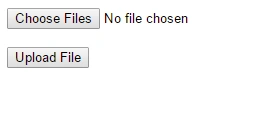
Upload File
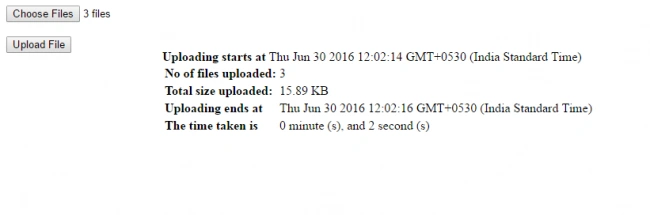
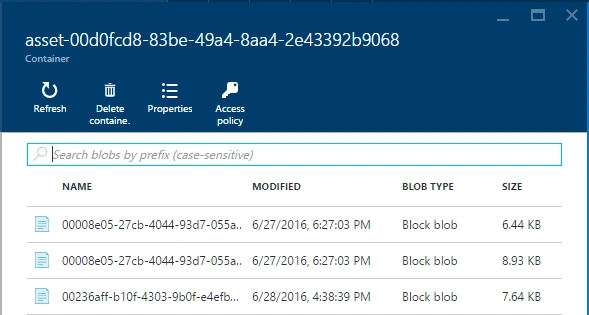
Retrieves the uploaded items
To retrieve the items you can always create a function as follows, which accepts asset id as parameter.
- public string getEventImage(string assetID)
- {
- CloudStorageAccount backupStorageAccount = CloudStorageAccount.Parse(myAzureCon);
- CloudBlobClient client = backupStorageAccount.CreateCloudBlobClient();
- CloudBlobContainer container = client.GetContainerReference(assetID.Replace("nb:cid:UUID:", "asset-"));
- List < string > results = new List < string > ();
- foreach(IListBlobItem item in container.ListBlobs(null, false))
- {
- results.Add(item.Uri.ToString());
- }
- return JsonConvert.SerializeObject(results);
- }
Conclusion
Did I miss anything that you may think which needed? Have you ever tried an Azure media service account? Did you find this post useful? I hope you liked this article. Please share with me your valuable suggestions and feedback.
Your turn. What do you think?
A blog isn’t a blog without comments, but do try to stay on topic. If you have a question unrelated to this post, you’re better off posting it on C# Corner, Code Project, Stack Overflow, Asp.Net Forum instead of commenting here. Tweet or email me a link to your question there and I’ll definitely try to help if I can.
Please see this article in my blog here.
Delpin Susai RajPosted Aug 28, 2016, 3:59 AM
Nice one
Sibeesh VenuPosted Jul 7, 2016, 12:31 PM
Sr Karthiga Thanks
Sibeesh VenuPosted Jul 7, 2016, 12:30 PM
Vignesh Mani Thanks
Sr KarthigaPosted Jul 7, 2016, 8:05 AM
Good one
Vignesh ManiPosted Jul 6, 2016, 4:17 PM
Good one
Sibeesh VenuPosted Jul 6, 2016, 4:55 AM
Vivek Tripathi Thanks
Vivek TripathiPosted Jul 6, 2016, 4:30 AM
Nice one, thanks
Sibeesh VenuPosted Jul 6, 2016, 12:59 AM
Raja Ganapathy Thanks much
Sibeesh VenuPosted Jul 6, 2016, 12:59 AM
Prasanna M Thanks much
Sibeesh VenuPosted Jul 6, 2016, 12:58 AM
kalu singh rao Thanks much
Sibeesh VenuPosted Jul 6, 2016, 12:58 AM
Upendra Pratap Shahi Thanks much
RajaPosted Jul 6, 2016, 12:11 AM
Good One...
Prasanna MuraliPosted Jul 5, 2016, 12:07 PM
Nice one..
kalu singh raoPosted Jul 5, 2016, 9:46 AM
Nice...
Upendra Pratap ShahiPosted Jul 5, 2016, 9:30 AM
Good one..