

Introduction
This article explains how to upload multiple files into a SharePoint list in just a single click using Angular and jQuery.
Objective
Post multiple files into a SharePoint list in just one click.
Procedure
- Create a SharePoint library for storing files
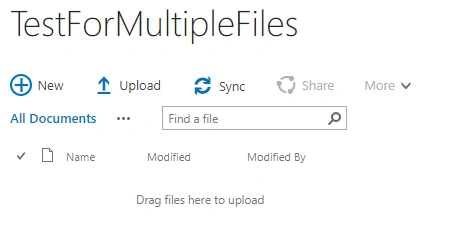
- Create a web page for UI to upload files.
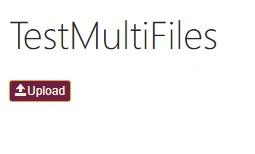
- Build respective HTML and script for the web page.
HTML Code
- <label class="btn btn-warning btn-xs" style="background-color: #6E2143;color: beige;" meetid="getFile" onclick="angular.element(this).scope().btnAgUpload(this)">
- <span class="glyphicon glyphicon-open"></span>Upload</label>
- <input type="file" id="getFile" multiple="multiple" onchange="angular.element(this).scope().uploadfiles(this)" style="display:none" />
Here we are hiding the input with style tag (display:none), but when we click on label, it triggers to the hidden input by onchange.
When onchange starts the trigger, it will call the actual upload function as shown in the script code.
Script Code
Label click
- $scope.btnAgUpload = function(val1){
- var fileEle = val1.attributes['meetid'].value;
- document.getElementById(fileEle).click();
- }
Hidden input calls the upload function.
- $scope.uploadfiles = function (ele){
- var agendaFile = $("#"+ele.attributes['id'].value);
- upload(agendaFile)
- }
Explanation for Upload functionality.
- function upload(sm) {/* passing the selected files as objects*/
- var serverRelativeUrlToFolder = 'TestForMultipleFiles'; /*Define the folder path for this example.*/
- var fileInput = sm; /* Get test values from the file input and text input page controls.*/
- var fileCount = fileInput[0].files.length;
- var serverUrl = _spPageContextInfo.webAbsoluteUrl; /*Get the server URL.*/
- var filesUploaded = 0;
- for(var i = 0; i < fileCount; i++){
- /* Initiate method calls using jQuery promises. Get the local file as an array buffer.*/
- var getFile = getFileBuffer(i);
- getFile.done(function (arrayBuffer,i) {
- /*Add the file to the SharePoint folder.*/
- var addFile = addFileToFolder(arrayBuffer,i);
- addFile.done(function (file, status, xhr) {
- filesUploaded++;
- if(fileCount == filesUploaded){
- $("#getFile").val('');/* resetting the input*/
- alert("All files uploaded successfully");/* success alert*/
- filesUploaded = 0;
- }
- });
- addFile.fail(onError);
- });
- getFile.fail(onError);
- }
- /* Get the local file as an array buffer.*/
- function getFileBuffer(i) {
- var deferred = jQuery.Deferred();
- var reader = new FileReader();
- reader.onloadend = function (e) {
- deferred.resolve(e.target.result,i);
- }
- reader.onerror = function (e) {
- deferred.reject(e.target.error);
- }
- reader.readAsArrayBuffer(fileInput[0].files[i]);
- return deferred.promise();
- }
- /* Add the file to the file collection in the Shared Documents folder.*/
- function addFileToFolder(arrayBuffer,i) {
- var index = i;
- /* Get the file name from the file input control on the page.*/
- var fileName = fileInput[0].files[index].name;
- var tzoffset = (new Date()).getTimezoneOffset() * 60000; //offset in milliseconds
- var localISOTime = (new Date(Date.now() - tzoffset)).toISOString().slice(0,-1).replace(":", "").slice(0,-2).replace(":", "").slice(0,-3).replace(".", "");
- CustomFilename = fileName.replace(".docx", ""+localISOTime+".docx");/* customizing the file name*/
- /* Construct the endpoint.*/
- var fileCollectionEndpoint = String.format(
- "{0}/_api/web/getfolderbyserverrelativeurl('{1}')/files" +
- "/add(overwrite=true, url='{2}')",
- serverUrl, serverRelativeUrlToFolder, CustomFilename);
- /* Send the request and return the response.
- This call returns the SharePoint file.*/
- return jQuery.ajax({
- url: fileCollectionEndpoint,
- type: "POST",
- data: arrayBuffer,
- processData: false,
- headers: {
- "accept": "application/json;odata=verbose",
- "X-RequestDigest": jQuery("#__REQUESTDIGEST").val()
- }
- });
- }
- }
- /* Display error messages. */
- function onError(error) {
- alert(error.responseText);
- }
Let’s see the result on the screen as below.
Click on "Upload" and select multiple files.
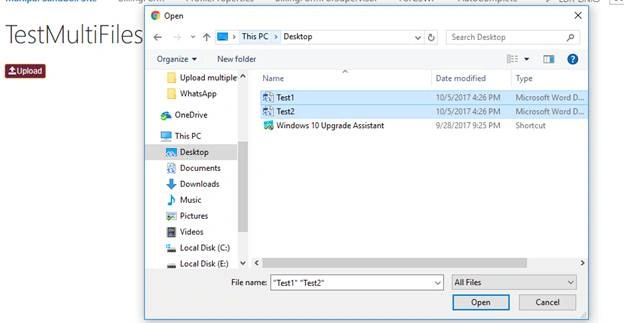
Then, click on "Open". We get the success alert.
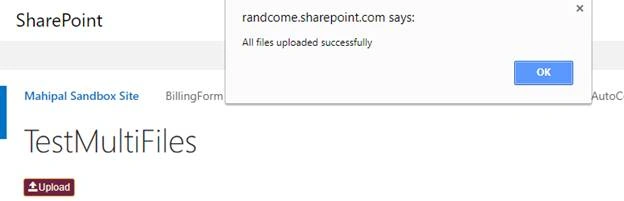
Go back to your list and check.
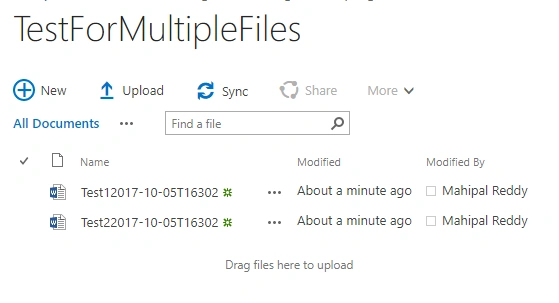
Finally, the selected files are uploaded successfully into SharePoint list.
Conclusion
Hope this will be the smart way to upload multiple files in just one click to SharePoint list using Angular and jQuery. And, avoid too many clicks to upload files.
kapil mavaniPosted Jul 12, 2019, 12:21 AM
Throwing ERROR : {"error":{"code":"-2130575251, Microsoft.SharePoint.SPException","message":{"lang":"en-US","value":"The security validation for this page is invalid and might be corrupted. Please use your web browser's Back button to try your operation again."}}}`
User OnePosted Jun 28, 2018, 11:59 AM
Hello Mahipal Reddy, Thanks for the tutorial. I am trying to follow it but I get the following error: Uncaught TypeError: Cannot read property 'btnAgUpload' of undefined at HTMLLabelElement.onclick (TestMultiFile.aspx:25). Would you know what might the be the problem?
ravi bankaPosted Nov 13, 2017, 2:43 PM
Hi Mahi Paul ,Please share email address and phone number