

Introduction
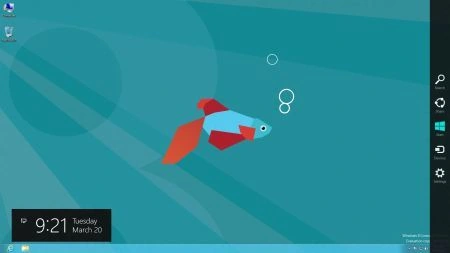
In this article, we are going to describe how to show and use a Desktop Application. Windows 8 provides the user experience with the Metro UI. Windows 8 comes with the new features, Metro UI based applications, and Metro full-screen applications. The new Start button is available from the Charms Bar. With the Metro UI, Windows 8 provides an improved user experience. As part of the design change, the Start and All Programs user interface are no longer needed. The Start button has been one of the best images in Windows 8 for over sixteen years now. If you want to go to the Start button, it is just on the right and moves the cursor on the bottom-right corner; it looks a little different now. The Start button is available from the Charms Bar as shown below.
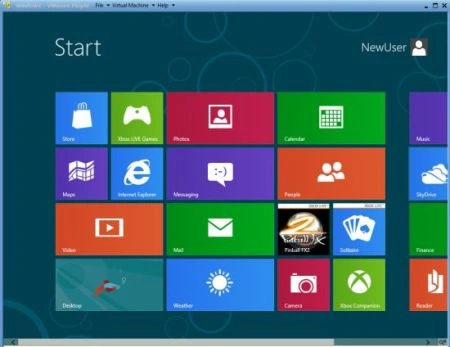
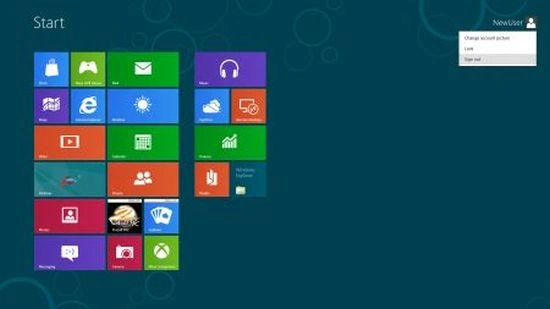
Windows 8 provides many desktop applications such as Metro Start Screen and Windows 8 search. These Windows 8 elements have been totally designed with the new Metro look and accompanied by some new and interesting features. Inspired from the Windows Phone 7 Metro UI, the Windows 8 start menu displays custom metro tiles and a list of defaults, which act as shortcuts to the Desktop, Control Panel, Windows Explorer, Windows Application Store, Internet Explorer, and other installed applications.
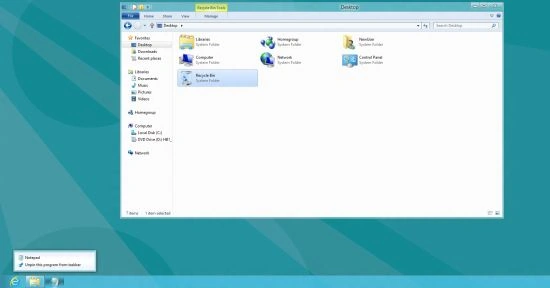
Windows 8 provides many applications. To launch the desktop, click the Desktop Tile, present underneath the video tile. In the Start button, you can open many applications such as Stores, Mail, Maps, Internet Explorer, Calendar, Video, Weather, Sky Drive, Desktop, People, Reader, and many others applications.
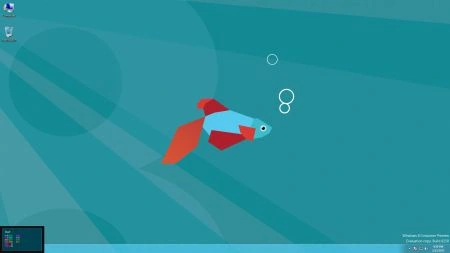
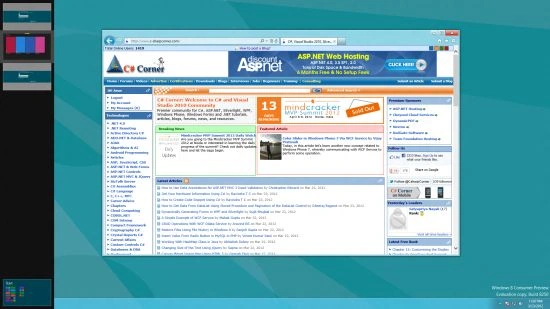
If you immediately open the Windows 8 Desktop, there is no Windows orb. When you press the mouse over the bottom-left corner of the screen and it shows the thumbnail preview of the start screen. If you click on the thumbnail, you can go to the Windows 8 Start Screen directly which allows you to launch a Metro application and pinned applications, and Windows Explorer shortcuts.
Metro UI
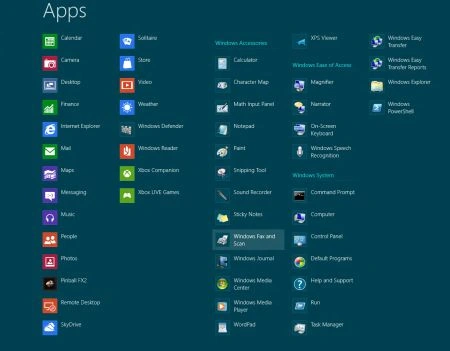
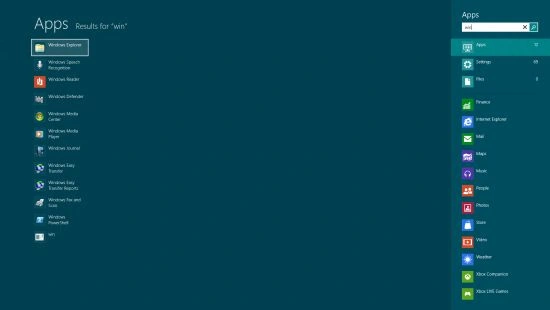
Windows 8 has many builtin Metro applications such as Calendar, Video, Mail and Desktop applications such as WordPad Snipping Tool. You can move the cursor on the right side and open the search option that you want. If you find an application (e.g. Win) from the application list and run from there.
Join the conversation! Your thoughts help the community grow.