

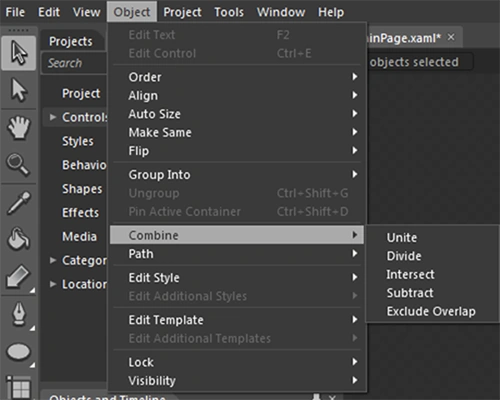
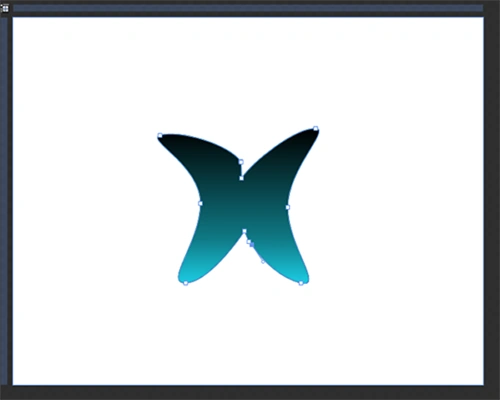
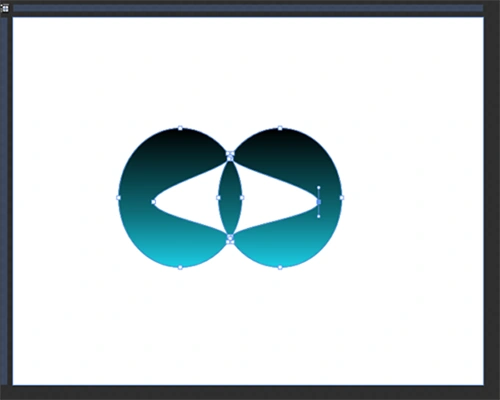
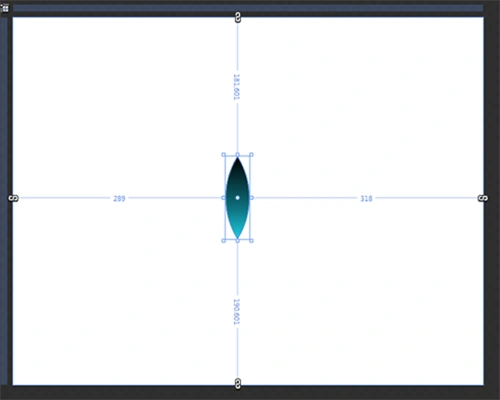
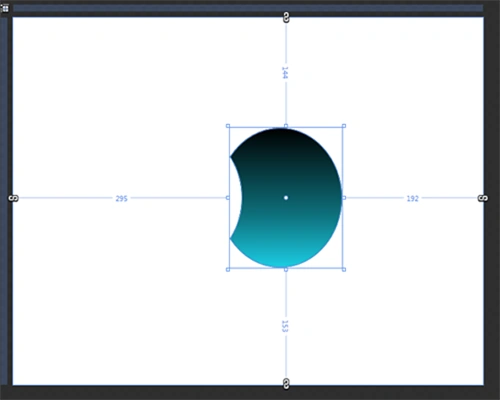
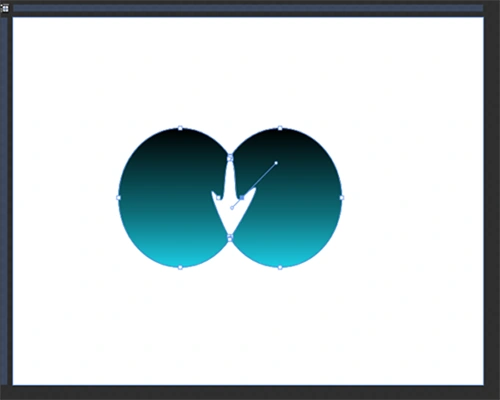
The Combine Tool is in the Object Menu. It contains the 5 properties Unite, Divide, Intersect, Subtract and Exclude Overlap.
Step 1: Open Expression Blend; a dialog box will appear, then select New Project -> Silverlight -> Silverlight Application + Website as shown below:
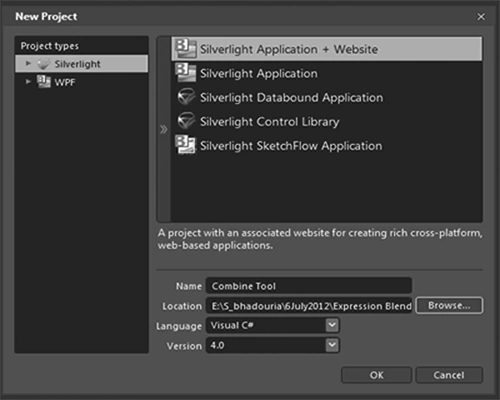
In the same window change the Name & Location of the project using the Browse Option and hit Ok. A blank window with White Color Background appears at Art board.
Step 2: Draw Ellipse: Select Ellipse by right-clicking or by using the shortcut key "L" as shown below:
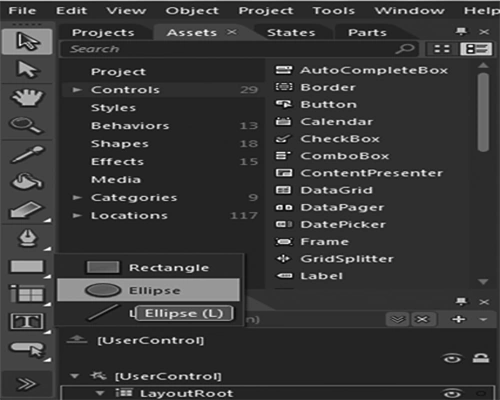
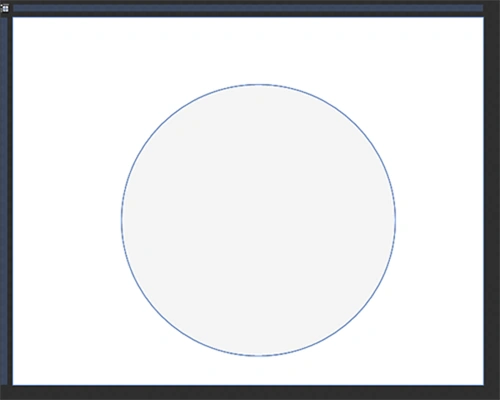
Then by using the Selection Tool situated to the Left Side of the Workspace or by using the shortcut key "V" select Ellipse and manage the width & height accordingly.
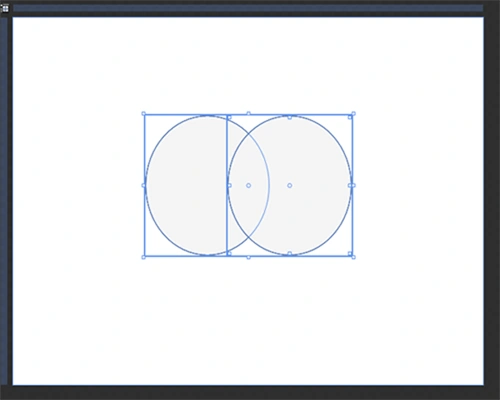
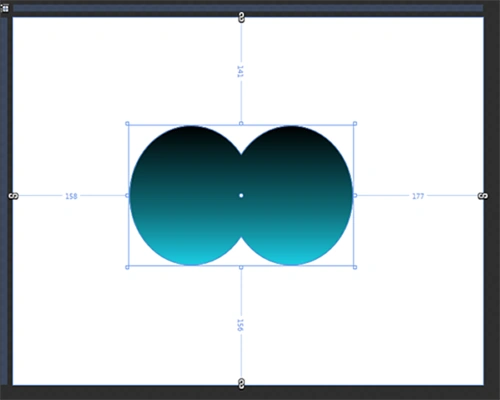
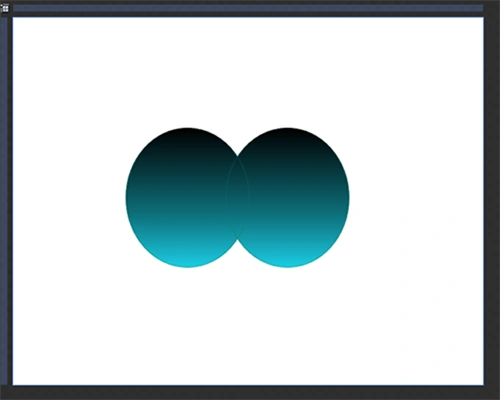
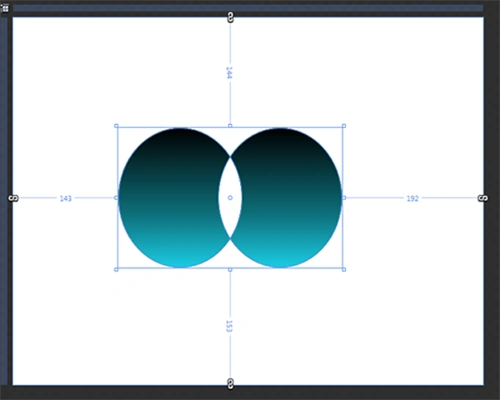
Again using the previous steps or by using copy & paste draw another Ellipse and arrange them so that both Ellipses overlap each other as shown:
Step 3: Fill Color: Select the Ellipse then select the Fill Option situated to the Right Side of the Workspace to fill in the color and select Solid Color Brush situated below the Opacity Option and choose the Stroke Option to apply the Stroke if necessary.
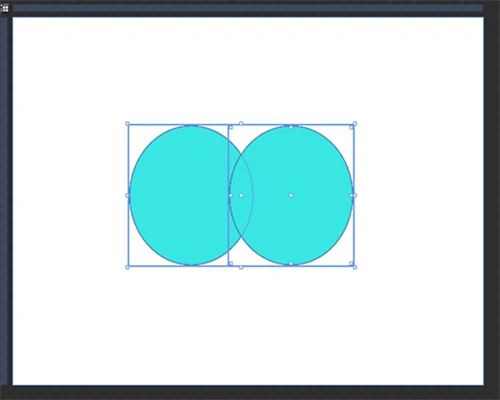
Note: When you select an Ellipse for Color Filling you can select an Ellipse by two ways. If you want the same color for both Ellipses you can select both of them simultaneously using the Selection Tool with the CTRL Key or if you want to fill in various colors for both Ellipses then select an Ellipse one-by-one using the Selection Tool according to your choice.
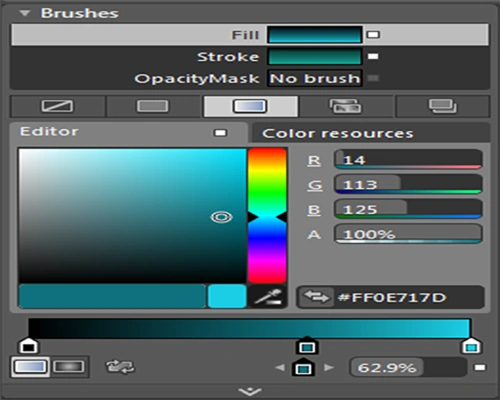
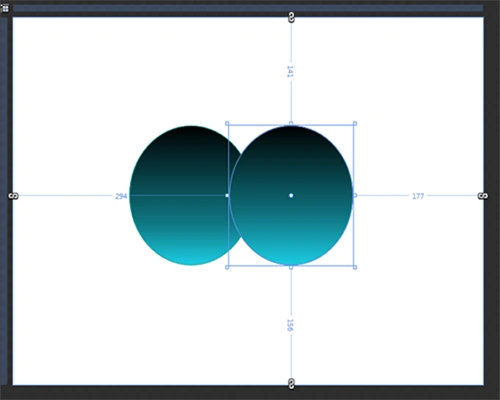
The Gradient Option is also available so according to your choice you can use it as shown below:


Join the conversation! Your thoughts help the community grow.