Step 1: Open Expression Blend 4 -> select Silverlight Application + Web -> Change Name and Location accordingly -> hit OK. A Blank Window appears on the Artboard.
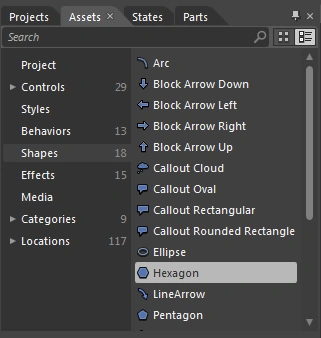
Step 2: Select Shapes -> select Hexagon Shape as shown below:
Step 3: Draw Hexagon, select Brushes -> select Gradient Brush located to the Right of the Property Panel and Fill Color in Shape as shown below:
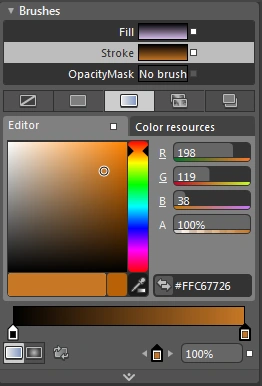
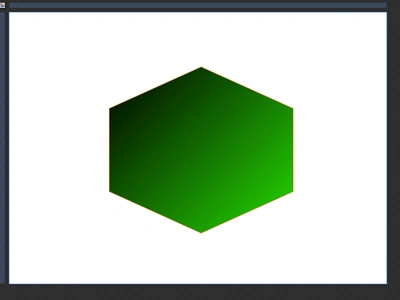
Step 4: Expand the Brush Tool as shown below:
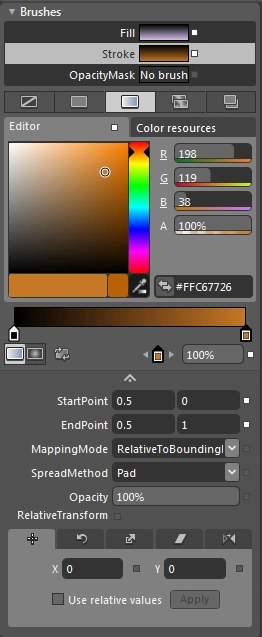
Note: Here, When we select Gradient Brush Tool, then only these properties are visible.
Step 5: Here, the Brush Tool contains Advanced Properties; they are as follows:
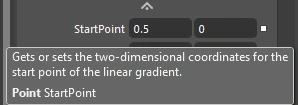
- Select StartPoint and see the effect as shown below:
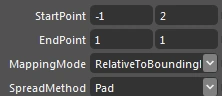
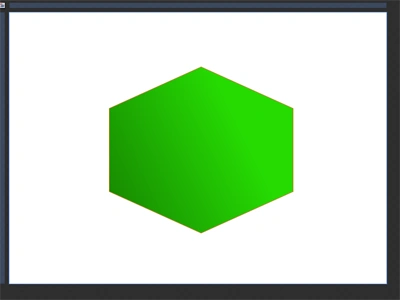
Note: Here, we have to select the Pad Option of the SpreadMethod Property as shown above.
- Select EndPoint and see the effect as shown below:
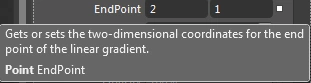
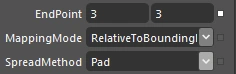
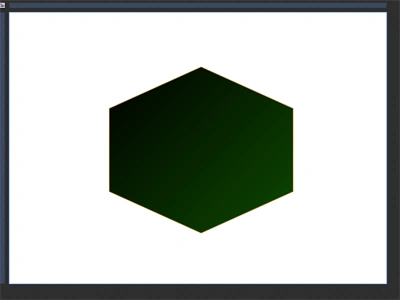
Note: Here, we have to select the Pad Option of the SpreadMethod Property as shown above.
- Select Mapping Mode, it contains 2 options; they are Absolute and RelativeToBoundingBox as shown below:
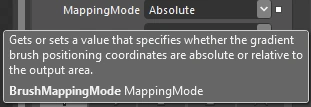

- When we select Absolute Option the shape takes the Default Values as shown below:
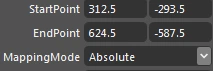
- When we select the RelativeToBoundingBox Option the values change to their Initial Position as shown below:
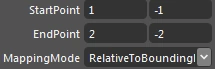
- Select SpreadMethod -> select Reflect Option, manage the values of StartPoint-EndPoint and see the effect as shown below:
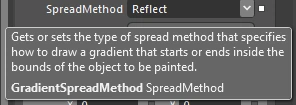
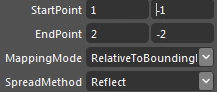
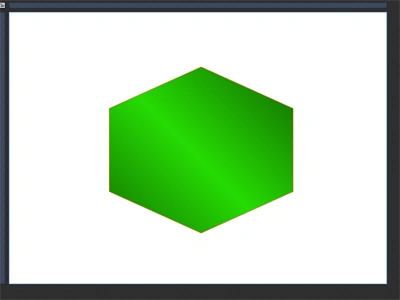
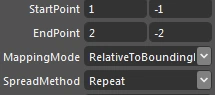
- Select SpreadMethod -> select Repeat Option, manage the values of StartPoint -EndPoint and see the effect as shown below:
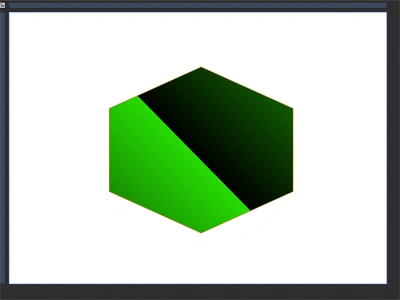
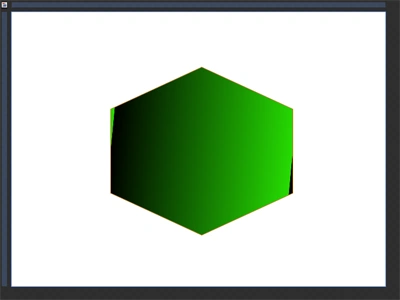
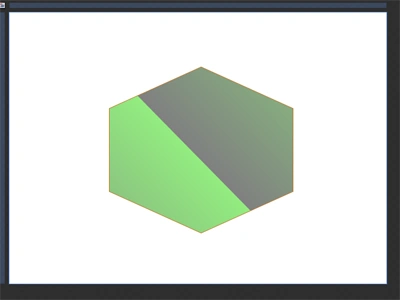
- Select Opacity, Increase-Decrease the value and see the effect as shown below:
Step 6: Select Relative Transform as shown below:
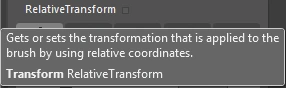
Note: Here, Relative Transform Property is subdivided into 5 parts as follows:
Step 7: Select Hexagon Shape -> select Relative Transform ->
- Select Translate Option, manage the X-Y Axis values and see the effect as shown below:
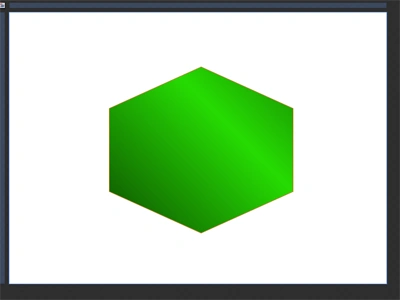
- Select Rotate Option, manage the Angel value and see the effect as shown below:

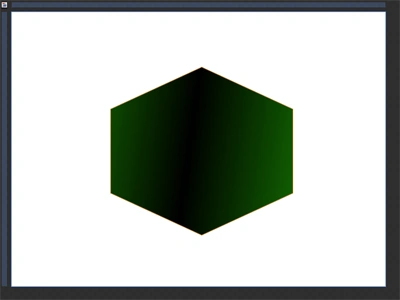
- Select Scale Option, manage the X-Y Axis values and see the effect as shown below:
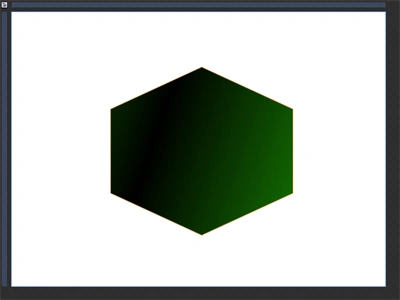
- Select Skew Option, manage the X-Y Axis values and see the effect as shown below:
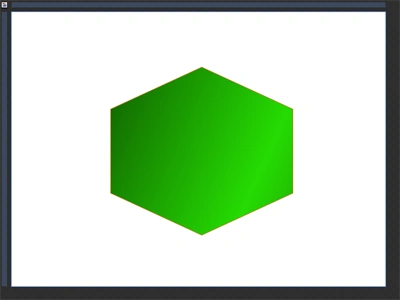
- Select Flip Option, it is subdivided into 2 parts, they are Flip-X-Axis and Flip-Y-Axis as shown below:
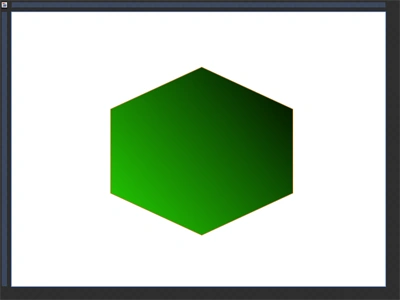

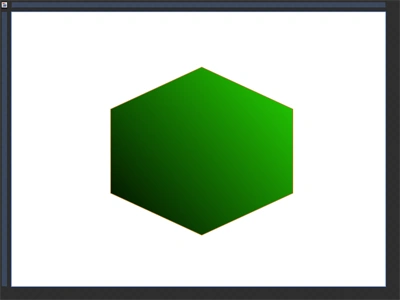
Note: When we apply these properties upon the Hexagon Shape, notice that the changes occur in the Inner Part only instead of the Whole Shape.
Summary
This article shows the effects of the Gradient Brush Tool Advanced Properties which were mostly ignored by us.


Join the conversation! Your thoughts help the community grow.