

Introduction
In this article, I explain how to use the assets directory from the directory structure. When we want to use native code in our application, we use the assets directory to save a usable file, so here we are using an HTML file as our own browser to be used in our application. You can see that in the following instructions.
Step 1
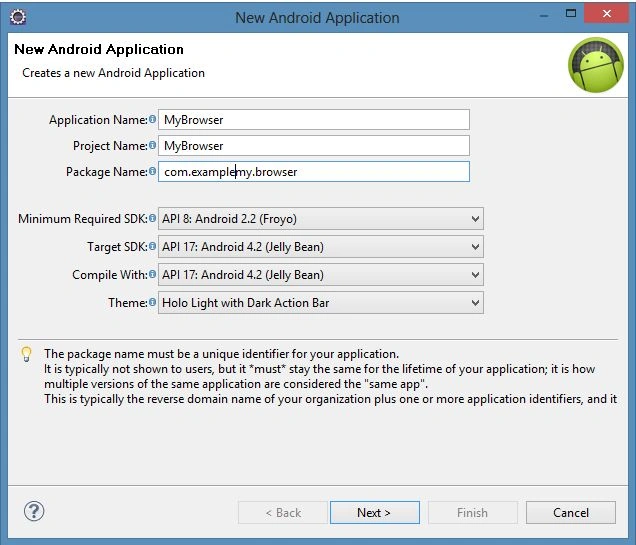
As usual, first of all, create a new file using "File" -> "New" -> "Android Application Project" with the name "WebBrowser".
Step 2
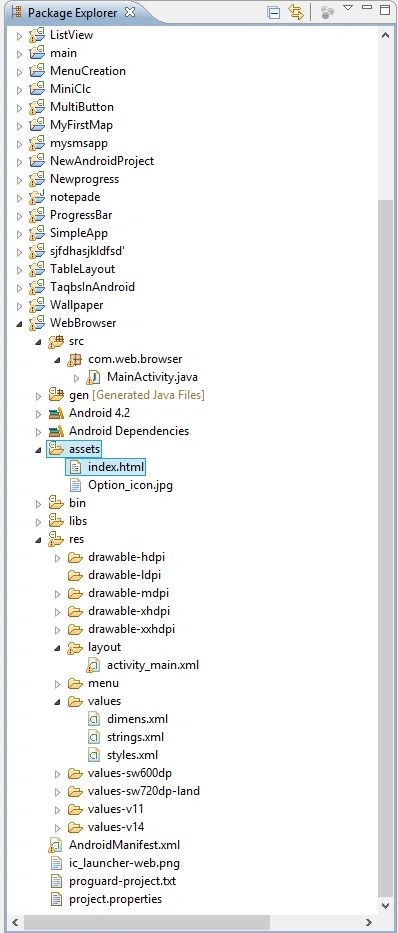
Now create native code in a HTML file of a structure like a browser as in the following. And add this file in assets as shown below.
code
- <html>
- <head>
- <meta name="viewport" content="width=device-width,initial-scale=0.25,user-scalable=yes" />
- <title>Going Native</title>
- </head>
- <body onload="window.linuxmag.Info('App loaded!');">
- <center>
- <h3>My Native Browser</h3>
- <input type="text" id="ib"><br />
- <button onclick="window.linuxmag.Info(document.getElementById('ib').value);">Log In</button>
- <button onclick="window.linuxmag.Error(document.getElementById('ib').value);">Reset</button><br />
- <button onclick="if (window.confirm('End App?')) window.linuxmag.EndApp();">Kill Apps</button><br />
- <img src="file:///android_asset/Option_icon.jpg">
- </center>
- </body>
- </html>
Image
Step 3
Open the XML file "res/layout/activity_main.xml" and update it with the following code:
- <RelativeLayout xmlns:android="http://schemas.android.com/apk/res/android"
- xmlns:tools="http://schemas.android.com/tools"
- android:layout_width="match_parent"
- android:layout_height="match_parent"
- android:paddingBottom="@dimen/activity_vertical_margin"
- android:paddingLeft="@dimen/activity_horizontal_margin"
- android:paddingRight="@dimen/activity_horizontal_margin"
- android:paddingTop="@dimen/activity_vertical_margin"
- tools:context=".MainActivity" >
- <WebView
- android:id="@+id/mybrowser"
- android:layout_width="fill_parent"
- android:layout_height="fill_parent"
- android:layout_weight="1"
- />
- </RelativeLayout>
Step 4
Now open the Java file "MainActivity.java" using "src/com.web.browser/MainActivity.java" and update it as in the following code:
- package com.web.browser;
- import android.os.Bundle;
- import android.app.Activity;
- import android.webkit.WebView;
- import android.webkit.WebSettings;
- import android.webkit.WebChromeClient;
- import android.util.Log;
- public class MainActivity extends Activity {
- /** Called when the activity is first created. */
- private WebView browser = null;
- @Override
- public void onCreate(Bundle savedInstanceState) {
- super.onCreate(savedInstanceState);
- setContentView(R.layout.activity_main);
- browser = (WebView) findViewById(R.id.mybrowser);
- // get settings so we can config our WebView instance
- WebSettings settings = browser.getSettings();
- settings.setJavaScriptEnabled(true);
- // clear cache
- browser.clearCache(true);
- // this is necessary for "alert()" to work
- browser.setWebChromeClient(new WebChromeClient());
- MyCoolJSHandler MycoolHandler;
- browser.addJavascriptInterface(new MyCoolJSHandler(), "linuxmag");
- // load a page to get things started
- browser.loadUrl("file:///android_asset/index.html");
- }
- }
- final class MyCoolJSHandler extends Activity
- {
- // write to LogCat (Info)
- public void Info(String str) {
- Log.i("GoingNative",str);
- }
- // write to LogCat (Error)
- public void Error(String str) {
- Log.e("GoingNative",str);
- }
- // Kill the app
- public void EndApp() {
- finish();
- }
- }
Step 5
Now open the "AndroidManifest.xml" file and update it using the following code:
- <?xml version="1.0" encoding="utf-8"?>
- <manifest xmlns:android="http://schemas.android.com/apk/res/android"
- package="com.web.browser"
- android:versionCode="1"
- android:versionName="1.0" >
- <uses-sdk
- android:minSdkVersion="8"
- android:targetSdkVersion="17" />
- <application
- android:allowBackup="true"
- android:icon="@drawable/ic_launcher"
- android:label="@string/app_name"
- android:theme="@style/AppTheme" >
- <activity
- android:name="com.web.browser.MainActivity"
- android:label="@string/app_name" >
- <intent-filter>
- <action android:name="android.intent.action.MAIN" />
- <category android:name="android.intent.category.LAUNCHER" />
- </intent-filter>
- </activity>
- </application>
- <uses-permission android:name="android.permission.INTERNET" />
- </manifest>
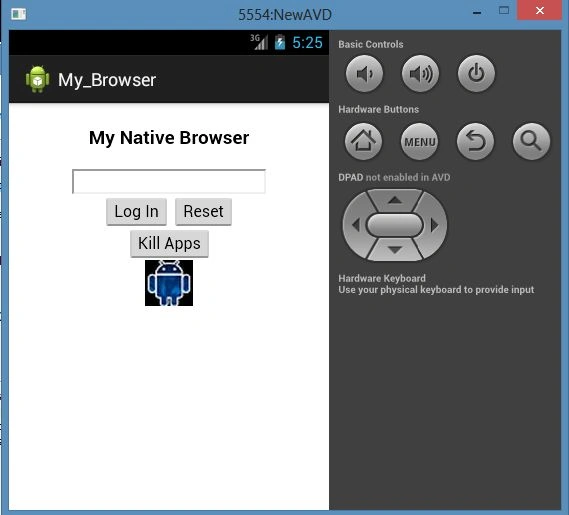
See output
Join the conversation! Your thoughts help the community grow.