

Step 1
Open Expression Blend 4 -> Select WPF -> WPF Application -> change the Name and Location accordingly, hit Ok, a blank Window appears.
Step 2
Select Wrap Panel Tool from the ToolBox located to the Left Side of the Workspace, draw Wrap Panel, manage the width & height, background color, margin and alignment. Have a look at the coding also as shown below: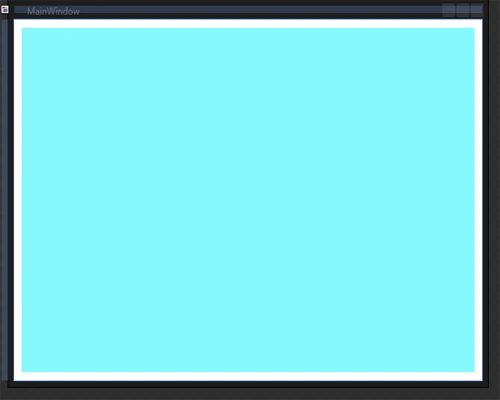
<Grid x:Name="LayoutRoot">
<WrapPanel Margin="10" Background="#FF86FAFD">
</WrapPanel>
</Grid>
Step 3
Now, select any image, copy & paste the image into the WPF Application located to the top-left corner of the Workspace. Insert the image at the Artboard, manage the width & height, margin and alignment. Have a look at the coding also as shown below: 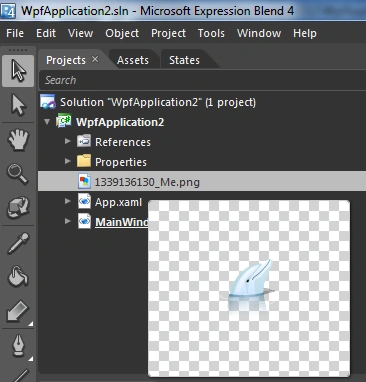
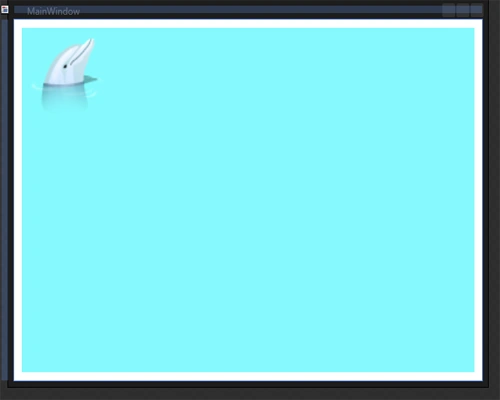
<WrapPanel Margin="10" Background="#FF86FAFD">
<Image Height="100" Source="1339136130_Me.png" VerticalAlignment="Top" Width="100" Margin="10"/>
</WrapPanel>
Step 4
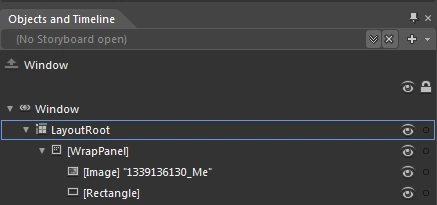
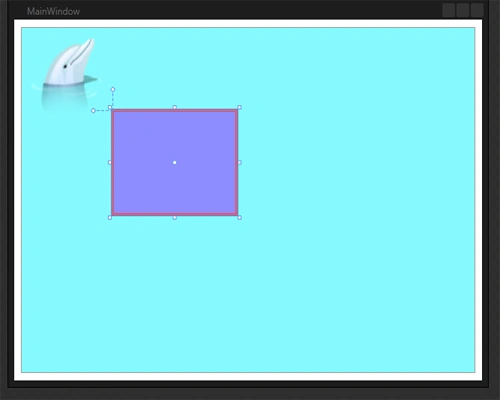
Select the Rectangle Tool from the Toolbox, draw a rectangle, manage the width & height, margin, alignment, background color, StrokeColor and StrokeThickness. Have a look at the coding also as shown below: 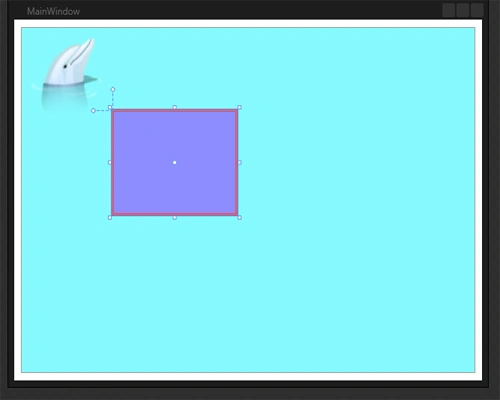
Join the conversation! Your thoughts help the community grow.