

Introduction
In this article, we explain how to use a POP email with Windows 8 mail using Outlook.com. A POP3 mail server isn't allowed in Windows 8 mail. If we want to add a POP3 email account from our ISP, then we're out of luck. Here's a workaround for the problem using Outlook.com.
Procedure for using Outlook.com for POP Email Accounts
Step 1
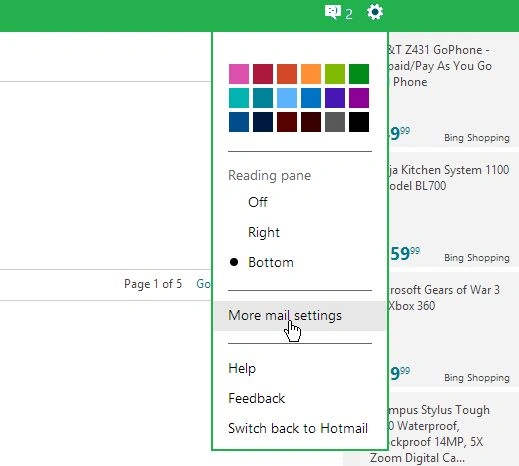
If we want to add a POP account in Windows 8, then login our outlook.com account and click options and select "More mail settings".
Step 2
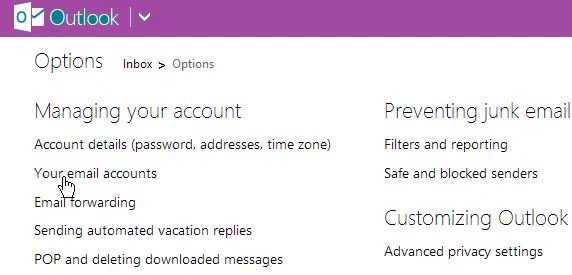
When the Options window opens click "Your Email Accounts" under "Managing Your Account".
Step 3
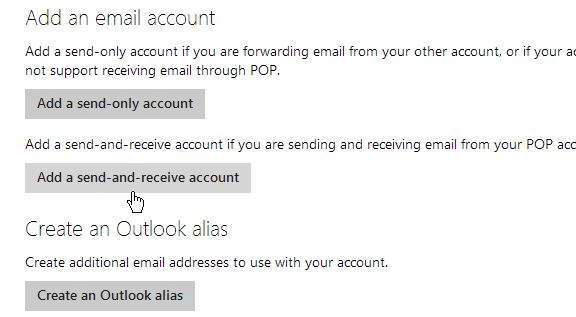
After that click the "Add a Send-and-Receive Account" button from the "Add an Email Account" window.
Step 4
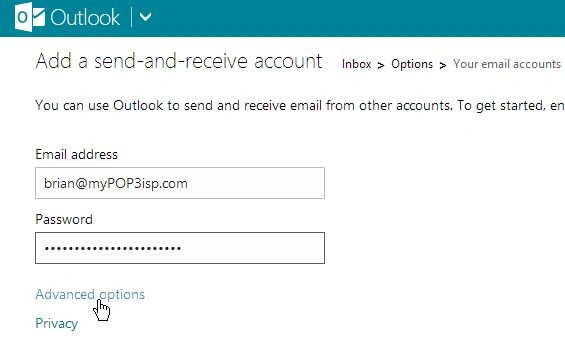
Enter your address and password from your ISP then click "Advanced Options".
Step 5
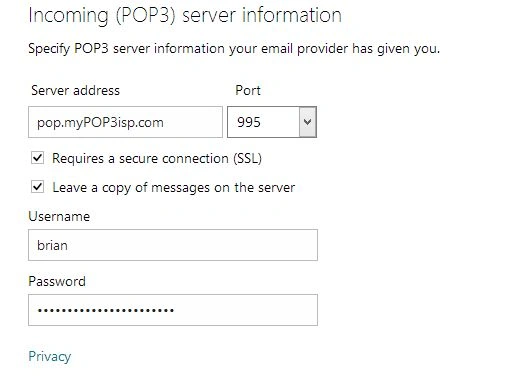
Enter your POP server address and configure the correct Port number and whether to use SSL or not. We might need to contact our ISP to get these details.
Step 6
After the new account is added, create a new folder for it or just have the messages sent to our inbox.
Step 7
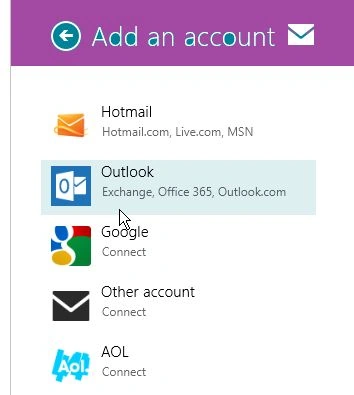
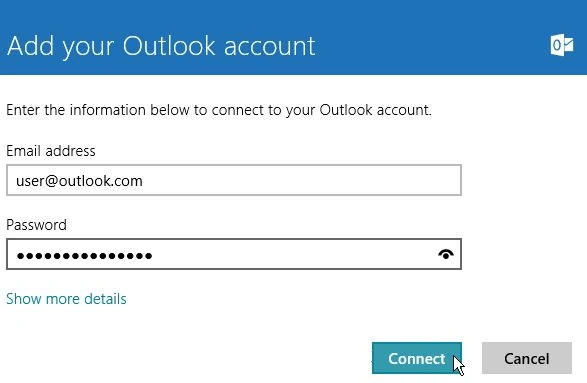
Now, all we need to do is to add the Outlook.com address to the Mail app.
Step 8
Then add an Outlook.com address to Windows 8 Mail.
Summary
In this article, we learned about Use POP Email With Windows 8 Mail Using Outlook.com.
Isaac FellainPosted Sep 6, 2018, 11:37 PM
That was much informative.