
Introduction
In this article, we will learn how to develop “remember me check” with functionality in Android.
- In Android usually, we need to persist user session credentials in our application where user session credentials contain the username, email, password and so on.
- Using SharedPreferences we can store application preferences data persistently.
- In other words, data won't be lost until the application is uninstalled because the preferences data can be stored as key/value pairs and are available across all the Activities of the application or to a specific Activity.
- Application preferences data will be available even when the device starts or stops (the user closes the app and re-open it).
- SharedPreferences is used to store primitive data-types
Boolean, float, int, long, string
SharedPreferences can be used to store data across all the applications or to the specific activity.
- getSharedPreferences()- Preferences persisted across all over the application by the name passed to it as a first argument.
- getPreferences()- Preferences persisted for a specific Activity so there is no need to specify the name since there will be only one file for the activity.
For instance-
Instead of 0 we can use Context.MODE_PRIVATE.
We can store as many preferences as we want for our application and all of them will continue to be saved in the savePrefs.xml file because we gave the name “savePrefs” in getSharedPreferences.
The savePrefs.xml file is usually located at,
- private SharedPreferences savePreferences;
- savePreferences = getSharedPreferences("savePrefs", 0);
- /data/data/[package name]/shared_prefs/savePrefs.xml
Also we can browse it in the File Explorer in the DDMS view.
For instance,

To set primitive data, Sharedpreferences has some methods, for instance,

1. Setting or Updating Preferences
- putBoolean(), putInt(), putFloat(), putString() and so on.
Method
- private SharedPreferences savePreferences;
- private SharedPreferences.Editor savePrefsEditor;
- savePreferences = getSharedPreferences("savePrefs", 0);
- savePrefsEditor = savePreferences.edit();
- //If remember me checkbox is checked
- if (saveDetailsCheck.isChecked()) {
- //Set the data
- savePrefsEditor.putBoolean("saveLogin", true);
- savePrefsEditor.putString("username", username);
- savePrefsEditor.putString("password", email);
- //Commit the changes
- savePrefsEditor.commit();
- Toast.makeText(getApplicationContext(), "Your details have been saved.", Toast.LENGTH_LONG).show();
- }
2. Fetching Preferences
There are the following methods,
- getBoolean(), getFloat(), getInt(), getLong(), getString()
Method
- private Boolean saveLogin;
- saveLogin = savePreferences.getBoolean("saveLogin", false);
- if (saveLogin == true)
- {
- UserName.setText(savePreferences.getString("username", ""));
- Email.setText(savePreferences.getString("password", ""));
- saveDetailsCheck.setChecked(true);
- }
- //Clear Shared Preferences
- savePrefsEditor.clear();
- savePrefsEditor.commit();
- MainActivity.java
- package com.example.loginpreferencesdemo;
- import android.app.Activity;
- import android.content.SharedPreferences;
- import android.os.Bundle;
- import android.view.View;
- import android.widget.Button;
- import android.widget.CheckBox;
- import android.widget.EditText;
- import android.widget.Toast;
- public class MainActivity extends Activity {
- EditText UserName, Email;
- Button Save;
- String username;
- String email;
- private CheckBox saveDetailsCheck;
- private SharedPreferences savePreferences;
- private SharedPreferences.Editor savePrefsEditor;
- private Boolean saveLogin;
- @Override
- protected void onCreate(Bundle savedInstanceState) {
- super.onCreate(savedInstanceState);
- setContentView(R.layout.fragment_main);
- UserName = (EditText) findViewById(R.id.editText1);
- Email = (EditText) findViewById(R.id.editText2);
- Save = (Button) findViewById(R.id.button1);
- saveDetailsCheck = (CheckBox) findViewById(R.id.checkBox1);
- savePreferences = getSharedPreferences("savePrefs", 0);
- savePrefsEditor = savePreferences.edit();
- saveLogin = savePreferences.getBoolean("saveLogin", false);
- if (saveLogin == true)
- {
- UserName.setText(savePreferences.getString("username", ""));
- Email.setText(savePreferences.getString("password", ""));
- saveDetailsCheck.setChecked(true);
- }
- Save.setOnClickListener(new View.OnClickListener() {
- @Override
- public void onClick(View v) {
- // TODO Auto-generated method stub
- username = UserName.getText().toString();
- email = Email.getText().toString();
- if (saveDetailsCheck.isChecked()) {
- savePrefsEditor.putBoolean("saveLogin", true);
- savePrefsEditor.putString("username", username);
- savePrefsEditor.putString("password", email);
- savePrefsEditor.commit();
- Toast.makeText(getApplicationContext(), "Your details have been saved.", Toast.LENGTH_LONG).show();
- } else {
- savePrefsEditor.clear();
- savePrefsEditor.commit();
- }
- }
- });
- }
- }
fragment_main.xml
- <RelativeLayout
- xmlns:android="http://schemas.android.com/apk/res/android"
- xmlns:tools="http://schemas.android.com/tools"
- android:layout_width="match_parent"
- android:layout_height="match_parent"
- android:paddingBottom="@dimen/activity_vertical_margin"
- android:paddingLeft="@dimen/activity_horizontal_margin"
- android:paddingRight="@dimen/activity_horizontal_margin"
- android:paddingTop="@dimen/activity_vertical_margin"
- tools:context="com.example.loginpreferencesdemo.MainActivity$PlaceholderFragment" >
- <TextView
- android:id="@+id/textView1"
- android:layout_width="wrap_content"
- android:layout_height="wrap_content"
- android:text="Shared Preferences Demo By Abhijeet" />
- <EditText
- android:id="@+id/editText1"
- android:layout_width="wrap_content"
- android:layout_height="wrap_content"
- android:layout_alignLeft="@+id/textView1"
- android:layout_below="@+id/textView1"
- android:layout_marginTop="60dp"
- android:ems="10"
- android:hint="UserName" ></EditText>
- <EditText
- android:id="@+id/editText2"
- android:layout_width="wrap_content"
- android:layout_height="wrap_content"
- android:layout_alignLeft="@+id/editText1"
- android:layout_below="@+id/editText1"
- android:layout_marginTop="26dp"
- android:ems="10"
- android:hint="Email ID" />
- <Button
- android:id="@+id/button1"
- android:layout_width="wrap_content"
- android:layout_height="wrap_content"
- android:layout_alignLeft="@+id/editText2"
- android:layout_below="@+id/editText2"
- android:layout_marginTop="34dp"
- android:text="Save Details" />
- <CheckBox
- android:id="@+id/checkBox1"
- android:layout_width="wrap_content"
- android:layout_height="wrap_content"
- android:layout_alignRight="@+id/editText2"
- android:layout_below="@+id/editText2"
- android:text="Remember Me" />
- </RelativeLayout>
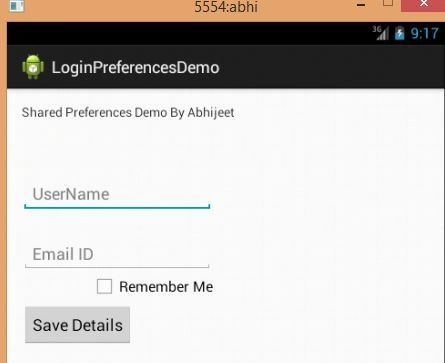
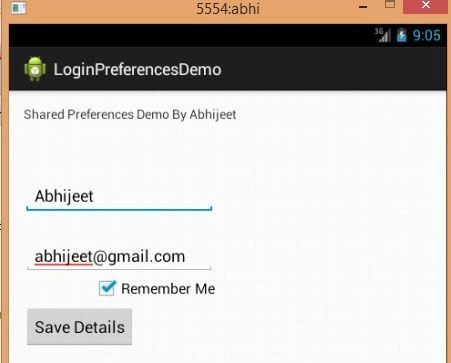
Output


Santhakumar MunuswamyPosted Jul 16, 2015, 3:55 PM
Nice Article! Thanks for sharing
Pankaj Kumar ChoudharyPosted Jul 15, 2015, 7:42 PM
Nice Explain.......
Gopi ChandPosted Jul 15, 2015, 12:34 PM
Its good to see you again. .. @Abhijeet
Sibeesh VenuPosted Jul 15, 2015, 9:30 AM
Nice Share
Nilesh JadavPosted Jul 15, 2015, 8:55 AM
Nice one sir !
Neeraj KumarPosted Jul 15, 2015, 7:20 AM
Nice article