
The sqlcmd utility is a command line tool in SQL Server that let us submit the T-SQl statements and batches. SQLCMD generally use for repetitive tasks like unit testing and batch processing. The sqlcmd utility in SQL Server is a handy tool for running ad hoc queries or creating script files to perform routine tasks or automate procedures. To use sqlcmd interactively, or to build script files to be run using sqlcmd, users must understand Transact-SQL. Users interactively enter Transact-SQL statements similar as working at the command prompt.
How to activate an sqlcmd utility
There are two ways to activate the sqlcmd utility.
Method 1-
Go to the following directory “C:\Program Files\Microsoft SQL Server\Client SDK\ODBC\110\Tools\Binn” and run the SQLCMD.EXE.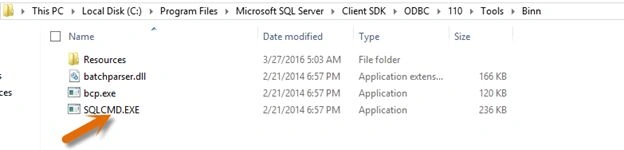
Method 2-
Got start and open the command prompt, now write SQLCMD and press the enter.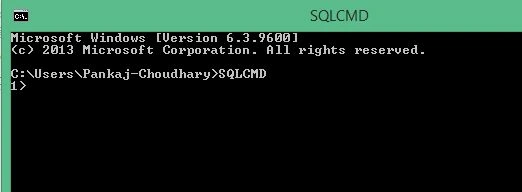
Options in SQLCMD-
The following options are used in SQLCMD utility.
Server Option(-S) - Define the instance of SQL Server to which SQLCMD will connect.
Syntax - SQLCMD –S <Server_Name>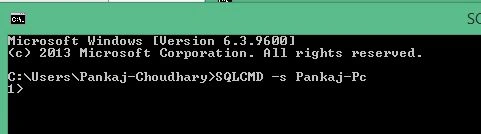
Authentication Option(-E,-U,-P) - Define the authentication option. Default value is –E.
Syntax - SQLCMD –U <Authentication_Option>
Input Option(-Q,-q,-i) - Define the location of input.
Syntax - SQLCMD –I <File_Name>
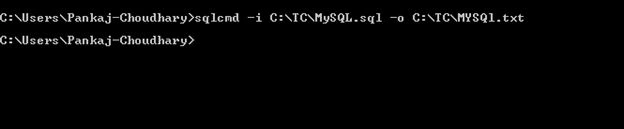
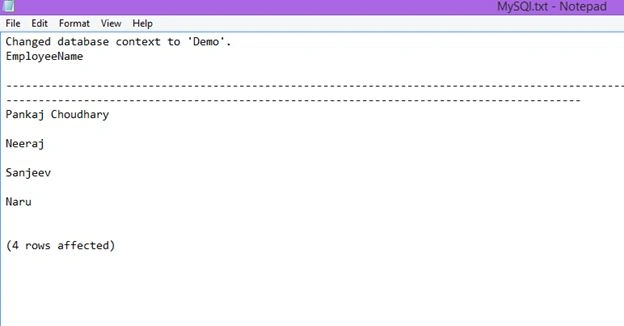
Output option(-o) - Define the location of file in which SQLCMD put its output.
Syntax - SQLCMD –o <File_Name>
At the sqlcmd prompt, we can type both Transact-SQL statements and sqlcmd commands, such as GO and EXIT and each Transact-SQL statement is put in a buffer called the statement cache. In SQLCMD each command is send to SQL Server instance after the GO command and press the enter.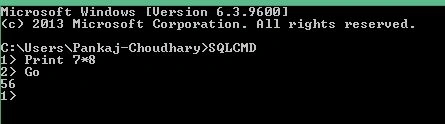
In sqlcmd new statement is assumed after the semi colon(;). If we did not mention the semi-colon, then the multiple line are assumed as single statement.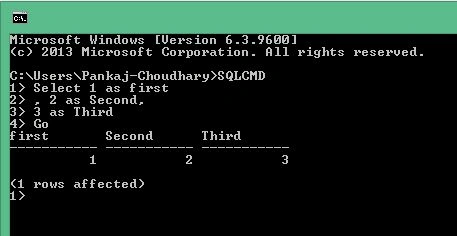
Quoted String
String in sqlcmd can easily manipulated, but characters with quotations marks can be inserted into a string by entering two consecutive quotation marks.
Example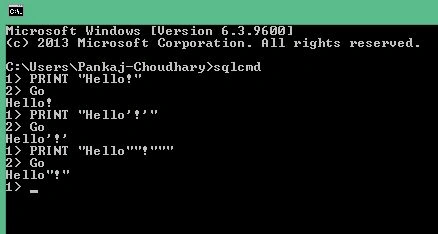
Select a database
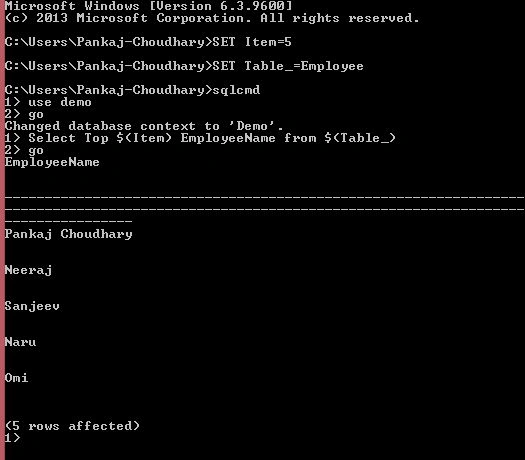
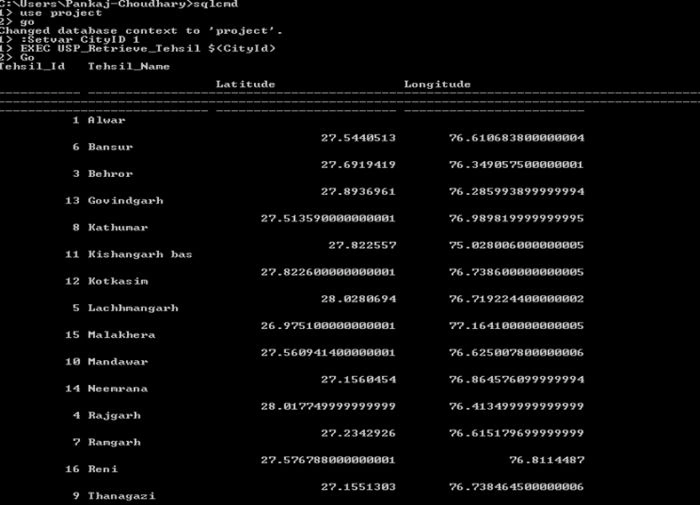
Similar to SQL Server query editor, in sqlcmd we can write “USE Database_Name” to select the database as below.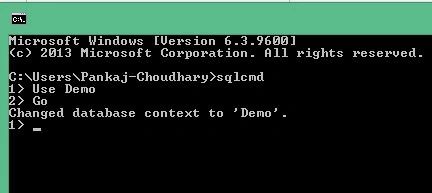
The “Changed database context to Demo” line indicating that current selected database is “demo”.
Run SQL query
Write the SQL query that you want to execute and after completion of query write the “GO” word and press enter.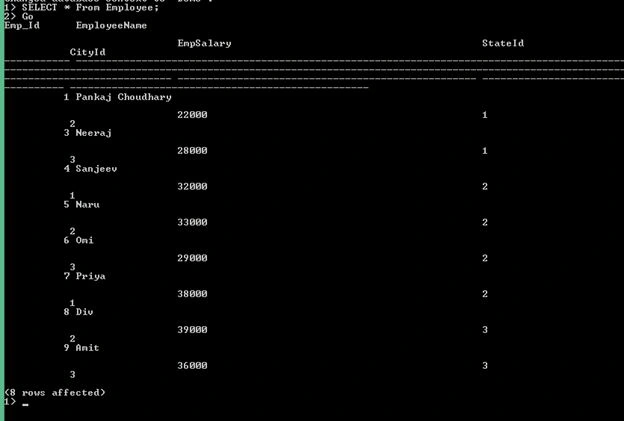
Run SQL Script
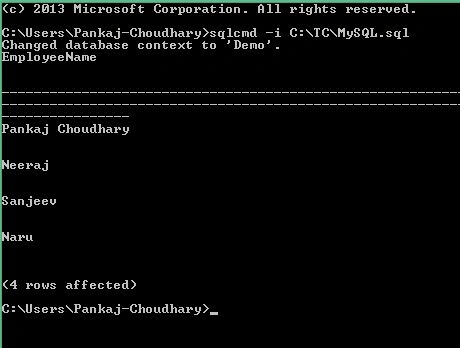
Now we create a SQL script in C:\TC directory and paste the following code in MYSQL.SQL file and try to run the script.

Use SQLCMD Utility In SQL Server
Join the conversation! Your thoughts help the community grow.
Sign in to leave a comment
It is the same account you read, post and publish with — and you will come straight back to this page.
Pankaj Kumar ChoudharyPosted May 12, 2016, 11:39 PM
Thanks to all of you.......
Omid NasriPosted May 12, 2016, 7:47 PM
thx.
Sonu ChaudharyPosted May 12, 2016, 11:27 AM
good one
Debasis SahaPosted May 12, 2016, 9:54 AM
Good One..
Muhammad Aqib ShehzadPosted May 12, 2016, 5:27 AM
useful utility
Hari ShankerPosted May 12, 2016, 3:09 AM
Nice
Anu VPosted May 12, 2016, 2:59 AM
Nice