

Introduction
In this article, we are going to explain how to use the mouse to get around in Windows 8. In Windows 8, using a mouse can be disorienting at first.
The New Start Button
In Windows 8, hot corners are one of the most important new navigation features. In the Windows 8 Desktop, a hot corner has replaced the start button of the screen. Then we can move our mouse to the corner of the screen and press Enter.
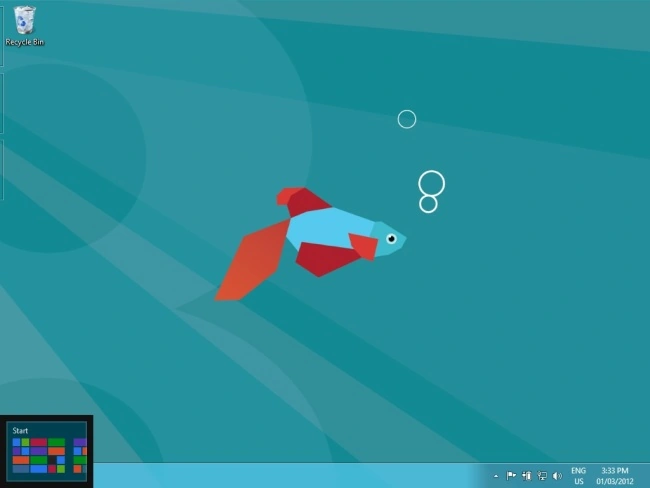
If we are already on the Start Screen then the left corner of the Start Screen functions as a back button that takes us back to the last app we were using.
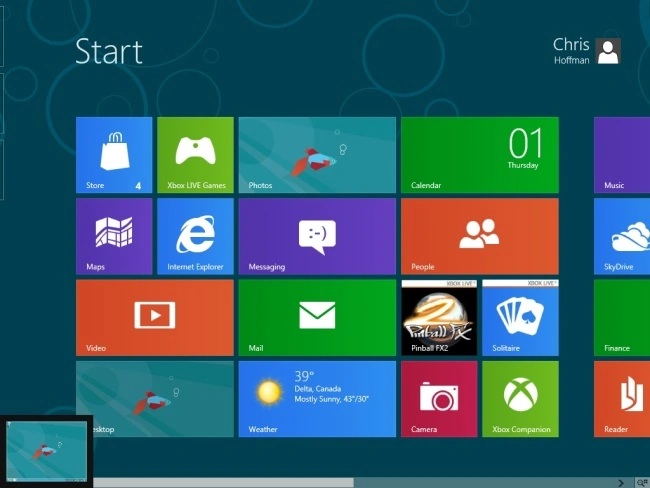
Switching Among Apps
In Windows 8 the left corner lets you switch among apps. Click to switch to the last app used.
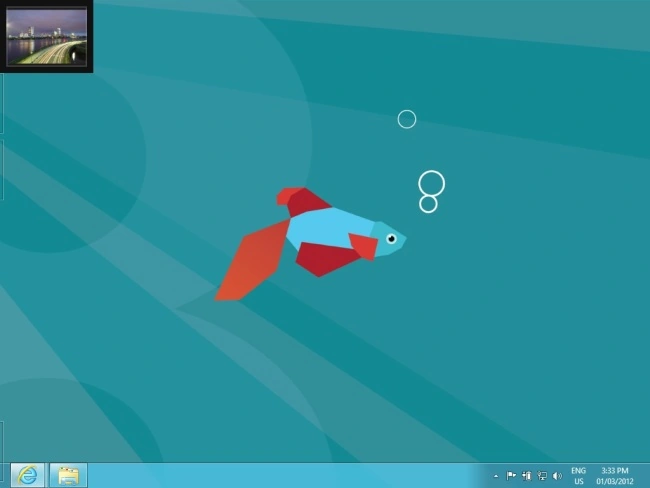
Move our mouse cursor down and we'll see other recently used apps. Click one to go back to it.
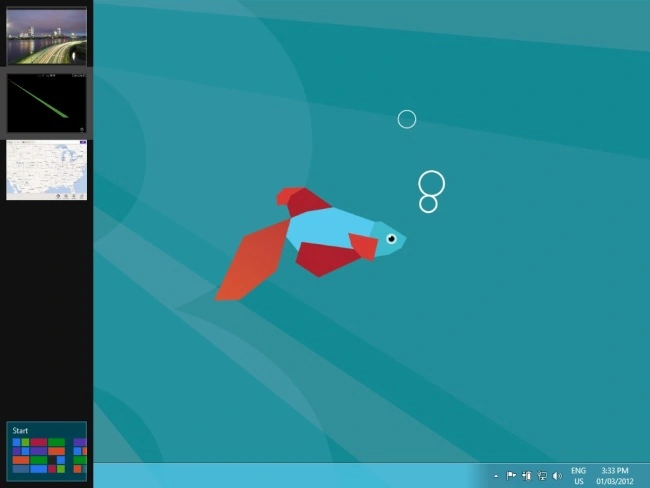
Use Alt-Tab to switch among Desktop applications.
Charms
Then move the cursor to the bottom-right of the window screen and we see the Charm Bar.
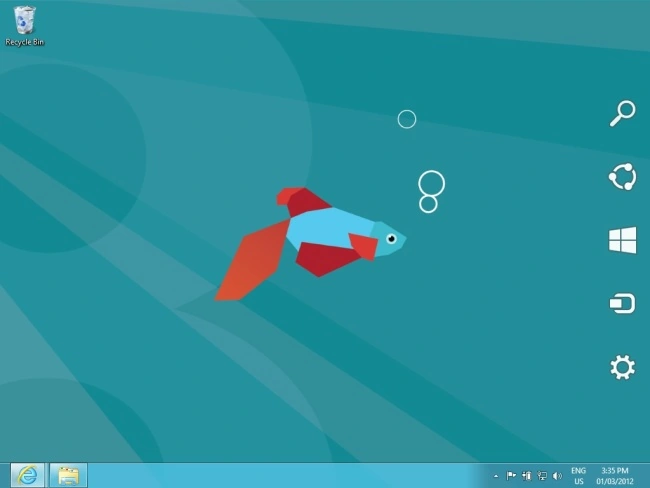
Move the cursor up or down and the Charms will become fully visible.
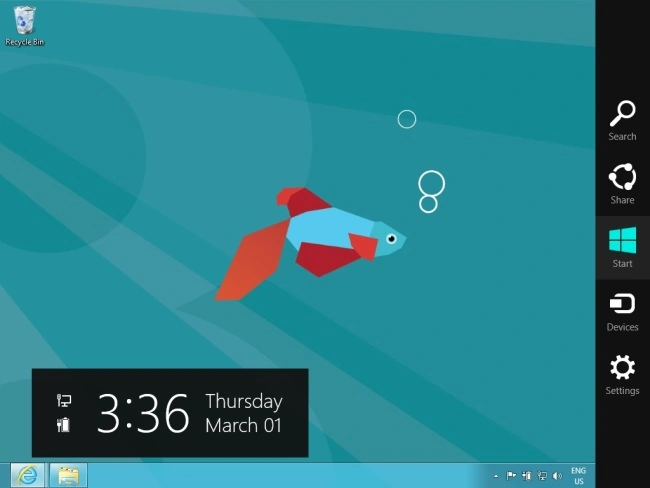
The Start Charm accesses the Start Screen, while the Search, Share, Devices, and Settings Charms access other common functions.
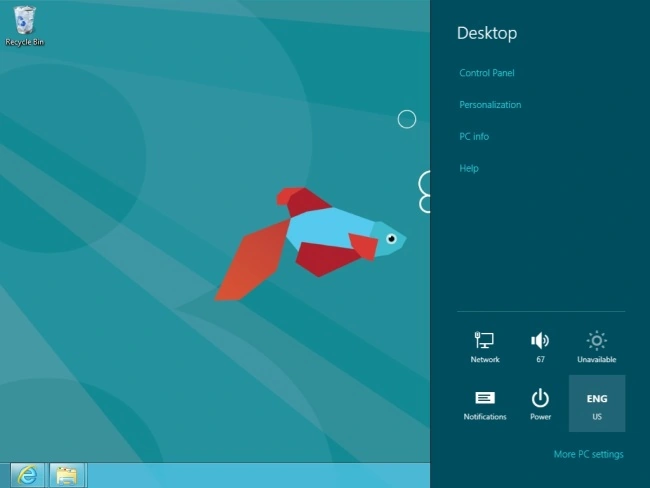
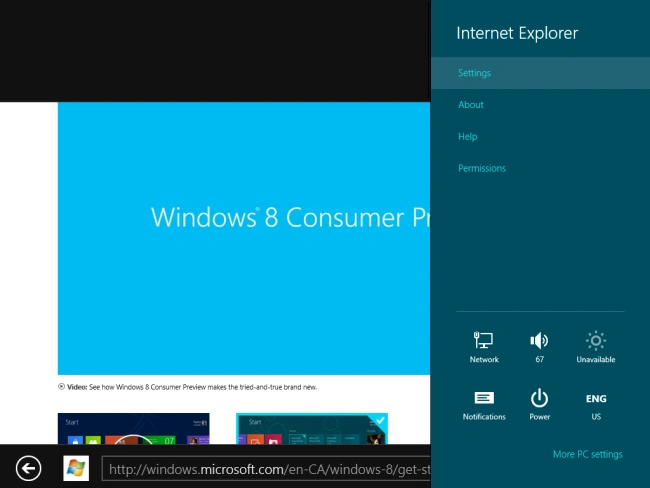
Charms are context-sensitive. If we click the Settings charm in the Metro version of Internet Explorer, we'll get Internet Explorer's settings.
Closing Metro Apps
Metro-style apps are different from traditional Windows applications. They're designed to suspend when we stop using them, so they won't use up system resources. Because of this, we don't have to close them. If we want to close one, we grab its title bar and drag it down. It'll turn into a thumbnail image of itself.
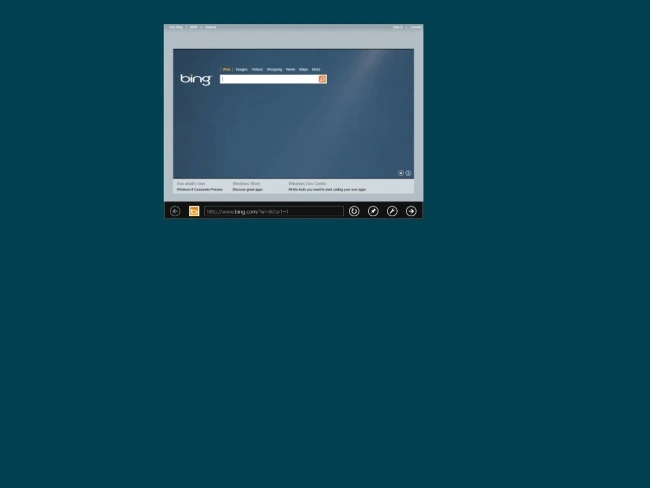
Drag the application to the bottom of the screen and it will shrink, vanish, and close when you drop it.
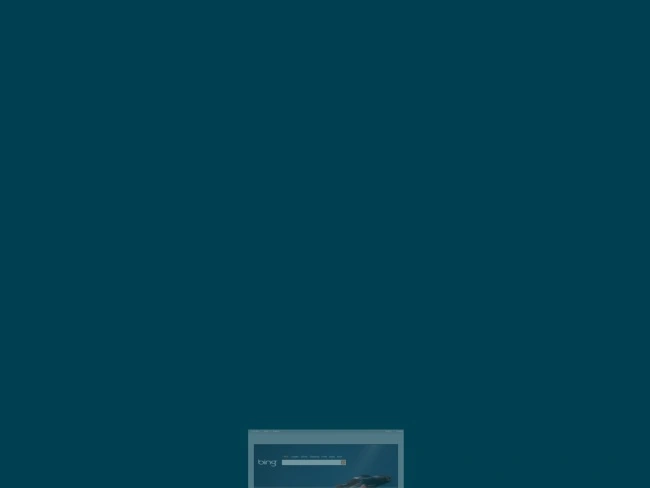
We can also close an app from the task switcher on the left side of the screen. Right-click its thumbnail and select "Close" to close it.
Summary
In this article, we learned about Use the Mouse to Get Around in Windows 8.
Join the conversation! Your thoughts help the community grow.