

A new feature in SQL Server 2012 is code snippets. If we are coding in any programming language, the chances are that we’re constantly repeating similar code. Repeating the same code required more efforts and sometimes it become distasteful.
This issue has been removed for SQL Server developers after introducing the code snippets features into SQL Server 2012. In this article I will explain how to use predefined code snippets and modify the code snippets.
How to use Code Snippets
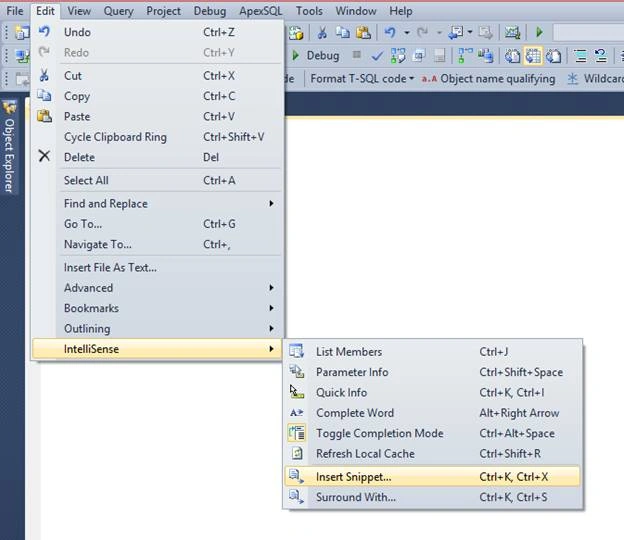
To insert a code snippet into query window go through the Menu Edit, IntelliSense, then Insert Snippet…, as shown below.
Another method is to “Right Click” on the query window and snippets option.
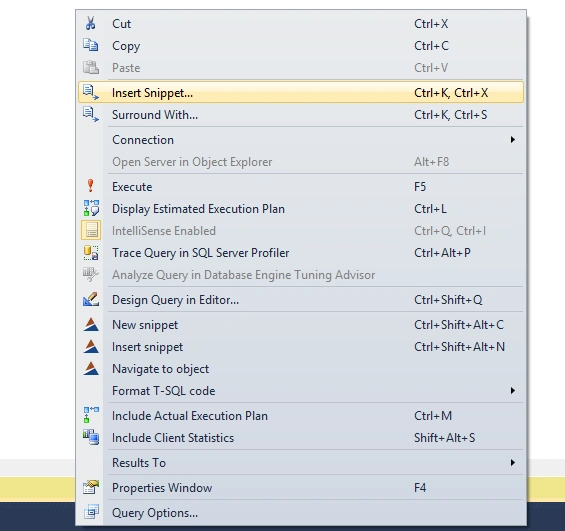
SQL Server contain two type of snippets.
- Expansion snippets will simply insert text in the position of the cursor or replace selected text.
- Surround With snippets will insert text before and after the cursor or selected text.
It totally depends upon you, you can select any option. If you select the “Insert Snippets” option then below option list will open.
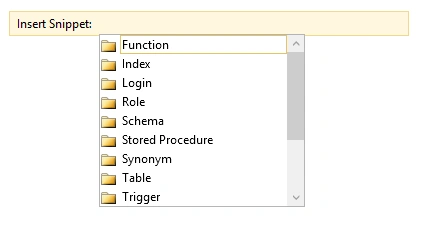
From the above list you can select any type of snippets that you require. There are multiple code snippets for each object, so you are just required to navigate through the folders and select the desired snippet.

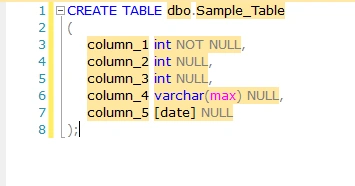
After selecting the desired code snippets you will find a code snippet into your SQL window.
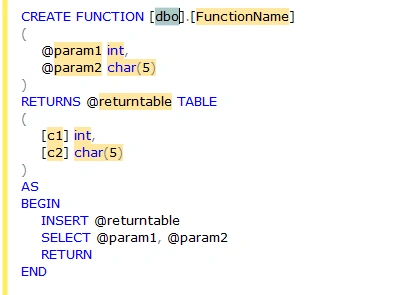
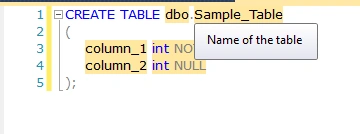
This code snippet contain multiple fields and you have the ability to edit these fields as per your requirement.
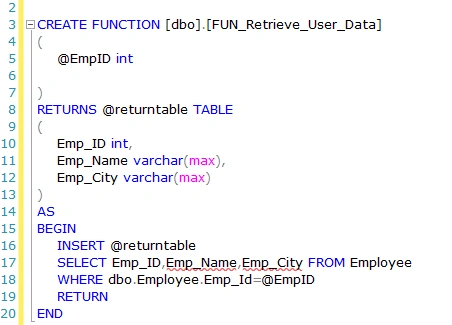
Not only can we insert script templates, but we can also surround your code with either BEGIN, WHILE or IF blocks.
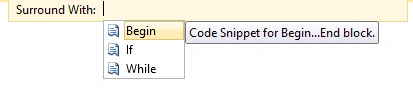
For surrounded line select “Surround With” option and choose desired code snippets template.
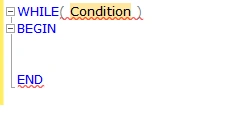
Customize the Code Snippets
It may be possible that the default snippets might not be exactly what we need, which is exactly why we can create our own. We can manage all code snippets using the Code Snippets Manager. To launch the Code Snippets Manager go to Tools and click on “Code Snippets Manager..” option.
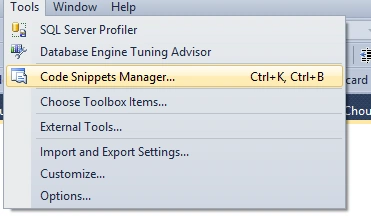
In Code Snippets Manager, we can view all available templates (code snippets), we can also add, remove and import the code snippets. Snippets are simply xml files with a special extension. To find out the structure of snippets template, search for location path of that particular snippet.
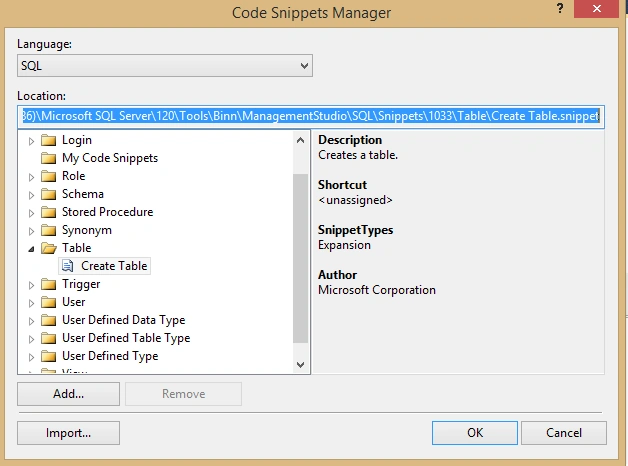
Template(XML file) for table code snippets is stored here “C:\Program Files (x86)\Microsoft SQL Server\120\Tools\Binn\ManagementStudio\SQL\Snippets\1033\Table\Create Table.snippet”.
Now, I will explain the basic structure of code snippets. I will use code snippets of “Create Table” templates.
- <?xml version="1.0" encoding="utf-8" ?>
- <CodeSnippets xmlns="http://schemas.microsoft.com/VisualStudio/2005/CodeSnippet">
- <_locDefinition xmlns="urn:locstudio">
- <_locDefault _loc="locNone" />
- <_locTag _loc="locData">Title</_locTag>
- <_locTag _loc="locData">Description</_locTag>
- <_locTag _loc="locData">Author</_locTag>
- <_locTag _loc="locData">ToolTip</_locTag>
- </_locDefinition>
- <CodeSnippet Format="1.0.0">
- <Header>
- <Title>CreateTable</Title>
- <Shortcut></Shortcut>
- <Description>Creates a table.</Description>
- <Author>Microsoft Corporation</Author>
- <SnippetTypes>
- <SnippetType>Expansion</SnippetType>
- </SnippetTypes>
- </Header>
- <Snippet>
- <Declarations>
- <Literal>
- <ID>SchemaName</ID>
- <ToolTip>Name of the schema</ToolTip>
- <Default>dbo</Default>
- </Literal>
- <Literal>
- <ID>Tablename</ID>
- <ToolTip>Name of the table</ToolTip>
- <Default>Sample_Table</Default>
- </Literal>
- <Literal>
- <ID>column1</ID>
- <ToolTip>Name of the column</ToolTip>
- <Default>column_1</Default>
- </Literal>
- <Literal>
- <ID>datatype1</ID>
- <ToolTip>Data typeof the column</ToolTip>
- <Default>intNOTNULL</Default>
- </Literal>
- <Literal>
- <ID>column2</ID>
- <ToolTip>Name of the column</ToolTip>
- <Default>column_2</Default>
- </Literal>
- <Literal>
- <ID>datatype2</ID>
- <ToolTip>Data typeof the column</ToolTip>
- <Default>intNULL</Default>
- </Literal>
- </Declarations>
- <Code Language="SQL">
- <![CDATA[CREATE TABLE $SchemaName$.$Tablename$
- (
- $column1$ $datatype1$,
- $column2$ $datatype2$
- );$end$]]>
- </Code> </Snippet>
- </CodeSnippet>
- </CodeSnippets>
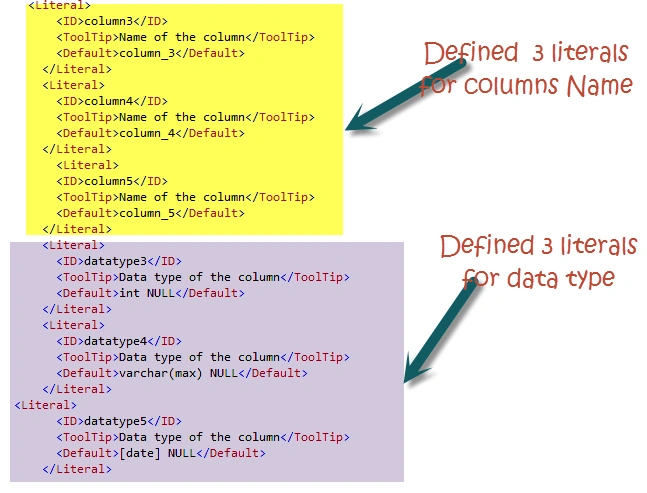
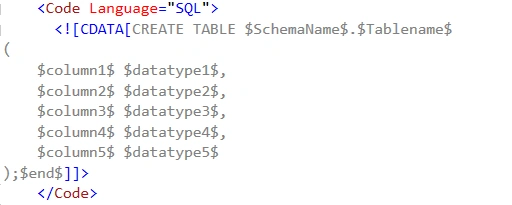
The second tag is “Snippets”, this most important tag of code snippets, the Snippet section has the actual code of the snippet. The Snippets tag has two parts: Declaration and Code. Declaration part allow us to declare the variables that will be used in the code section. Variable declarations are called literals. Literal tag contain three properties.
- ID: Unique id for literal and should not be repeated.
- Tooltip: Provide a brief hint information about literal , what should the literal be when the literal is selected.
- Default: define text that will show up in the snippet when inserted.

Prakash TripathiPosted Apr 18, 2016, 11:43 AM
Thanks Pankaj for nice article. I have a question which tool you use for drawing images/lines in articles. I use paint and it's not that gr8.
Pankaj Kumar ChoudharyPosted Apr 17, 2016, 6:27 AM
Thanks .........
Vivek KumarPosted Apr 17, 2016, 6:26 AM
Good one
Kuppurasu NagarajPosted Apr 17, 2016, 4:13 AM
Nice Sharing..
Manoj KulkarniPosted Apr 16, 2016, 10:52 PM
Nice article. Thank you for sharing
Pankaj Kumar ChoudharyPosted Apr 16, 2016, 9:41 AM
Thanks to All Of you!.........
Kumaresh RajalingamPosted Apr 16, 2016, 8:34 AM
Good one
Debasis SahaPosted Apr 16, 2016, 2:36 AM
Nice One..
Gowtham KPosted Apr 16, 2016, 12:56 AM
Good one, Thanks for sharing:)
Hari ShankerPosted Apr 16, 2016, 12:24 AM
nice article
Muhammad Aqib ShehzadPosted Apr 15, 2016, 11:50 PM
nice information. Thanks for sharing
Rahul Kumar SaxenaPosted Apr 15, 2016, 10:45 PM
Good one