
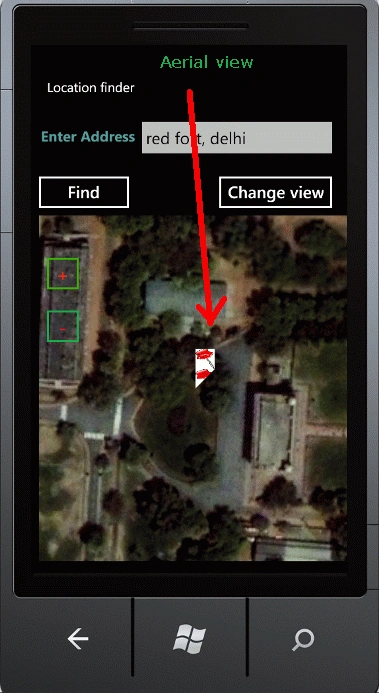
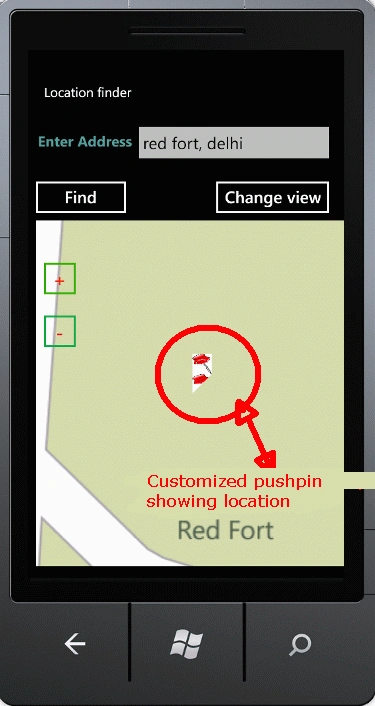
Working with Windows Phone is a great experience and the best part is that you can work with real world things and can experiment with it for example playing with maps and geographical structures. One of the best parts is locating a point or address in the map and then pinpoint this location, regardless of whether you zoom it or not, the pinned point called pushpin will show you the most precise point. Isn't it interesting?? So in this article you'll learn how to locate a point in the Bing Map and then adding a customized pushpin to this locatioin.
Follow the steps below.
Step 1 : First of all you need to have the Windows Phone 7.1 SDK installed in your system.
Step 2 : Then open Visual Studio
- Select new project
- Select your preferred language
- Select the Silverlight for Windows Phone application on the left pane and Windows Phone application in right pane.
- Name the project
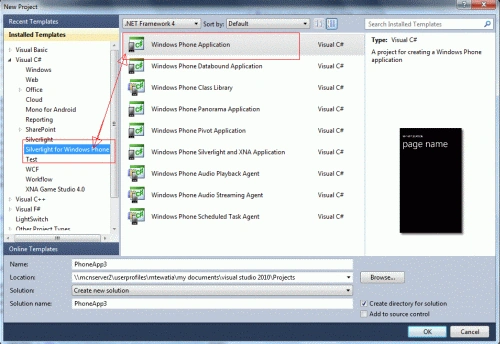
Step 3 : Now you land up in a screen showing the Windows Phone application and XAML coding into different partition. Now you may change the look of your application as you wish.

Step 4 : Now drag and drop the map control from the toolbox into the phone application.
- Add a textbox and in the properties change the name of this textbox as "txtbx". This text box holds the value of the start place.
- Add a button name it as "Change view". This is to change the mode of view of the map.
- Add another button and name it as "Find" to find the address on the Bing Map.
Step 5 : Now before we start the coding ahead you need to get the credentials for using the Bing map in Windows Phone application. To know how to get the credentials see this article . If you don't get the credentials then an irritating white strip keeps appearing over the map urging to get the credential for using the map control.
Step 6 : When you have the Bing map key, move to the XAML part and find the following:
<My:Map
Name="map1"
Width="425"
Height="513"
Margin="0,0,19,25"
CopyrightVisibility="Collapsed"
VerticalAlignment="Bottom" HorizontalAlignment="Right" >
In this line add the following parameters to make the map work better.
CredentialsProvider="type the bing map key you got here" LogoVisibility="Collapsed"
Then the complete code becomes.
<My:Map
Name="map1"
Width="425"
Height="513"
Margin="0,0,19,25"
CopyrightVisibility="Collapsed"
LogoVisibility="Collapsed"
VerticalAlignment="Bottom"
HorizontalAlignment="Right"
CredentialsProvider="type
the bing map key you got here" LogoVisibility="Collapsed">
Step 7 : Now
add the following references:
-
Go to Solution Explorer
-
Right click on references--> add reference
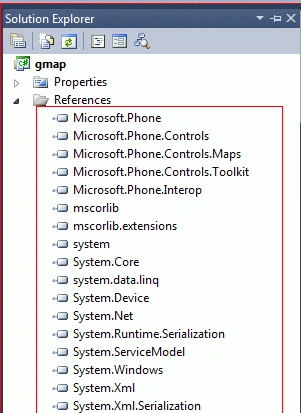
-
Also add a service reference--> Right click on reference
-
Add service reference
-
In the address bar type- http://dev.virtualearth.net/webservices/v1/geocodeservice/geocodeservice.svc/mex. This is to use the geocode related clases in the application.
-
Name this service reference as "BingMapGeoCodeService".
Step 8 : Add the following namespaces to the project
-
using System;
-
using System.Collections.Generic;
-
using System.Linq;
-
using System.Net;
-
using System.Windows;
-
using System.Windows.Controls;
-
using System.Windows.Documents;
-
using System.Windows.Input;
-
using System.Windows.Media;
-
using System.Windows.Media.Animation;
-
using System.Windows.Shapes;
-
using Microsoft.Phone.Controls;
-
using findlocation.Binggeocode;
-
using System.Collections.ObjectModel;
-
using Microsoft.Phone.Controls.Maps;
-
using System.Windows.Media.Imaging;
Step 9 : Now here we start with the main coding of our project. First of all globally declare a geocode service client object for Bing Map.
GeocodeServiceClient gsc;
public MainPage()
{
InitializeComponent();
Step 10 : Now intantiating the geocode service. For this write this code in the constructor of the page load metod.
public
MainPage()
{
InitializeComponent();
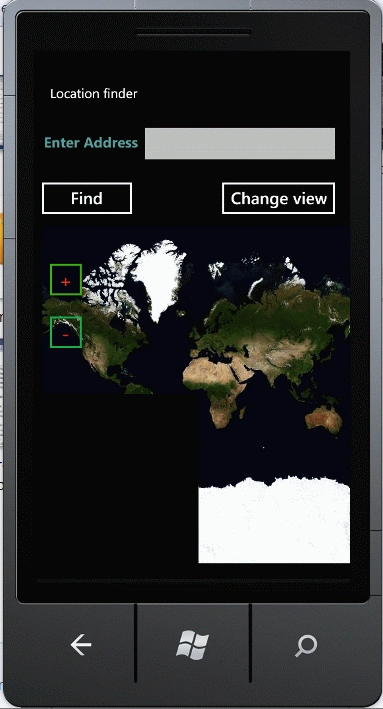
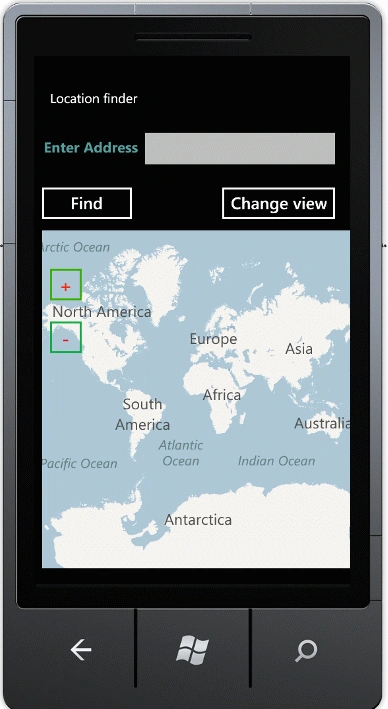
nitin guptaPosted Jan 23, 2014, 12:51 AM
Hello, I am new in windows phone mobile app. May i know will this project will run on windows phone 8 sdk ,map is not displaying in emulater it is showing only blank(black screen) and this project is also not working giving break point in findlocation.Binggeocode.GeocodeResponse _result. (Silver light for windows phone is also not showing while creating a new project please help me).
MarcusPosted Mar 29, 2012, 2:40 PM
Great, but how can I make the Imagebrush not appear tiled, but fill the pushpin? I tried ib.Stretch = Stretch.Fill but it didn't help.
Aaron CronjePosted Jan 12, 2012, 6:40 AM
Good Work...............
Vineet Kumar SainiPosted Jan 11, 2012, 11:36 PM
Good work...
Daisy KrausePosted Jan 11, 2012, 11:20 PM
Great how nicely you have presented your article. I will surely try to implement this.