

Introduction
Power Automate have recently released certain actions where interacting with Graph API is much simpler. Previously it is required to have the following steps
- Creating Azure AD App
- Defining the scopes for the APP
- Generating client ID and client secret or certificates for authentication
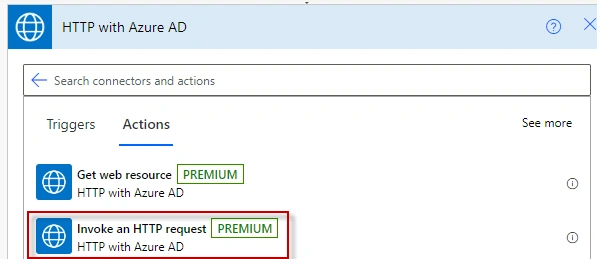
- Using premium connection ‘Send http request’ and decorating the request body with valid parameters for proper authentication and response content.
Now using the standard action provided by MSFT in Power Automate, the interaction with Graph API became much simpler. Let’s see this in action.
Use Case
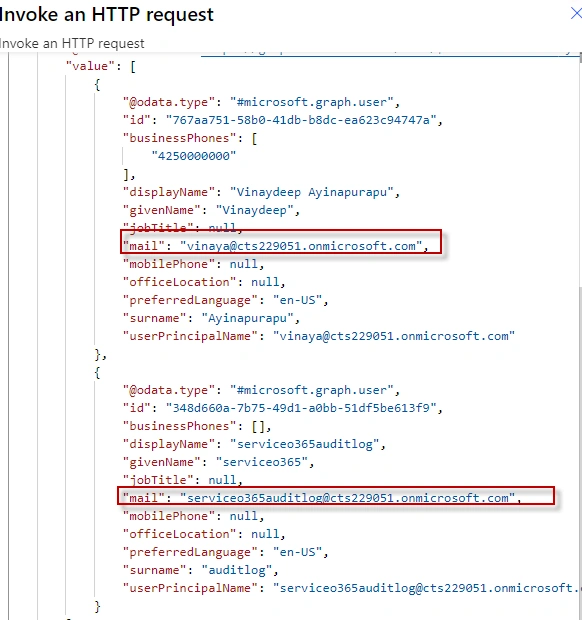
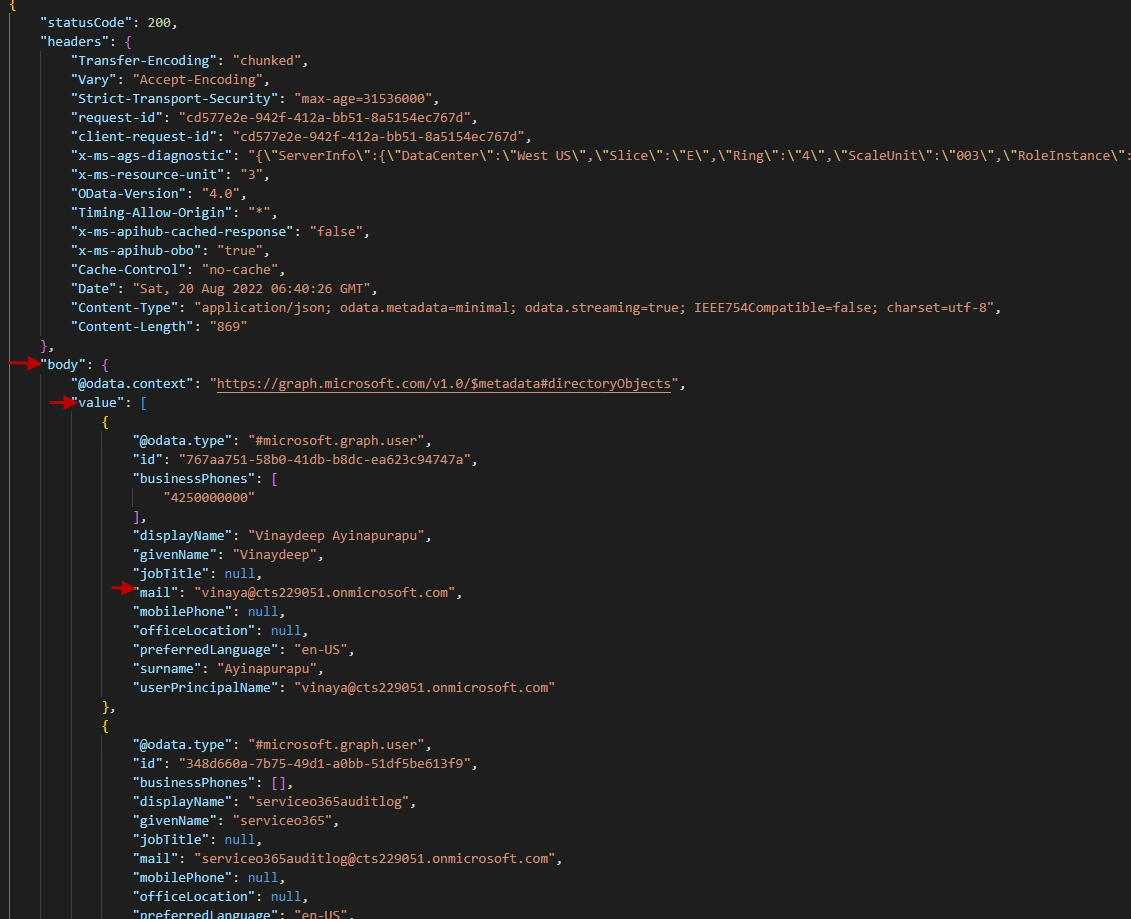
The use case here is that we will design a power automate to list the group members in Office 365 group or Azure AD group and then get the count of members.
Before designing the flow, we need to know what Graph API requests are available to us to interact with Office 365 groups/Azure AD groups.
Getting request using Graph Explorer
Step 1: Login to graph explorer with your organization account.
https://developer.microsoft.com/en-us/graph/graph-explorer
Step 2: Click on the sign-in
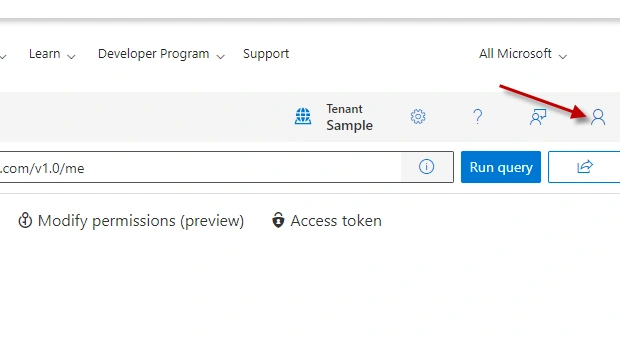
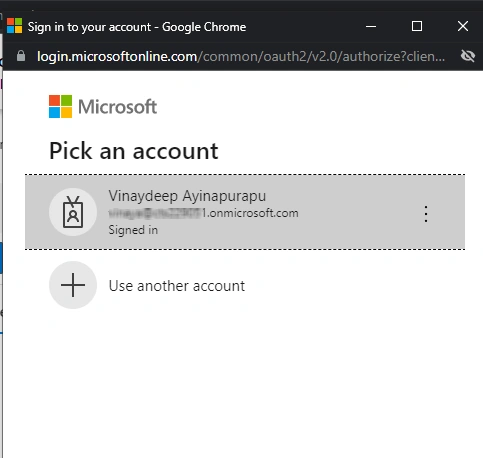
Step 3: Validate if you are getting proper responses by clicking on ‘Getting Started’ and choosing available sample queries. In this case I am clicking on ‘my profile’.
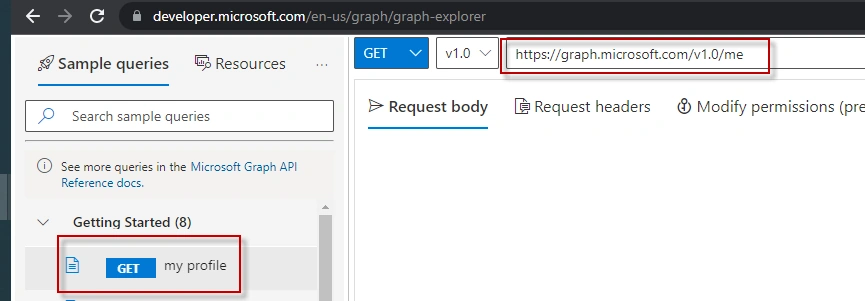
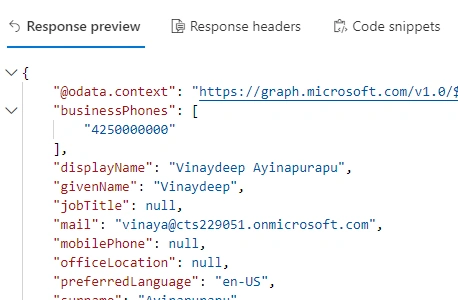
You can see the similar response below on successful authentication.
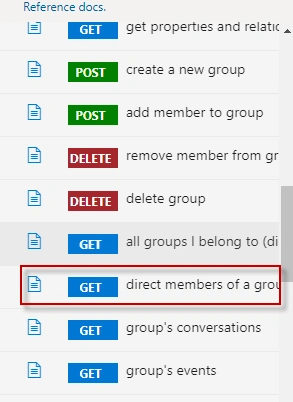
Step 4: Under ‘Groups’ category under sample requests, we have Get direct members of group. Select the request.
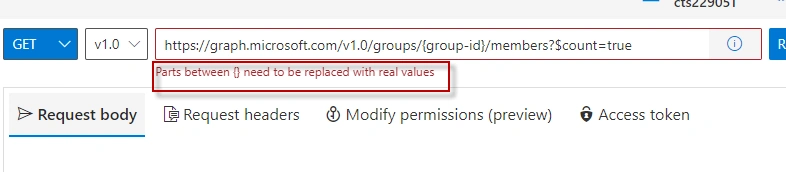
Step 5: If you noticed, it generates a sample request and also gives you a heads-up to update the group-id. You can obtain group id from the azure portal.
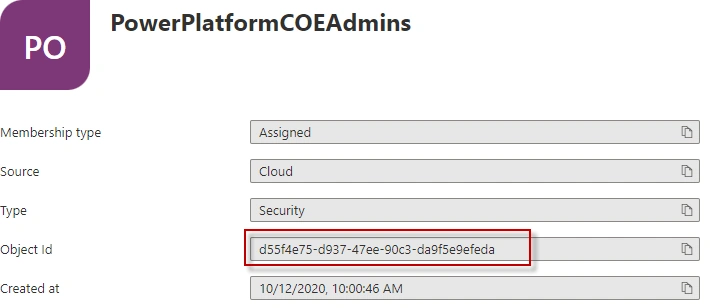
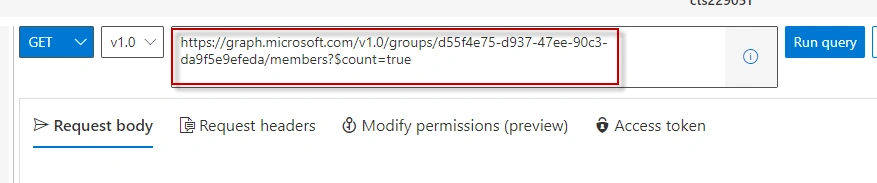
In this case, I am modifying the request by updating group id in the request and it looks like below.
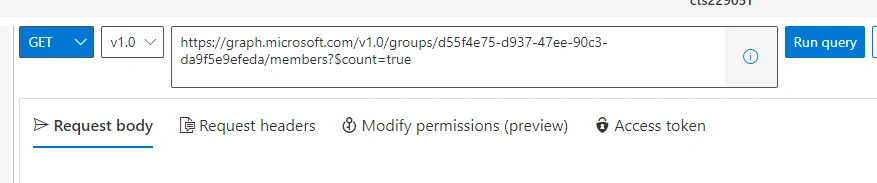
Step 6: Now on successful authentication I was getting the following response.
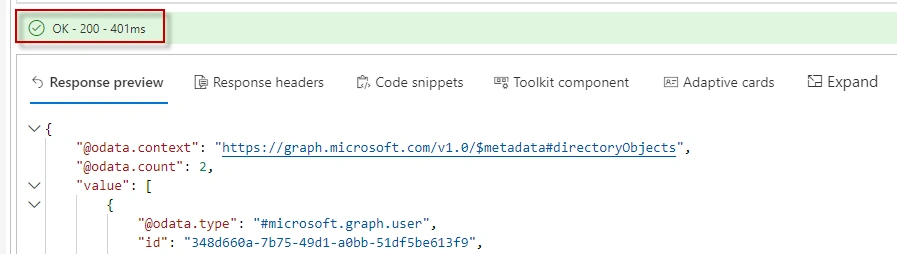
Note: Please note that you need to have certain scopes added to permissions and those permissions needed to be consented by admin in some cases. Which means the permissions required to get the successful response are more than those permissible. In such cases a global admin needs to consent to those permissions and only after that you will get successful responses. If the scopes are not properly defined, you would get 403 forbidden responses. You can also check the api permissions under ‘Modify permissions.
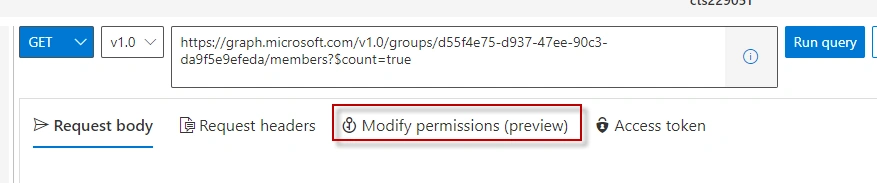
To get the members of the group we need API permission scope ‘GroupMember.Read.All’ and this permission needs Admin consent.
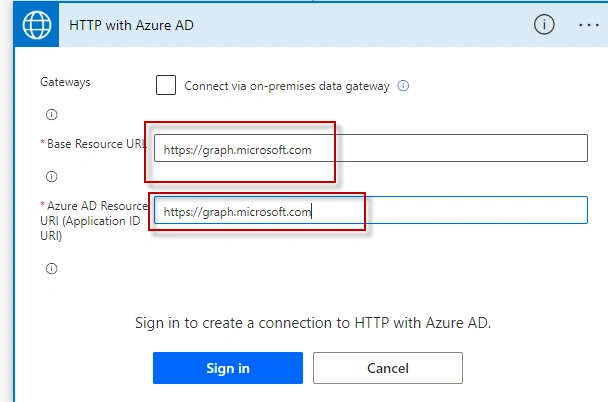
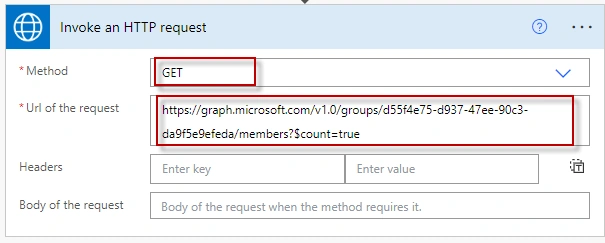
Copy the request URL from the Graph explorer, you need to use this in Power Automate.
Designing Flow
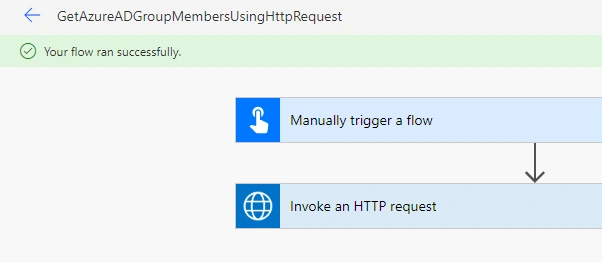
Now we will go to Power Automate and design our flow.
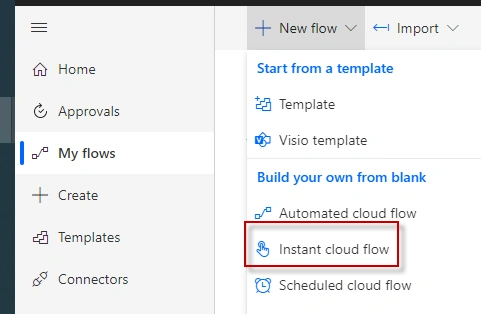
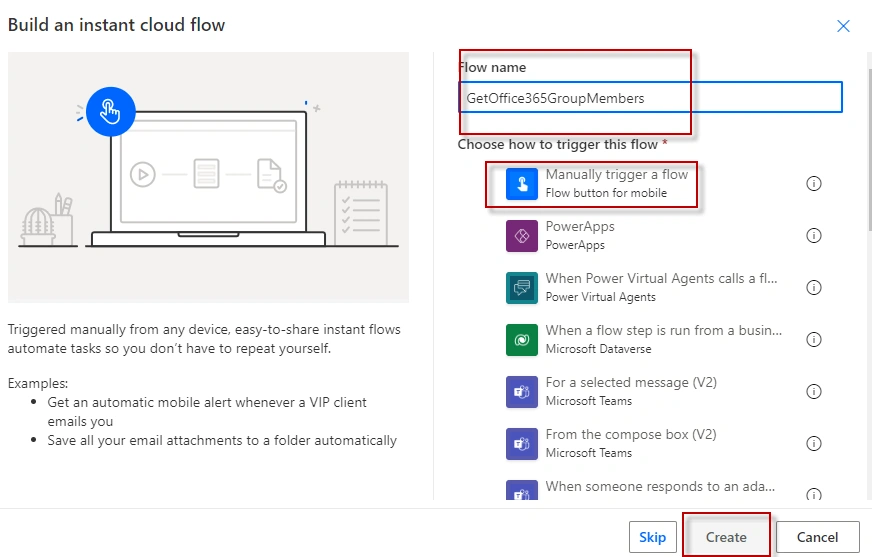
Step 1: Login to Power Automate https://make.powerautomate.com/ using the organization account and select My Flows à Instant cloud flow.

Join the conversation! Your thoughts help the community grow.