

Micro Focus released Visual COBOL R4 earlier this year and it has turned out to
be an awesome addition to Visual Studio 2010. The development teams have done a
great job in delivering a very usable product. To help you learn about Visual
COBOL and COBOL.NET in a managed environment we'd like to provide some example
solutions. Now there are great samples that come with Visual COBOL but they
don't define or detail one specific control, they show a finished application
and the user has to read through the code to figure out how the code was
created.
Our examples will focus on a single control. We'll show you how to manipulate
the properties of that control programmatically. We may have to include one
additional control but the focus on each project will be on a single control
with a supporting role for the additional control. Our first control is the
Label.
While maybe not a glamorous control, the Label provides a very important
function for the developer: It enables the developer to present content,
instructions or images to the user. Without the Label presenting information to
the user all we'd have is a form with a bunch of boxes or circles without any
idea what they were for.
So let's begin by looking at how to work with Labels.
WinForm
We've already created the WinForm we'll be using. Remember, the intent is to
learn how to manipulate Labels, not create WinForms. Our WinForm was
specifically designed to be simple and present only the basic information. It
appears as:
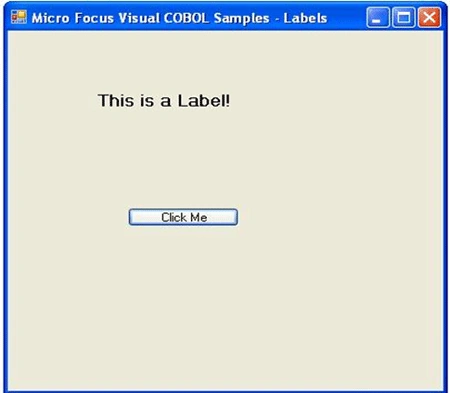
Pretty simple, right? At the top we have a Label that says "This is a Label". We
also have a button on the screen that says "Click Me". The button is in a
supporting role for now and will be explored in another article. Our interest is
in the Label.
Label Properties
Labels, like all controls, have properties associated with them. Although there
are many properties that can be manipulated there really are only a few that
have any real implication when working with Labels.
When working with properties the general format used to update a property is:
SET controlName::property TO {something}
Where: controlName is the name of the control
Property is the name of the property to be manipulated
{something} is specific to each property and can be text, Boolean, enums, etc.
We're going to concentrate our discussion on the following properties:
|
Property |
Description |
|
Text |
The actual text that is displayed to the user |
|
Visible |
Can you see the control. Accepts a Boolean value of 'true' or 'false' |
|
BackColor |
The background color for the control |
|
ForeColor |
The color the text displayed in the Text property |
|
Font |
The type and size of the font to use when displaying the Text property |
|
TextAlign |
Where does the text show-up in the label |







Santhakumar MunuswamyPosted Dec 5, 2015, 5:55 AM
Good article