

Introduction
Microsoft Fabric provides a unified analytics platform that combines Data Engineering, Data Warehousing, Data Science, Real-Time Analytics, and Business Intelligence into a single SaaS offering. One of the most common data engineering tasks in Fabric is loading data from a Lakehouse into a Warehouse for reporting and analytics.
While Data Pipelines and Dataflows offer graphical approaches to data movement, SQL professionals can leverage the powerful COPY INTO command to perform high-performance bulk loading directly into a Fabric Warehouse.
In this article, we will explore how to use the COPY INTO command to load data from a Fabric Lakehouse into a Fabric Warehouse.
Why Use COPY INTO?
The COPY INTO command provides several advantages:
High-performance bulk data loading
Native SQL-based ingestion
Supports CSV, Parquet, and Delta files
Easy automation within stored procedures and SQL scripts
Ideal for ELT workloads
Eliminates the need for separate pipeline activities
Typical use cases include:
Bronze to Warehouse loading
Loading curated Silver layer data
Incremental data ingestion
Scheduled warehouse refreshes
Architecture Overview
The data flow typically follows this pattern:
Lakehouse Files → OneLake Storage → COPY INTO → Fabric Warehouse Tables
For example:
Bronze Lakehouse
     │
     ▼
product.csv
     │
     ▼
COPY INTO
     │
     ▼
Warehouse dbo.product
Prerequisites
Before using COPY INTO, ensure you have:
A Fabric Lakehouse
Data stored in the Lakehouse Files area
A Fabric Warehouse
Appropriate permissions on both artifacts
Sample Source File
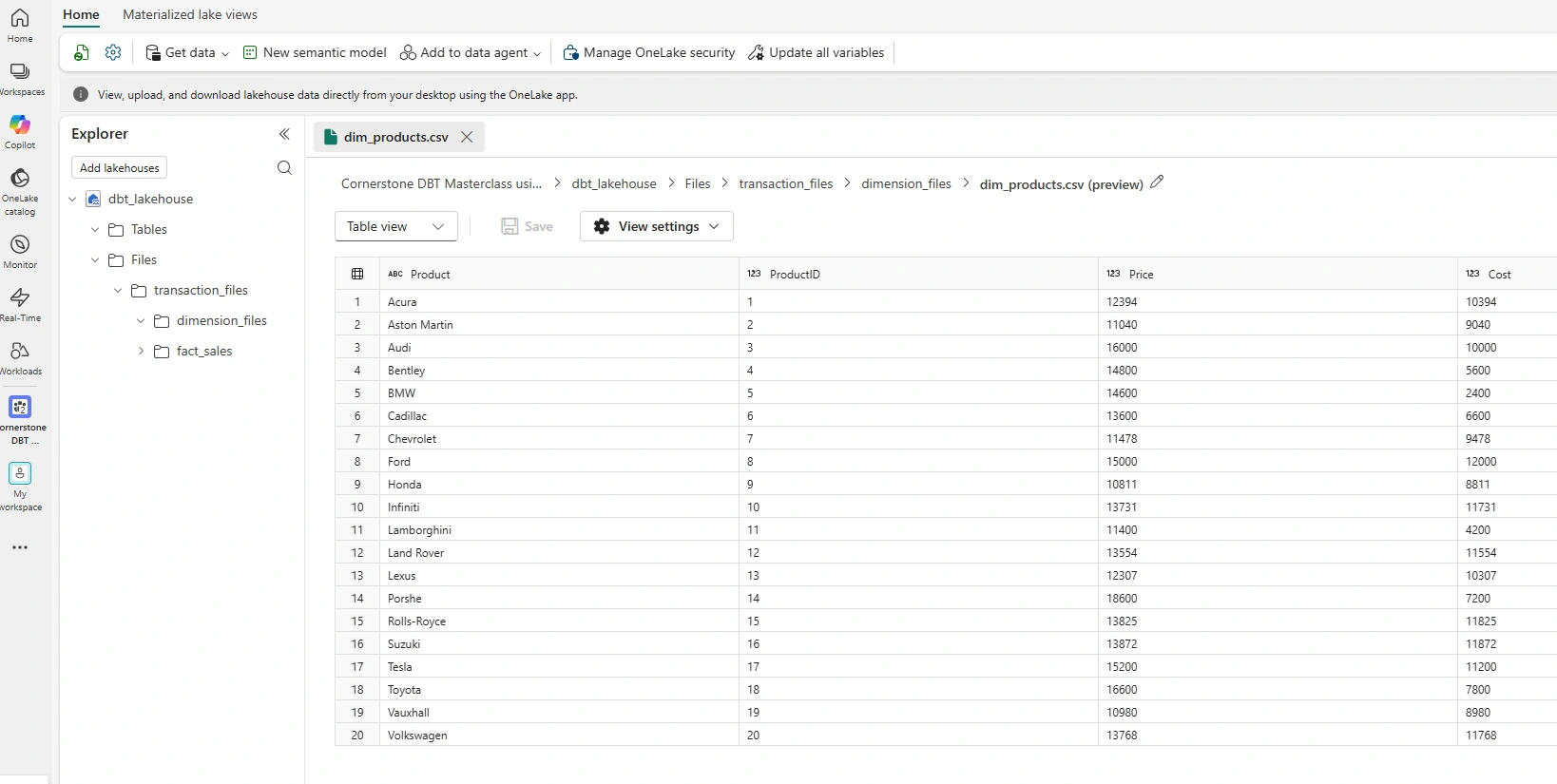
Suppose we have a CSV file named dim_products and stored in a Lakehouse as seen below:
Step 1: Create the Target Warehouse Table
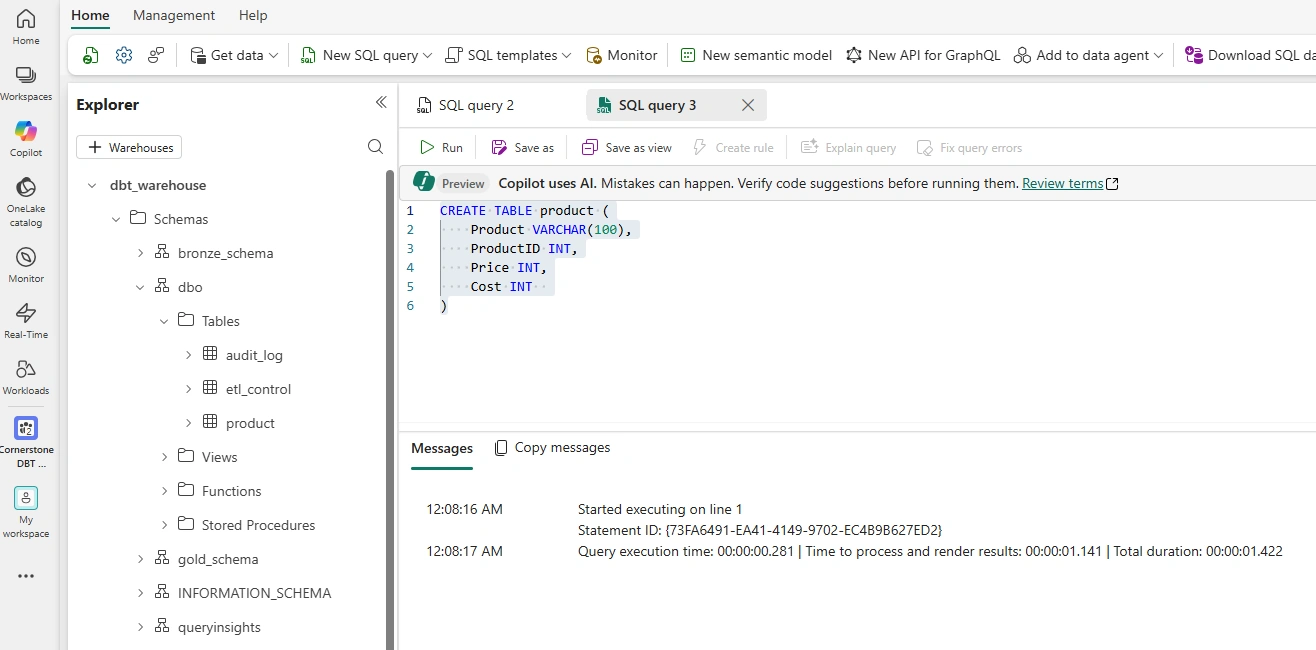
First, create the destination table inside your Fabric Warehouse.
CREATE TABLE product (
    Product VARCHAR(100),
    ProductID INT,
    Price INT,
    Cost INT
);
Step 2: Obtain the OneLake File Path
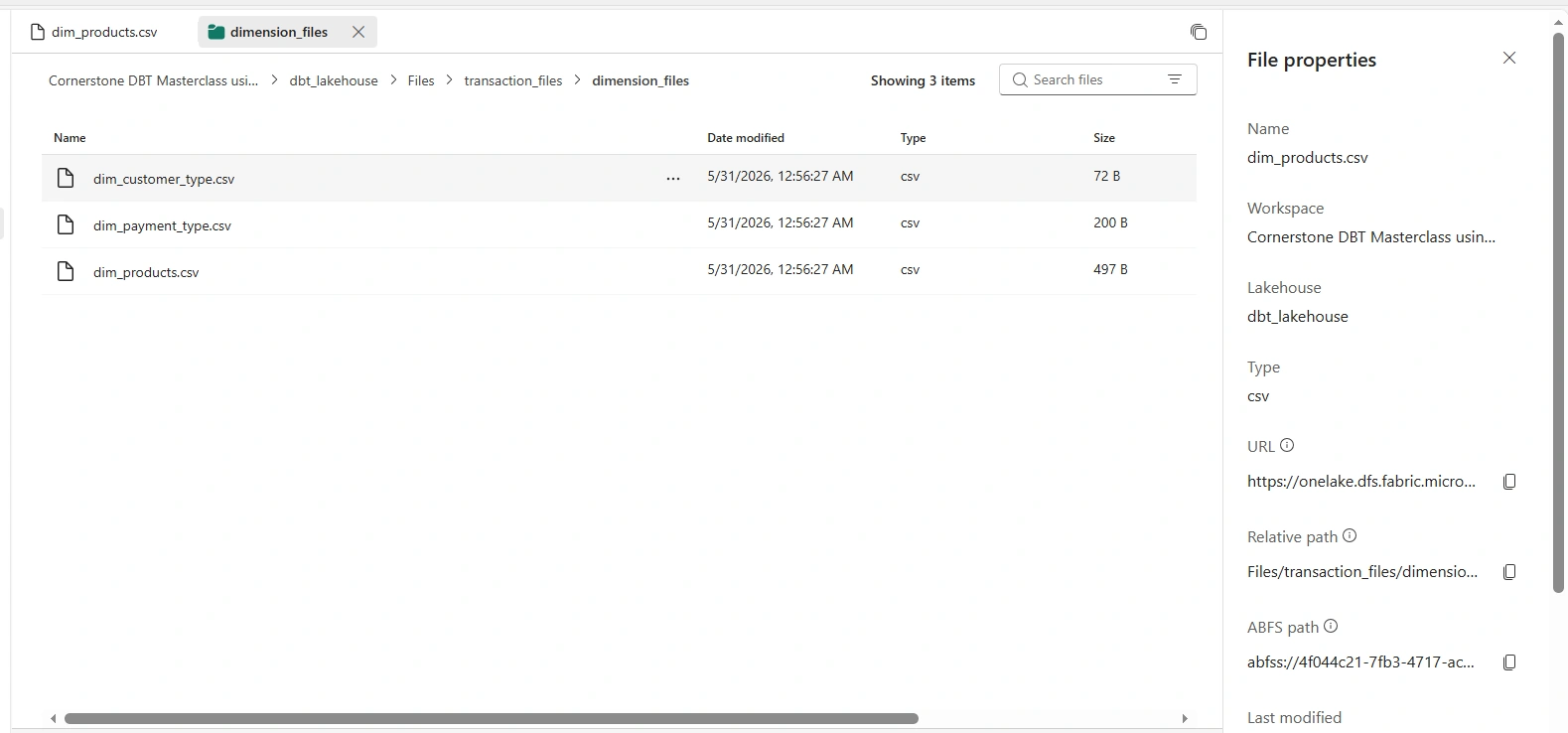
Navigate to your Lakehouse and locate the file. To locate the URL specific to the dim_products.csv, right-click on dim_products.csv and select properties
In the File properties pane, copy the URL
Step 3: Use COPY INTO
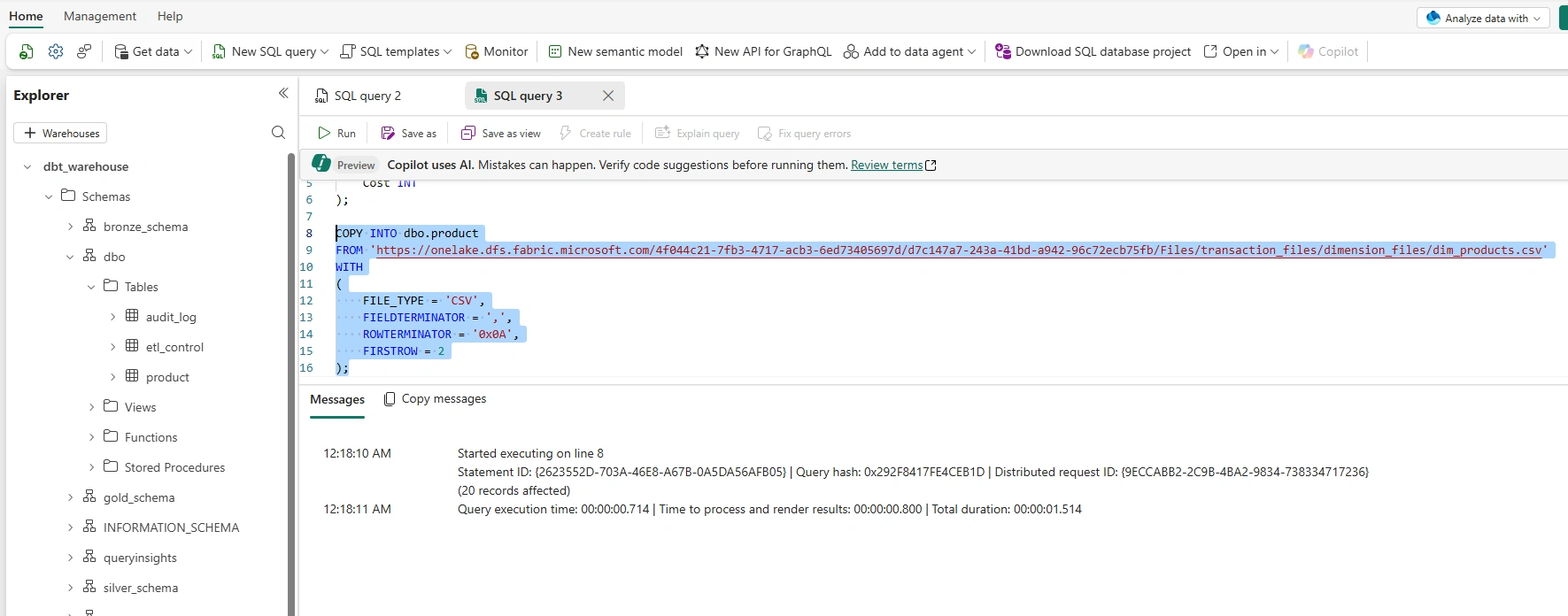
Execute the following command inside your Fabric Warehouse.
Loading a single CSV File
COPY INTO dbo.product
FROM 'https://onelake.dfs.fabric.microsoft.com/4f044c21-7fb3-4717-acb3-6ed73405697d/d7c147a7-243a-41bd-a942-96c72ecb75fb/Files/transaction_files/dimension_files/dim_products.csv'
WITH
(
    FILE_TYPE = 'CSV',
    FIELDTERMINATOR = ',',
    ROWTERMINATOR = '0x0A',
    FIRSTROW = 2
);
Fabric automatically reads the dim_products file and loads the data into the target table.
Data Validation
After loading, validate the results:
SELECT * FROM dbo.products;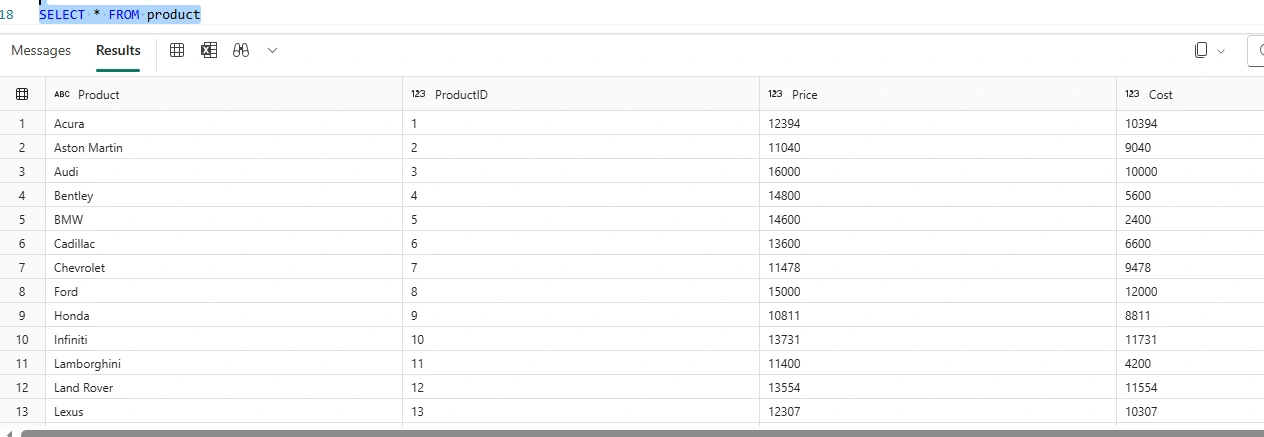
As seen from the above screenshot, the dim_products.csv data is successfully loaded into the target table in the Fabric Warehouse
Conclusion
The COPY INTO command is one of the fastest and most efficient methods for loading data from a Microsoft Fabric Lakehouse into a Fabric Warehouse. By leveraging OneLake storage and Fabric's native SQL capabilities, organizations can build scalable ELT pipelines without relying solely on graphical tools.
Whether you are loading Bronze, Silver, or curated business-ready datasets, COPY INTO offers a simple, performant, and production-ready solution for warehouse ingestion workloads in Microsoft Fabric.
Join the conversation! Your thoughts help the community grow.