

This article introduces you to the TabControl control in WPF.
The TabControl control enables you to create tabbed pages inside a window or
container control.
A TabControl consists of one or more TabItem controls where each TabItem
represents a tab page. Each tab page can contain one or more child controls,
which are of type UIElement. Thus, you can have controls of type Grid, TextBlock,
ListBox, and so on.
This control is typically used when you want to organize groups of controls
together in a common section or page-like structure. Consider the scenario of a
desktop based library management system. You want to store the book codes,
titles and authors together as one set of information and book edition, price
and similar information as another set. You can organize these into two tab
pages and present them accordingly.
Figure 1 and Figure 2 shows how you can organize the controls within a
TabControl with two TabItems (each representing a tab page).
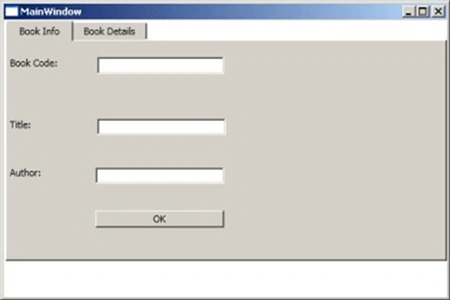
Figure 1
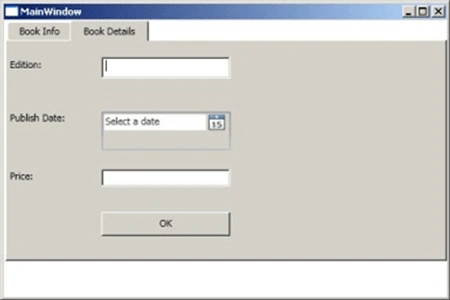
Figure 2
To achieve this outcome, you will need to do the following steps:
- Create a WPF application.
- Add a TabControl from the Toolbox to
MainWindow.xaml.
- Add two TabItems within the TabControl.
- Add a Grid control inside each of the
TabItem.
- Add TextBlock, TextBox, and Button
controls inside the Grid to create UIs like Figure 1 and Figure 2.
- Configure the properties of the controls as shown in the below markup:
<Window
x:Class="WpfDemo.MainWindow"
xmlns="http://schemas.microsoft.com/winfx/2006/xaml/presentation"
xmlns:x="http://schemas.microsoft.com/winfx/2006/xaml"
Title="MainWindow"
Height="350"
Width="525">
<Grid
x:Name="LayoutRoot">
<TabControl
Margin="2,0,0,42">
<TabItem
Header="Book
Info" >
<Grid
ShowGridLines="False">
<Grid.ColumnDefinitions>
<ColumnDefinition
Width="100"
/>
<ColumnDefinition
Width="150"
/>
<ColumnDefinition
Width="150"
/>
<ColumnDefinition
Width="178*"
/>
</Grid.ColumnDefinitions>
<Grid.RowDefinitions>
<RowDefinition
Height="Auto"
/>
<RowDefinition
Height="Auto"
/>
<RowDefinition
Height="Auto"
/>
<RowDefinition
Height="Auto"
/>
<RowDefinition
Height="Auto"
/>
<RowDefinition
Height="22*"
/>
</Grid.RowDefinitions>
<TextBlock
Text="Book
Code:"
Height="25"
Margin="0,15,0,45"></TextBlock>
<TextBox
Name="txtCode"
Grid.Column="1"
Margin="2,15,0,51"
Width="148"></TextBox>
<TextBlock
Grid.Row="1"
Text="Title:"
Margin="0,1,0,33"
Height="18"></TextBlock>
<TextBox
Name="txtTitle"
Grid.Row="1"
Grid.Column="1"
Margin="2,1,148,32"
Grid.ColumnSpan="2"></TextBox>
Join the conversation! Your thoughts help the community grow.