

XAML StatusBar represents a status bar. A StatusBar is a horizontal window that usually sits at the bottom of a window to display various kinds of status information of an application. This tutorial shows you how to use a StatusBar in WPF.
Introduction
The StatusBar element in XAML represents a WPF StatusBar control.
- <StatusBar></StatusBar>
The following code snippet creates a StatusBar control and set its content to some text.
- <StatusBar Name="McSBar" Height="30" VerticalAlignment="Bottom"
- Background="LightBlue" >
- This is a status bar
- </StatusBar>
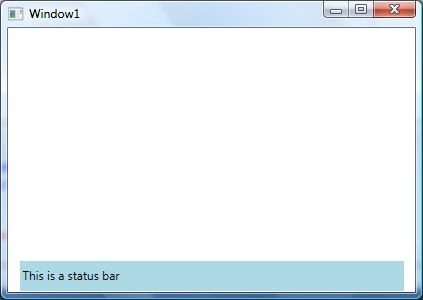
Figure 1
Creating a StatusBar Dynamically
The StatusBar class in WPF represents a StatusBar control. This class is defined in using the System.Windows.Controls.Primitives namespace. Before you use this class, be sure to import this namespace.
You may add any number of controls to a StatusBar control. For example, if you add images, a TextBox, TextBlock and/or other controls and place that StatusBar on a Window. The following code snippet creates a StatusBar at run-time and adds a TextBox to it.
- private void CreateDynamicStatusBar()
- {
- StatusBar sBar = new StatusBar();
- sBar.Height = 30;
- sBar.Background = new SolidColorBrush(Colors.LightBlue);
- TextBox tb = new TextBox();
- tb.Text = "This is a status bar";
- sBar.Items.Add(tb);
- LayoutRoot.Children.Add(sBar);
- }
In this article, I discussed how to create and use a StatusBar control available in WPF.
Srinivasan K KPosted Jan 13, 2015, 11:28 AM
Really helpful article. Thanks for your great knowledge sharing Mahesh.
Vithal WadjePosted Jan 7, 2015, 10:35 PM
Nice explanation