

Introduction
When an app is registered in Azure AD, when using the Client Credentials flow, it needs to be added with client ID and client Secret for authentication and authorization. Note that the validity of the client credentials (Client ID and Client Secret) can be configured to a minimum of 6 months and extended to 3 years. More about creating an Azure AD App can be found in the references section. The scope of this article is to validate if the Client ID and Client Secret are valid and check that the App can perform the operations defined in scope. We will test using GET, POST, and DELETE operations using POSTMAN.
In the article, we will go through one of the App registrations in Azure, verify the scope and permissions, and validate the Client ID and Client Secret. Thanks to my colleague Sujit Nambiar for helping me write this article and troubleshoot the issues that I came across.
Validating Azure AD App
We will go through the steps below to examine the details of the Azure AD app, which we need to test using the POSTMAN tool.
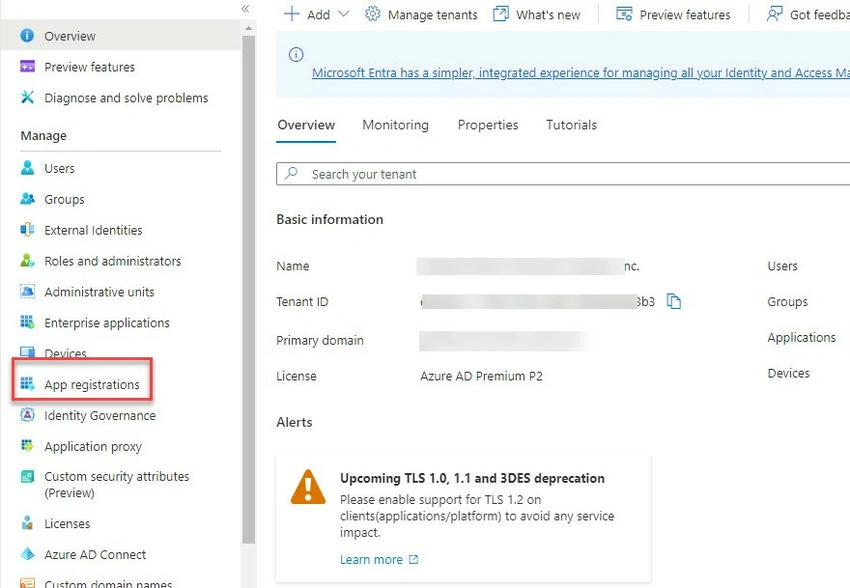
Step 1. Login to https://aad.portal.azure.com - Azure Active Directory and click on ‘Application Registrations’.
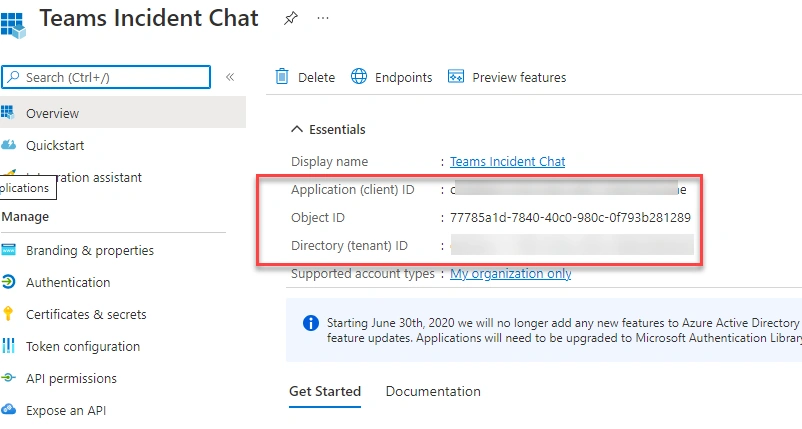
Step 2. Look for the application for which you need the details. In my case, below are the details that we can get.
- Client ID
- Tenant ID
Note. Client Secret value is only shown during the time of creation under ‘certificates and secrets. After you navigate away, then, the client's secret is hidden and shown as secure text.
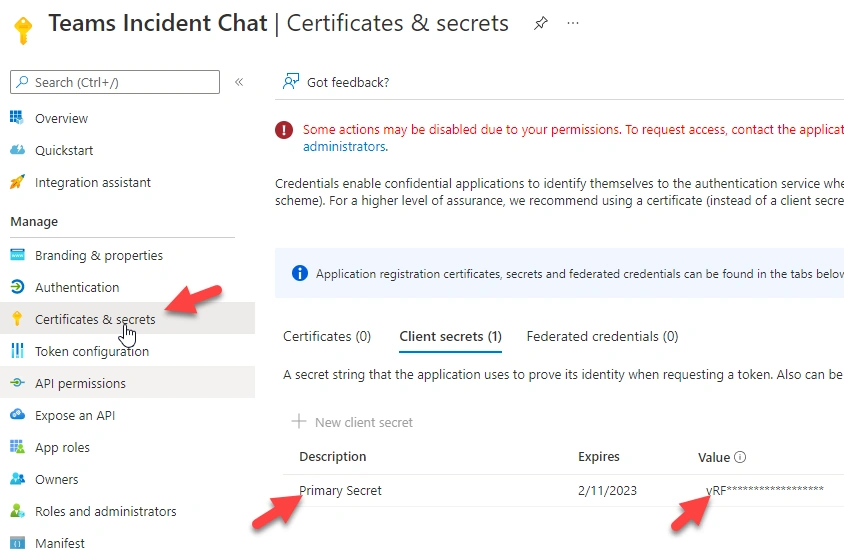
Step 3. Review the API permissions for the app and make sure it has the required scopes configured and has the admin consent granted.
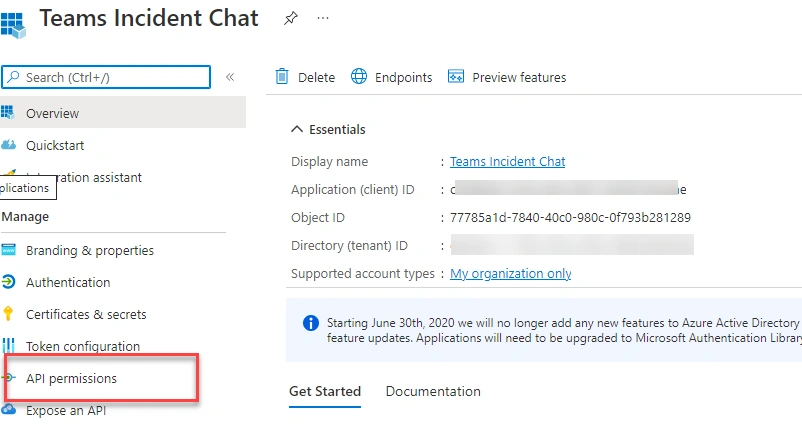
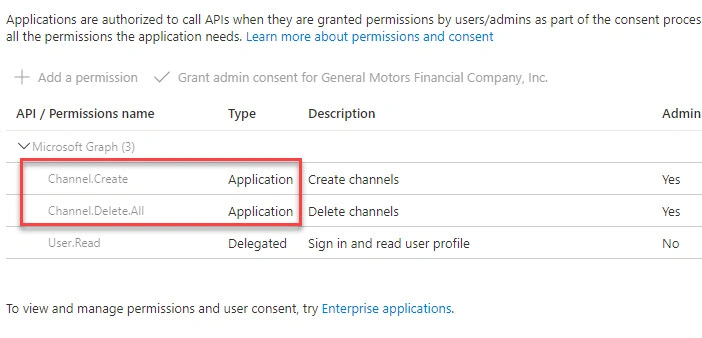
As shown in the screen capture it has the following application permissions defined. This is sufficient to create a channel and delete a channel using Graph API endpoints.
- Channel. Create
- Channel.Delete.All
These steps conclude with verifying the Enterprise Azure AD App and then validating the Azure AD App details.
Testing using POSTMAN
In this section, we will use the POSTMAN tool to test the Graph API End Points using the above Azure AD App details.
Step 1. Open the POSTMAN tool from your machine. Please refer to the references section on how to install POSTMAN on Windows 10.
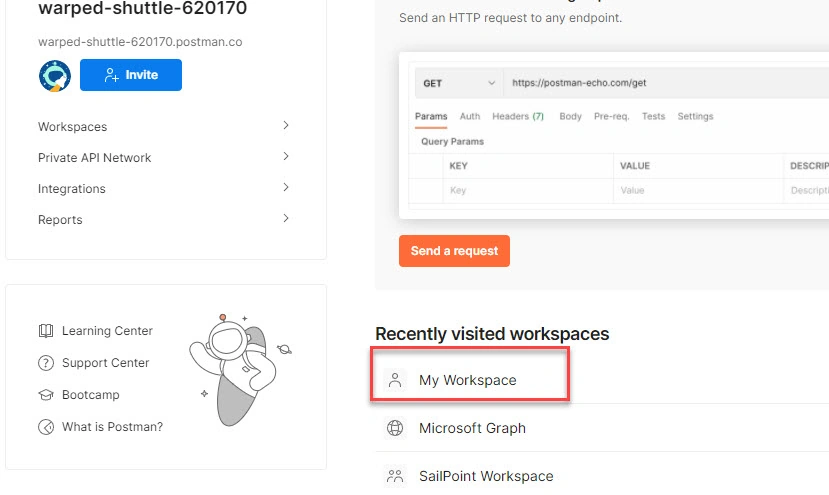
Step 2. From the home page, go to a workspace. You can go to any workspace. For this article, I am going to ‘My Workspace’.
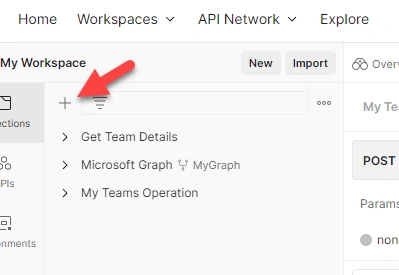
Step 3. On the next page, try to create a new collection by clicking on the + sign. It is easy to refer to the operation we performed for future reference. This step is not mandatory but encouraged.
Step 4. Rename the collection as ‘Teams Channel API Test’.
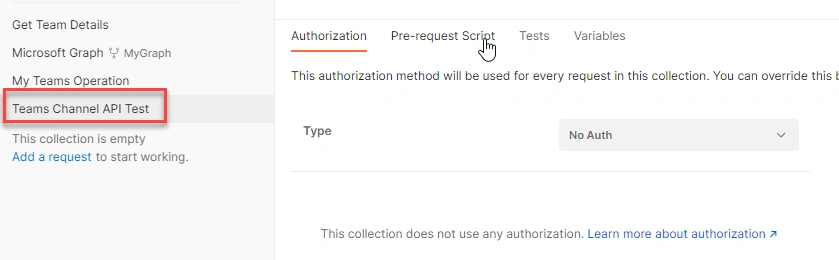
Step 5. In the next step, click on the ‘Add a request’ link.
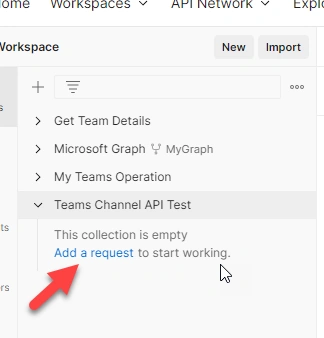
Step 6. Now rename the request to ‘Create Channel’. The graph endpoint to create the channel is
https://graph.microsoft.com/v1.0/teams/{TEAMID}/channels
The request type is ‘POST’.
Step 7. Now, it is required to get a Team ID where the channel needs to be created. The simple option is to go to Graph Explorer https://developer.microsoft.com/en-us/graph/graph-explorer and see where you have been added as owner or member. For this, you can log in to Graph Explorer with your organization ID and look for a sample query called ‘my joined teams’.
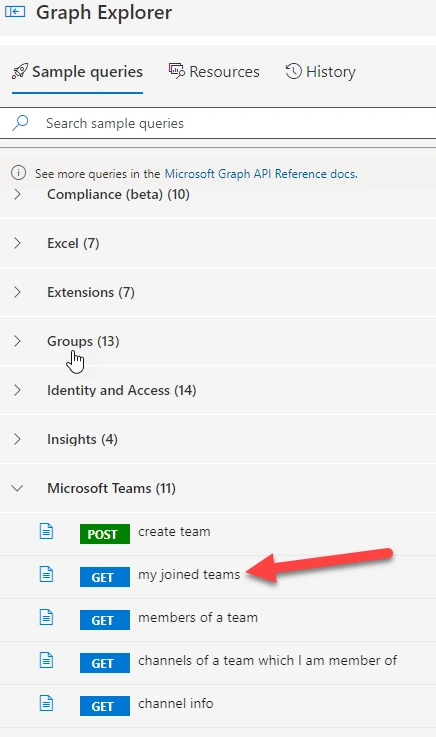
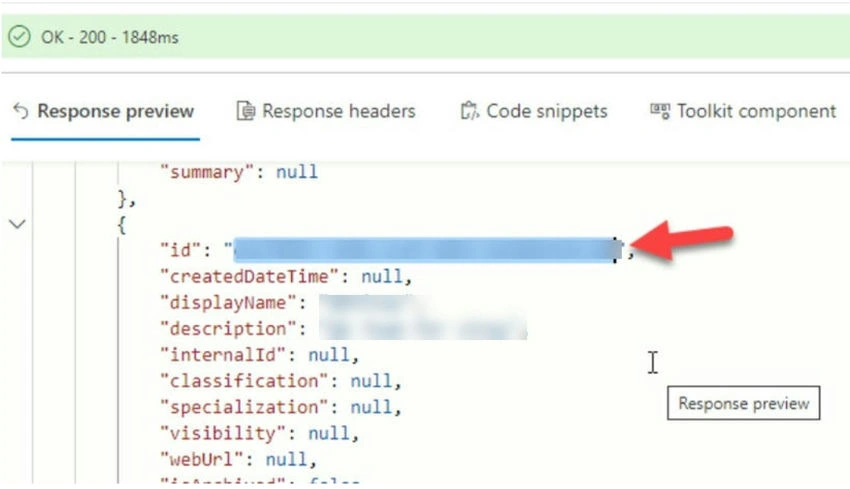
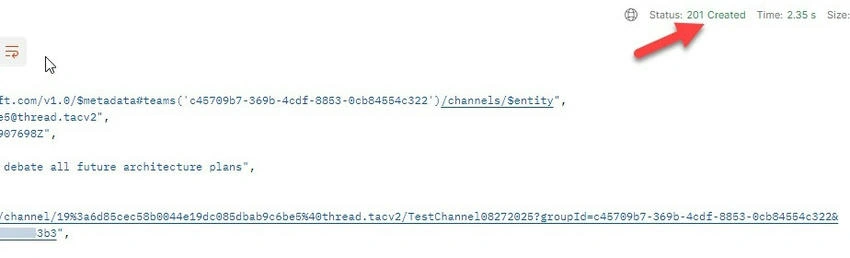
Step 8. On success, it should give you 200 responses, then look for the “id” property in the “value” array. In this case, I am taking the ID of a test time called ‘QAVinay’ where I am a member. The ID property can be found in the JSON response.
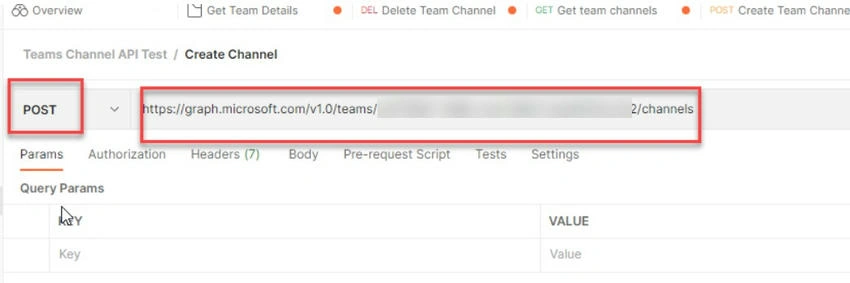
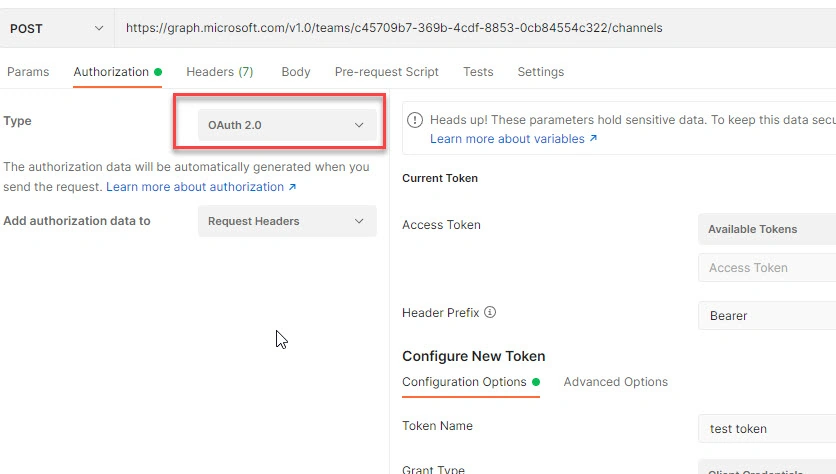
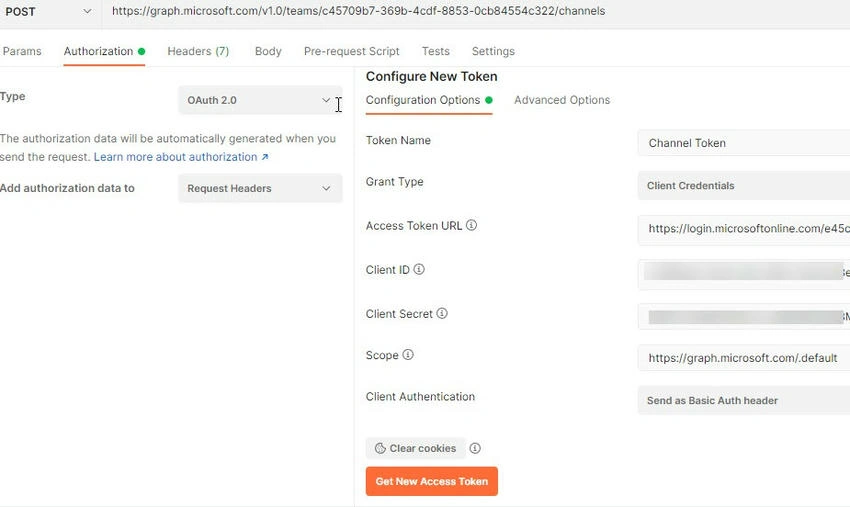
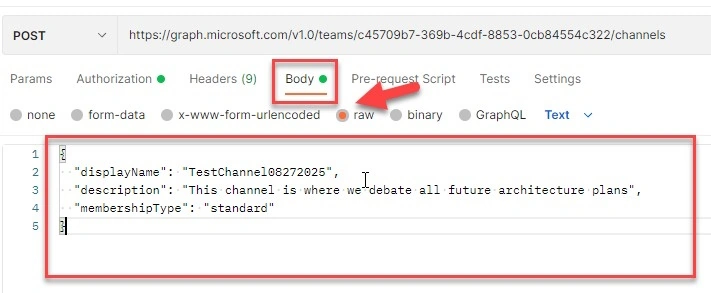
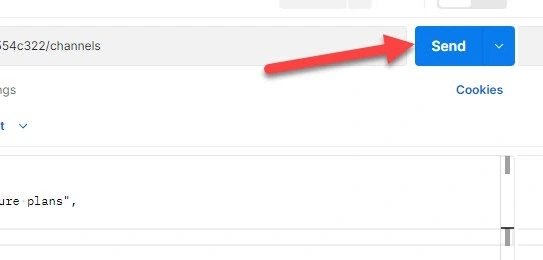
Step 9. Now we have the Team ID, and we are ready to test the API from the POSTMAN. Go back to the POSTMAN tool and format the URL as below. Change the request type to ‘POST’. From step 6 from the previous section, replace the ‘Team-ID’ with the ID value you got from the graph explorer.
https://graph.microsoft.com/v1.0/teams/c45709b7-369b-4cdf-8853-0cb84554c322/channels
The screen should look like below. The URL should be changed based on your team's ID property.
Viknaraj ManogararajahPosted Aug 30, 2022, 8:18 AM
Good explanation. Thank you for sharing.